
Team & licences
Team & licences is where you manage the people at your company and the licences they work on. One page, one card per person, with the licences they hold nested underneath.
Find it in the sidebar of your Shine Forms account, or go to account.shineforms.co.uk/company/people.
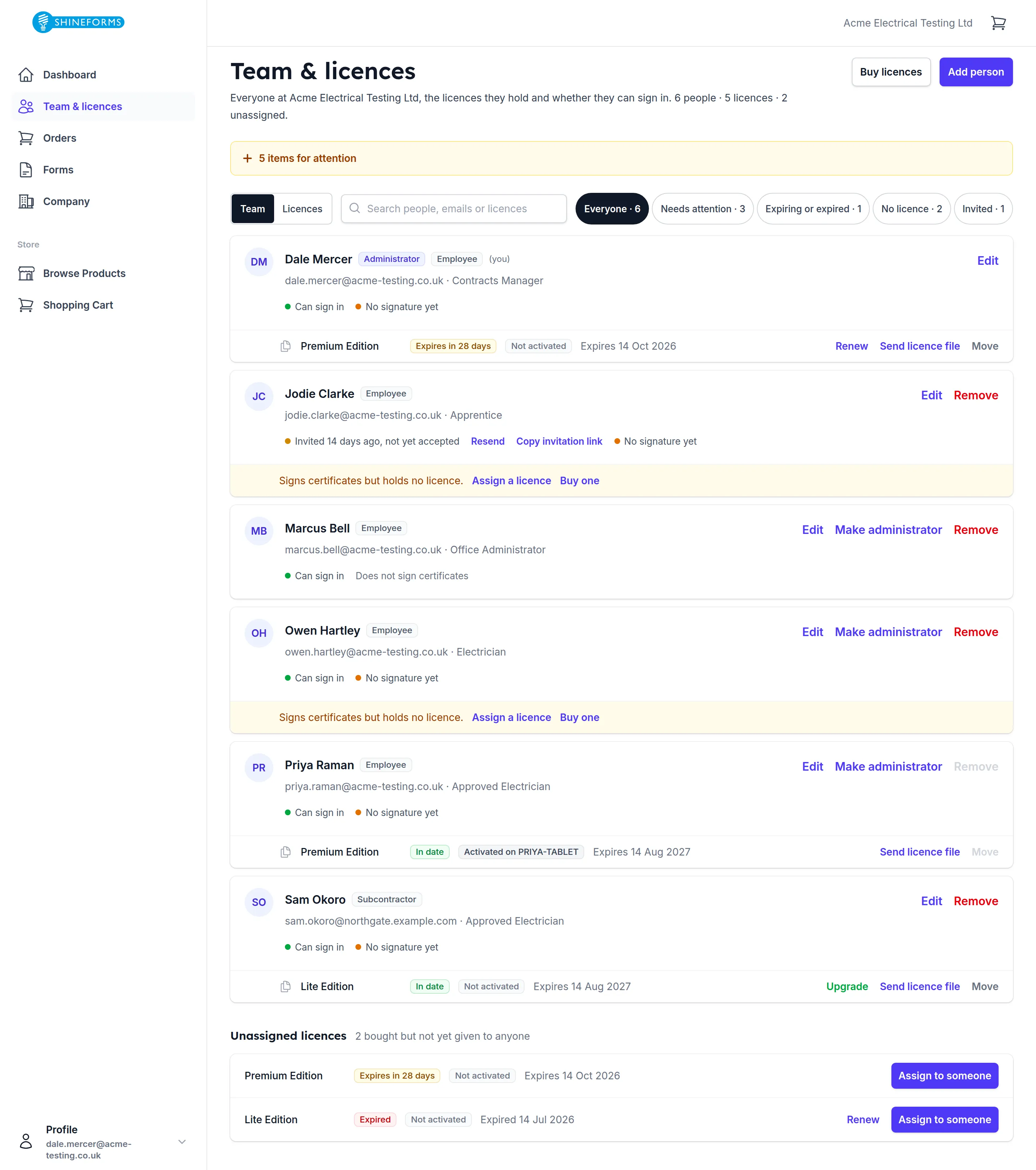
Every person’s card tells you three things at a glance: who they are (their name, their position and whether they are an employee or a subcontractor), whether they can sign in, and which licence they hold.

The chips after the name are their capacities — Administrator, Employee or Subcontractor — and the coloured dots below are their current state: whether they have a login yet, and whether they have added a signature. The row underneath is the licence they hold.
What needs your attention
The amber bar at the top counts the things waiting for you. It stays out of your way until you open it with the +.
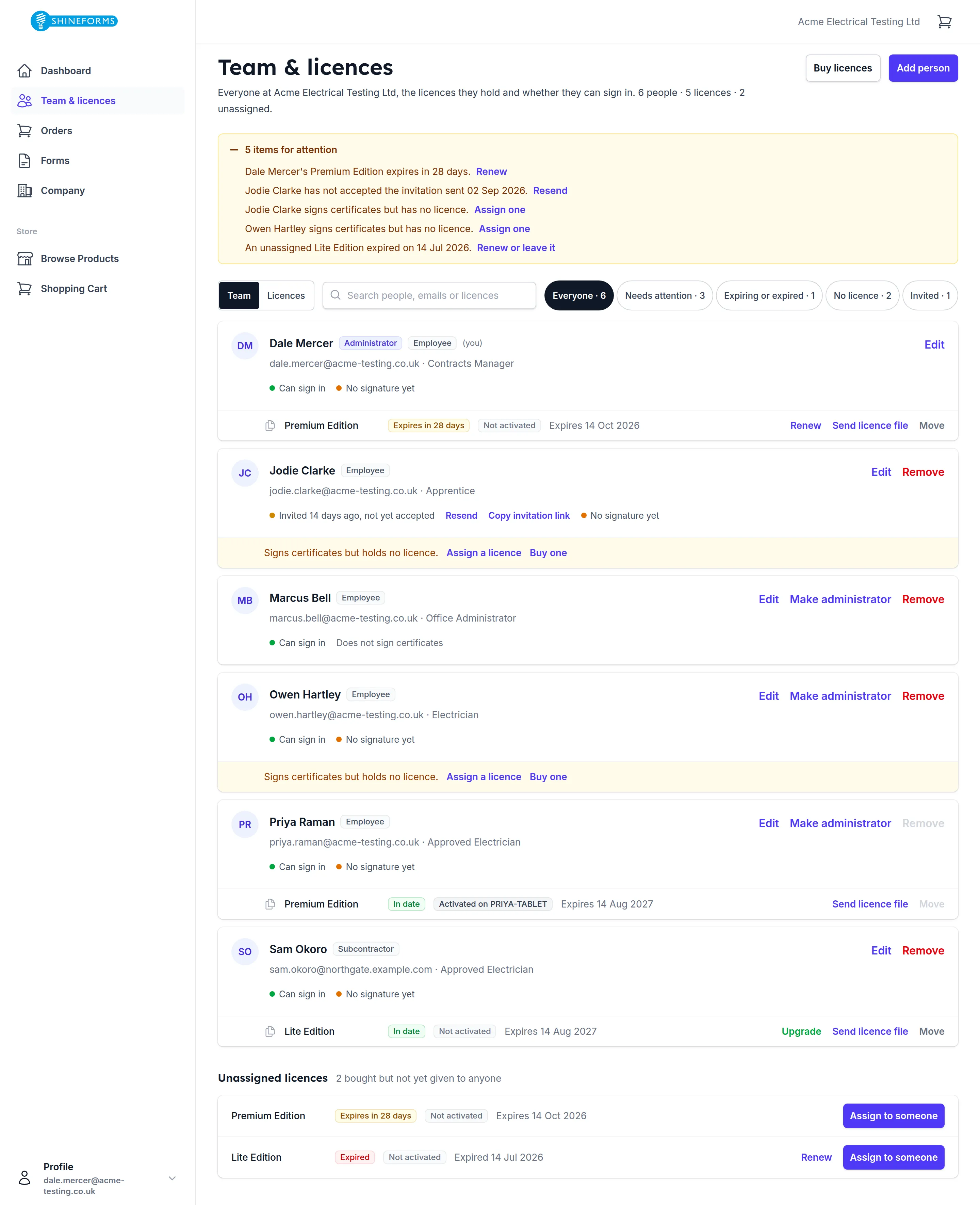
It collects, in order:
- someone who declined an invitation
- someone invited a week or more ago who has not accepted
- someone who signs certificates but holds no licence — they cannot issue anything until you fix it
- a licence expiring within 90 days
- an unassigned licence that has expired
Each line has the action that deals with it, so you can work down the list and stop when it is empty.
Adding someone
Add person asks for a name, an email address, and two decisions.
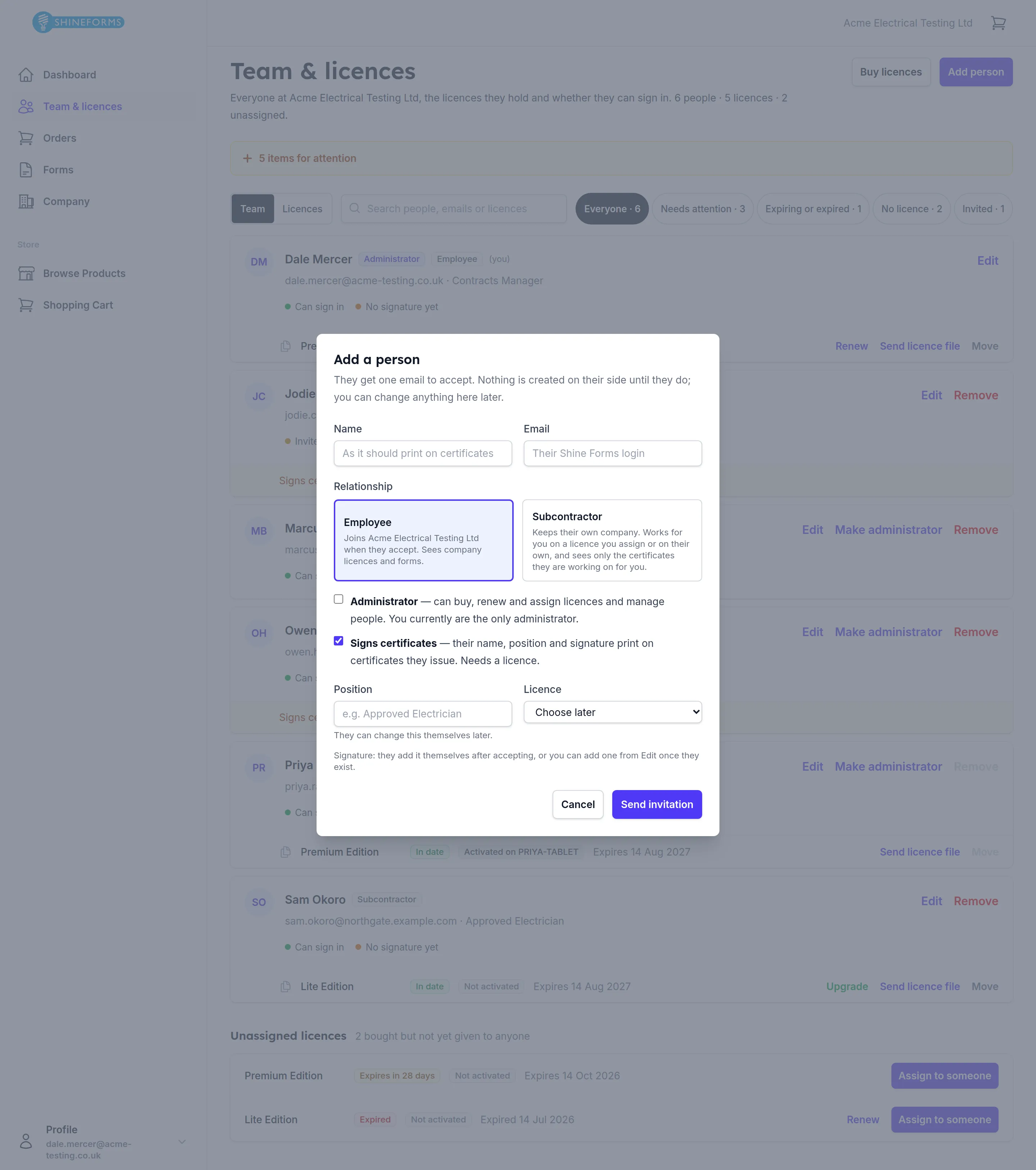
Employee or subcontractor is the important one:
- An employee joins your company. They see your company’s licences and certificates.
- A subcontractor keeps their own company. They work for you on a licence you assign or on one of their own, and they see only the certificates they are working on for you — not the rest of your work.
Signs certificates decides whether they get a certificate identity. Tick it for anyone whose name and signature should print on a certificate; they will need a licence. Leave it unticked for a colleague who needs account access but never issues anything — an office administrator, say. Their card then reads Does not sign certificates, and they use no licence.
You can also make someone an administrator, which lets them buy, renew and assign licences and manage people, exactly as you can. Administrators must be employees — a subcontractor keeps their own company, so they never administer yours.
They get one email to accept. Nothing exists on their side until they do, and you can change anything on this page in the meantime. Invitations do not expire; if one goes astray, use Resend or Copy invitation link on their card.
Giving someone a licence
A licence is bought by your company and then held by one person. Someone who signs certificates but holds no licence gets an amber line on their card with Assign a licence on it.
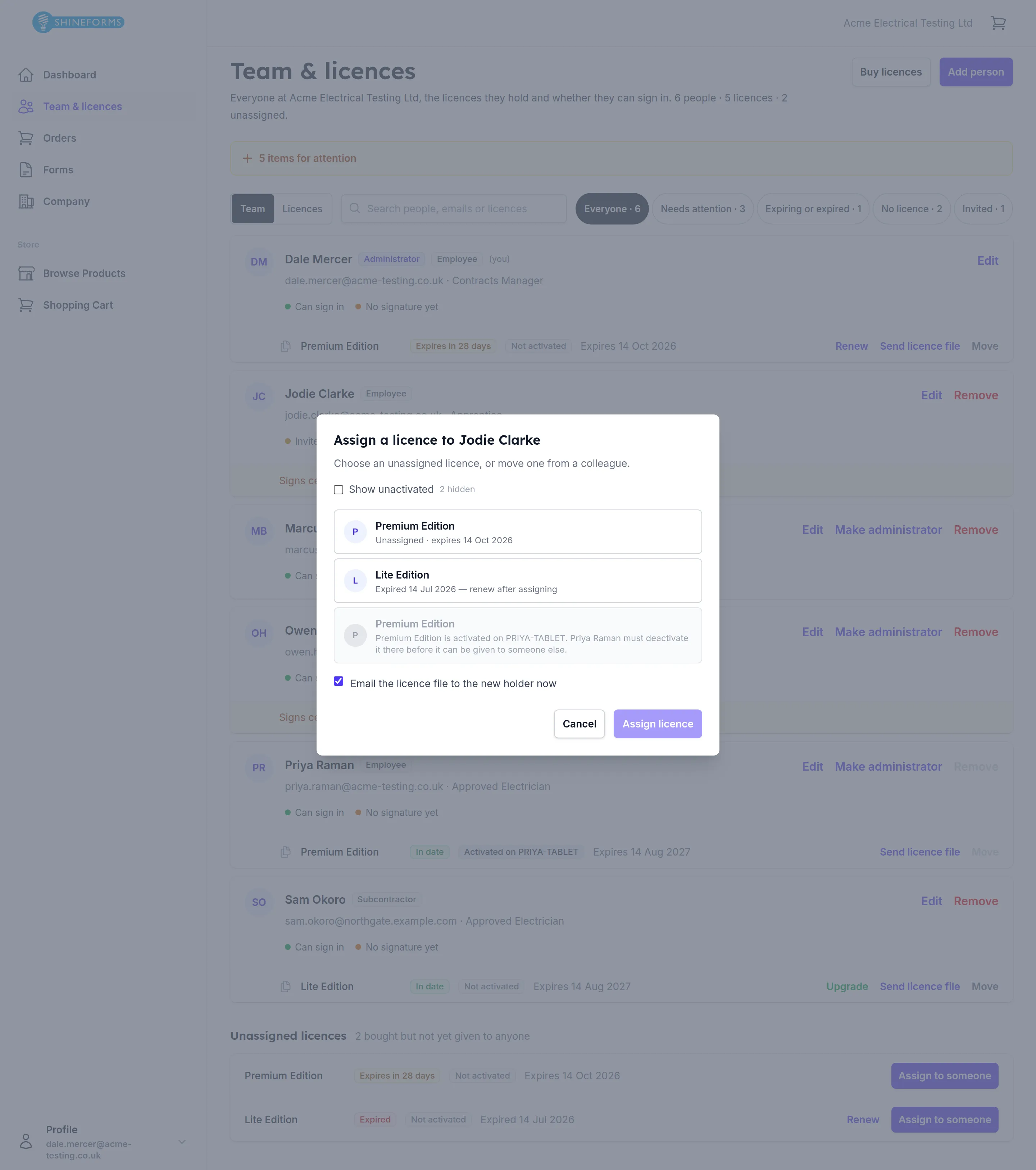
The dialog lists the licences you can give them — the unassigned ones first. Tick Email the licence file to the new holder now and they receive it straight away.
A licence in use cannot be moved
Look at the greyed-out licence in that list. Once a licence has been activated on a device, it stays with the person holding it until they deactivate it there. Nobody can release it from this page, and for good reason: the licence is running on someone’s laptop or tablet, and only that device can give it up.
While that is true you will also find that person’s Remove and Move greyed out. If you need their licence back, ask them to deactivate it in the app first — then it moves freely.
Two chips on every licence
Each licence row carries two labels, and they answer different questions:
| In date · Expires in N days · Expired | Is the licence paid up? |
| Activated on {device} · Not activated | Is anyone using it? |
They are independent. A licence can be perfectly in date and installed nowhere — that is exactly what In date · Not activated means, and it is worth noticing: you have paid for something nobody is using.
Seeing your licences as a list
The Team / Licences switch at the top swaps the person cards for a flat table of every licence your company owns, held or not.
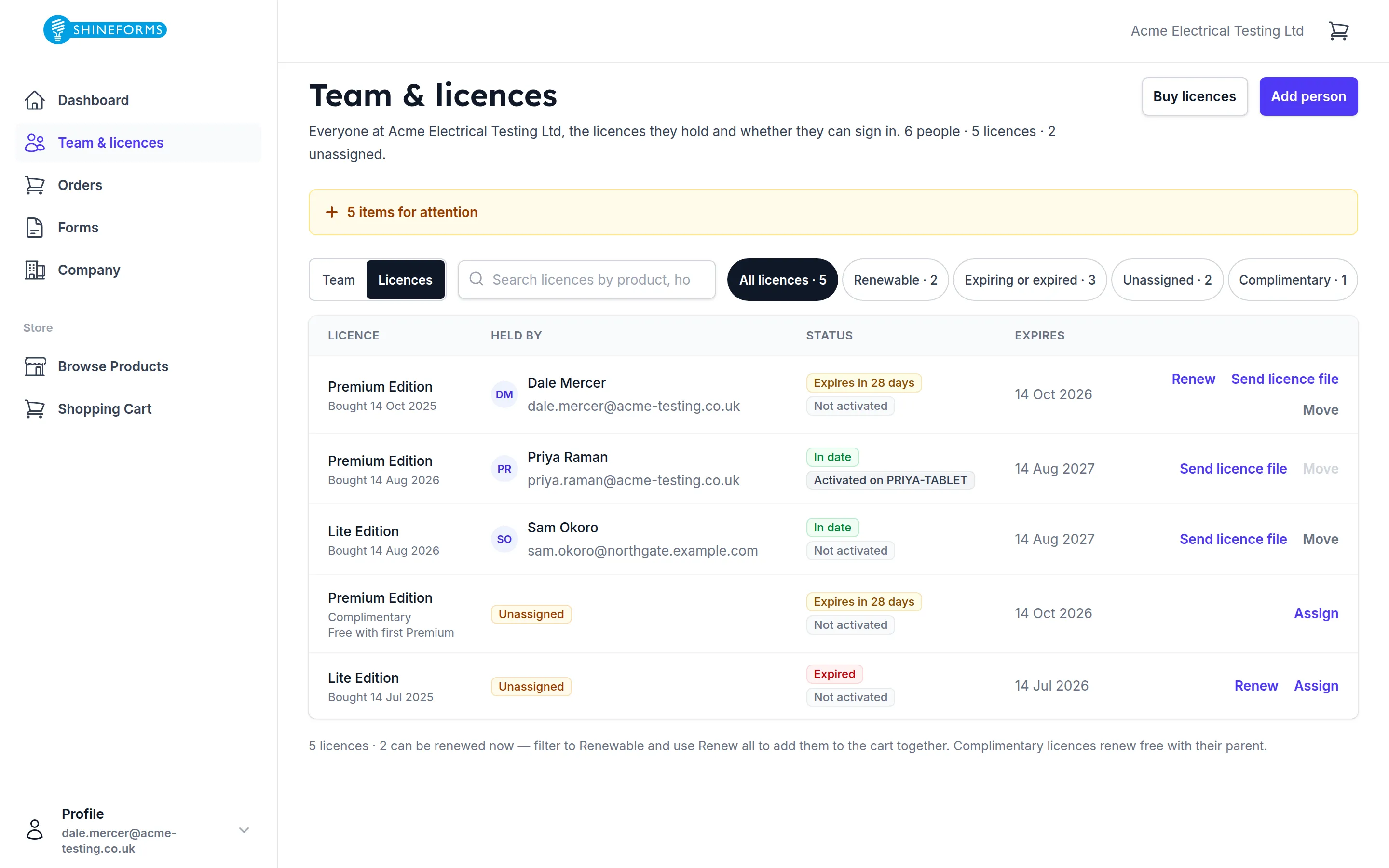
This is the view for licence housekeeping rather than people: who holds what, what is expiring, what is sitting unassigned. Filter to Renewable and you get a Renew all button that adds every renewable licence to your basket in one go, expired ones included.
Removing someone
Remove takes a person off your team. Before it does anything it tells you exactly what will happen: their licence is unlinked, their signature is deleted, and they stop being able to see your company’s work.
Two things do not happen. Certificates they have already issued are untouched — their name stays on them, as it must. And if you add them again later, they come back as a new person, not reconnected to that earlier work.
You choose what becomes of their licence: keep it unassigned so you can give it to someone else, or move it straight to a named colleague. And as above, if their licence is activated on a device you cannot remove them at all until it is deactivated — otherwise the licence would be stranded, still running on a device with nobody at your company able to reach it.
You can never remove yourself, and you cannot remove the last administrator’s access.
Your company details
The Company page holds the details that print in the contractor section of every certificate, along with your logos and your test-instrument library.
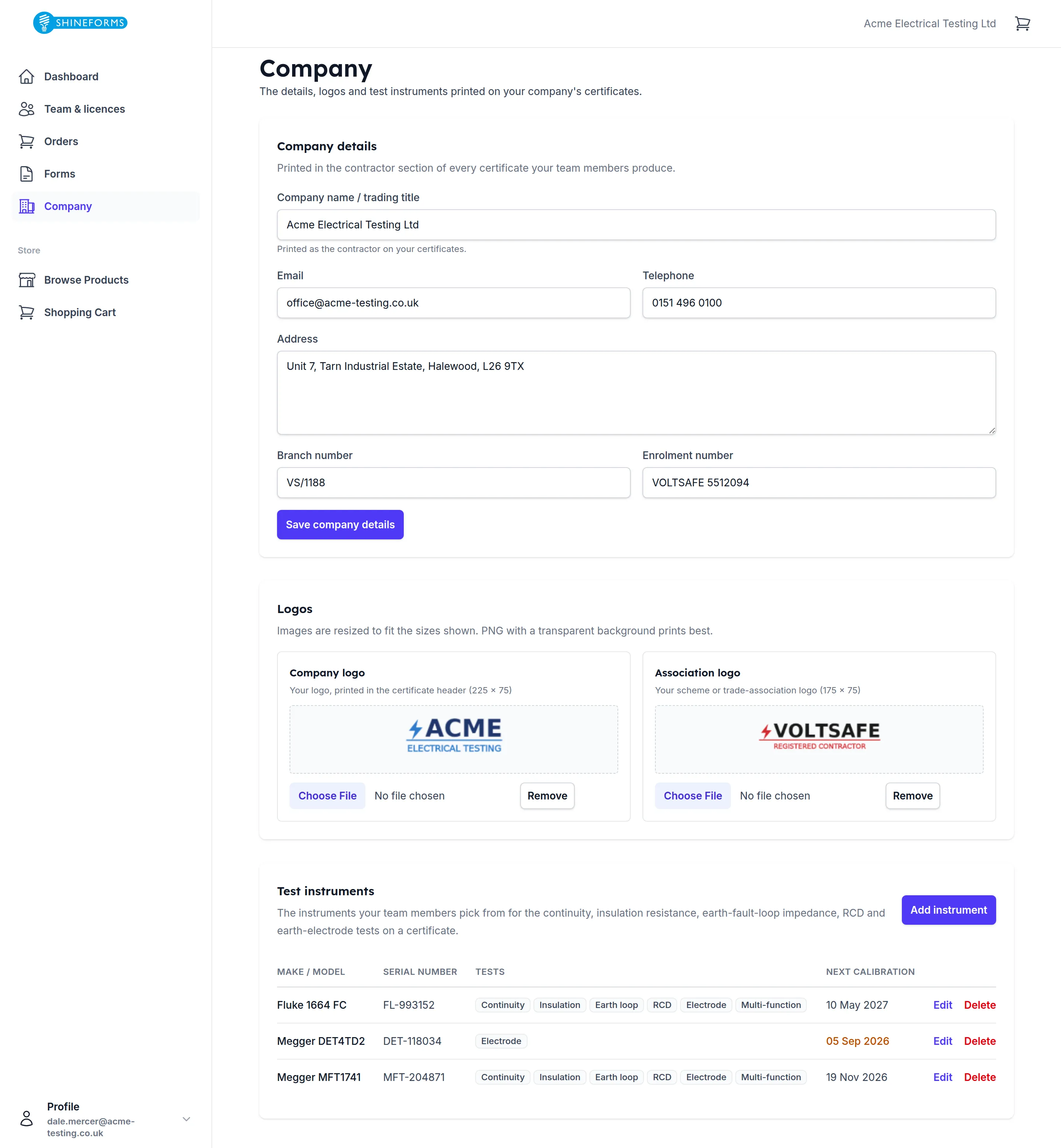
It is worth a look when you first set up: the name, address and enrolment numbers here are what your customers see on the paperwork.
What everyone else sees
This page changes shape depending on who is looking.
- Administrators see everything above.
- Employees who are not administrators see the same directory read-only — names, roles and licences, so they know who to ask — plus their own profile card, where they set their position and their signature.
- Subcontractors see a page called Your licences instead: one card for each company they work for, with the licence that company has given them.
- Someone with no company yet gets two choices: buy for themselves (the first purchase creates their company and makes them its administrator), or ask an existing company to add their address.