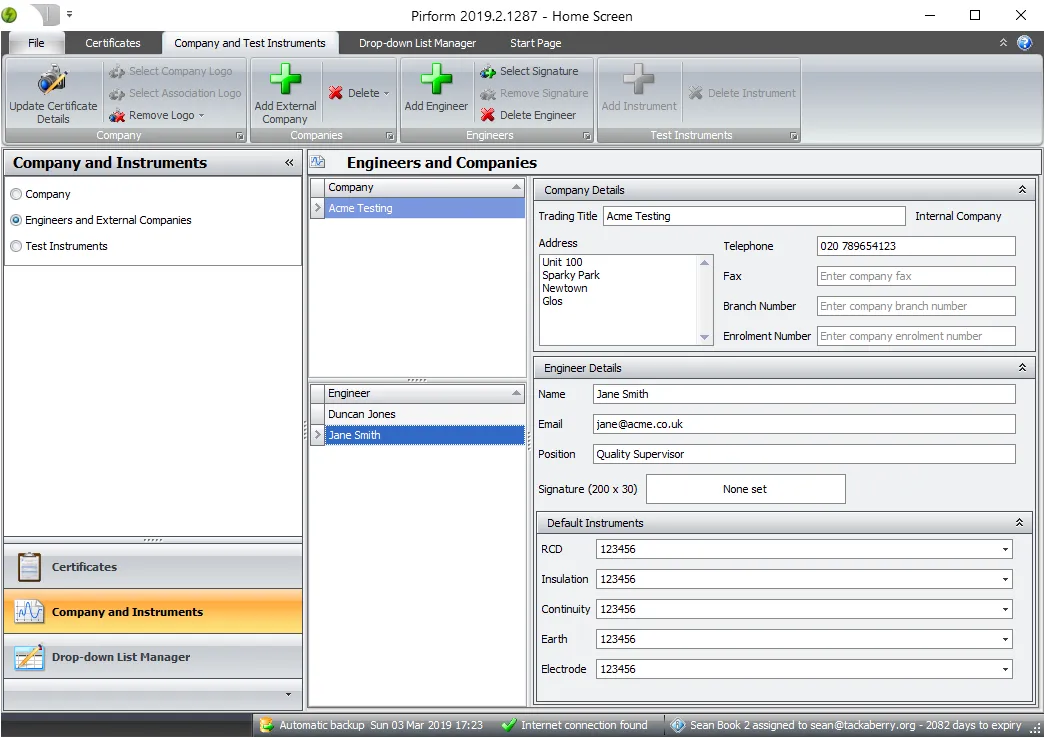
After you have installed Shine Forms, it is quick and easy to get started working on certificates.
You can easily share company and engineer details between machines. Read how to do that here exporting company details.
If your company keeps its details, logos and test instruments on Shine Forms Online, you can download them straight into Shine Forms. Read how in Shine Forms Online.
Company information
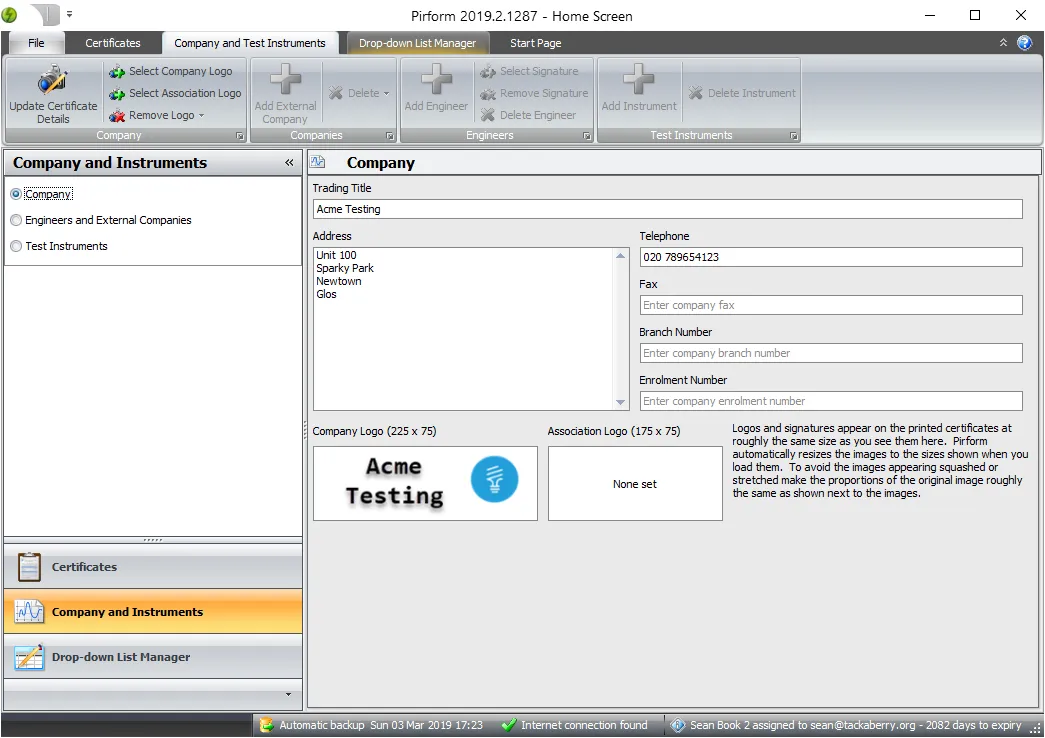
Open Shine Forms, and click the Company and Instruments tab, located at the bottom left of the Home Screen. Enter the company name, address and other details that you want to appear on your certificates.
Company and association logos
Set up the company and association logos that you want to appear on your certificates.
Your logos need to be in an image file such as a .JPG, .PNG, .BMP, etc. You won’t be able to use Word or PDF documents.
While still in the Company and Instruments tab, click Select Company Logo and choose your company logo. The logo editor opens so that you can fit the logo into its space on your certificates. When you save it, you will see the logo below the company address.
Add your association logo in the same way by clicking Select Association Logo. To change a logo later, double-click it.
You may need to download your association logo from their website.
Fitting your logo
Each logo has a space of a fixed size on your certificates:
| Logo | Size (pixels) |
|---|---|
| Company logo | 225 x 75 |
| Association logo | 175 x 75 |
An engineer’s signature is resized to 260 x 35, so a signature image of about that shape looks best.
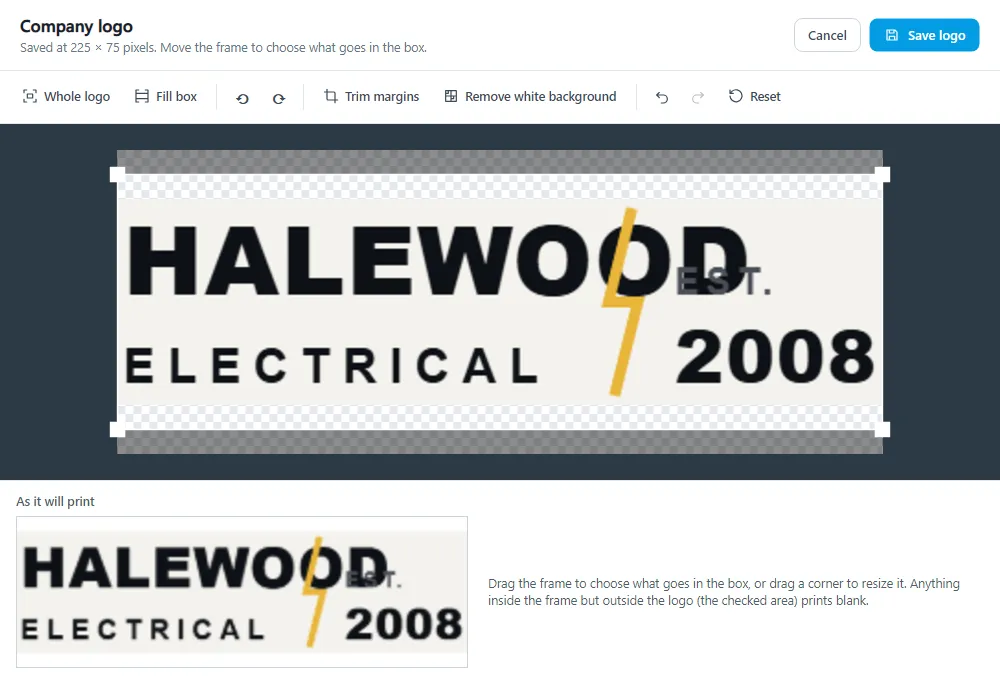
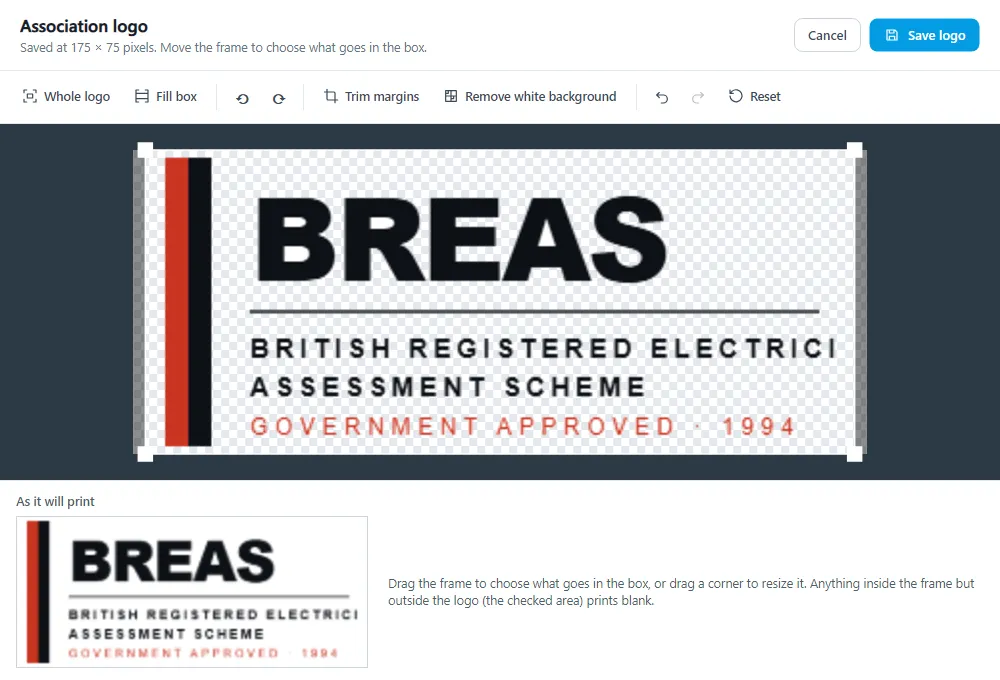
Your logo doesn’t have to be that shape. The logo editor shows your logo with a frame over it that is the shape of the space, and whatever is inside the frame is what prints. Shine Forms never stretches your logo to fit.
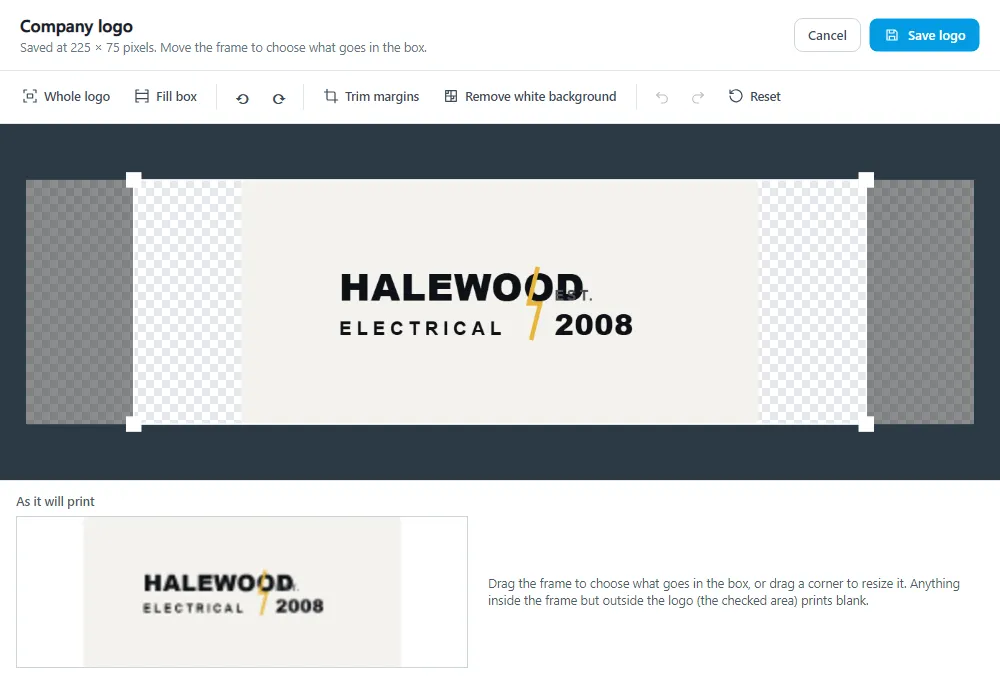
- To start with, the frame takes in your whole logo, centred. The checked area inside the frame is outside your logo, and prints blank.
- Drag the frame to move your logo within its space. For example, drag the frame to the right to line your logo up on the left, as shown below.
- Drag a corner of the frame to make it smaller and zoom in on part of your logo.
- Whole logo puts the frame back around your whole logo. Fill box fills the space with your logo, cutting off whatever doesn’t fit.
- As it will print, at the bottom, shows your logo exactly as it will be saved.
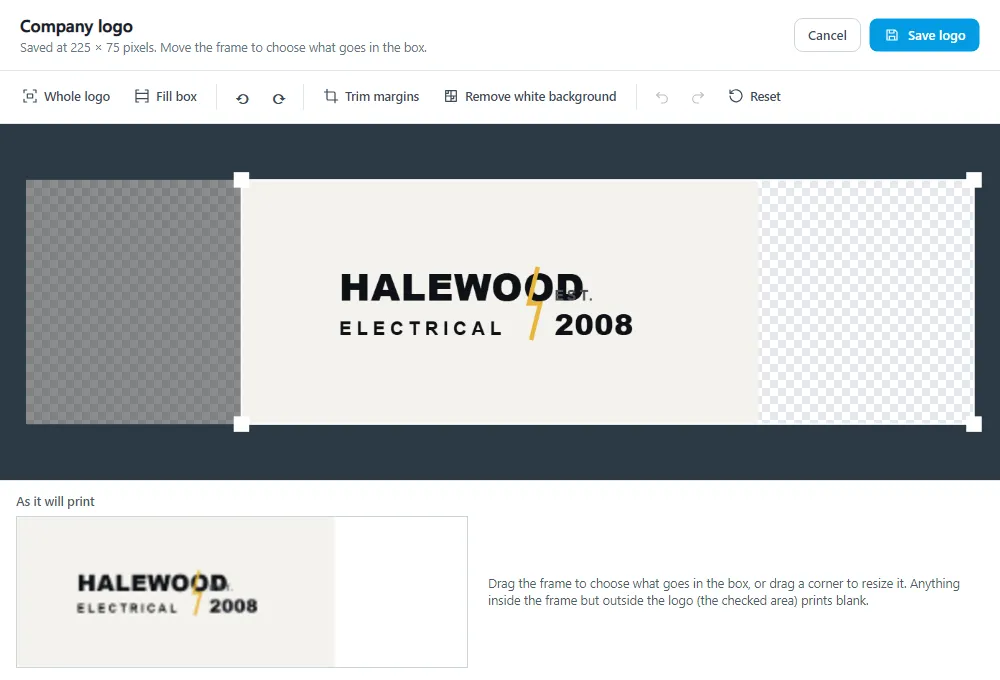
Click Save logo to use your logo, or Cancel to keep the logo you had.
Tidying up your logo
Many logo files have wide empty margins, or sit on a white or off-white background. Two buttons help with this:
- Trim margins crops away the empty margins, so that your logo fills more of its space.
- Remove white background makes the white or off-white background around your logo transparent, so that it doesn’t print as a pale box. White inside your logo, such as the inside of lettering, is kept.
If you don’t like the result, click Undo, or Reset to go back to the image you chose. You can also rotate a logo that is on its side.
Use the largest, clearest copy of your logo that you have. A small image looks blurred when it is enlarged to fit its space.
Older versions of Shine Forms stretched logos to fill their space. If your logo looks squashed or stretched, choose it again from the original image file. If you share your company details with colleagues, export them again afterwards so that everyone gets the corrected logos.
Test instruments
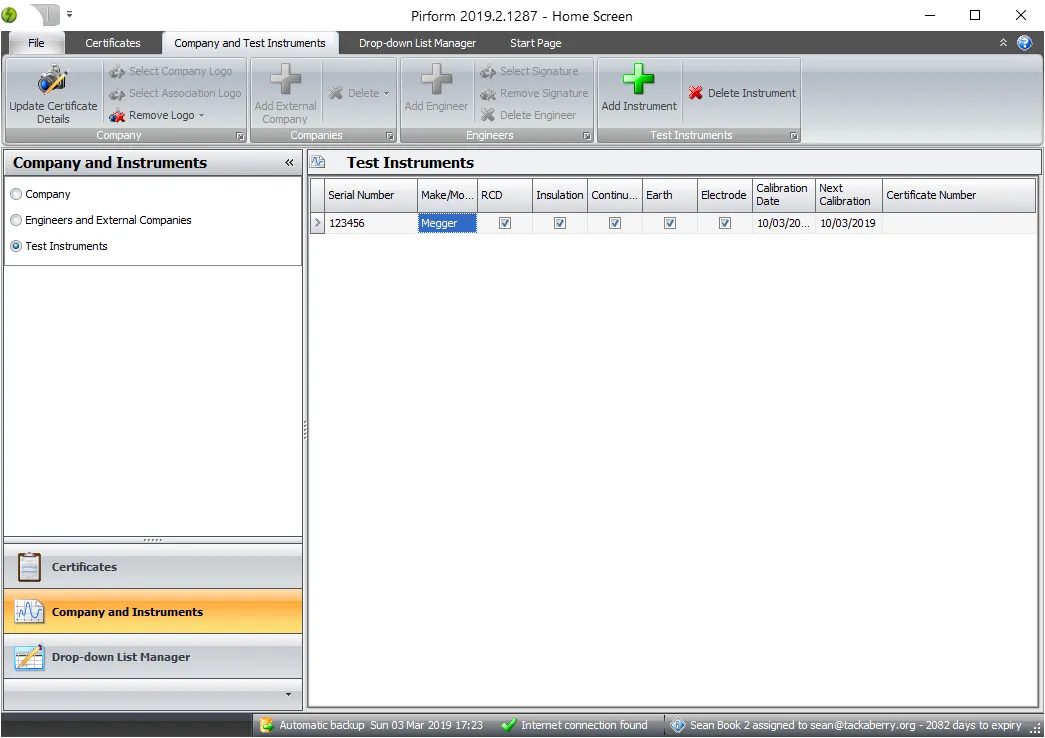
Now click Test Instruments to go to the area where you can set up your instruments. It is easiest to do this before you add the engineer so that we can associate the right instruments with the engineers when we add them later.
From here click Add Instrument in the ribbon and enter the details of the instrument in the grid.
Engineers
Now click Engineers and External Companies to go to the area where you can set up your engineers. From here click Add Engineer in the ribbon and enter the details of the engineer.
Shine Forms automatically uses the instruments you set as default for the engineer in any new certificates you create.