
You can create and reuse fully customised inspection schedules using the Shine Forms Schedule Manager.
Shine Forms makes it easy to work with the inspection schedule and code items as needed.
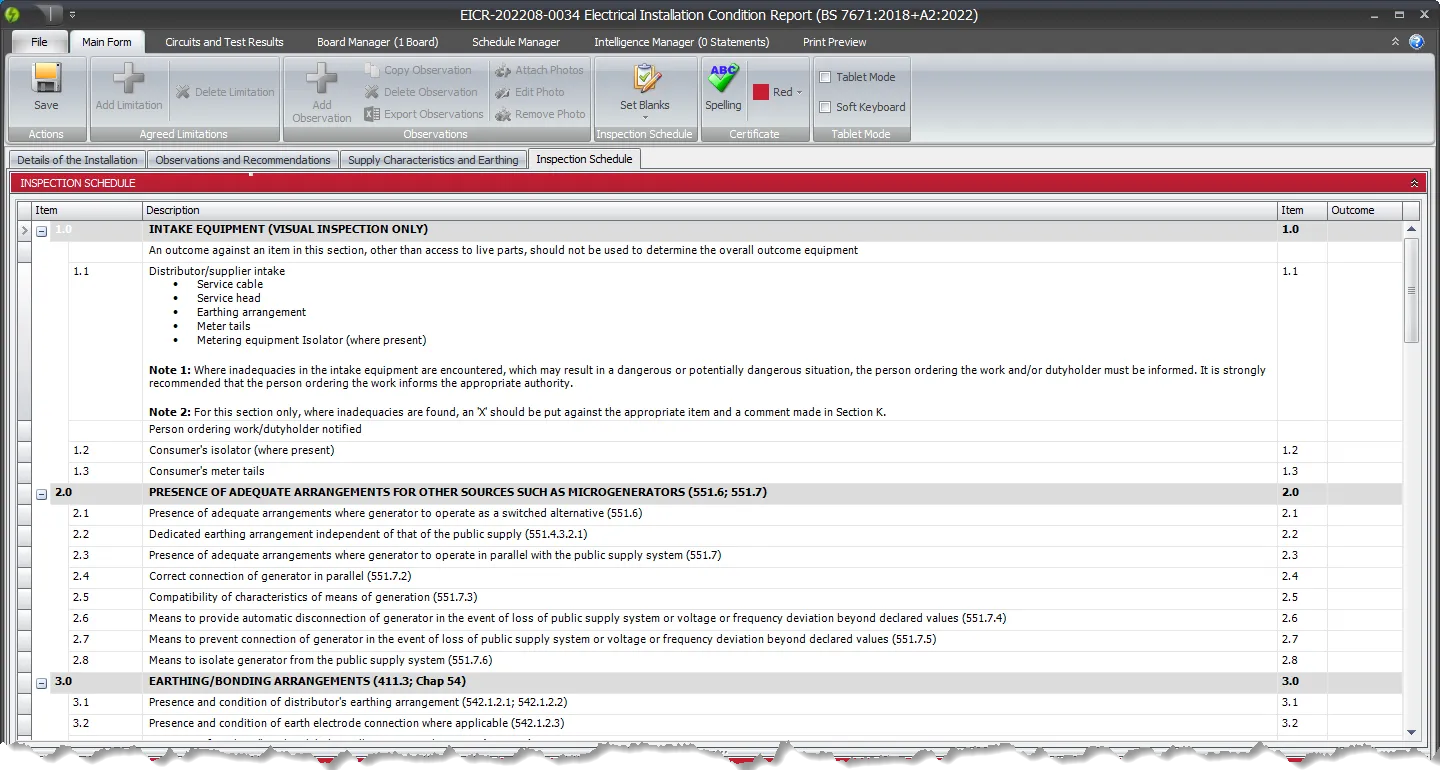
Automatic observations and limitations
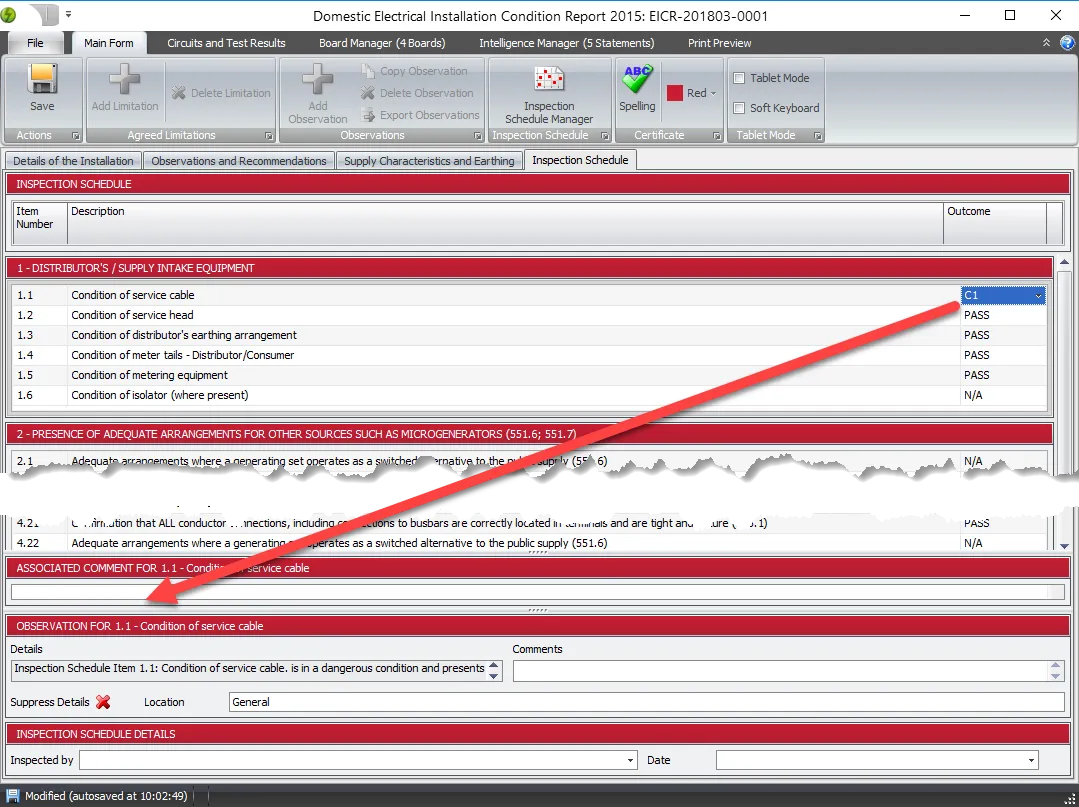
When you code an item with a C1, C2, C3 or FI, Shine Forms will automatically create an observation associated with that schedule item. Changing the coding to a different value will remove the observation.
Items in section 1.1 may also be marked X. BS 7671 allows any item in that section to be marked this way, and requires a comment against it in section K of the EICR, so Shine Forms carries the X through to the observations for continuity. Section 1.1 is the only place X is used.
You can work with the associated observation directly in the inspection schedule screen.
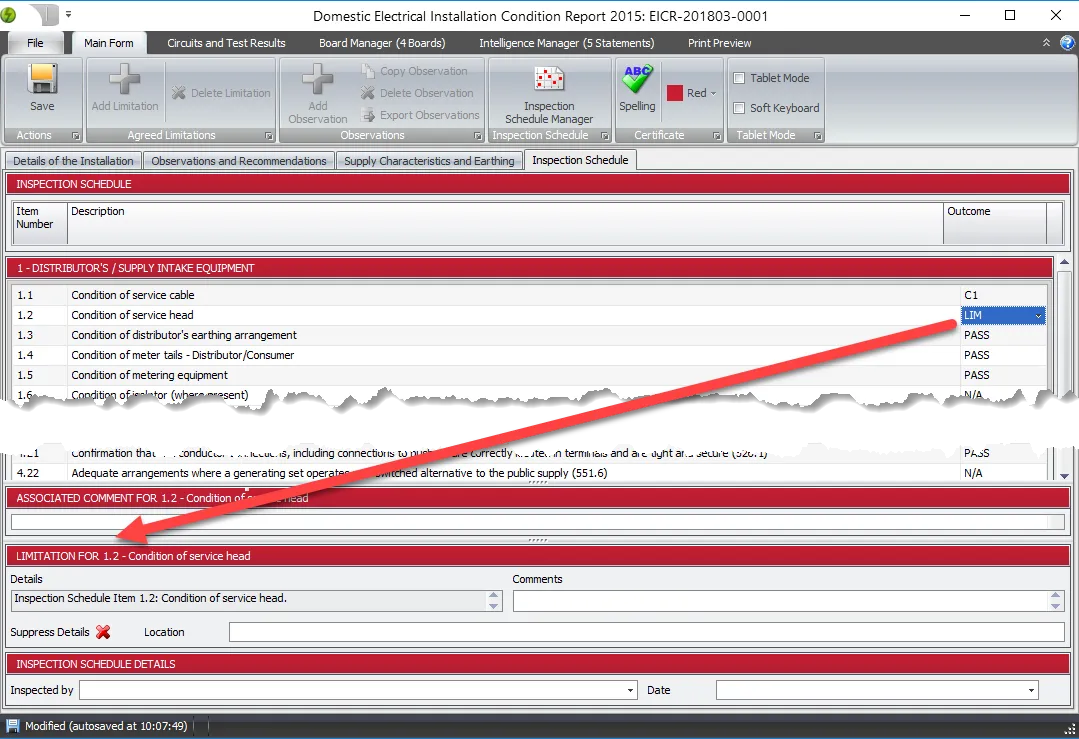
Similarly, limitations are automatically added when you code an item to LIM:
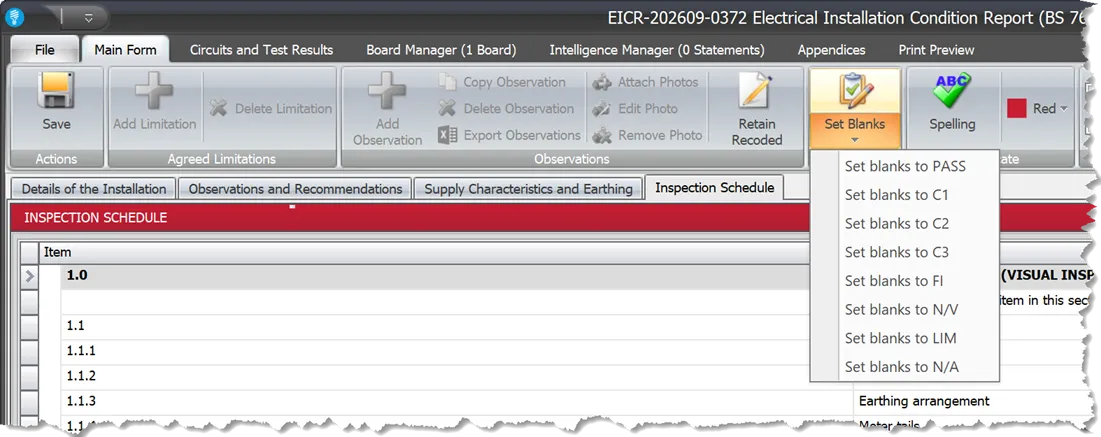
Setting Multiple Values
After filling in other values, you can use the button Set Blanks in the ribbon to set all remaining blank values in your inspection schedule.
Excluding schedule items that do not apply
You can use the Shine Forms Schedule Manager to tailor an inspection schedule to the needs of your inspection.
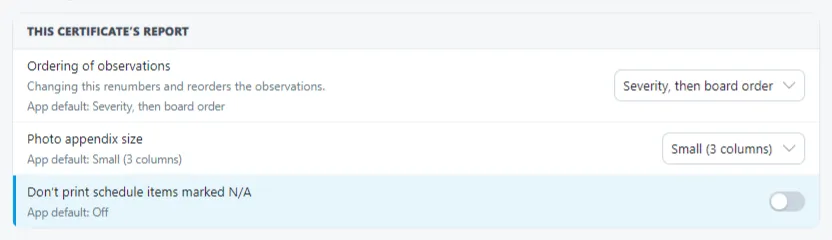
You can exclude items marked as not applicable (N/A) from the PDF. A notice is shown to indicate that only applicable items are shown and the numbering of the items is the same as if they were all present on the printed certificate.
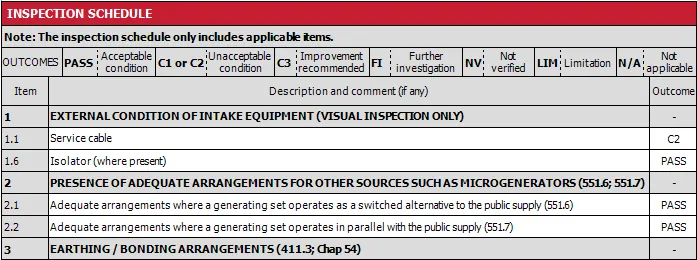
This option is available in the Certificate Options dialog.
Replacing an inspection schedule
Changing the schedule does not re-run intelligence. After you apply a change, check the codes, observations, limitations and intelligence on the certificate.
On EICR 2022, 2024 and 2026 certificates, go to the Inspection Schedule page and click Change Schedule in the Schedule group on the Main Form ribbon tab. You don’t need to turn anything on first.
The Schedule Manager opens over the certificate. There you can copy items, sections or a whole schedule in from your library and keep the codes you have set, code items, remove items, notes or sections, replace the whole schedule, or clear all codes. Nothing changes until you review the changes and click Apply.
See Change schedule for the details.