
Forms
Forms is every certificate your team has sent up from Spectrum or Pirform, in one list, with the PDFs each one has produced. Nothing is uploaded here — certificates arrive on their own as your engineers finish them — so this is where you come to find one, not to make one.
Find it in the sidebar of your Shine Forms account, or go to account.shineforms.co.uk/forms.
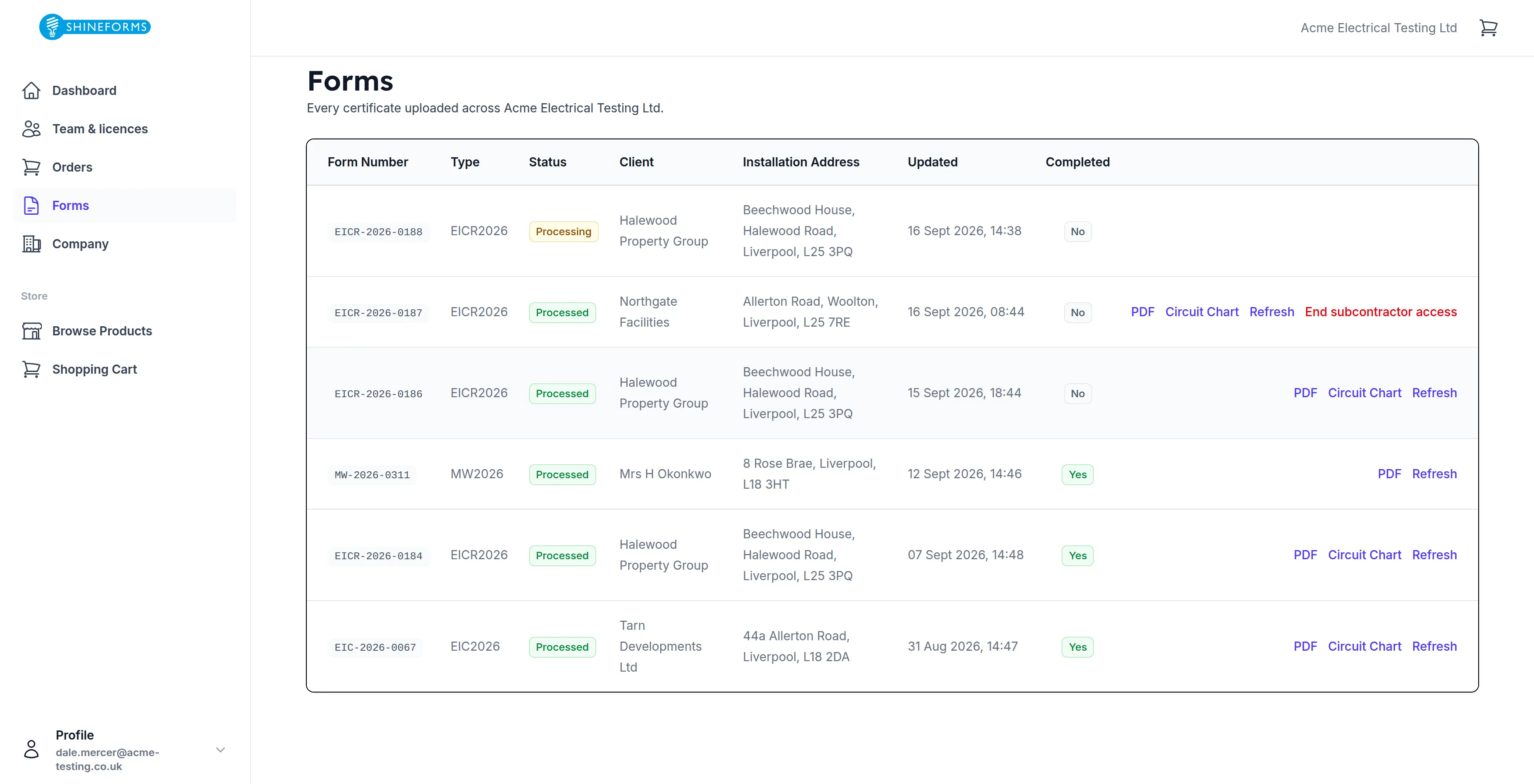
The line under the heading tells you whose work you are looking at. If you are an employee it reads Every certificate uploaded across {your company} — and it means it: every employee sees every certificate their company has issued, not only their own. If you also do work for a client as a subcontractor, it says so and the list is the two sets together.
What a row tells you
Form Number is the number the certificate carries, and the link to the rest of it. Bear in mind the number can change after upload — a certificate renumbered on the tablet keeps its place in this list and takes the new number with it.
Type is the form: EICR2026, EIC2026 or MW2026 today. It decides what the certificate produces, which is why the actions on the right are not the same on every row — see below.
Status is how far the certificate has got through rendering:
- Uploaded — it arrived safely and rendering has not started.
- Processing — it is being turned into PDFs. This normally lasts seconds.
- Processed — done. This is the only status that offers you anything to download.
A certificate still reading Processing an hour later has not been forgotten about — it has got stuck. Nothing will clear it by itself; tell support the form number.
Client and Installation Address are taken off the certificate, so they are whatever your engineer entered. Updated is the last time anything changed, shown in your own time zone.
Completed is the one that catches people out. It is not about the PDF — it is whether the engineer has finished with the certificate on their device. A certificate can be Processed with a perfectly good PDF and still read No, because the engineer means to add to it and send it up again. When they do, this row is updated rather than a second one appearing.
Getting the PDF
A processed certificate offers PDF, and — on an EICR or an EIC — Circuit Chart as well. They are two separate documents: the certificate itself, and the schedule of circuit details and test results that goes with it. Minor Works produces one document and so offers one link.
Both open in a new tab on a link that is only good for five minutes. That is long enough to read or save it and short enough that a copied address is no use to anybody later. If nothing happens when you click, it will be your pop-up blocker.
Refresh asks for the PDFs to be rendered again from the certificate data. It is the thing to reach for when a certificate was issued before you fixed your company details or uploaded a logo: the render picks up whatever your company settings say now, so refreshing restamps the certificate with the corrected branding. It is not instant — the request is queued and the page does not update itself, so give it a moment and reload.
Downloading and refreshing are limited to the person who uploaded the certificate, and company administrators. Everyone else can see the row and open the certificate, but the download will refuse.
One certificate in full
Clicking a form number opens everything recorded about it.
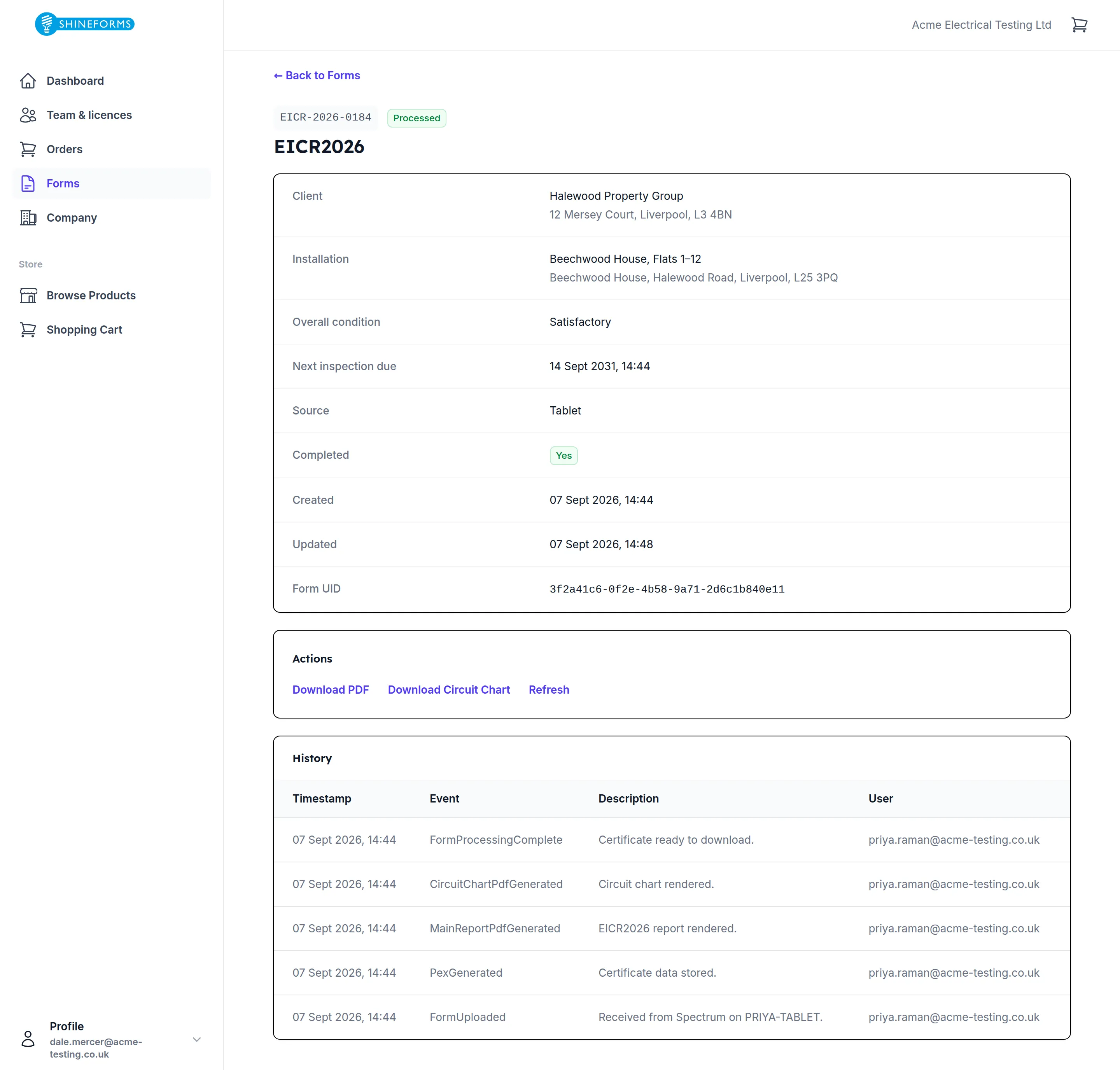
The top half is what the certificate says: the client and the installation with their addresses, the overall condition where the form has one — Satisfactory or Unsatisfactory on an EICR — and next inspection due, both read off the certificate itself rather than typed here. Source says which product it came from, Tablet for Spectrum or Desktop for Pirform.
History underneath is the full audit trail: every step taken on this certificate, newest first, with who it came from. The event names are the internal ones rather than friendly labels, but they read straightforwardly enough — FormUploaded when it arrived, PexGenerated once the certificate data was stored, MainReportPdfGenerated and CircuitChartPdfGenerated as each document was rendered, FormProcessingComplete when it was ready. If a certificate ever looks wrong, this is the first thing support will ask you for.
A certificate you are not allowed to see reads Form not found rather than telling you it exists.
Subcontractors and what they can see
A subcontractor is not an employee, and the list treats them differently. They see only the certificates they are working on for you — their own uploads, and only while the certificate is still open. The moment they mark it complete, it leaves their list and stays in yours.
Sometimes you want it gone sooner: the job has moved on, or the working relationship has. End subcontractor access does that.
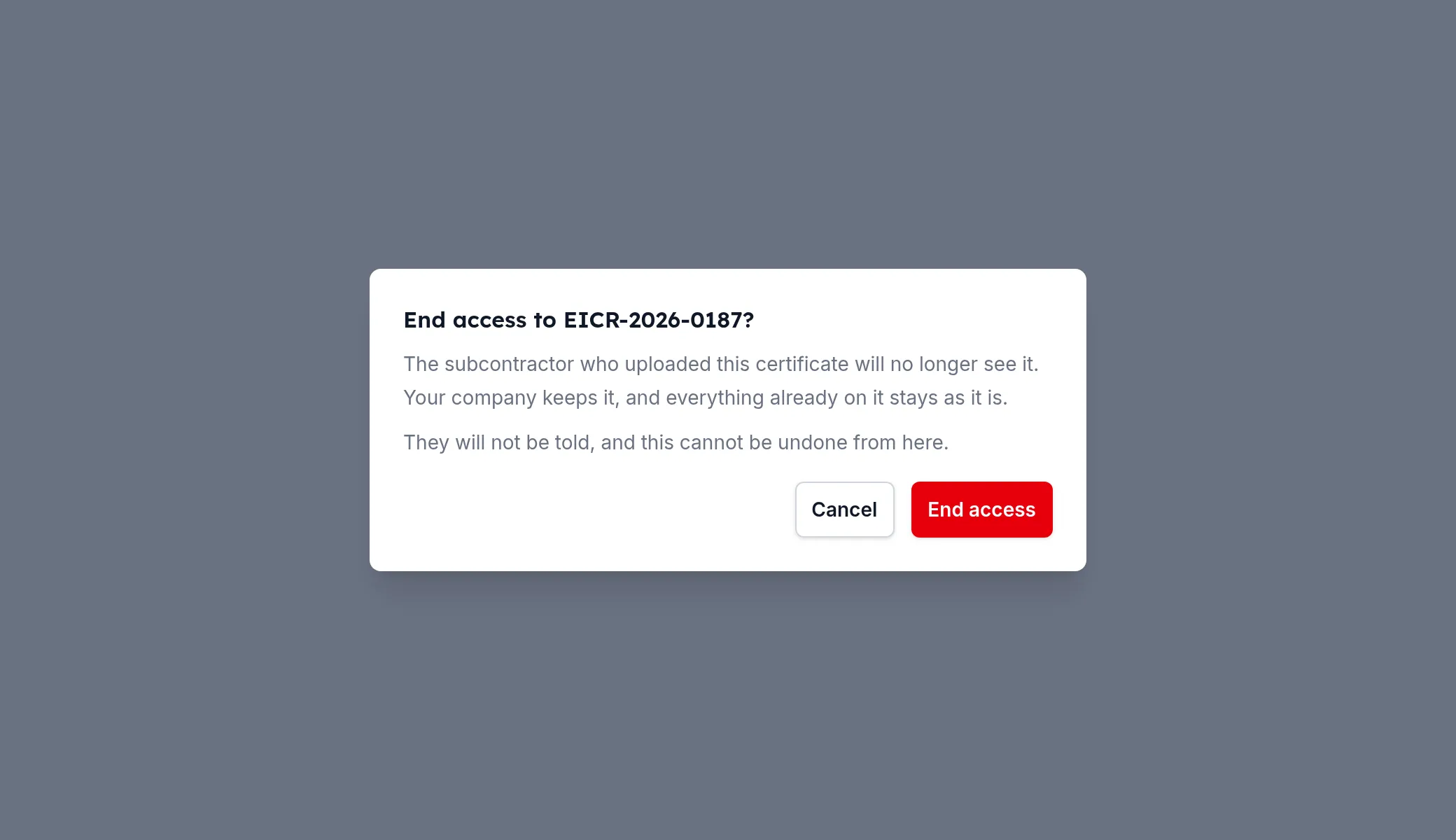
It appears only where it can apply — on a certificate uploaded by a subcontractor of yours, still open, that nobody has already withdrawn — and only for administrators. Your company keeps the certificate and everything on it; all that changes is that the subcontractor can no longer open it.
They are not told, and you cannot undo it from here. Nothing else about the certificate changes, so if you withdraw access by mistake, the certificate is safe — ask support to put it back.
What everyone else sees
- An employee sees every certificate their company has issued, whether or not they are an administrator. They can open any of them.
- A subcontractor sees only the certificates they are working on for a client, and only while those are open.
- Someone who works for more than one company sees the lot, with a Company filter above the table to narrow it to one at a time.
Downloading, refreshing and ending access are narrower than looking: the first two are for the uploader and administrators, and the third for administrators alone.