Danger
Because you might lose some of your latest work, only proceed if you have been instructed to do this by Shine Forms Support.
This article shows how to restore a single certificate from the last automatic backup.
- Restoring a certificate from the incremental backup will remove the existing certificate and replace it with what was in the last incremental backup.
- The process cannot be reversed and you might lose work.
- Make sure you are only doing this if you have been instructed to do so by Shine Forms Support!
Restoring a certificate from the last incremental backup
To restore a backup from the last automatic incremental backup, follow the steps below.
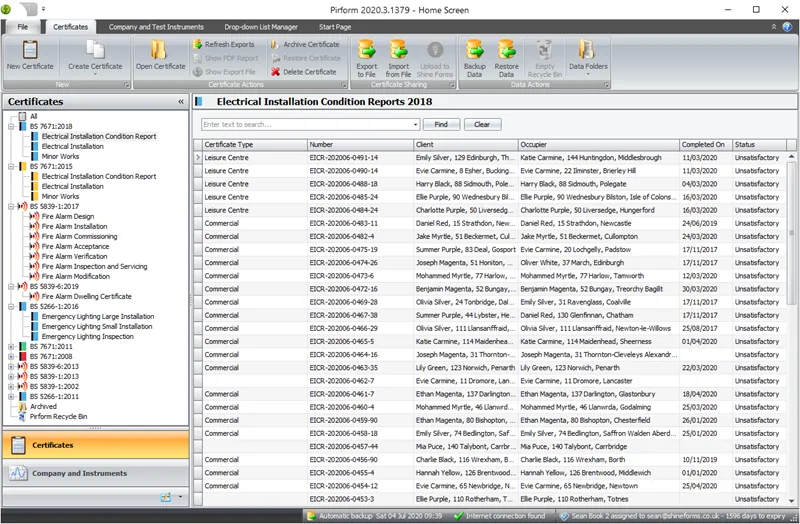
Open Shine Forms and select the certificate you want to restore in the Home Screen:
Hold down the Ctrl and Shift keys on your keyboard and then press the R key. Shine Forms will ask you to confirm that you want to proceed with the restore:
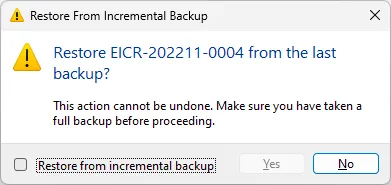
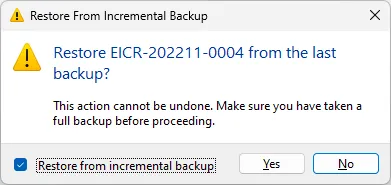
To be able to proceed, you need to tick the box at the bottom and then click Yes:
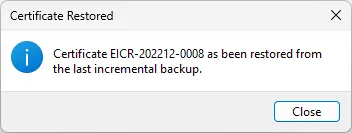
Shine Forms will then restore the certificate from the backup and confirm when completed.