
Company
Company holds the things that are printed on every certificate your team produces: who the contractor is, the two logos at the top of the page, and the test instruments your engineers pick from. Set them once and every certificate anyone issues carries them. It is also where you see the drop-down lists, inspection schedules and style packs your team keeps on Shine Forms Online.
Find it in the sidebar of your Shine Forms account, or go to account.shineforms.co.uk/company.
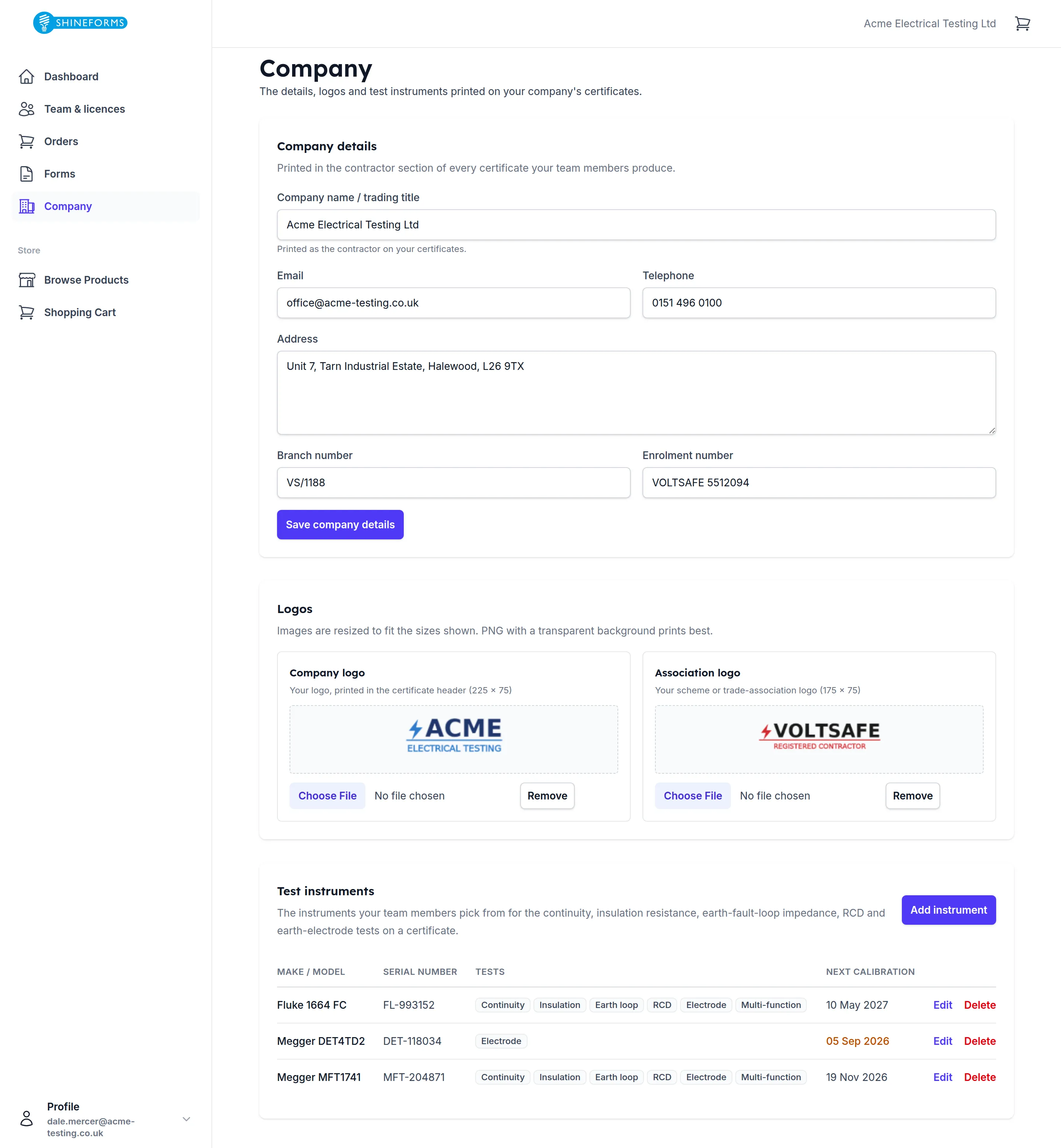
The first three cards are printed in three different places on a certificate. They belong to the company, not to you — change them and they change for everyone. Further down are the values that are yours alone: your own test instruments, lists, schedules and style packs.
Shine Forms Desktop downloads the details, logos and instruments from here: open the Drop-down lists manager from Shine Forms Desktop and use Shine Forms Online….
Company details
These fill the contractor section of the certificate: the block that says who carried out the work.
Company name / trading title is the one field that must be filled in. It is what prints as the contractor, so put the trading name your customers would recognise rather than the registered one if the two differ.
Email, Telephone and Address are your contact details as they appear on the certificate. The address is a free-text box and keeps the line breaks you type, so lay it out the way you want it to read.
Branch number and Enrolment number are your registration with a scheme or trade association — your enrolment number and, if your scheme issues one, the branch it belongs to. On the 2026 electrical certificates the two print as a single value, enrolment / branch, so filling in only one of them is fine: whichever you give is what prints.
Save company details writes all six at once. Nothing is saved until you press it, so you can correct a typo by reloading the page.
Logos
A certificate prints two logos: yours in the header, and your scheme’s alongside it.
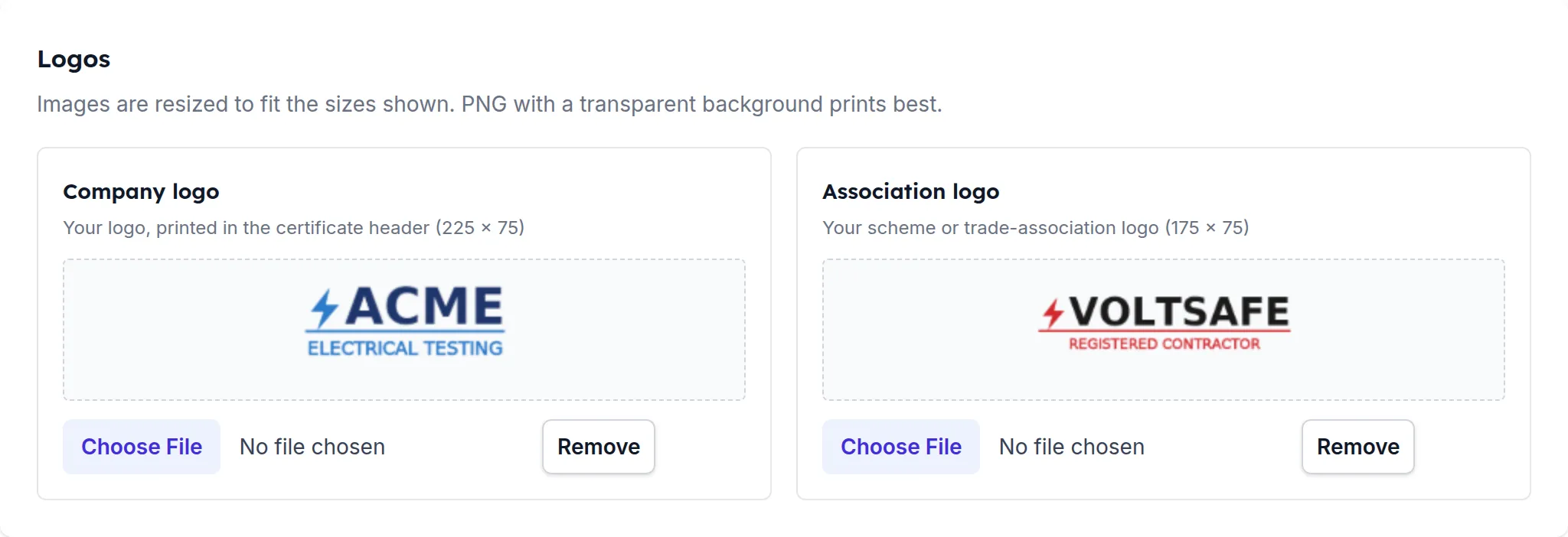
The size in brackets after each description — 225 × 75 for the company logo, 175 × 75 for the association one — is the exact space the certificate gives it. Your image is not stretched to fill that space: it is scaled down until it fits and centred, keeping its proportions. So a square logo on the 225 × 75 canvas ends up 75 wide with empty space either side rather than squashed.
That empty space is transparent, which is why a PNG with a transparent background prints best — a JPEG carries a white rectangle with it and the white will show. PNG, JPEG, BMP, GIF and WebP are all accepted, up to 5 MB.
The preview is not your original file. It is the fitted image exactly as the certificate will print it, so if the result looks small or off-centre in the preview, it will look that way on the certificate too — crop the whitespace out of your file and upload it again.
Choose File replaces a logo immediately; there is no separate save. Remove takes it off again, and the certificate then prints nothing in that space. The next certificate rendered picks up the change on its own — there is nothing to re-issue.
Test instruments
The instrument library is the pick-list your engineers choose from when they record which instrument they used for each test. Adding one here means nobody has to type a serial number on site.
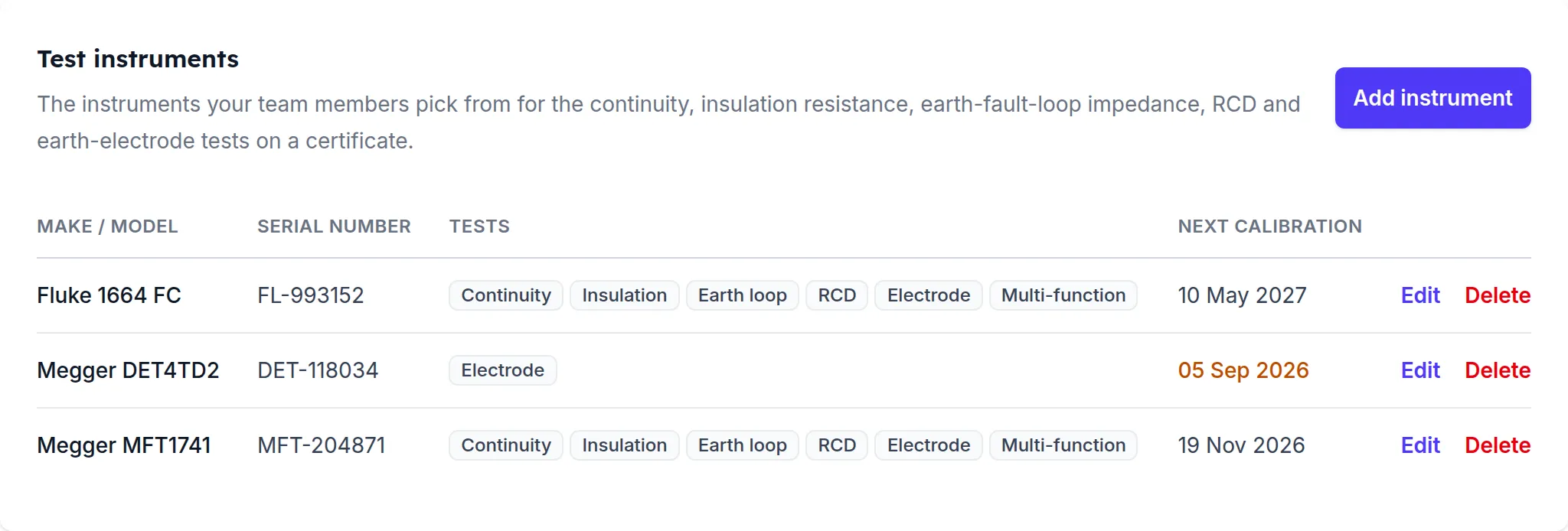
Each row shows the make and model, the serial number, the tests it covers and when it is next due for calibration. A serial number falling due or already past its calibration date turns amber — that is the only warning you get, so it is worth a look before a busy week.
Add instrument and Edit open the same form.
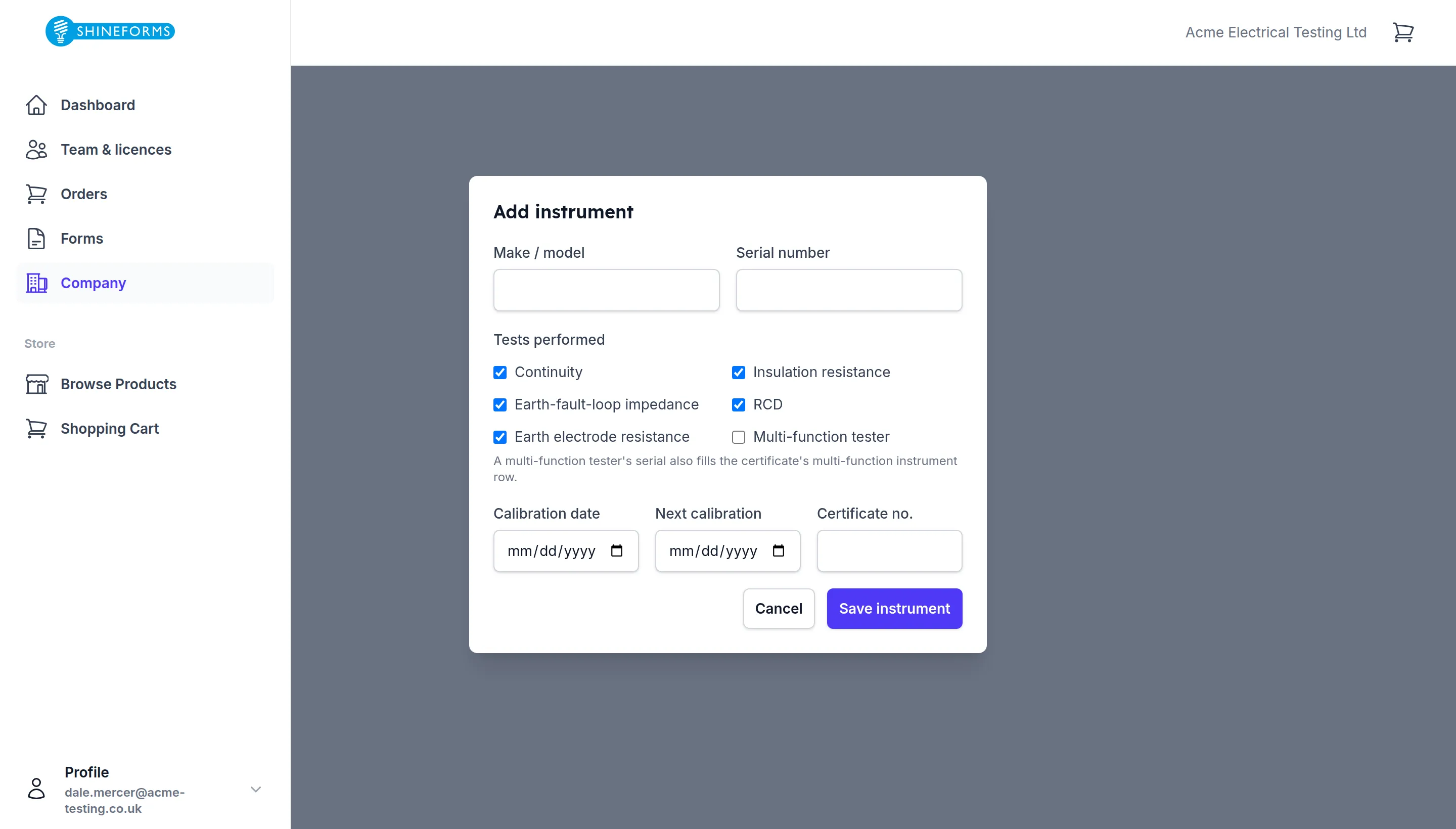
Serial number is the only thing required, because that is what the certificate prints. It must be
unique within your company, and the check ignores capitals — MFT-204871 and mft-204871 are the
same instrument as far as the library is concerned.
Tests performed is the part worth understanding. An instrument is not a type here; it is a set of capabilities. A new instrument starts with all five tests ticked, which is right for a multi-function tester and wrong for anything specialised — untick the ones a dedicated earth electrode tester or insulation tester cannot do, and it will only be offered where it belongs. At least one must stay ticked.
Multi-function tester is separate from the five, and does something extra: it fills the 2026 form’s own multi-function instrument row as well as the individual test rows.
Calibration date, Next calibration and Certificate no. are the calibration record. They are optional, and Next calibration cannot be earlier than the calibration date. Filling them in is what makes the amber warning work.
Delete asks Delete? in the row itself rather than opening a dialog — Yes removes the instrument straight away. Certificates that already name it are untouched; each certificate keeps the serial number it was issued with. Deleting only stops the instrument being offered on new work.
My test instruments
Below the company’s library is My test instruments: instruments of your own, which only you see and pick from — the tester you bought yourself, say. Add, edit and delete them exactly as above.
A serial number is still unique across the whole company, so an instrument is either the company’s or yours, never both. If the company already has it, there is no need to add it again.
You can also upload your instruments from Shine Forms Desktop, through the Drop-down lists manager’s Shine Forms Online… — choose Just me.
Drop-down lists
Your changes to the drop-down lists in Shine Forms Desktop — your own values, wording, order and hidden values — can be kept here, so you and your colleagues can download them on any computer. They are uploaded and downloaded in the Drop-down lists manager, with Shine Forms Online…; this page shows what is kept.
There are two lists of lists:
- Company lists — shared with everyone in the company. Your company’s administrators and Qualified Supervisors upload them.
- My lists — yours alone, in this company.
Each one shows the list’s name, what it changes compared with the built-in list, and who uploaded it and when:
- View shows the list as it is kept — the same text as the manager’s Text view.
- Download saves it as a
.pirform.lookups.txtfile, which the manager’s Import… reads. - Remove takes it off Shine Forms Online, after asking Remove?. It doesn’t change anyone’s lists on their own computer. Only administrators and Qualified Supervisors can remove a company list; you can always remove your own.
Inspection schedules
Your custom inspection schedules from the Schedule Manager can be kept here too. Upload one from its card in the Schedule Manager, and it appears under Company schedules if it was shared with the company, or My schedules if it was just for you.
Each schedule shows its name, the amendments it is for (or All certificates), how many sections and items it has, and who uploaded it and when:
- View shows the schedule as it is kept — the same text as the Schedule Manager’s Text file tab.
- Download saves it as a
.pirform.schedule.txtfile, which the Schedule Manager’s Import… reads. (Downloading it in the Schedule Manager, with Shine Forms Online…, is quicker.) - Remove takes it off Shine Forms Online, after asking. Copies people have already downloaded, and certificates made with it, are not affected. Only administrators and Qualified Supervisors can remove a company schedule; you can always remove your own.
Style packs
Style packs are the cover pages, end pages and colours you design in the Style Editor. Upload one from its ⋯ menu with Upload to Shine Forms Online…, and it appears here — under Company style packs if it was shared with the company, or My style packs if it was just for you.
Each pack shows a picture of its cover, its name, the certificate types it is the default for, the pages it holds, its size, and who uploaded it and when:
- Download preview (PDF) — a sample EICR in the pack’s style, so you can see the whole look before anyone uses it.
- Download pack — the
.sfstylefile itself, which the Style Editor’s Import… reads. (Downloading it in the Style Editor, with Shine Forms Online…, is quicker.) - Remove — takes it off Shine Forms Online, after asking. Copies people have already downloaded are not affected. Only administrators and Qualified Supervisors can remove a company pack; you can always remove your own.
What everyone else sees
The company’s details, logos, instrument library, lists, schedules and style packs can be changed by your company’s administrators and Qualified Supervisors. Everyone else sees the same page, in full, and can change none of it:
- the six company details as plain text, with the line Contact your company administrator or Qualified Supervisor to update company details. underneath
- both logos, previewed at the size the certificate prints them, with no Choose File and no Remove
- the whole instrument library, with no Add instrument and no Edit or Delete on a row
- the company’s lists, schedules and style packs, to view and download, with no Remove
Everyone on the team has their own My test instruments, My lists, My schedules and My style packs, which only they can see or change.
Nobody is hidden from anything here — the details are printed on every certificate they issue, so there is no reason they should not read them.
If you are not attached to a company at all, the page says so instead. A company is created when you buy your first licence, or an administrator can invite you into theirs.