
Orders
Orders is your company’s purchase history: every licence bought, every renewal, what each came to and the invoice for it. It is a record rather than a place to do anything — buying happens in the store, and licences are looked after on Team & licences.
Find it in the sidebar of your Shine Forms account, or go to account.shineforms.co.uk/orders.
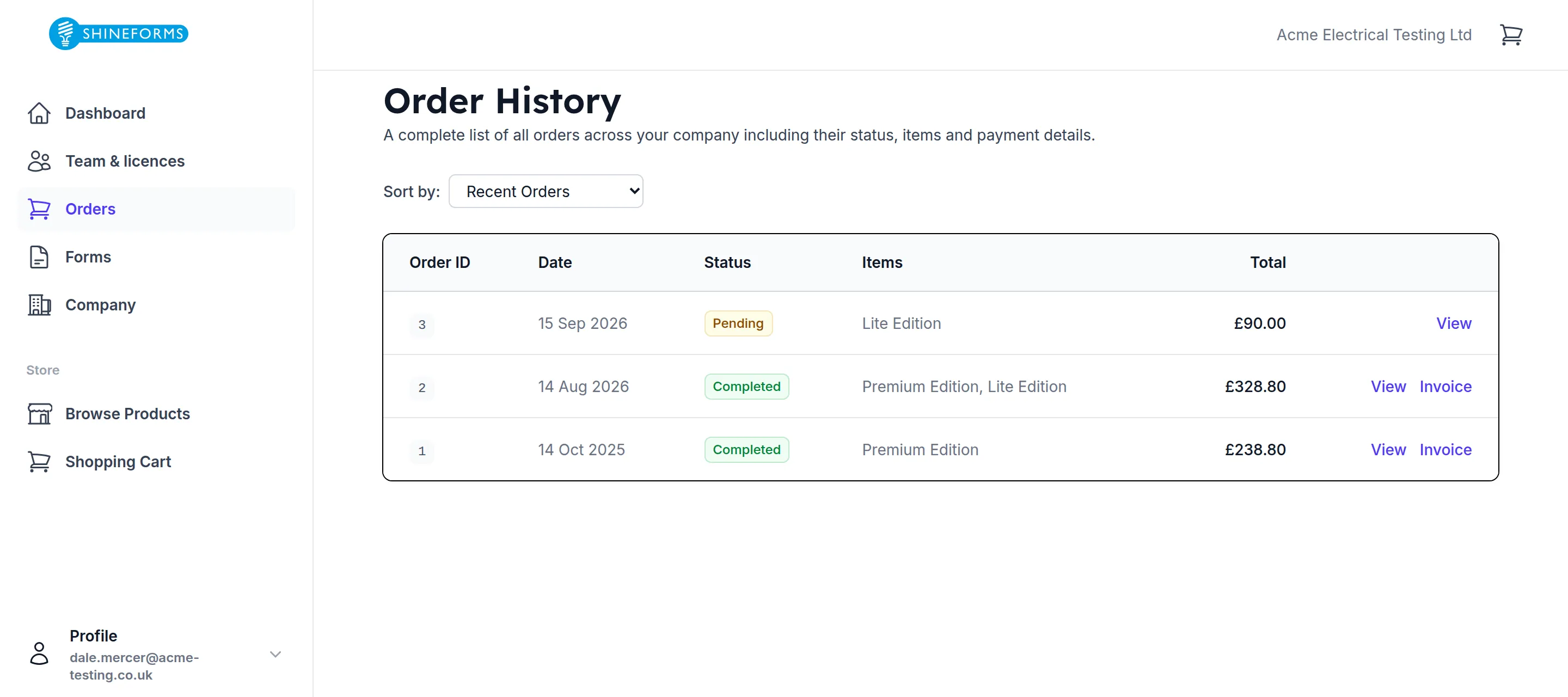
What is in the list depends on who you are. An administrator sees every order placed across the company, whoever placed it. Everybody else sees the orders they placed themselves. The line under the heading says which of the two you are looking at.
Sort by reorders the whole list — newest first to begin with, or oldest first, or by what each order came to, largest or smallest.
Reading a row
Order ID is the number to quote if you ever need to ask about an order. Items summarises what was on it: up to two product names, then +n more if there were others.
Status is the one to understand:
- Pending — placed, but the payment has not gone through yet. Nothing has been issued.
- Completed — paid. The licences are created and emailed out at this point, so this is the status that means somebody can actually work.
- Failed — the payment did not go through. Nothing was issued and nothing was charged.
An order that sits at Pending has not been paid for. If that is a surprise, the likely cause is a card payment that was started and never finished — place it again rather than waiting.
Total is what was charged including VAT.
Inside an order
View, or clicking the row, opens the whole order.
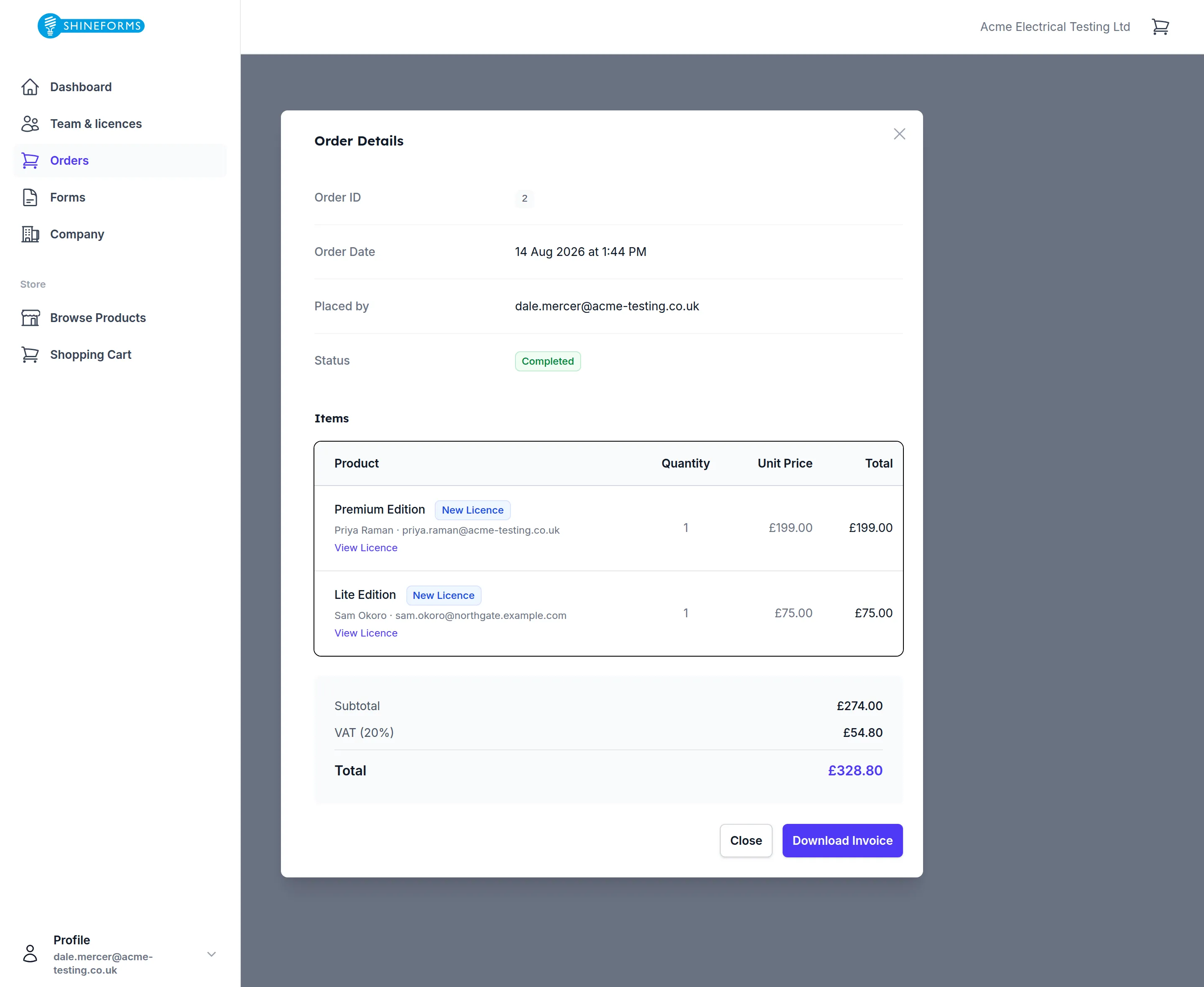
Placed by is the address the order was checked out with. On an administrator’s list this is how you tell a colleague’s order from your own — it is the one thing in the row that identifies who bought it.
The Items table gives each line a badge saying what kind of purchase it was: New Licence, Renewal or Upgrade. Under the product name, where the licence is assigned to somebody, you get their name and address and a link through to that licence on Team & licences — which is the quickest way to answer who did we buy this one for?.
The totals underneath break out the subtotal, the VAT and the total. Prices in the store are shown without VAT, so the total here is the only number that matches what left the bank.
Download Invoice — on the row or in the order — gives you the VAT invoice as a PDF. It is available on completed orders only, because an order that has not been paid for has nothing to invoice. Like the certificate downloads, the link is good for five minutes and opens in a new tab. An invoice that has only just been paid for may take a moment to be produced; if it says it is not ready yet, it will be shortly.
What happens when an order completes
Paying is the moment everything else starts. As an order moves to Completed, the licences on it are created and the licence file is emailed to whoever each one is assigned to — so a colleague you bought for hears about it without you having to forward anything.
If you bought “for someone new” at checkout, the licence is assigned to the name and address you typed, and it stays that way until that person is added to your team properly. Until then they are not on Team & licences, but the licence is already theirs and the email has already gone.
A licence bought without anybody named lands in the unassigned pool on Team & licences, waiting to be given to someone. It is not lost, but it is not free either: its year starts the day it was bought, not the day somebody takes it up, so an unassigned licence is quietly using up the time you paid for. Assign it.
Deleting an order that was never paid for
A Pending order — and only a pending one — can be deleted.
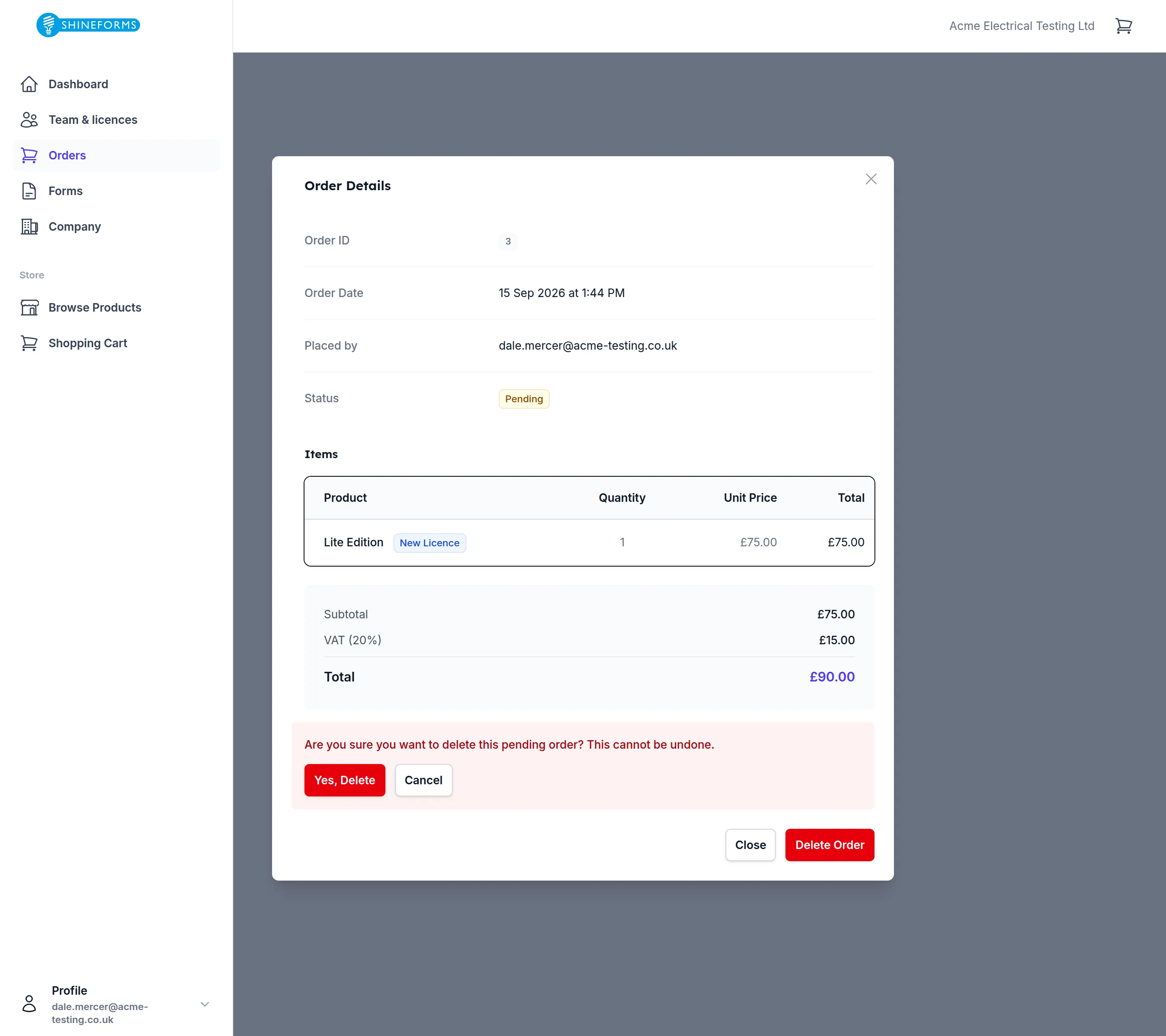
Delete Order asks you to confirm inside the order itself rather than opening a second dialog. There is nothing to undo afterwards, but there is also nothing to lose: an unpaid order holds no licence and nothing has been charged for it. Tidying away an attempt that went wrong is exactly what it is for.
A completed order cannot be deleted. It is your VAT record, and the licences it bought point back at it.
What everyone else sees
- An administrator sees every order across the company, and can open, invoice and delete any of them.
- Anybody else sees the orders they placed themselves and nothing more — the list is not hidden from them, it simply only ever had their own orders in it.
Nobody’s order history is private from a company administrator, and no ordinary member can see a colleague’s spending.