
Shine Forms makes it easy to use online storage for sharing certificates with fellow engineers. This ensures your certificates are safe even if your computer malfunctions, gets damaged, or is stolen.
Automatic exports used with online storage means the latest PDF is always available on devices that don’t have Shine Forms installed.
Backing up online makes your certificates available on other computers and to other engineers. Read how to import certificates here.
Get a free online storage account
Online storage providers offer free storage that is enough to store your Shine Forms certificates. If you don’t have one already, you can set up an account with:
Store backups in Dropbox or OneDrive
To store backups and exports in a folder inside your OneDrive or Dropbox folder:
- Open Shine Forms Options.
- In the Saving and Backup section, click Use Dropbox or Use OneDrive to detect and use the respective service.
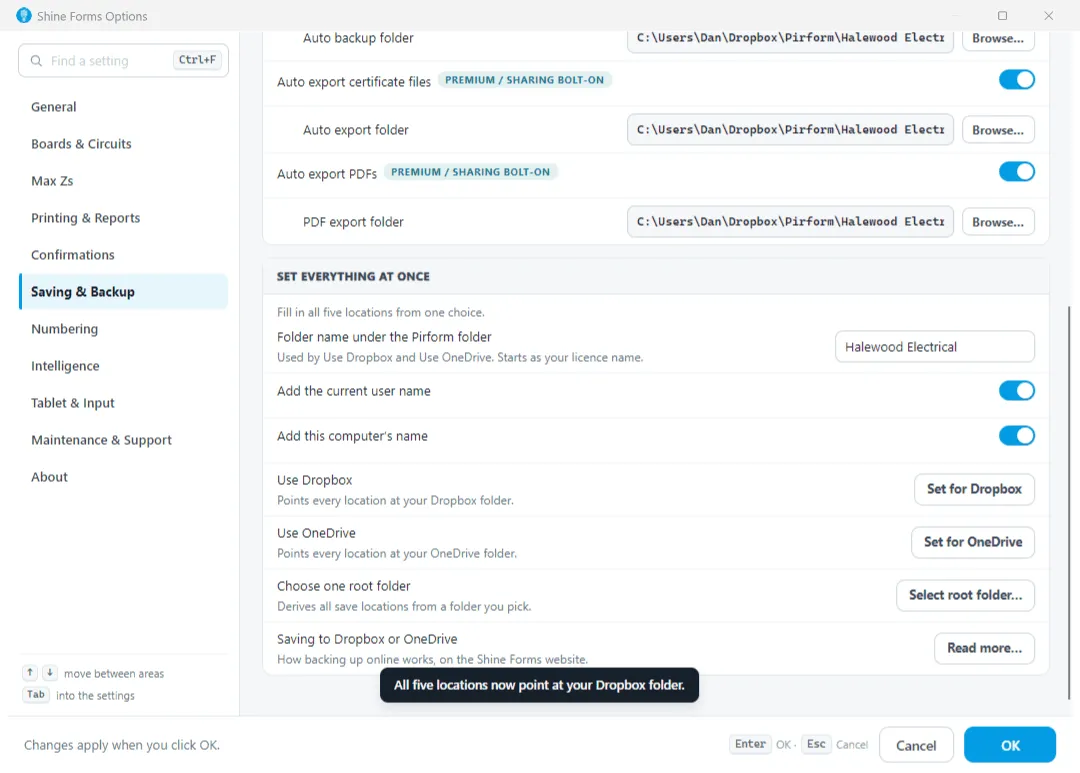
New backups or exports will now be stored in those locations and synchronized online.
Shine Forms uses the licence name in the folder name. Adjust your licences here.
Pick your own folder
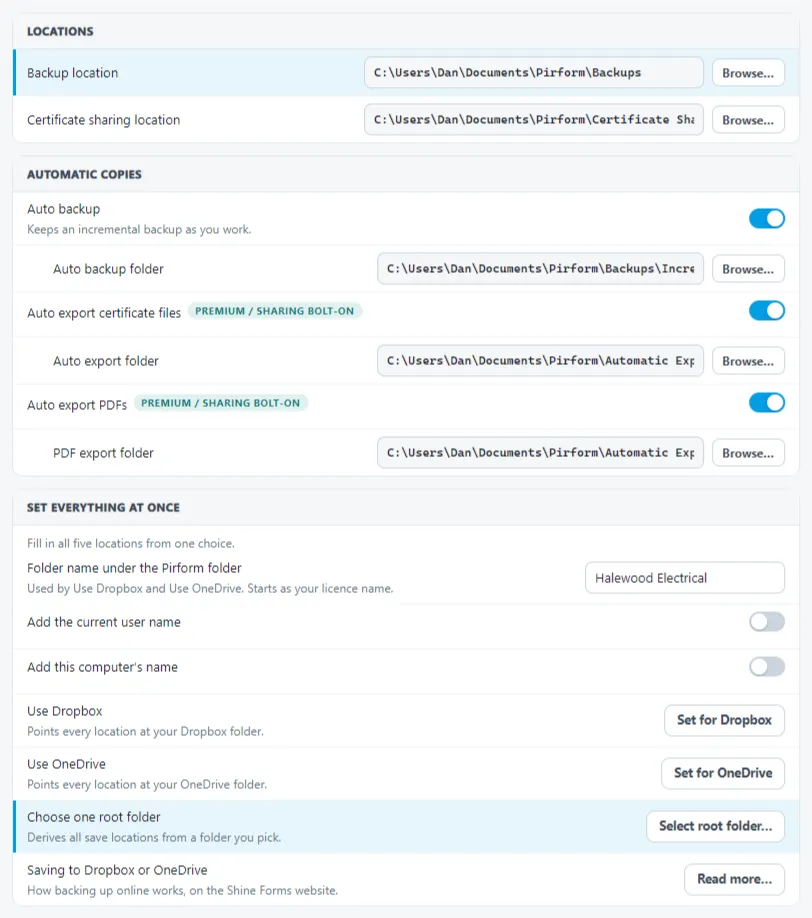
You can choose your own folder by clicking Choose Shine Forms Folder to set the root folder, or use the Browse buttons to set each location individually.
Organizing files from multiple engineers
To avoid mixing backups and certificates from different engineers:
- Use a folder name that identifies the engineer and the machine they are using.
- For example, use John Office for John’s certificates from the office machine, and Jane Laptop for Jane’s certificates from the laptop.
These folders will appear in Dropbox as:
Dropbox\Shine Forms\John Office
and
Dropbox\Shine Forms\Jane Laptop