
Observations and limitations can be entered by the engineer and are also created by Shine Forms’ Intelligence feature or from the inspection schedule.
Observations

Observations are shown as a list. Clicking on an observation will reveal any photo that is attached beneath the observation list.
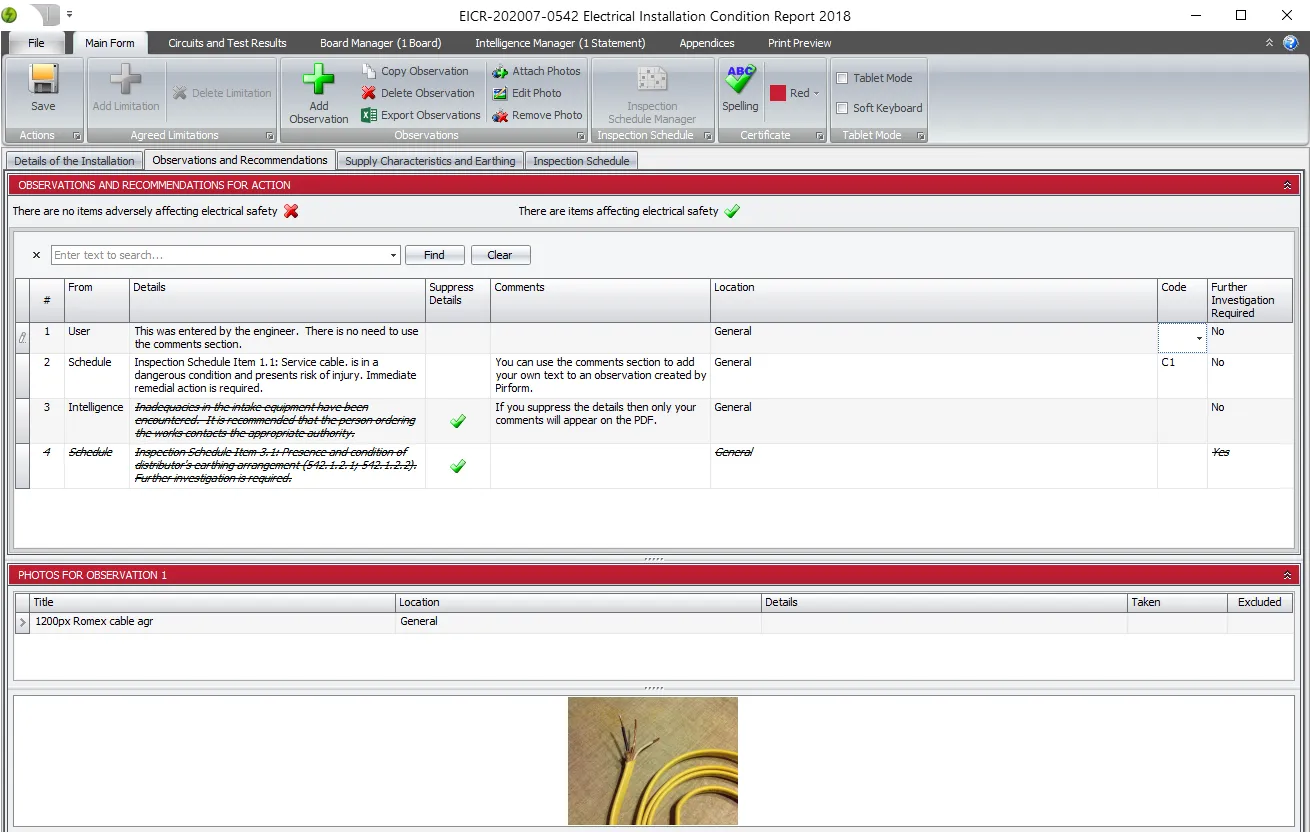
Observations ribbon section
The ribbon section allows you to:
- Add a new observation
- Copy an existing observation
- Delete an existing observation
- Export your observations to Excel
- Attach, edit, or remove photos against the currently selected observation

Observations list
The observations list shows the following columns:
| Column | Description |
|---|---|
| From | Shows how the observation was created. |
| Details | Shows the main text of the observation. |
| Suppress Details | Controls whether the text in Details will appear on the PDF. |
| Comments | Allows entering additional text that will appear on the PDF. |
| Location | The part of the certificate/installation to which the observation applies. |
| Code | The coding that is assigned to the observation. |
| Further Investigation | Indicates whether further investigation is required. |
Click Add Observation in the ribbon to add a new observation. This will have the type User and you can enter text you want to appear on the PDF into the Details section.
Changing the observation text
You cannot change the text in the Details for observations created by Shine Forms. However, you can add any text you want to appear on the PDF into the Comments section. If you want the text in the Details section not to appear on the PDF, tick Suppress Details. The details text will then appear formatted with a strikethrough.
If you want an observation not to appear in the PDF, remove any text from the Comments section and tick Suppress Details. The whole row will then appear formatted with a strikethrough.
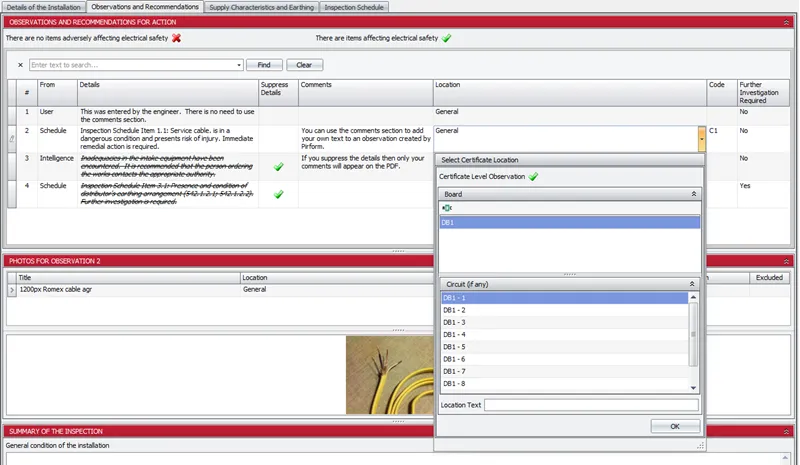
Setting the observation location
When Shine Forms adds an observation, it will automatically set the location for you. When you set the location of an observation, Shine Forms shows you the locations available in the certificate. You can enter your own text in the Location Text area at the bottom.
Ordering observations in the PDF
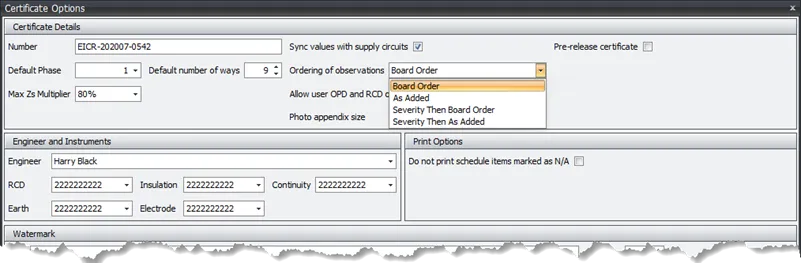
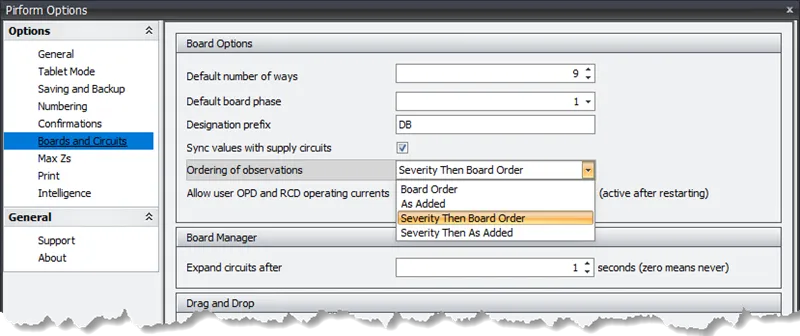
Shine Forms allows you to adjust the order that the observations appear on the PDF. The options are:
| Option | Description |
|---|---|
| Board Order | The observations appear in the same order as the boards. |
| As Added | The observations appear in the order they were added. |
| Severity Then Board Order | The observations appear ordered first by severity and then by the order that the boards appear. |
| Severity Then As Added | The observations appear ordered first by severity and then by the order that they were added. |
You can change this order for an individual certificate from the Certificate Details section of Certificate Options.
You can set the default order that will be assigned to all new certificates from the Boards and Circuits section of Shine Forms Options.
Retaining observations during recoding
When coding a schedule item, Shine Forms automatically adds a linked observation as required (a coding of C1, C2, C3 or FI, or an X against an item in section 1.1). If you later change the coding of the linked observation, Shine Forms will then change the schedule item accordingly. If you change it so an observation no longer applies, say to PASS, then Shine Forms will remove the observation that it has added.
However, sometimes you might want to retain an observation even if the schedule item no longer applies. For example, when you want to retain it and add a comment that it has been rectified. You can now tell Shine Forms to retain observations during recoding using Retain Recoded in the ribbon. This works from both Observations and Recommendations as well as the Inspection Schedule. You can see this in action below.
Limitations
Similarly to observations, limitations may be created by the user or by Shine Forms’ intelligence or from the inspection schedule.
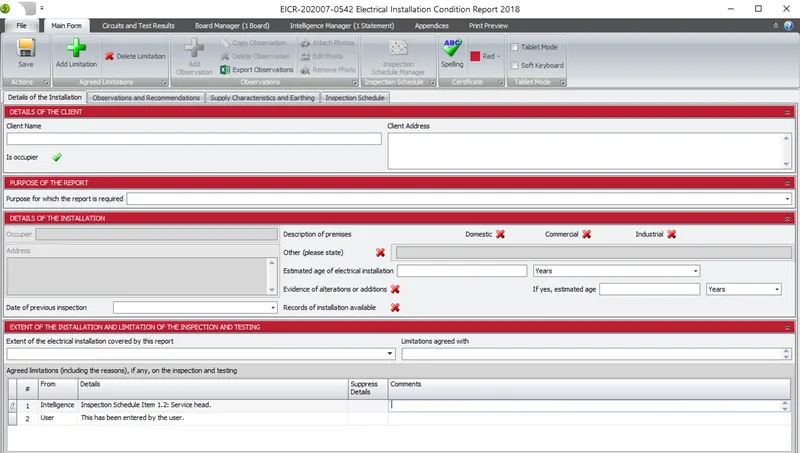
You can add to limitation text created by Shine Forms by entering your text in Comments. Tick Suppress Details to show only the text in Comments in the PDF. Ticking Suppress Details without entering any text in Comments will mean the limitation does not appear in the PDF.