
The Shine Forms tablet apps will be available soon. Follow us on LinkedIn, watch our blog, or sign up to our newsletter for updates.
Inspection schedule
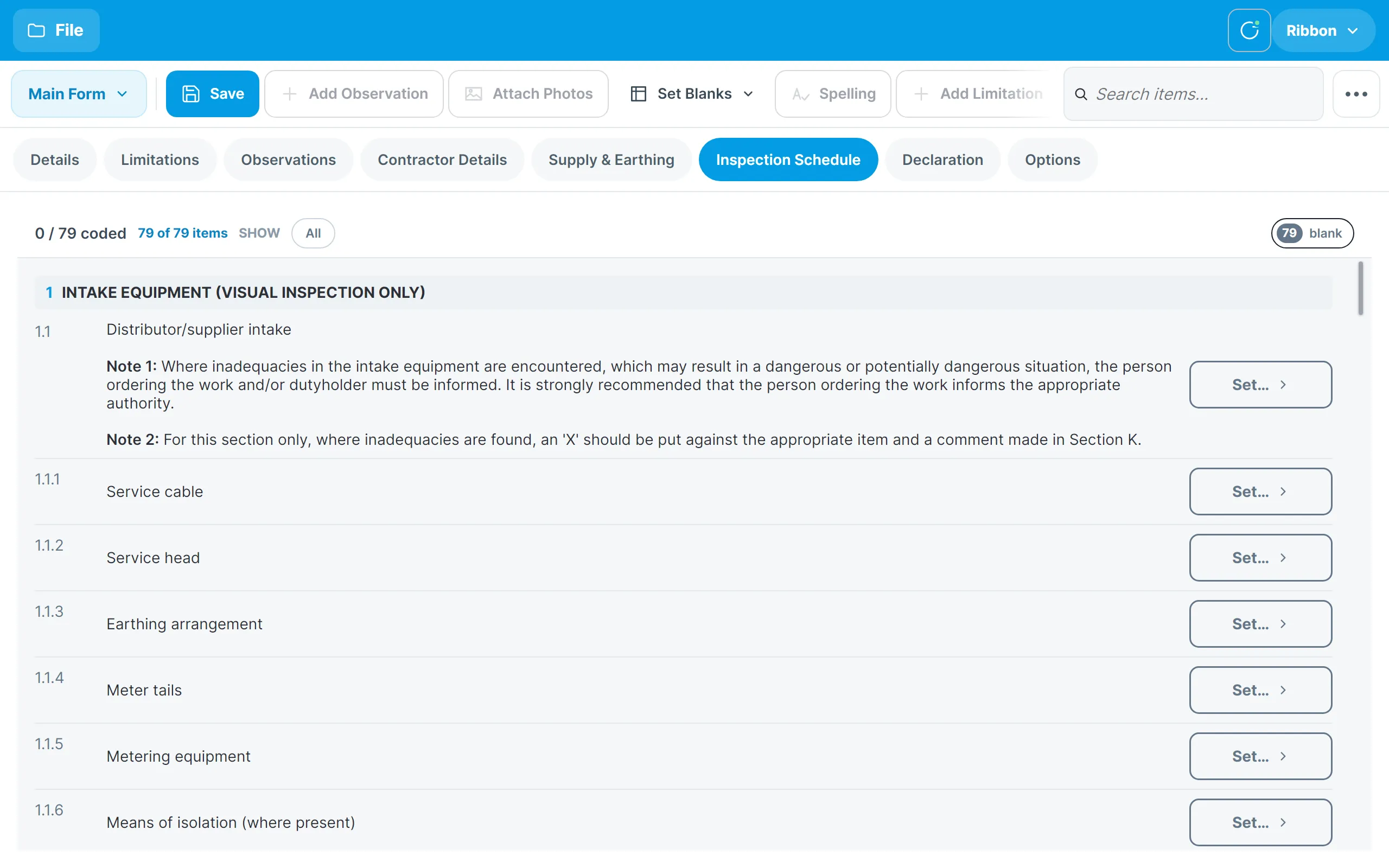
The Inspection Schedule tab of the Main Form lists every item in the certificate’s schedule of inspections, grouped into the numbered sections of the standard.
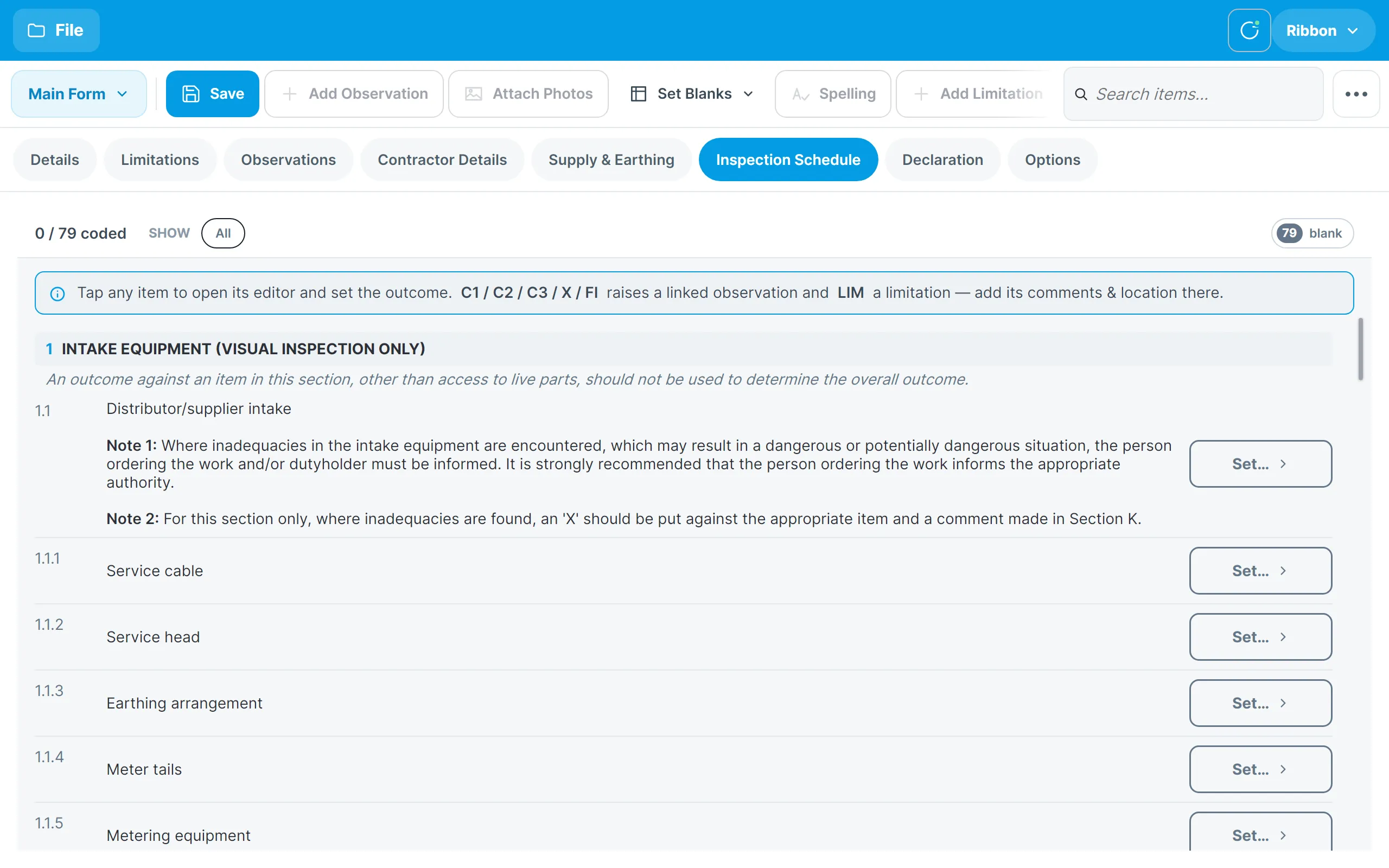
The bar above the list keeps count of how many items have been coded and how many are still blank. The Show chips filter the list: All shows everything, Raised shows the items that have raised an observation or limitation, and as you code items a chip appears for each outcome you have used, so you can jump straight to, say, everything you coded C2. The blank chip shows what is left to do.
Coding an item
Tap an item, or its Set… button, to open its editor at the right of the screen.
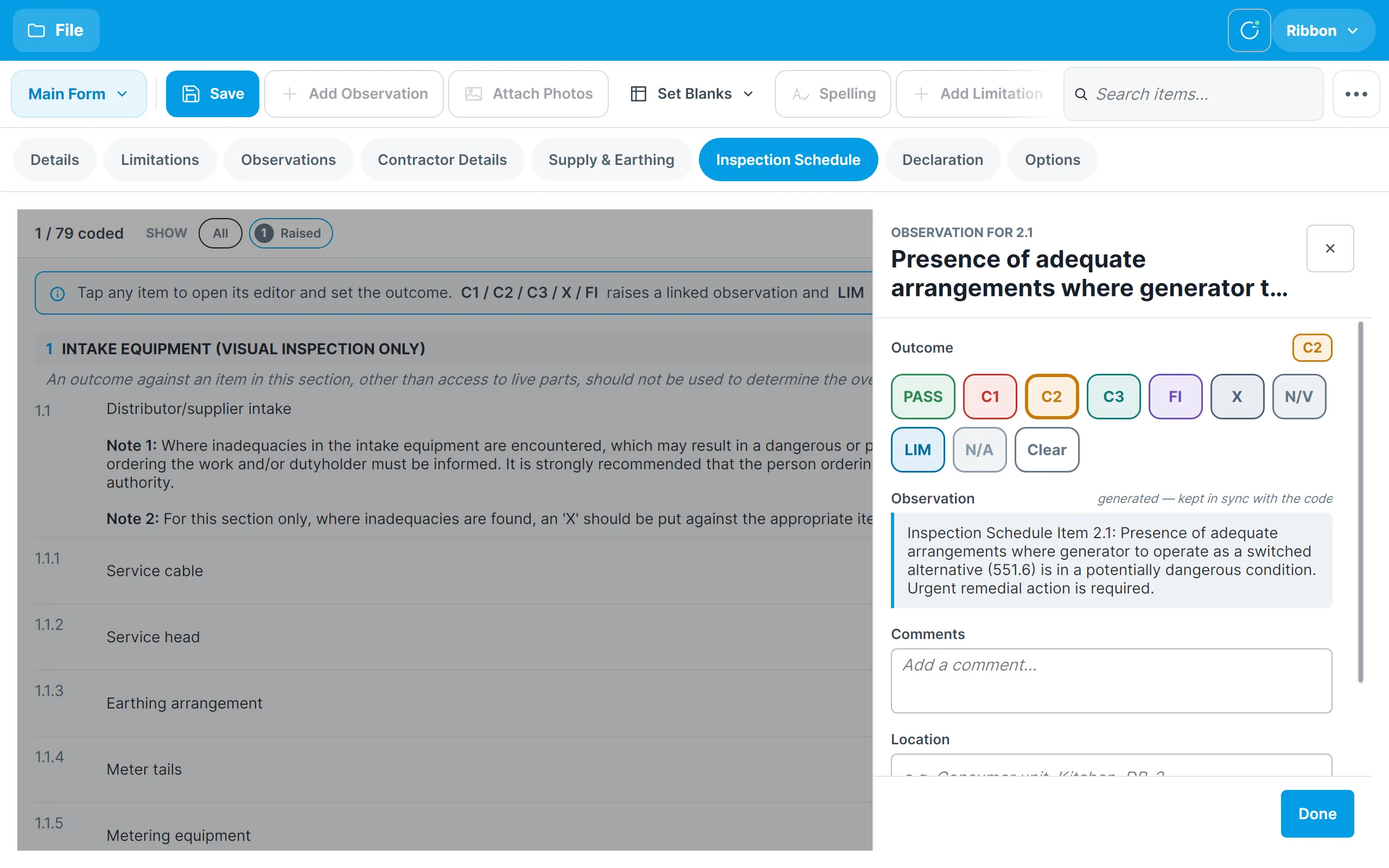
Tap the outcome: PASS, C1, C2, C3, FI, X, N/V, LIM or N/A. Clear removes the outcome again.
When you choose C1, C2, C3, FI or X the app raises a linked observation for you, worded from the item, and shows it in the editor so that you can finish it without leaving the schedule:
- The observation text is generated from the item and its code, and is kept in step if you change the code.
- Add your own Comments and a Location such as Consumer unit or DB1-4.
- Tick Suppress details if you don’t want the generated text printed on the certificate.
Choosing LIM raises an agreed limitation in the same way, which appears on the Limitations tab.
For an outcome that doesn’t raise anything, such as PASS, the editor simply records the outcome:
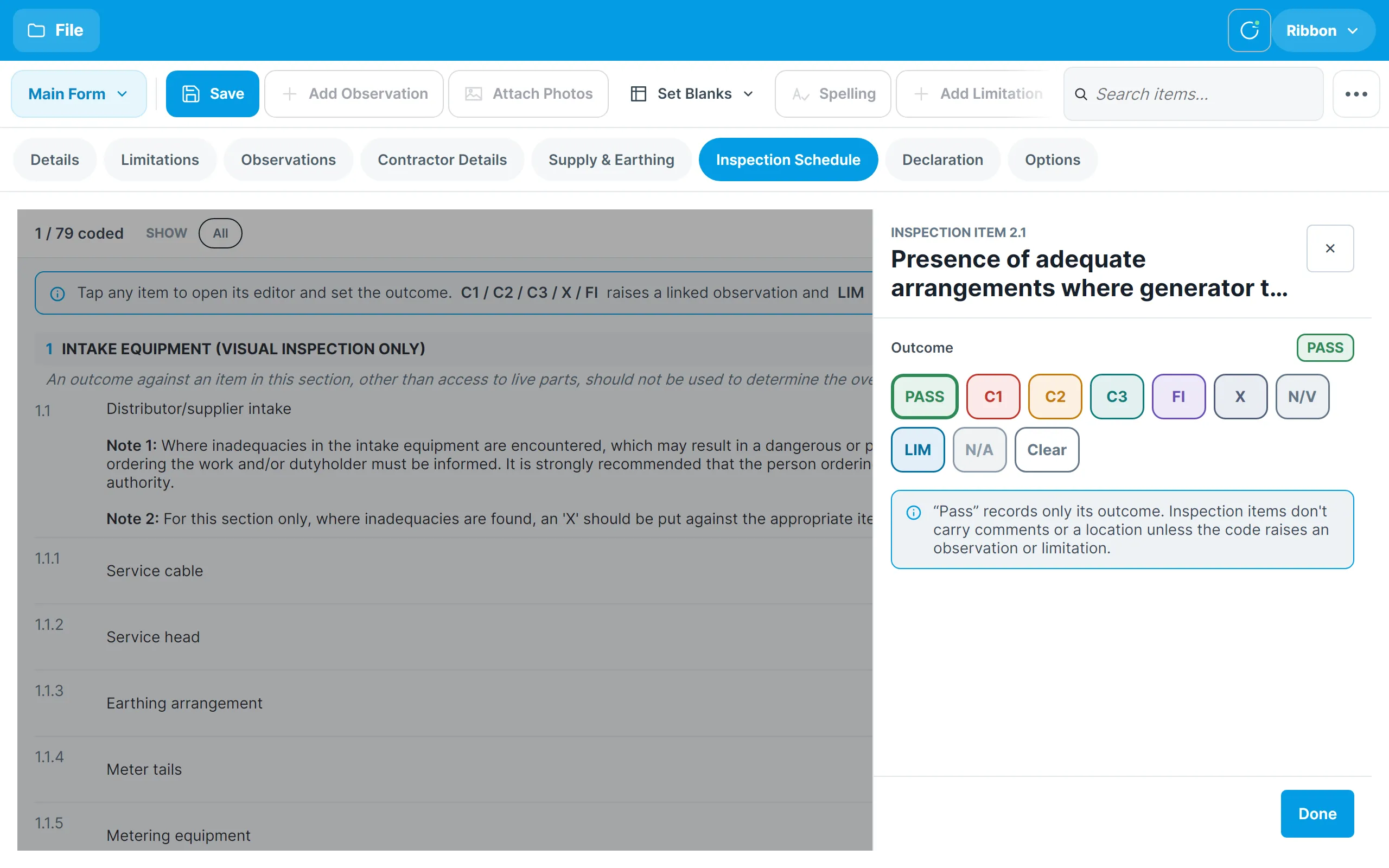
Tap Done to close the editor. Changes are saved as you make them. An item that has raised an observation shows Observation raised · tap to edit under it in the list.
Observations raised from the schedule appear in the Observations tab like any other. Changing the item’s code updates the observation, and clearing the code removes it.
When Intelligence has set an item’s outcome from your test results, the editor only lets you make the code more serious, not less.
Finding an item
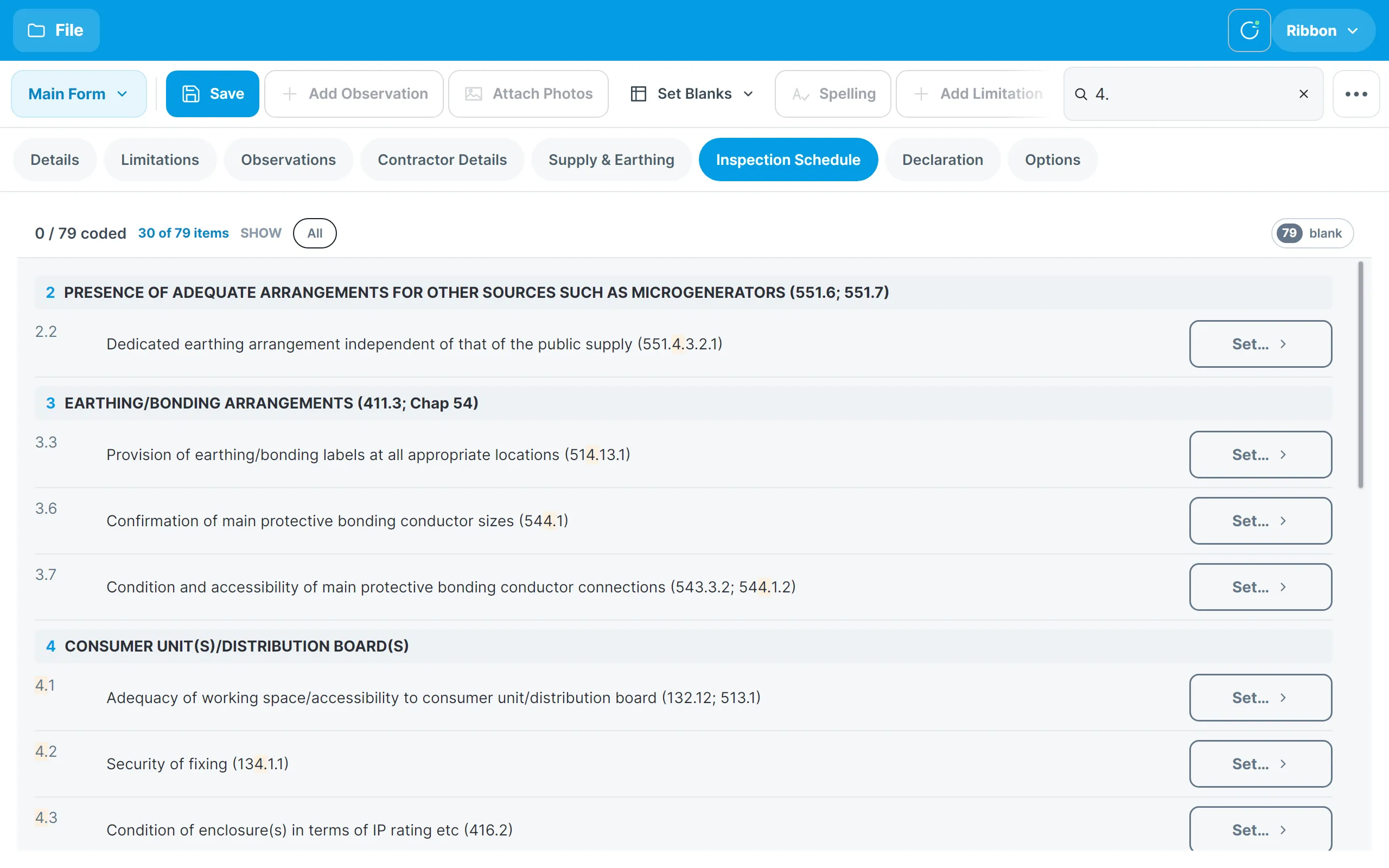
Tap the search box in the ribbon row and type part of an item’s number or wording. Typing 4. shows every item in section 4; typing bonding shows every item that mentions it. The list narrows to the matches and highlights them. Clear the search to see everything again.
Finishing the schedule
When you have coded everything that needs a code, the ribbon offers three ways to deal with the rest:
- Confirm blanks marks every remaining blank item PASS.
- Set Blanks gives every remaining blank item the outcome you choose from its list, such as Not applicable or Not verified.
- Clear outcomes clears every code on the schedule if you need to start again.
The blank filter chip lets you check what is left before you do:
Add item in the full ribbon adds an item of your own to the end of the schedule.
Choosing a different schedule
The schedule a certificate uses is chosen when you create the certificate. Your own schedules are kept in the Schedule Library.