
The Shine Forms tablet apps will be available soon. Follow us on LinkedIn, watch our blog, or sign up to our newsletter for updates.
Settings and support
The screens described here are opened from the File menu, except the Recycle bin, which is reached from the Home screen.
Options
File → Options holds the app’s settings. Changes save automatically, and the search box at the top finds a setting by name.
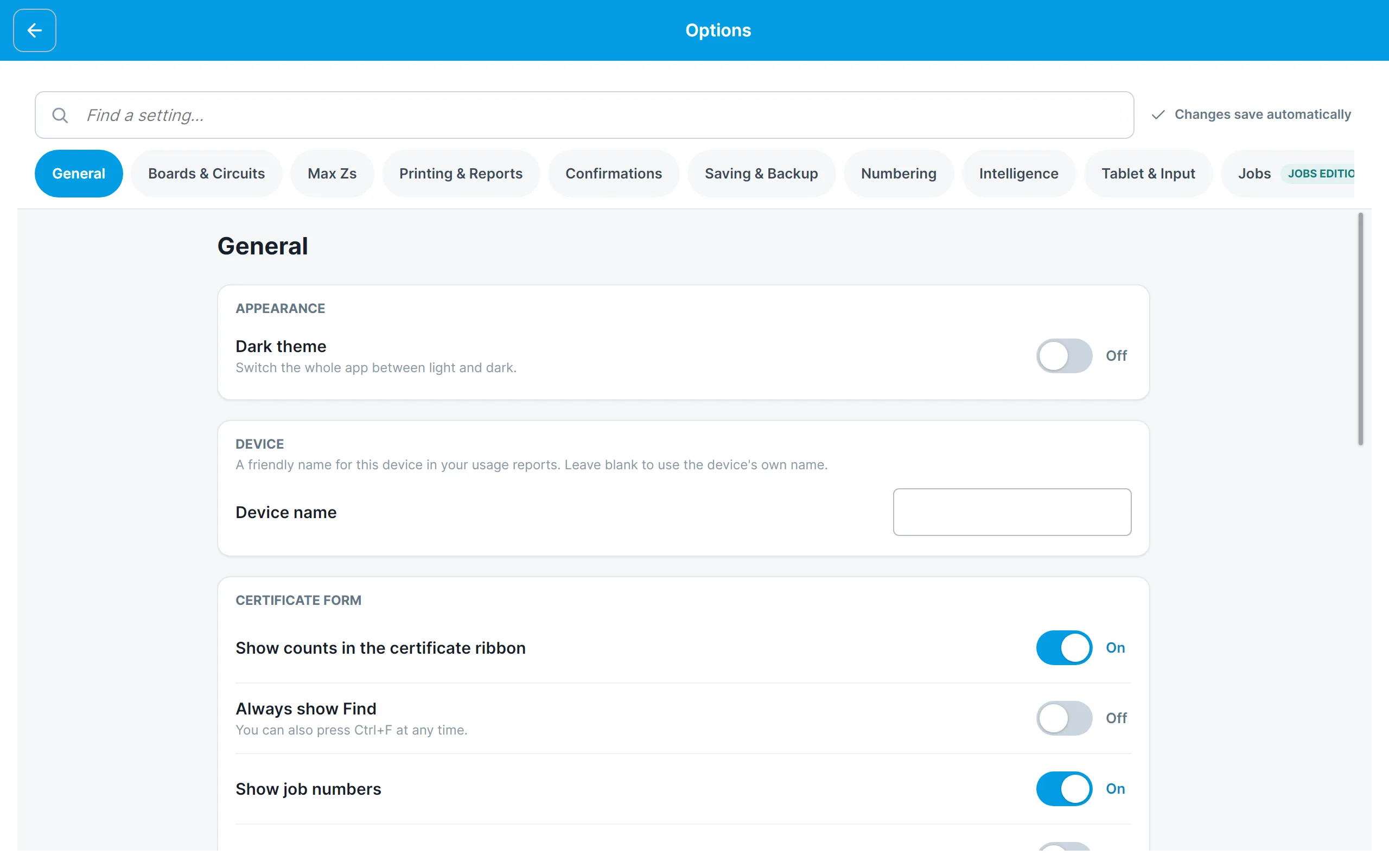
The settings are grouped into areas along the top. General has the settings you are most likely to want on the tablet:
- Dark theme switches the whole app between light and dark.
- Device name gives this tablet a friendly name for your usage reports.
The other areas mirror the options of Shine Forms Desktop, such as how new boards and circuits are set up, how certificate numbers are generated and which actions ask for confirmation.
Upload History
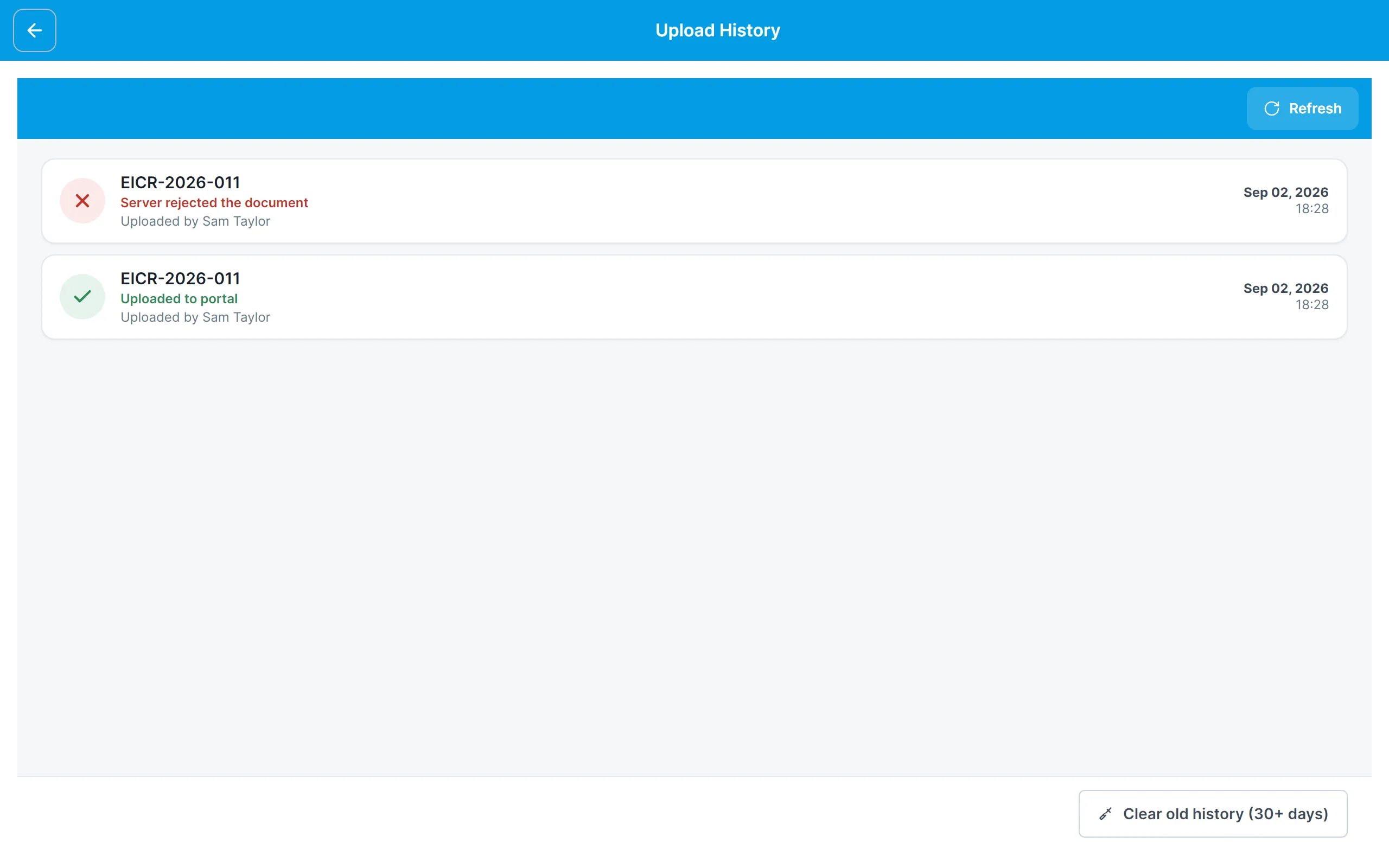
File → Upload History lists every upload the tablet has made, with the certificate number, whether it succeeded, when, and who uploaded it. Tap Refresh to update the list, and Clear old history to remove entries older than 30 days.
Recycle bin
Certificates you delete go to the Recycle bin, which you open from the bottom of the Home screen’s rail.
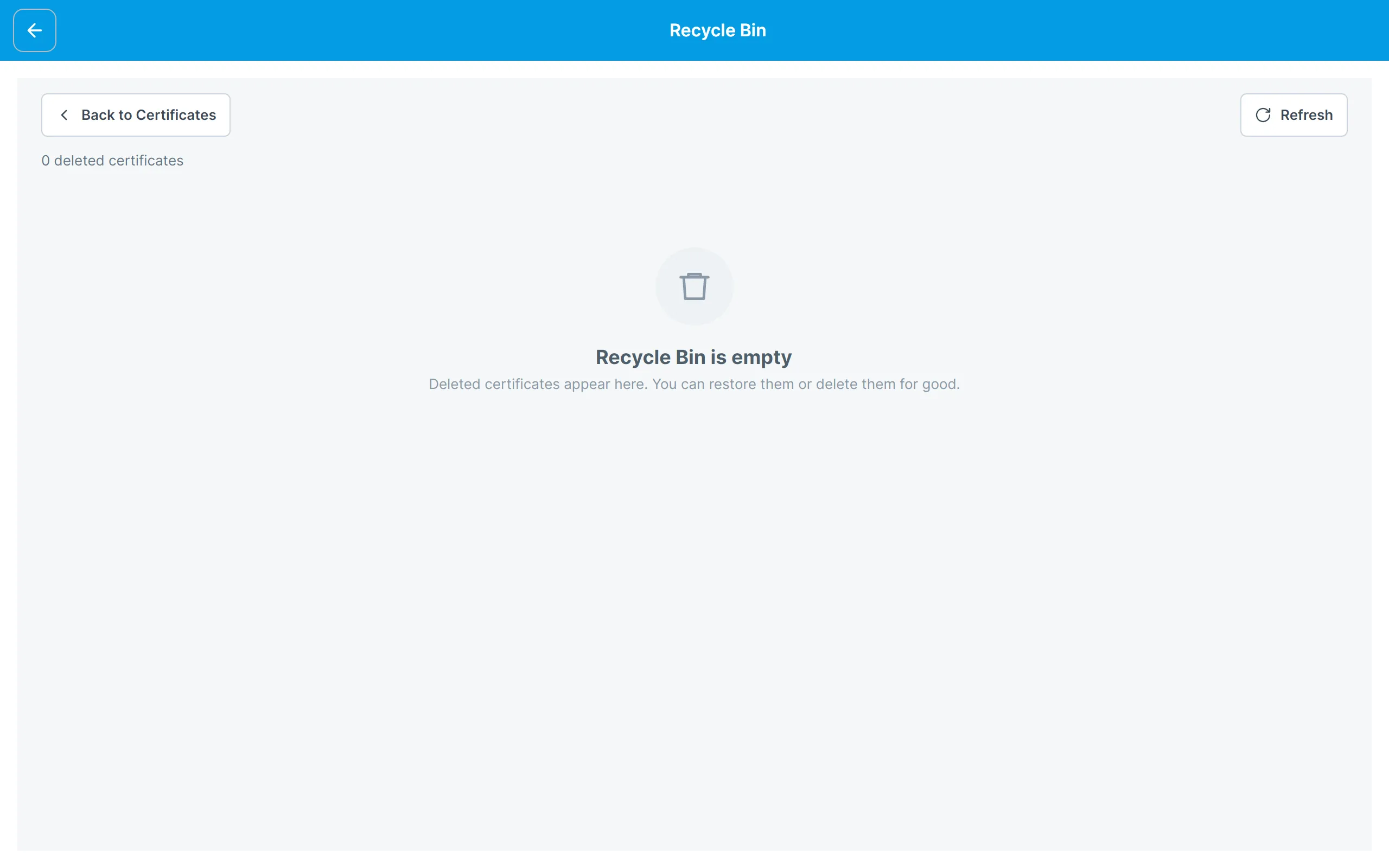
Each deleted certificate has a Restore button, which puts it back in your list of forms, and a Delete Forever button, which removes it permanently. Tap the chevron on a card to see the client and occupier details before deciding. Back to Certificates returns to the Home screen.
Schedule Library
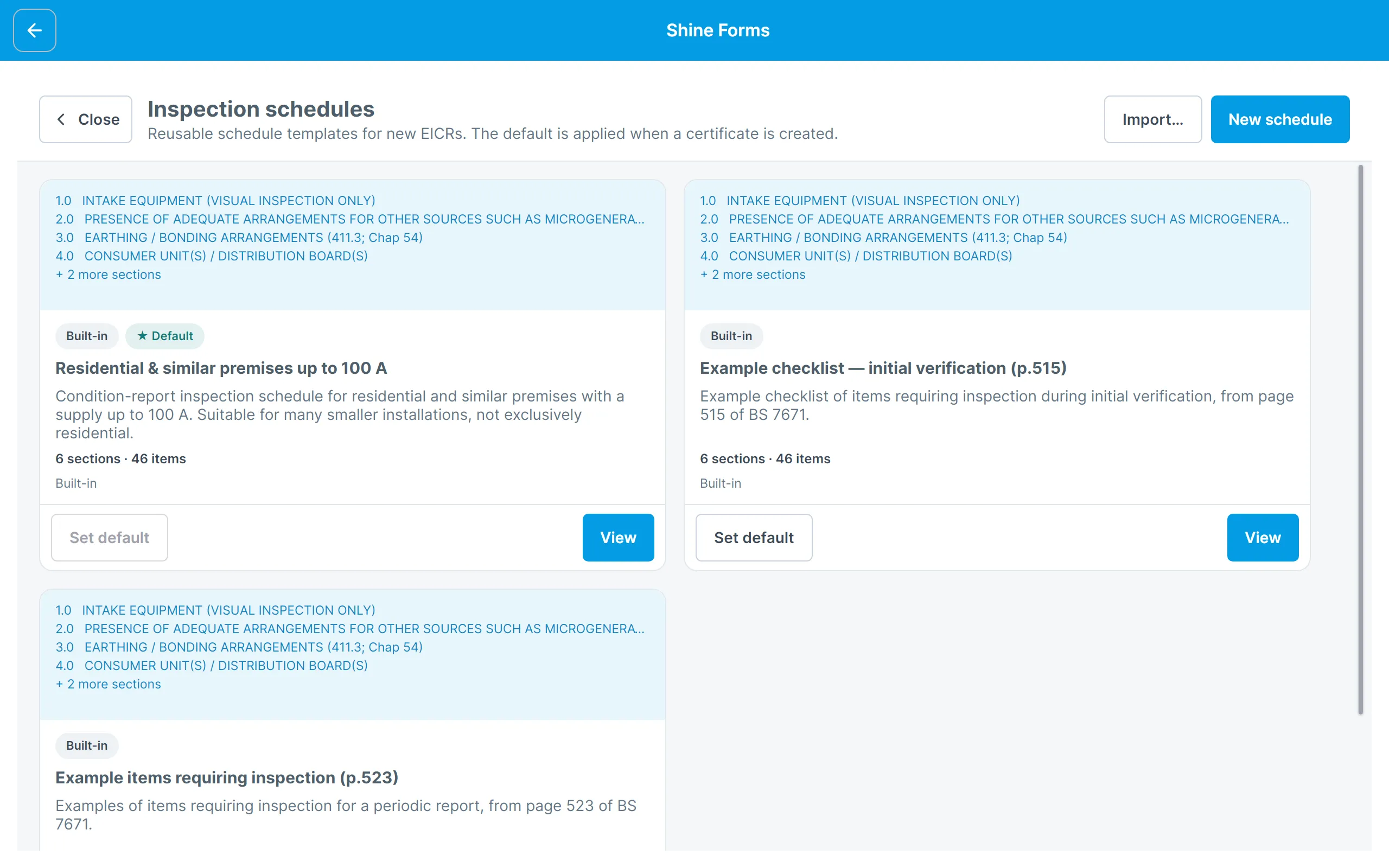
File → Schedule Library manages the reusable inspection schedules you can choose from when creating a certificate. The standard BS 7671 schedules are built in and read-only; duplicate one to make your own version.
Drop-down lists
File → Drop-down lists looks after the choices your certificates offer in their drop-downs and selectors. You can add your own values, hide the ones you don’t use, change their wording and order, and share your lists with colleagues. It is also in Options, under Maintenance & Support.
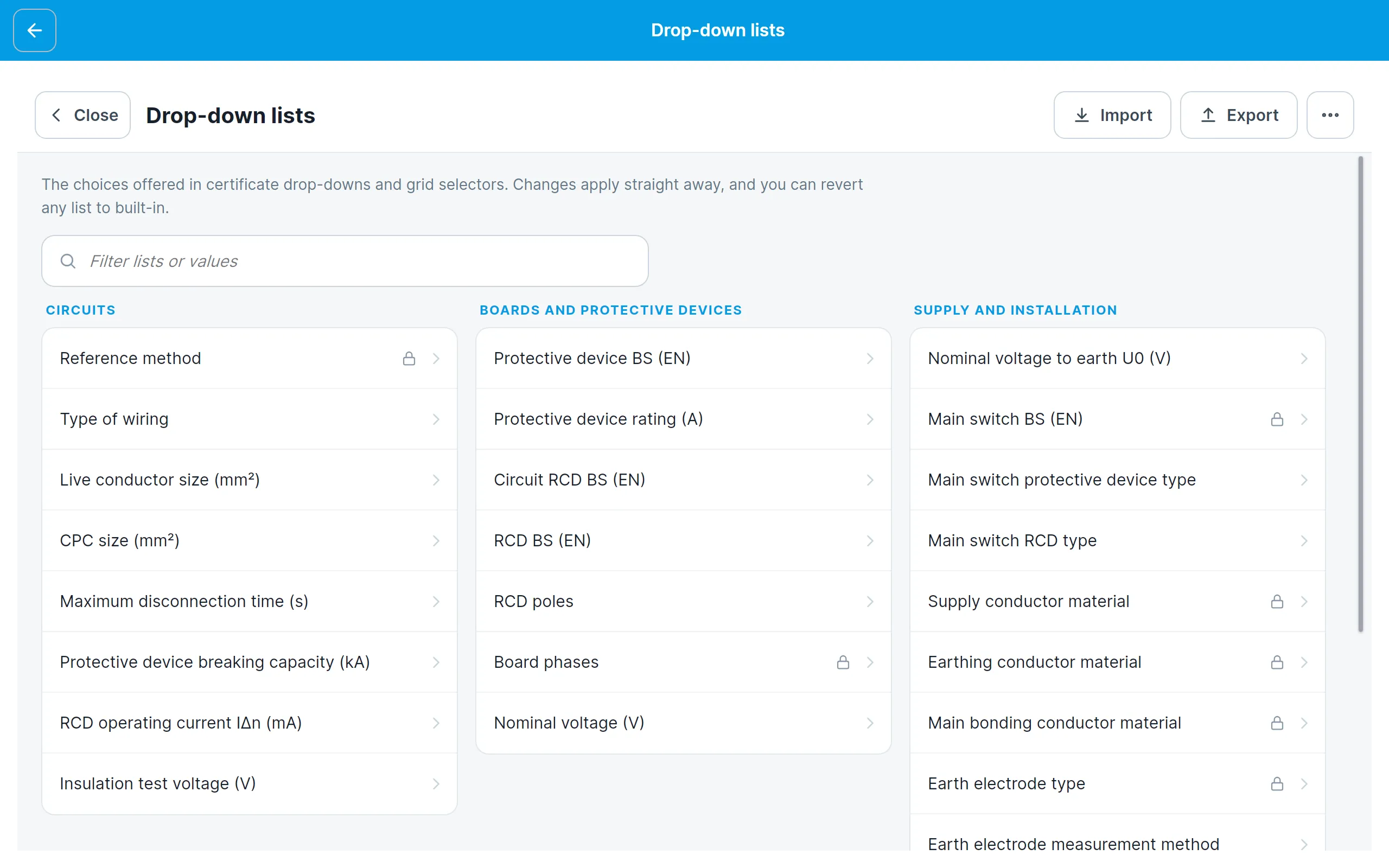
Tap a list to open it, then tap a value to change or hide it. It works the same way as the Drop-down lists manager in Shine Forms Desktop.
Support
File → Support brings together the ways to get help:
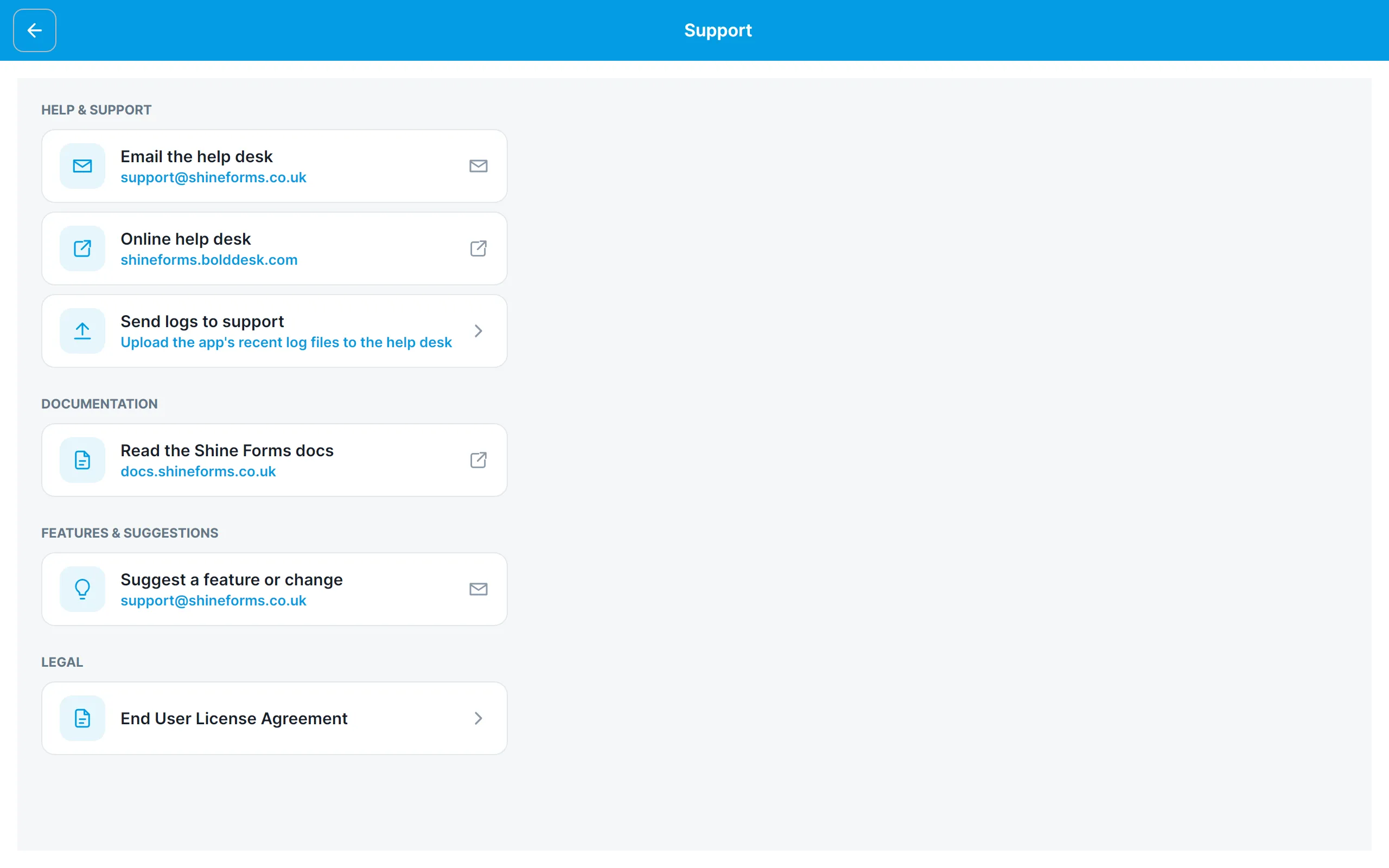
- Email the help desk or open the Online help desk.
- Send logs to support uploads the app’s recent log files to the help desk, which is the quickest way for us to see what went wrong.
- Read the Shine Forms docs opens this documentation.
- Suggest a feature or change emails us your idea.
- End User License Agreement shows the agreement you accepted on first run.
Licences
File → Licences is where a licence is activated on this tablet. The licensing plans for the new app will be announced soon; see licensing on the tablet.