Shine Forms makes it easy to keep your certificates safe. Whether you’re using the Lite Edition or the Premium Edition for sharing certificates, reliable access to your certificates is ensured for years to come.
Use online storage like Dropbox or OneDrive to store your certificates. It’s free and easy to set up. Learn more here.
How to keep your certificates safe
The key to making sure you never lose any of your certificates is very simple:
Make sure you keep either a backup file containing the certificate or an export file of the certificate safely somewhere outside of your computer.
Keep copies of your certificates outside your computer to ensure access in case of damage, theft, or breakdown.
Learn where Shine Forms stores your certificates here.
Need help finding a missing backup file? Read this guide.
Backups and export files
Shine Forms offers two ways to save certificates off your computer:
- Backups: Save all certificates and company data in one file.
- Exports: Save individual certificates in separate files.
Backups can be created anytime. Click here for details.
Export files are available in the Premium Edition, or in the Lite Edition with the legacy Certificate Sharing bolt-on (renewal only — no longer sold new).
Shine Forms automatically takes backups and exports for you after something has changed.
| What | When |
|---|---|
| Automatic backups | When closing the program after making any changes |
| Automatic certificate export | When closing the certificate after making any changes |
Shine Forms generates a PDF and any relevant circuit charts when exporting certificates automatically.
Storing certificates outside your computer
Use Dropbox or OneDrive to store certificates online securely. Learn more here.
Affordable and reliable storage options include Dropbox, OneDrive, or other online facilities. They work in the background to store files while you’re connected to the internet. OneDrive is included with Office 365 plans.
Other storage options include external hard drives, network-attached storage, or USB keys.
If you are part of a company where your IT is managed by another team then they will be able to assist in setting up where these should be stored.
Backup and export storage locations
Control where Shine Forms saves backups and exports in the Shine Forms Options.
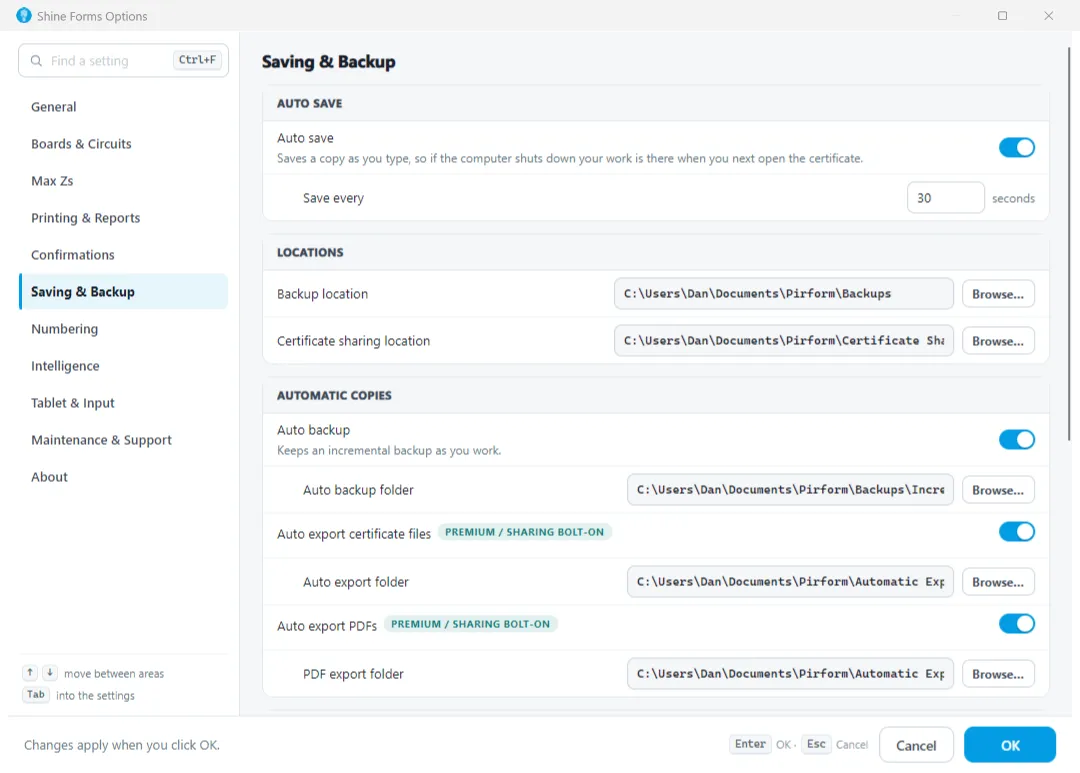
Files can be manually copied off the computer, but online storage is recommended.
Use Dropbox or OneDrive for online storage. Learn more here.
Quickly access your data folders here.
Automatic backups
Automatic backups occur before the program closes after changes. Restore backups using steps found here.
Closing without backup
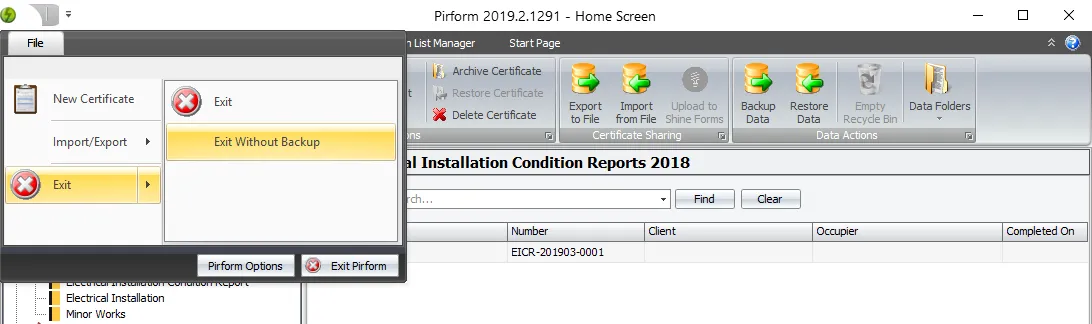
You can close Shine Forms without taking a backup by selecting File > Exit > Exit Without Backup in the Home Screen ribbon.