
The Shine Forms tablet apps will be available soon. Follow us on LinkedIn, watch our blog, or sign up to our newsletter for updates.
Appendices and photos
Photos and documents that should print with the certificate are attached as appendices. Open the Appendices section from the ribbon: tap the section name or Ribbon, then the Appendices tab.
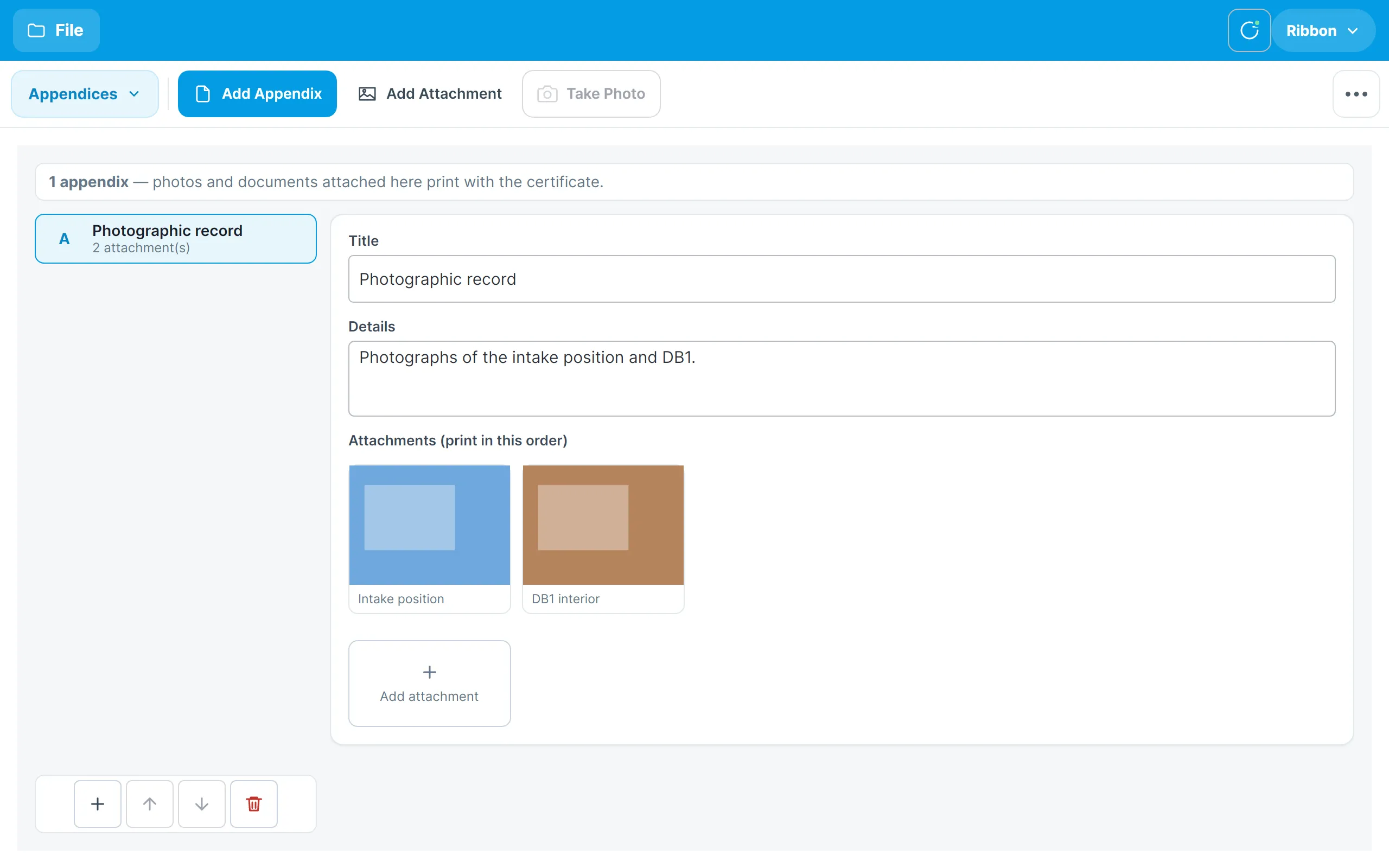
The rail on the left lists the appendices, lettered A, B, C… in the order they will print, with the number of attachments in each. The right-hand side edits the selected appendix:
- Title and Details print at the top of the appendix. The title box suggests common titles — Photographic record, Previous certificate, Schematic diagram, Manufacturer documentation, Correspondence — or type your own.
- Attachments shows each photo with its caption. Attachments print in the order shown.
Adding an appendix
Tap Add Appendix in the ribbon, or the + button under the rail. Give it a title and details. Use the arrow buttons under the rail to move an appendix up or down the print order, and the bin button to delete it.
Adding photos
With an appendix selected:
- Take Photo opens the tablet’s camera and adds the photo to the appendix.
- Add Attachment, or the Add attachment tile, picks a photo already on the tablet.
Tap an attachment to select it. A bar of actions appears: move it earlier or later in the print order, Edit photo to open it in the photo editor, or Remove it.
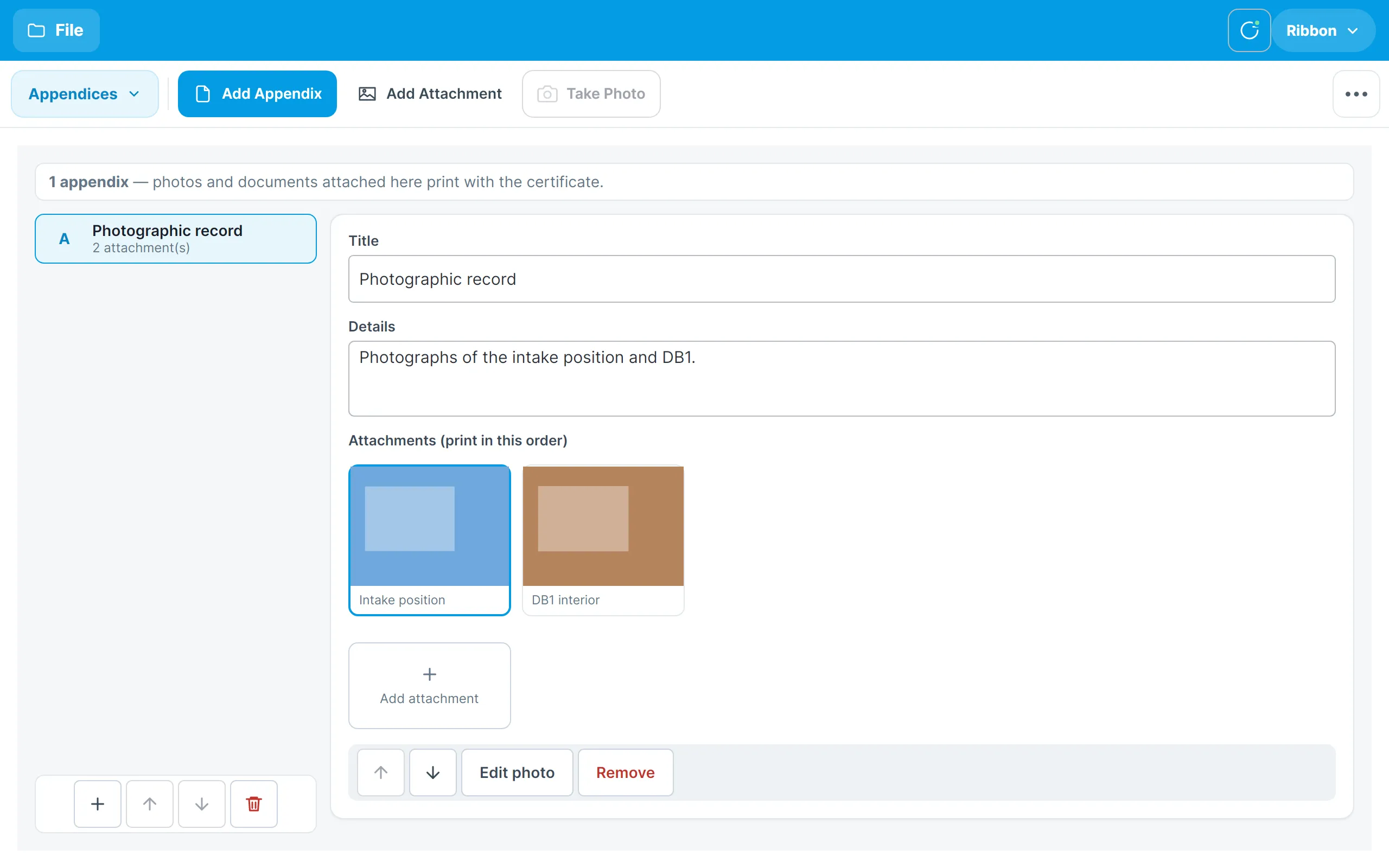
The photo editor is the same one used for observation photos: draw arrows and rings, crop, rotate, enhance, and give the photo a title and details.
Attaching PDF and Word documents on the tablet is coming in a later update. For now, attach photos or screenshots of a document.
Photos on observations
Photos attached to an observation print alongside that observation rather than as an appendix. Use appendices for general photographs of the installation, such as the intake position or the inside of a board.
Linking an appendix to the main switch
The Appendix selector on the Supply & Earthing tab links the main switch’s overcurrent device to one of the certificate’s appendices.