
You can do most things in Shine Forms without using the mouse. Here is a list of the keyboard shortcuts that are available.
Certificates sections
| Key | Action |
|---|---|
| Tab | Move to the next field. |
| Shift + Tab | Move to the previous field. |
| CTRL + 1 | Go to page 1. |
| CTRL + 2 | Go to page 2. |
| CTRL + 3 | Go to page 3. |
| CTRL + 4 | Go to page 4. |
| CTRL + 5 | Go to boards and circuits. |
| CTRL + B | Go to boards and circuits. |
| CTRL + I | Go to the Intelligence Manager. |
General
| Key | Action |
|---|---|
| CTRL + S | Saves the current certificate. |
| CTRL + F | Shows or hides the find boxes on the current page. |
| CTRL + F2 | Goes to print preview. |
| CTRL + F3 | Goes to print preview for the circuit chart. |
| CTRL + C | Copies any highlighted text to the clipboard. |
| CTRL + V | Pastes from the clipboard. |
| DELETE | Removes the currently selected photo or appendix attachment. |
| LEFT/RIGHT ARROW | Moves to the next selected tab inside a certificate. |
| CTRL + F1 | Collapses or expands the ribbon. |
Multi-selection controls
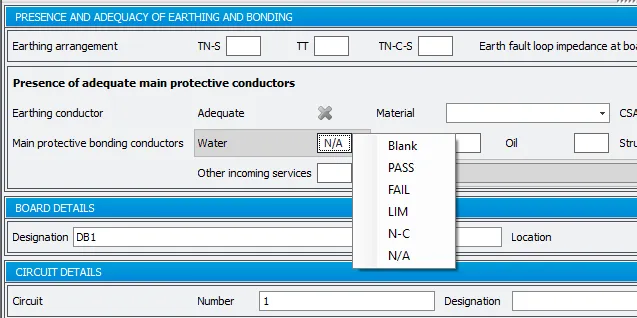
On controls that let you select from pass/fail/lim etc., you can use the first letter of each option in the list:
Multi-select controls can be set using the keyboard by using either the first letter of the value you want or the first letter after the separator (such as A to set it to N/A).
| Key | Action |
|---|---|
| Space | blank |
| P | PASS |
| F | FAIL |
| Y | YES |
| N | NO |
| L | LIM |
| V | N/V |
| A | N/A |
| C | N-C or CONFIRMED |
| F | FI |
Etcetera.
Circuits and test results
When you are working in the circuits and test results grid, sometimes the cursor will be “inside” a cell of the grid. Press the Esc key on your keyboard to “come out” and select the grid again.
| Key | Action |
|---|---|
| F5 | Fill Down To Next Value — copies a value down into blank cells in the same column (such as Wiring Type), skipping spares, until it reaches the next non-blank cell. |
| SHIFT + F5 | Fill All Blanks — copies a value into all blank cells in the same column (such as Wiring Type), skipping spares. |
| CTRL + F5 | Fill Entire Column — copies a value into every cell in the same column (such as Wiring Type), overwriting existing values and skipping spares. |
| CTRL + C | Copy the selected value to the clipboard. |
| CTRL + V | Paste the selected value from the clipboard (you must copy and paste in the same column). |
| CRTL + SHIFT + C | Copy the selected circuit to the clipboard. |
| CRTL + SHIFT + V | Paste the selected circuit from the clipboard as a new circuit. |
| CRTL + SHIFT + B | Paste the selected circuit values from the clipboard into the currently selected circuit. |
| CRTL + Up Arrow | Go to the previous board. |
| CRTL + Down Arrow | Go to the next board. |
| ALT + Up Arrow | Move the selected circuit up. |
| ALT + Down Arrow | Move the selected circuit down. |
| CTRL + M | Merges the selected circuit a triple pole (TP) (three phase boards only). |
| CTRL + U | Un-merges the circuits (three phase boards only). |
Type to select
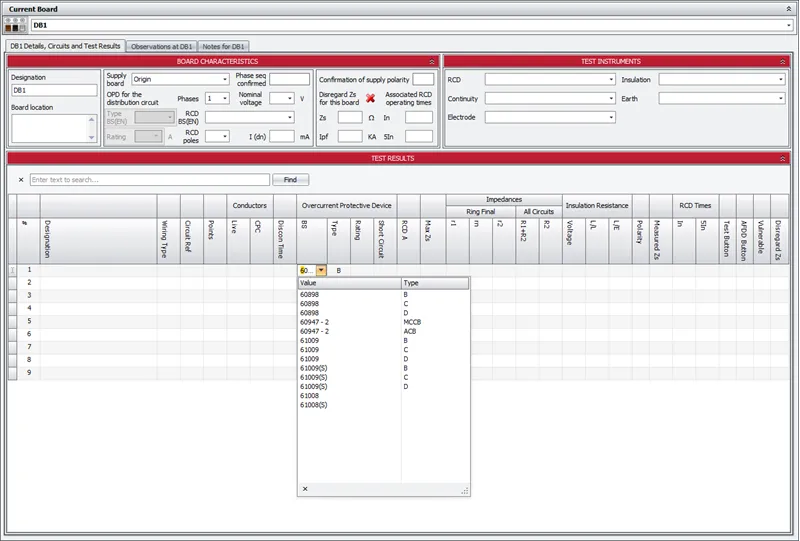
When working in the circuits and test results grid you can also start typing a value to begin selecting from the list. In the image below, the user has typed “6”.
Appendices
| Key | Action |
|---|---|
| Alt + Up Arrow | Moves the current appendix up in the print order. |
| Alt + Down Arrow | Moves the current appendix down in the print order. |
| Ctrl + Alt + Up Arrow | Moves the current attachment up in the print order. |
| Ctrl + Alt + Down Arrow | Moves the current attachment down in the print order. |
Schedule items
| Key | Action |
|---|---|
| Up Arrow | Moves to the previous schedule item. |
| Down Arrow | Moves to the next schedule item. |
| Tab | Moves to the previous schedule item. |
| ALT + Tab | Moves to the next schedule item. |
The following keys set the outcome of the current item:
| Key | Action |
|---|---|
| Space | blank |
| P | PASS |
| 1 | C1 |
| 2 | C2 |
| 3 | C3 |
| V | N/V |
| L | LIM |
| A | N/A |
| F | FI |
Dropdown controls
If you are on a dropdown control (also called a combo box), such as the primary supply OPD BS(EN) selector, you can open the dropdown using your keyboard by pressing Alt + Down Arrow. This is a standard Windows shortcut and will work in other programs too.