
Shine Forms is licensed annually and each licence can be installed onto one computer. Your licences are available against your account at www.shineforms.co.uk and can be downloaded or emailed from there. You then use Shine Forms to apply and activate the licence on your computer.
All your current licences are in your Licence Manager and read about how to purchase licences here.
Licences in Shine Forms
Applying a licence
Once you have got the licence file, you just need to save it to your computer and Shine Forms will find it the next time it starts up. Shine Forms will look for the file in any of the following locations:
- Your desktop.
- A folder called Downloads under your Documents folder.
- A folder called Downloads directly under your main user profile folder.
Save the licence file to one of the above locations on your computer, then close and start Shine Forms and it will apply the licence automatically. The licence file will disappear after Shine Forms applies it.
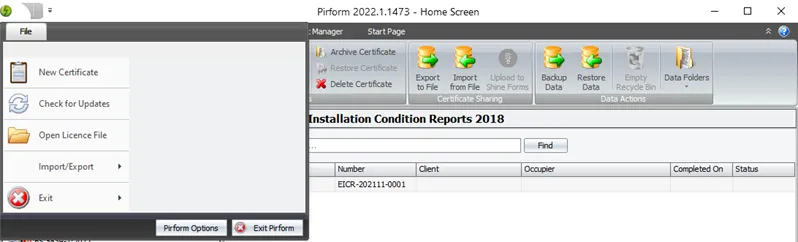
Alternatively, you can open the file directly. To do that, go to the Home Screen, then click File and then click on the item marked Open Licence File as shown below.
During the free trial, you can also click Select licence file… in the free trial window that opens when Shine Forms starts.
Identify the current licence
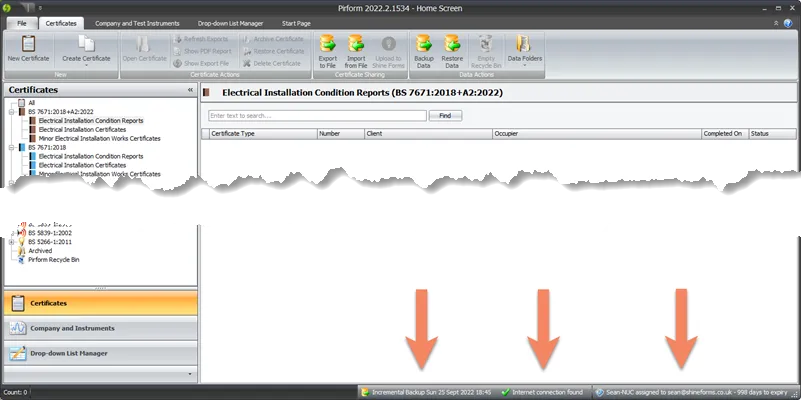
You can see the details of the current licence in the status bar at the bottom of the Home Screen:
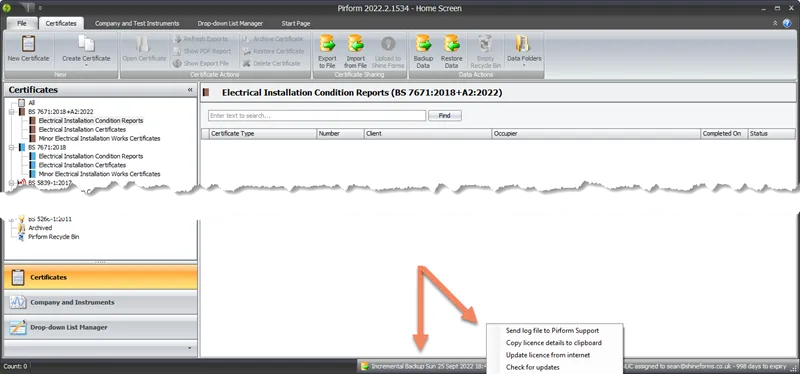
You can copy those details by right-clicking on the status bar and selecting Copy licence details to clipboard:
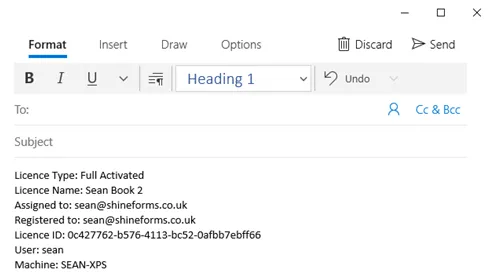
You can then just paste those details into an email:
Updating a licence over the internet
To update your licence over the internet, right-click on the status bar and select Update licence from internet:
Shine Forms will need to be connected to the internet to update the licence. Look for the green tick in the status bar to see whether Shine Forms is connected.
Managing licences online
Your licences are stored in the Shine Forms account that you were using when you purchased them. You can also access them from the link below (you will need to be logged in using the email that you used to buy the licences):
You will then see a list of your licences:
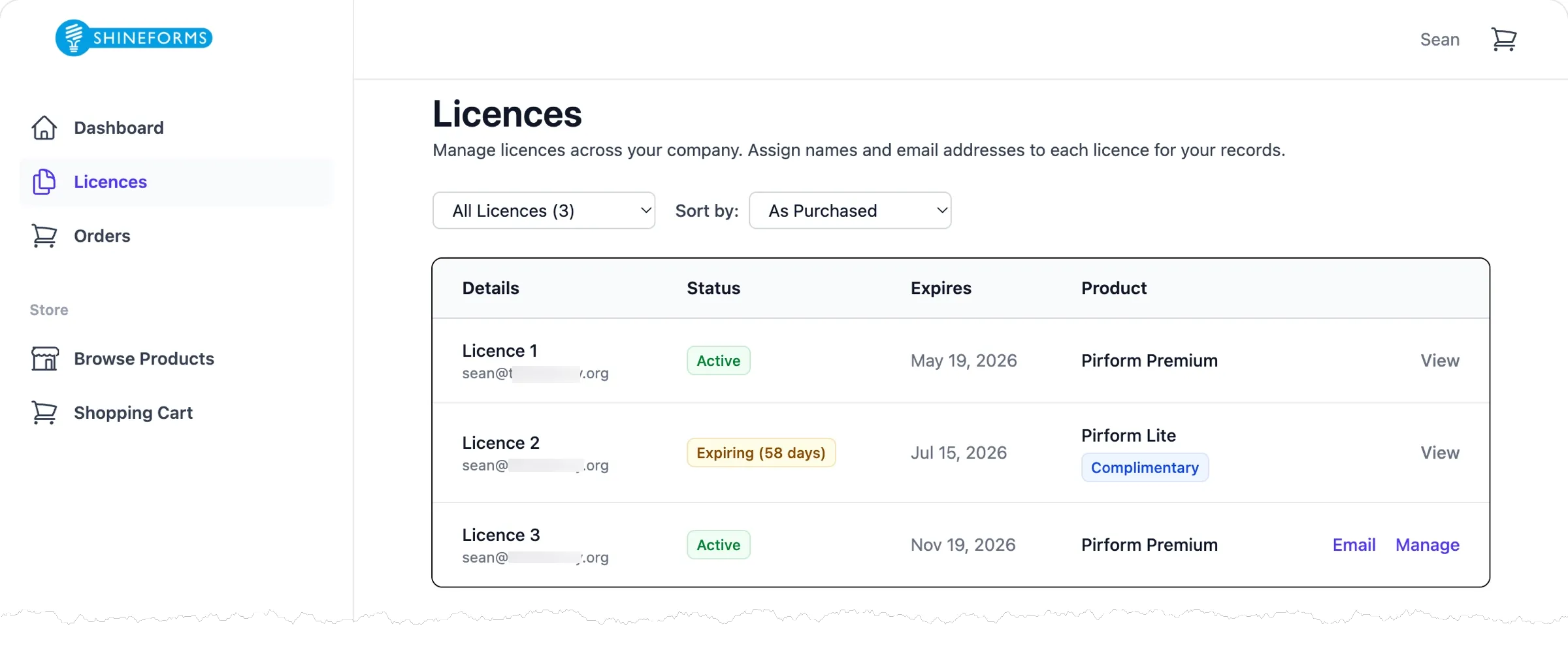
Next to each licence, you will see any available actions that you can perform on it.
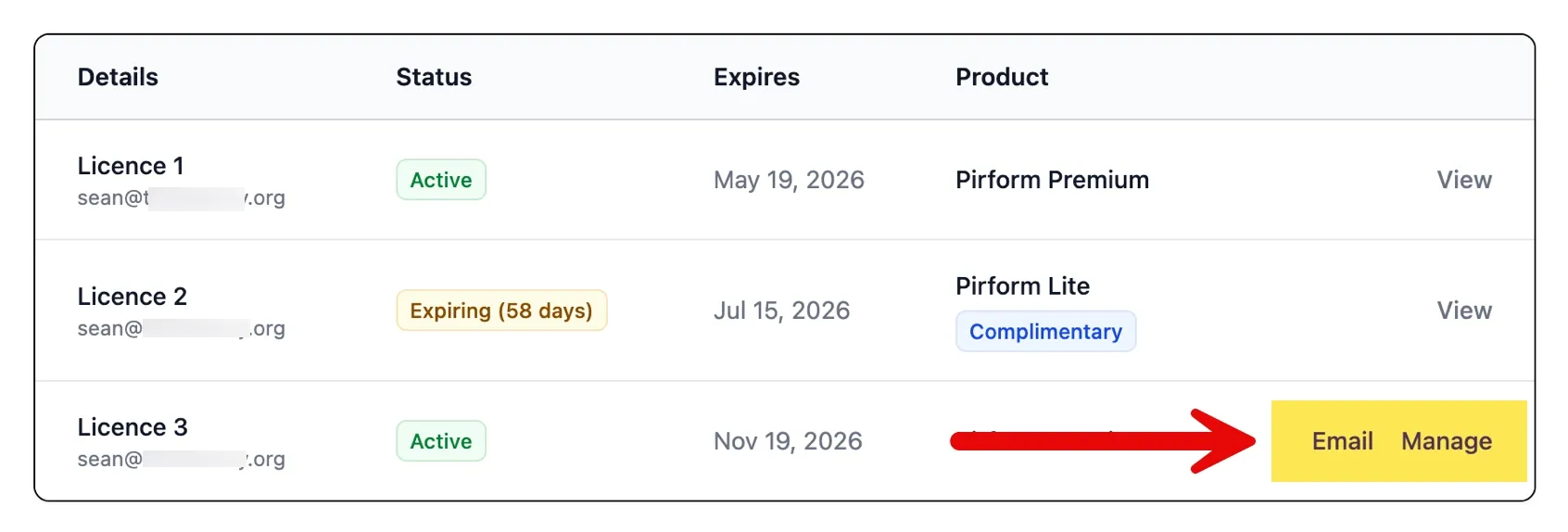
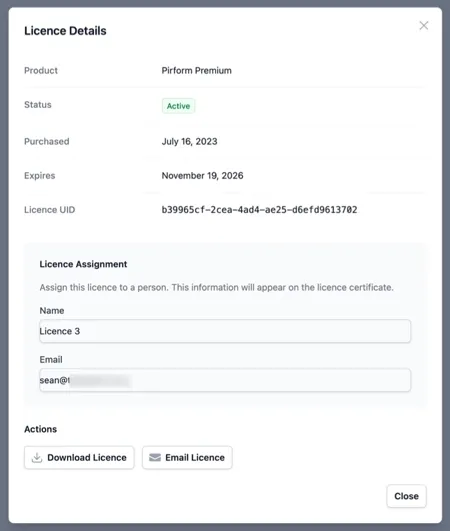
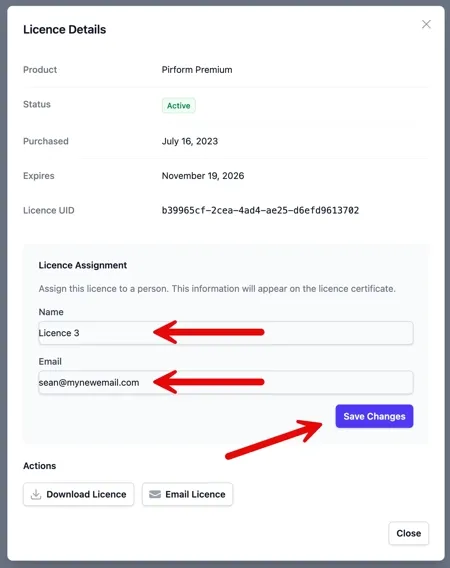
Clicking Manage brings up a dialog where you can interact more with the licence.
Sending the licence by email
You can send the licence in an email that also contains instructions to apply the licence. The licence will be sent to the email address assigned to the licence.
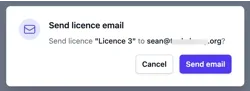
To do this, either click the Email action next to the licence, or click Email Licence in the licence dialog. You will be asked to confirm sending the email.
Alternatively, you can share the licence in another way by downloading the licence file directly to your computer by clicking Download Licence from the licence dialog.
Updating the licence name and email
Open the licence dialog by clicking Manage next to the licence, or clicking the licence row. Enter the name and email address you want to associate with the licence. Click Save Changes to update the licence, or click away to abandon.
Licences for multiple engineers
We highly recommend using an online storage and sharing facility such as Dropbox or OneDrive. Read more here
Shine Forms is licensed to the machine, so the best way to manage the licences is to attach them to a machine, not the user.
Use the name of the licence to indicate the machine it is used on.
Use the email against the licence to indicate the user who you wish to send the licence to.
You only need to deactivate a licence when you are going to completely remove Shine Forms from that machine or make significant changes to the machine, such as reinstalling Windows or fitting a new hard disk.
Read how to move a licence to another machine here.