
The Shine Forms tablet apps will be available soon. Follow us on LinkedIn, watch our blog, or sign up to our newsletter for updates.
Signing in
The first time you open the app you are asked to sign in. Use the same email address and password that you use for the Shine Forms website.
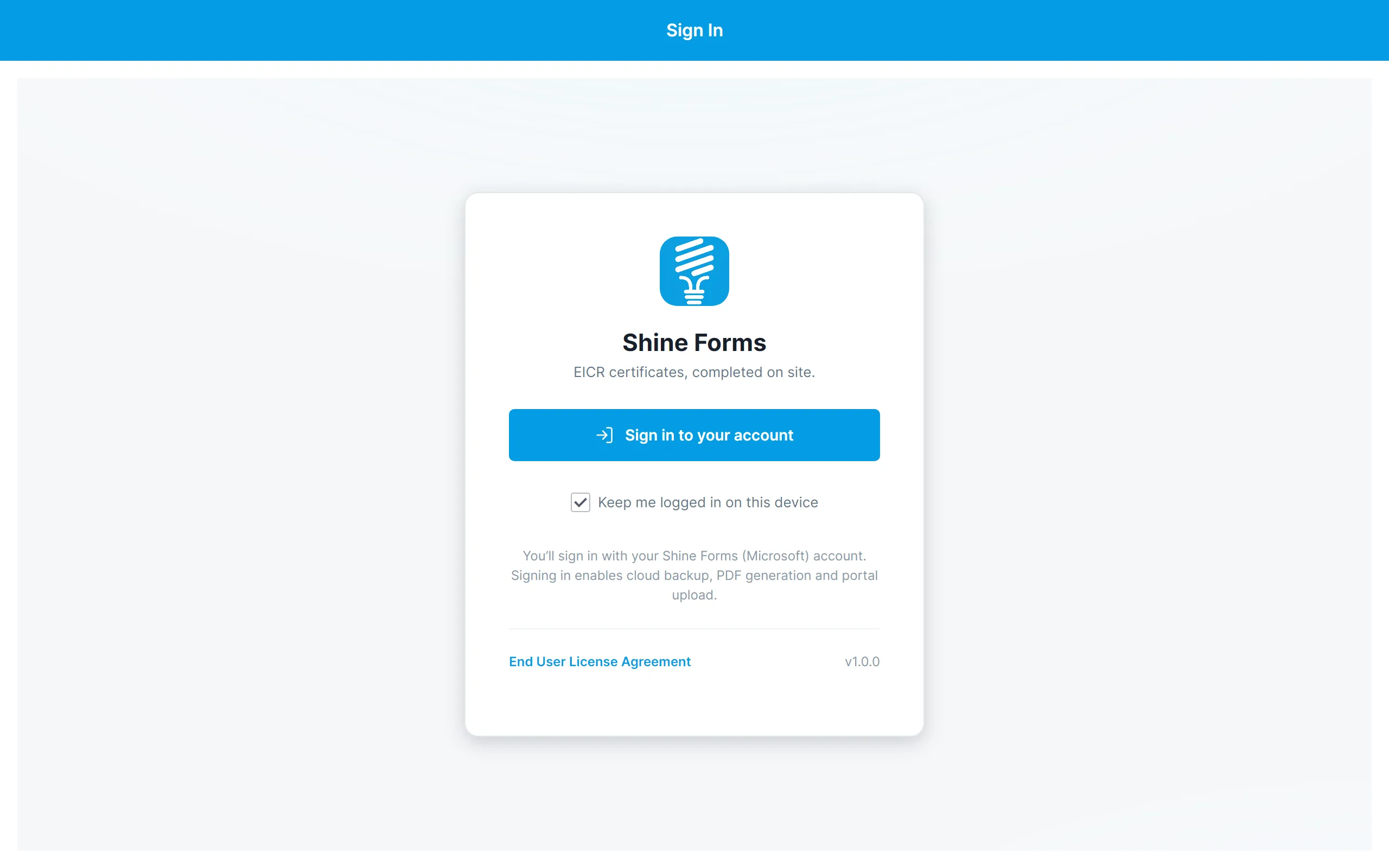
Tap Sign in to your account. Signing in happens in your tablet’s web browser, exactly as on the website, and returns you to the app when it is done.
Leave Keep me logged in on this device ticked and the app will not ask you to sign in again on this tablet. Untick it on a shared device so that the next person has to sign in as themselves.
Signing in is what links the tablet to your Shine Forms account. It enables cloud backup, PDF generation and uploading certificates to your account. You need an internet connection to sign in, but not to work on certificates afterwards.
Signing in with a code
If the browser cannot return you to the app, the app shows a code and a web address instead.
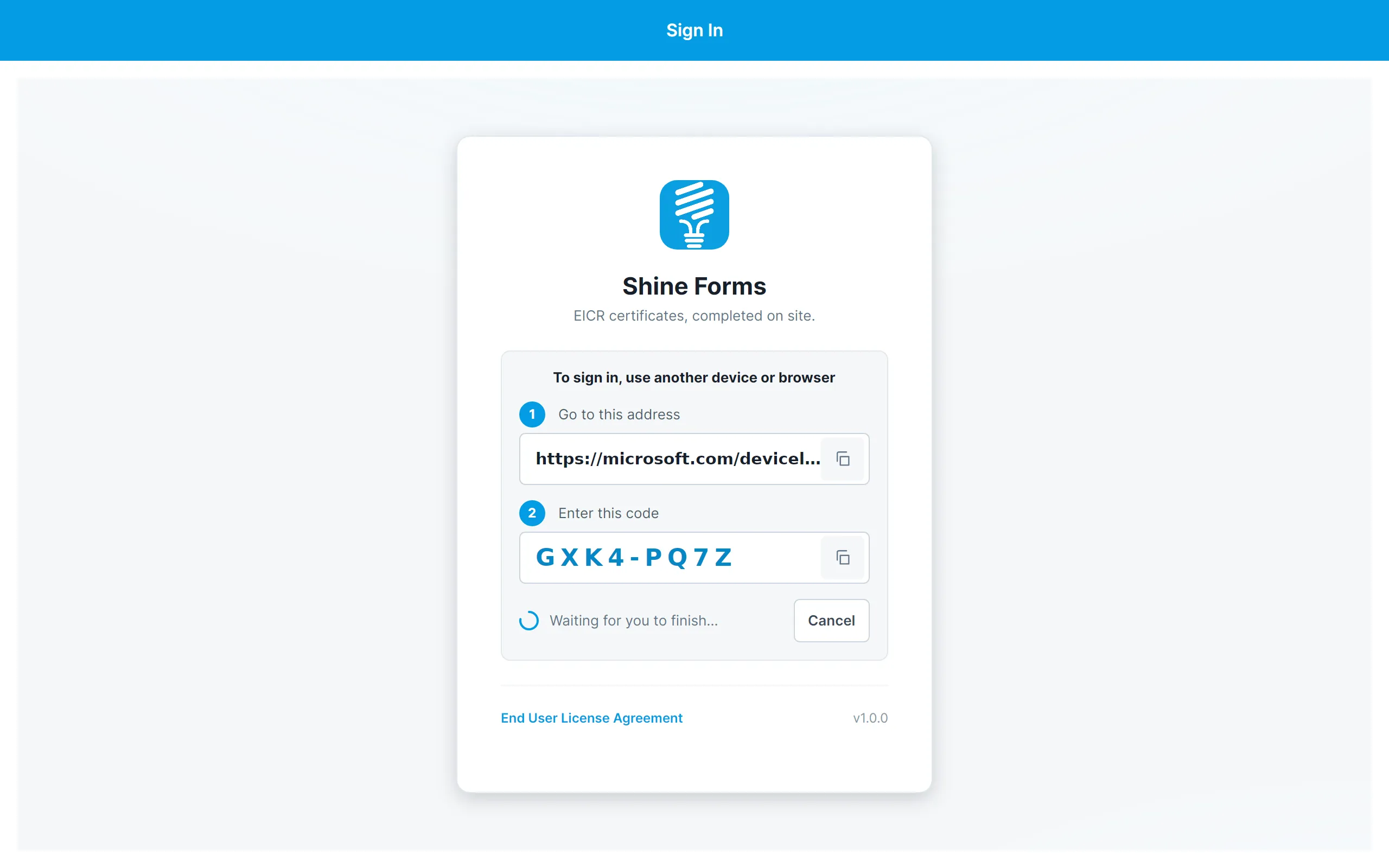
Go to the address on any device that has a browser, enter the code, and sign in there. The tablet app signs in as soon as the code is accepted. Tap the copy buttons to copy the address or the code.
Accepting the licence agreement
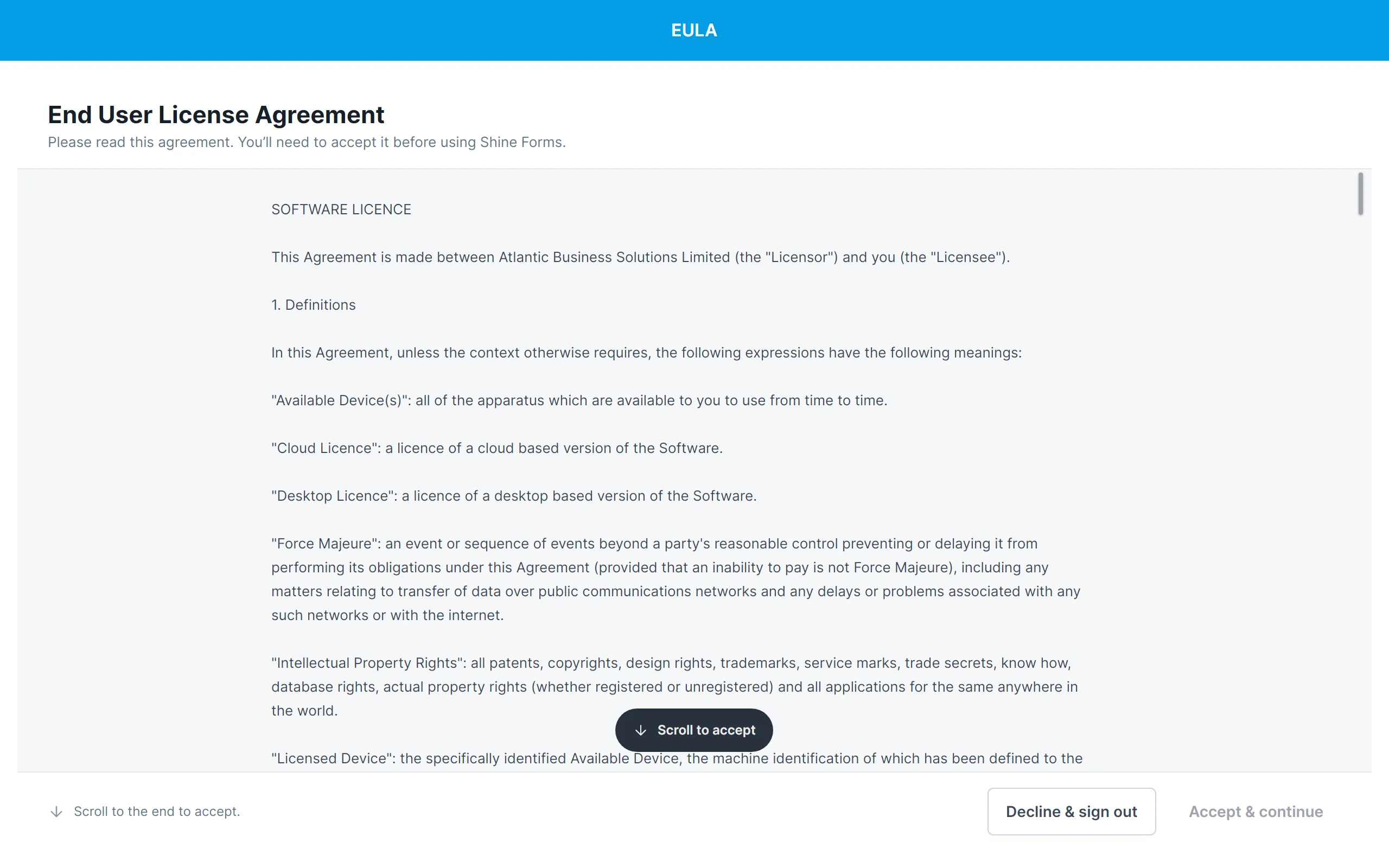
On the first run you are asked to read and accept the End User Licence Agreement. Scroll to the end of the agreement to enable Accept & continue. You can read the agreement again at any time from File → Support.
Signing out
Open the File menu and tap Sign Out. Certificates stay on the tablet, but you will need an internet connection to sign in again before you can upload them.
If you have forgotten your password, see Registering and logging in.