The Shine Forms tablet apps will be available soon. Follow us on LinkedIn, watch our blog, or sign up to our newsletter for updates.
The Home screen
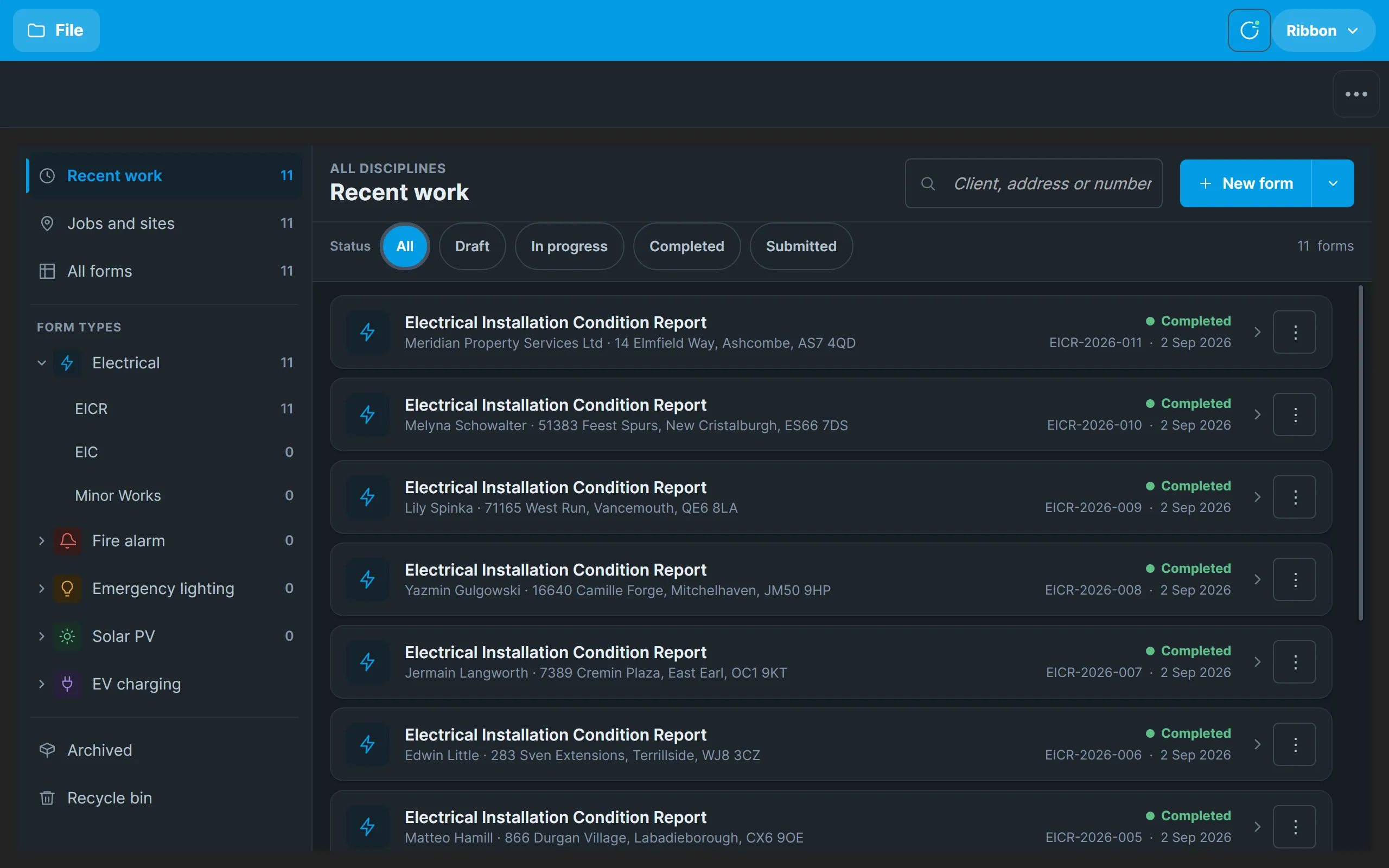
After you sign in, the app opens on the Home screen. It lists every form on the tablet and is where you create new ones.
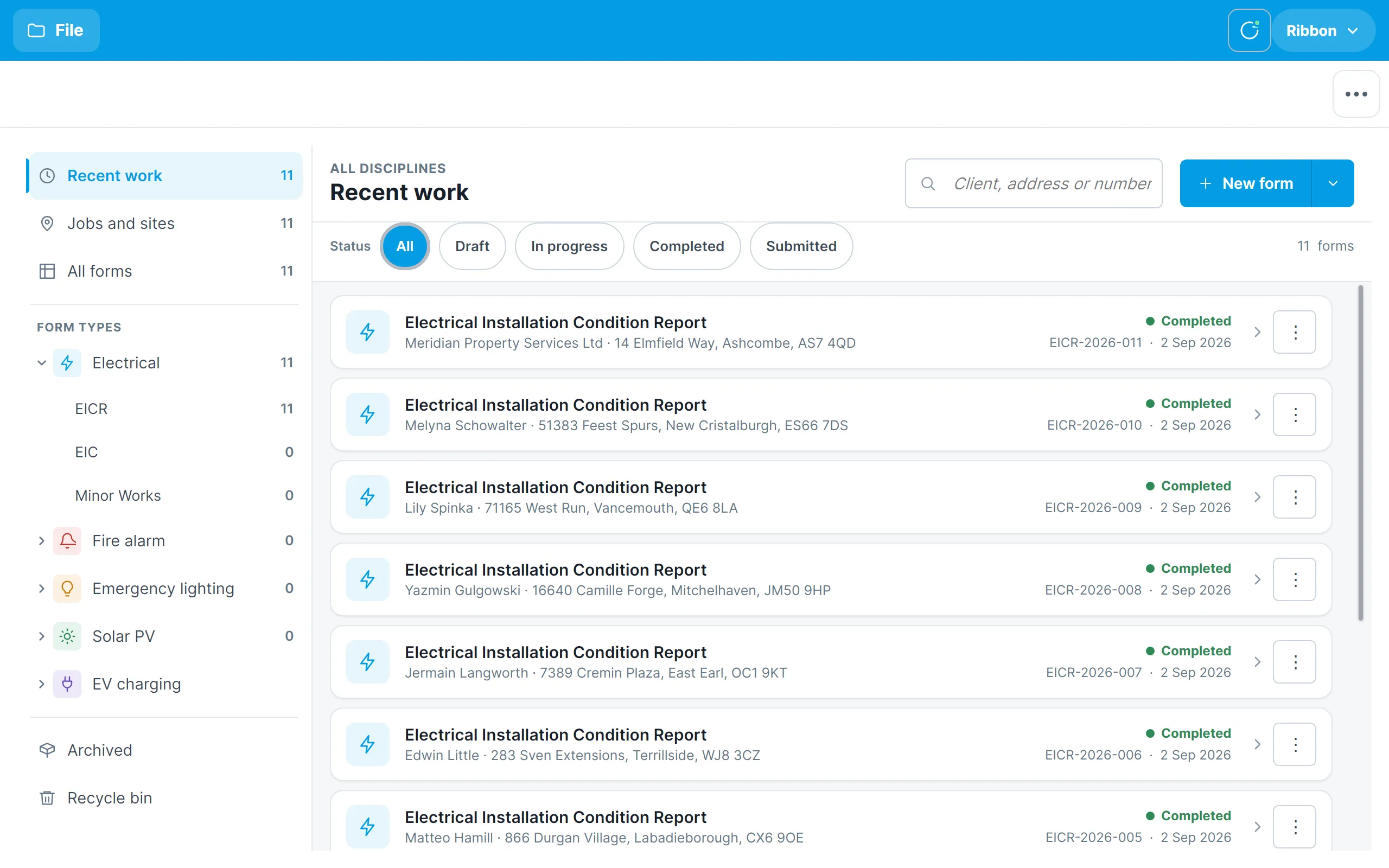
The screen has three parts:
- The rail on the left chooses what the list shows.
- The list in the middle has one row per certificate, showing the type of form, the client and address, its status, the certificate number and when it was last worked on.
- New form at the top right creates a new certificate.
Tap a row to open that certificate. The ⋮ button at the end of a row lets you Upload the certificate or Move to recycle bin.
Choosing what to see
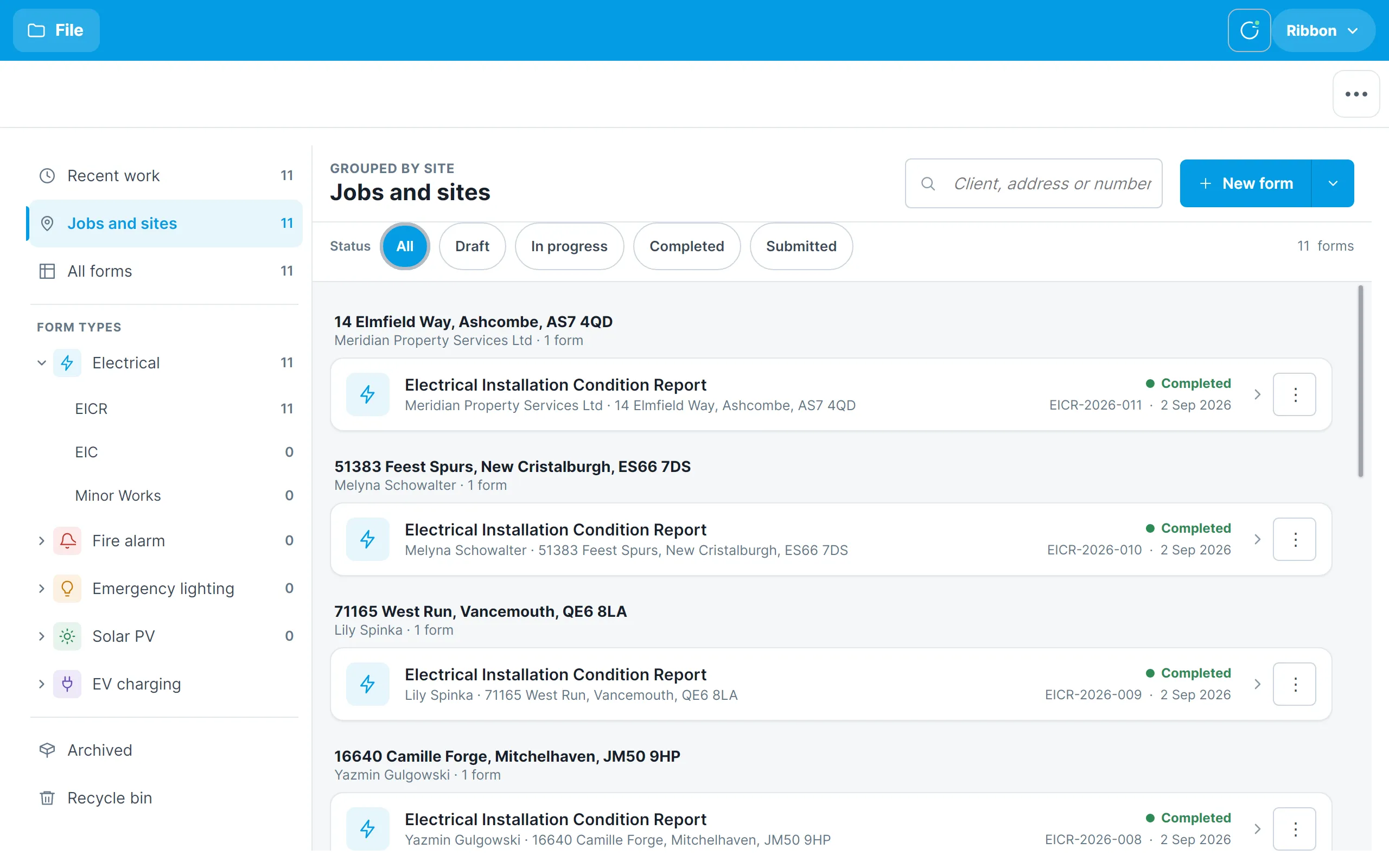
The top of the rail has three views of your work:
- Recent work shows everything, most recently edited first.
- Jobs and sites groups certificates by client and site, so you can see all the work at one address together.
- All forms lists everything.
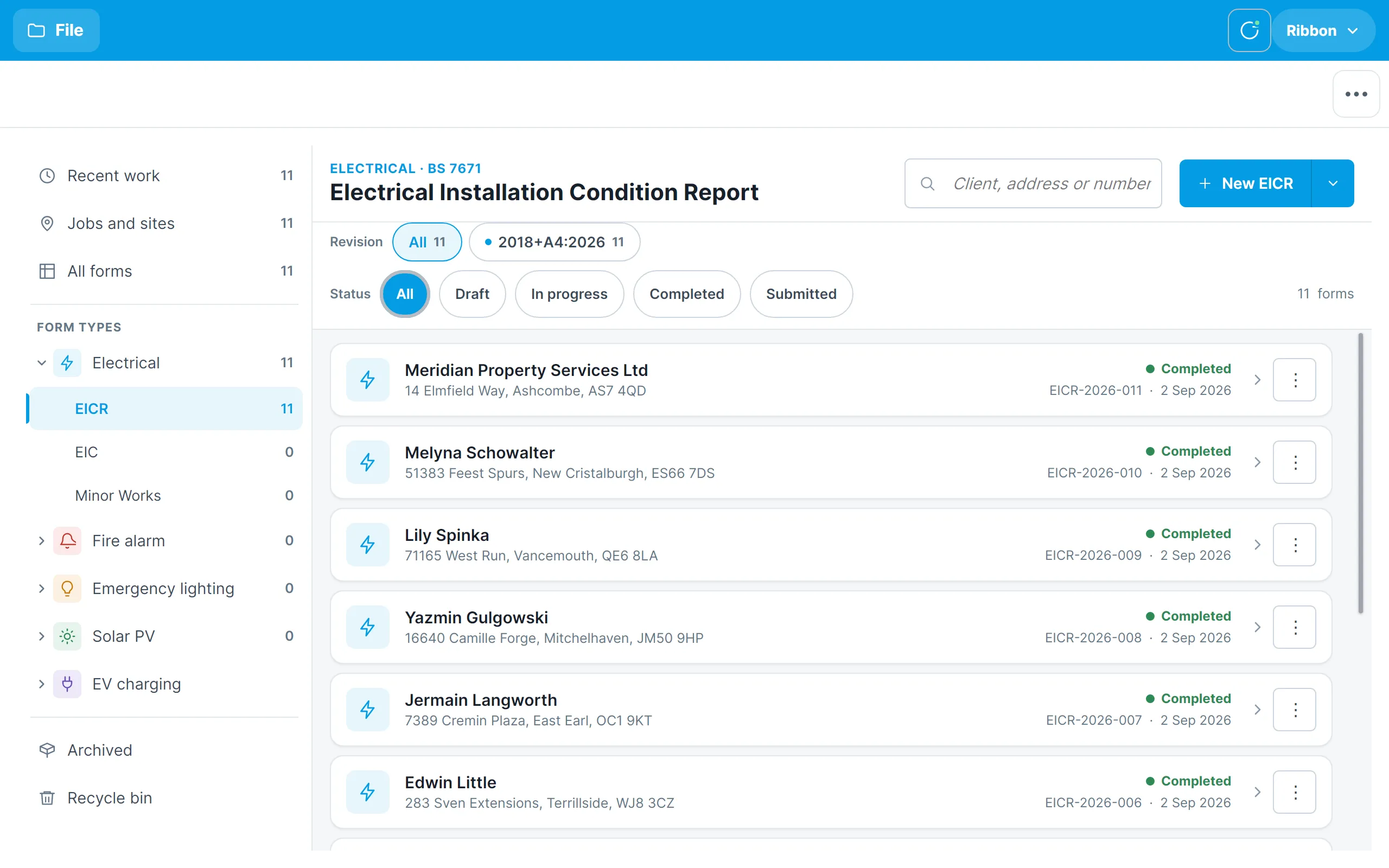
Under Form types the rail lists each discipline with the number of forms of each type on the tablet. Tap a discipline to expand it and tap a form type, such as EICR, to see only that type. The app launches with the electrical certificates; the other disciplines are coming soon. In a form-type view the list shows the client and address of each certificate, and a Revision row lets you narrow the list to one edition of the standard.
Above the list, the Status chips narrow it to Draft, In progress, Completed or Submitted certificates:
- Draft — nothing entered yet.
- In progress — the client or occupier has been entered.
- Completed — the date of completion has been entered.
- Submitted — the certificate has been uploaded to your Shine Forms account.
The search box finds certificates by client, address or certificate number.
At the bottom of the rail, Recycle bin shows certificates you have deleted, from where they can be restored or permanently deleted. See Settings and support.
Creating a certificate
Tap New form. The picker lists the disciplines Shine Forms covers and the form types within each.
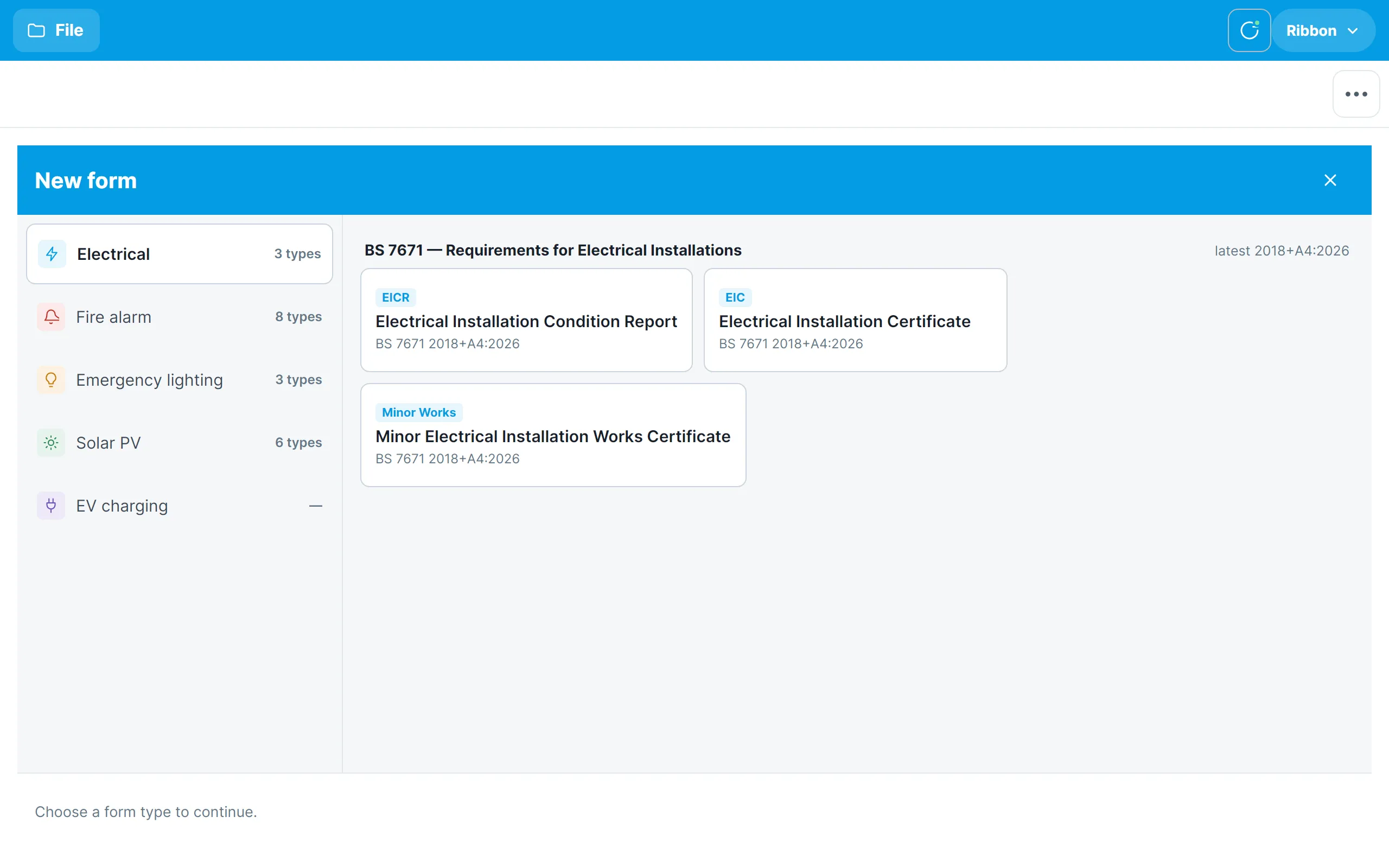
Choose a discipline on the left, then tap the form you want. The EICR tile is the Electrical Installation Condition Report to BS 7671:2018+A4:2026.
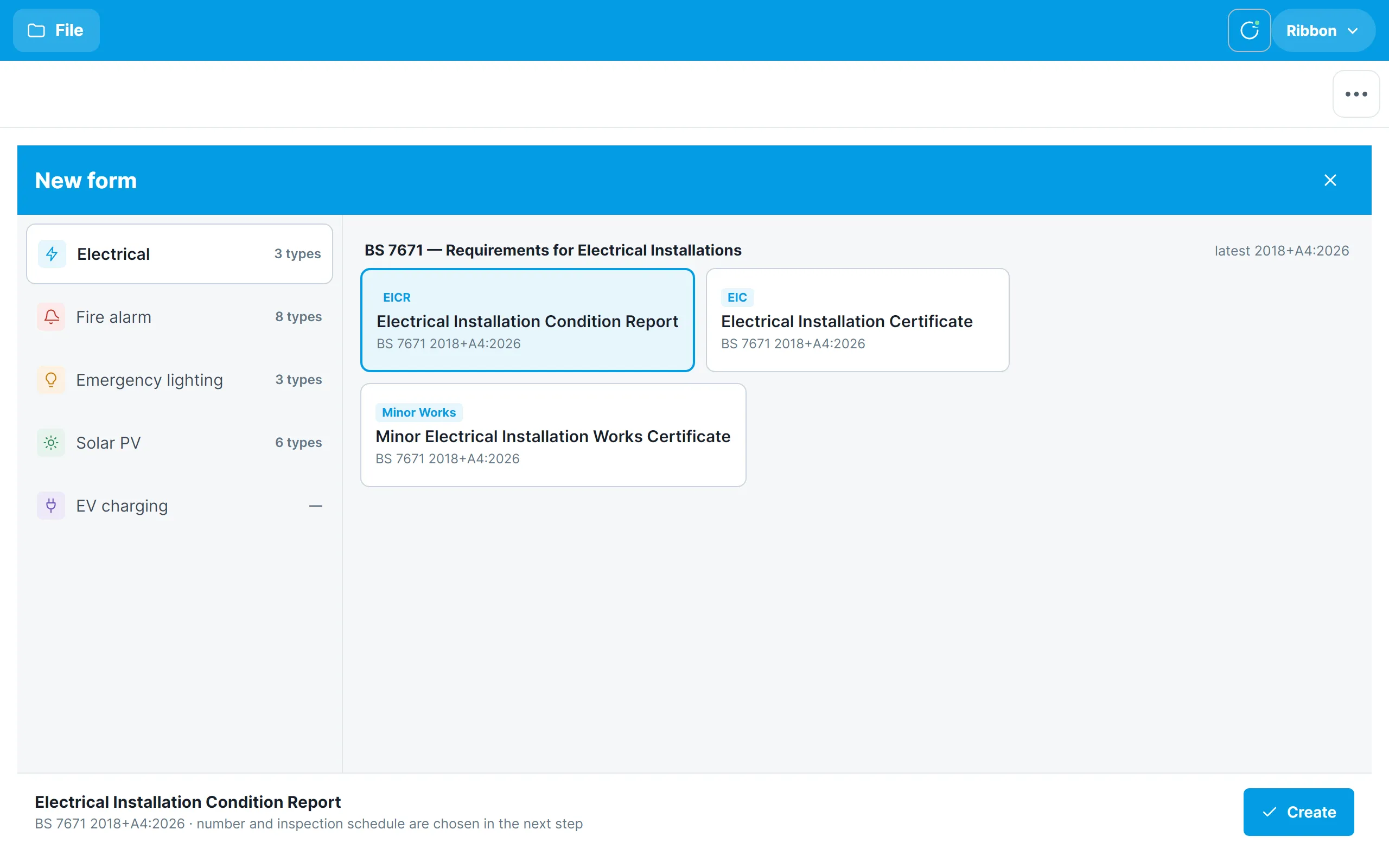
Fire alarm, emergency lighting, solar PV and EV charging forms are coming soon. Choosing one of those, or a form type marked Not built yet, shows a page explaining that it is on its way rather than creating a certificate.
Tap Create. You are then asked for the details the app needs to set the certificate up:
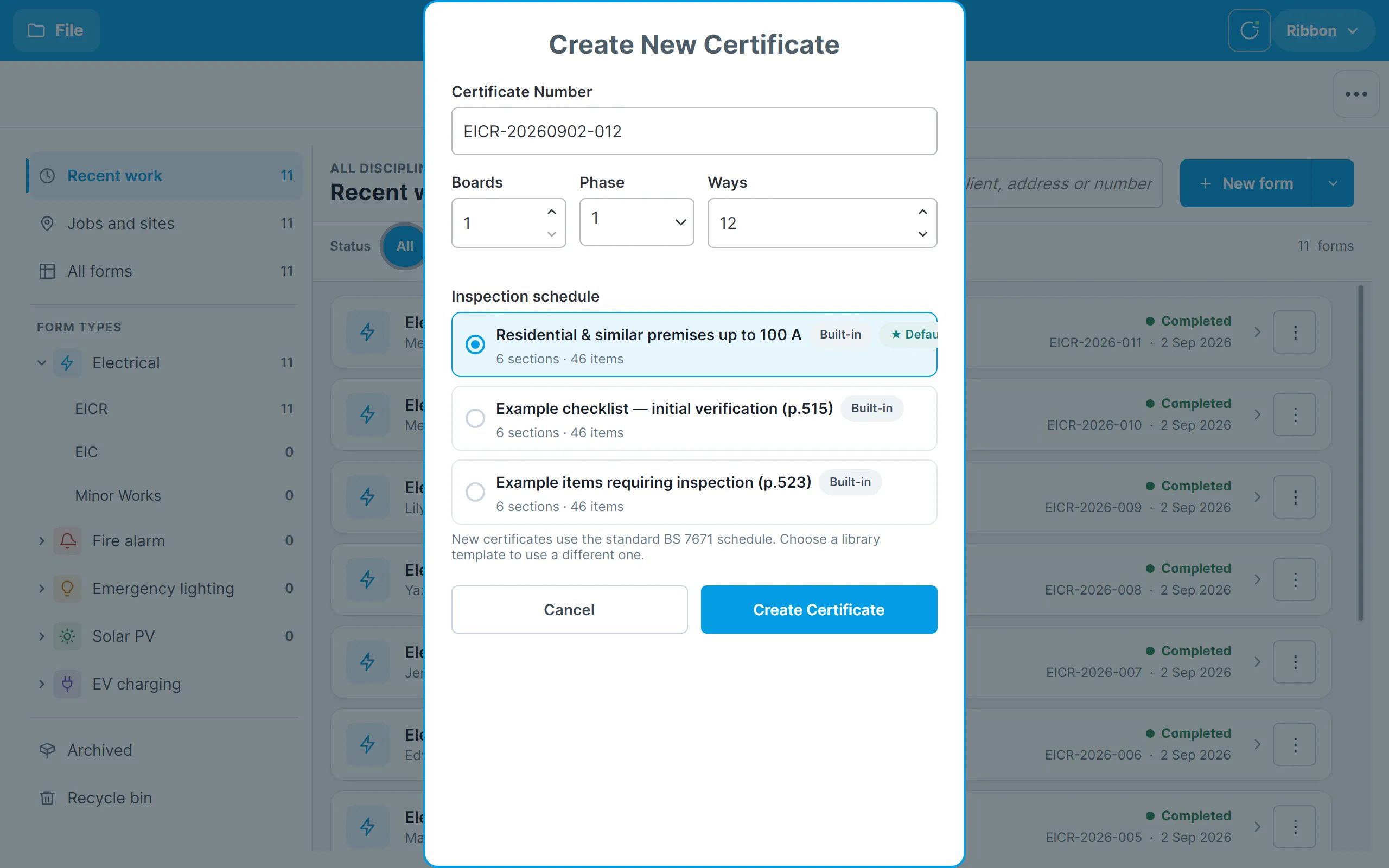
- Certificate Number — a number is suggested for you, and you can change it.
- Boards, Phase and Ways — how many distribution boards to create, the phase of the boards, and how many ways each has. You can add boards and circuits later, so a best guess is fine.
- Inspection schedule — which schedule of inspections the certificate uses. The standard BS 7671 schedule is selected by default; the other choices come from the Schedule Library.
Tap Create Certificate and the new certificate opens ready for you to start entering details.
When you are already looking at one form type, the button at the top right is labelled with that type — for example New EICR — and starts a new certificate of that type straight away. The arrow beside it opens the picker if you want a different type.
Dark theme
The app has a dark theme that is easier on the eyes in low light. Turn it on under File → Options → General → Dark theme.