
You can work with the boards and circuits in your certificates from the Circuits and Test Results area.
The Circuits and Test Results area lets you focus on a single board at a time. But you can work on all your boards together by using the Board Manager.
Overview
Use the ribbon to add, copy, or remove boards and circuits, change the ordering, merge or unmerge three-phase circuit groups, and adjust observations at the board.
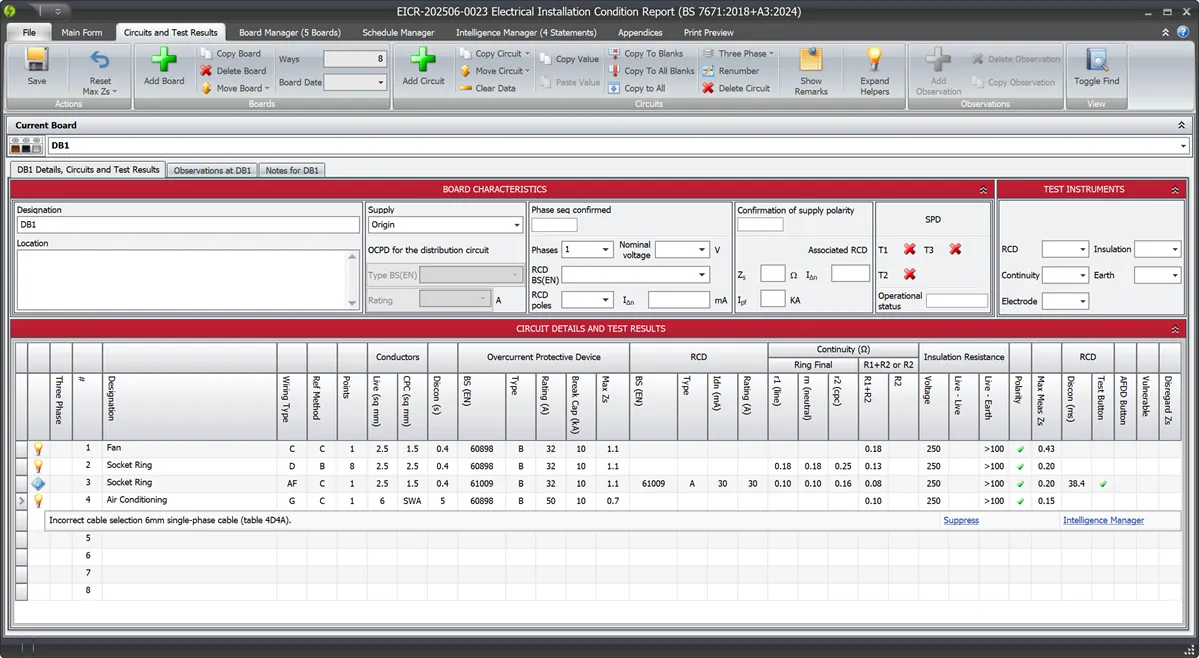
The Circuit Helper feature brings circuit intelligence right into the circuits and test results. This makes it easier to understand the board you’re working on and much easier when reviewing and checking work. You can read more about the Circuit Helper here.
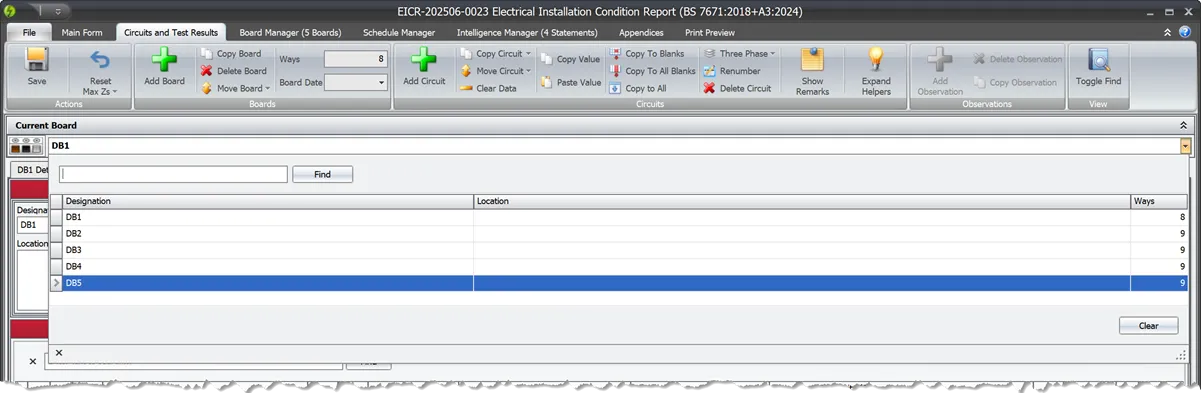
Select the board you want to work with using the board selection control. The Find Box lets you search for the board you want to work with. You can also hold the Ctrl and Alt keys and use the Up or Down arrows to move through your boards (read more about the keyboard shortcuts here).
Observations at a board
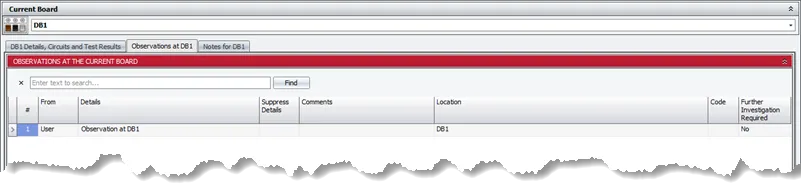
Observations against the board are shown in the separate Observations tab.
Circuit remarks
You can enter remarks against a circuit to record, for example, that the circuit is made up of twin cables.
To enter remarks, first toggle them by clicking Show Remarks in the ribbon, select the appropriate circuit, then enter the remarks at the bottom of the screen:
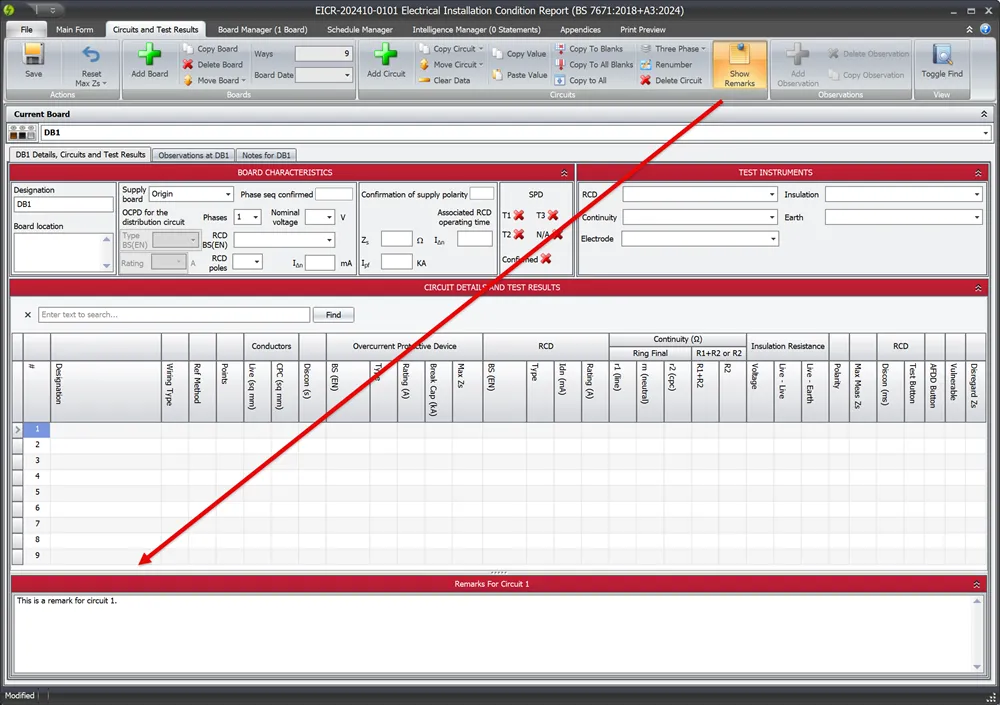
These appear on the certificate in the remarks section of the certificate’s PDF.
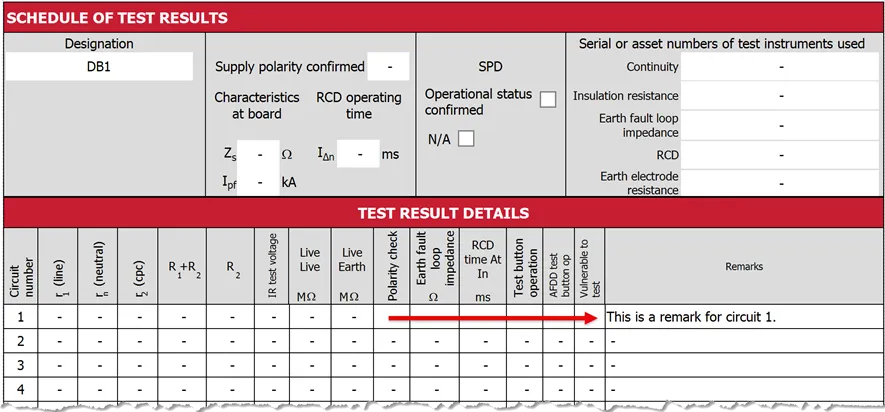
Report protective devices as bidirectional or unidirectional
A3 2024 introduces new guidance in 530.3.201 around when protective devices are bidirectional or unidirectional. You can use circuit remarks for any comments against the circuit:
Notes at a board
You can also enter notes against the board to record, for example, items required for later works. These do not appear on the certificate but can be viewed in the Board Manager and exported to Excel to work with outside of Shine Forms.

Copying boards and circuits
In the Circuits and Test Results section of the certificate, you will find features for copying boards and circuits.

You can copy boards to other certificates using the certificate merge feature.
Copying boards
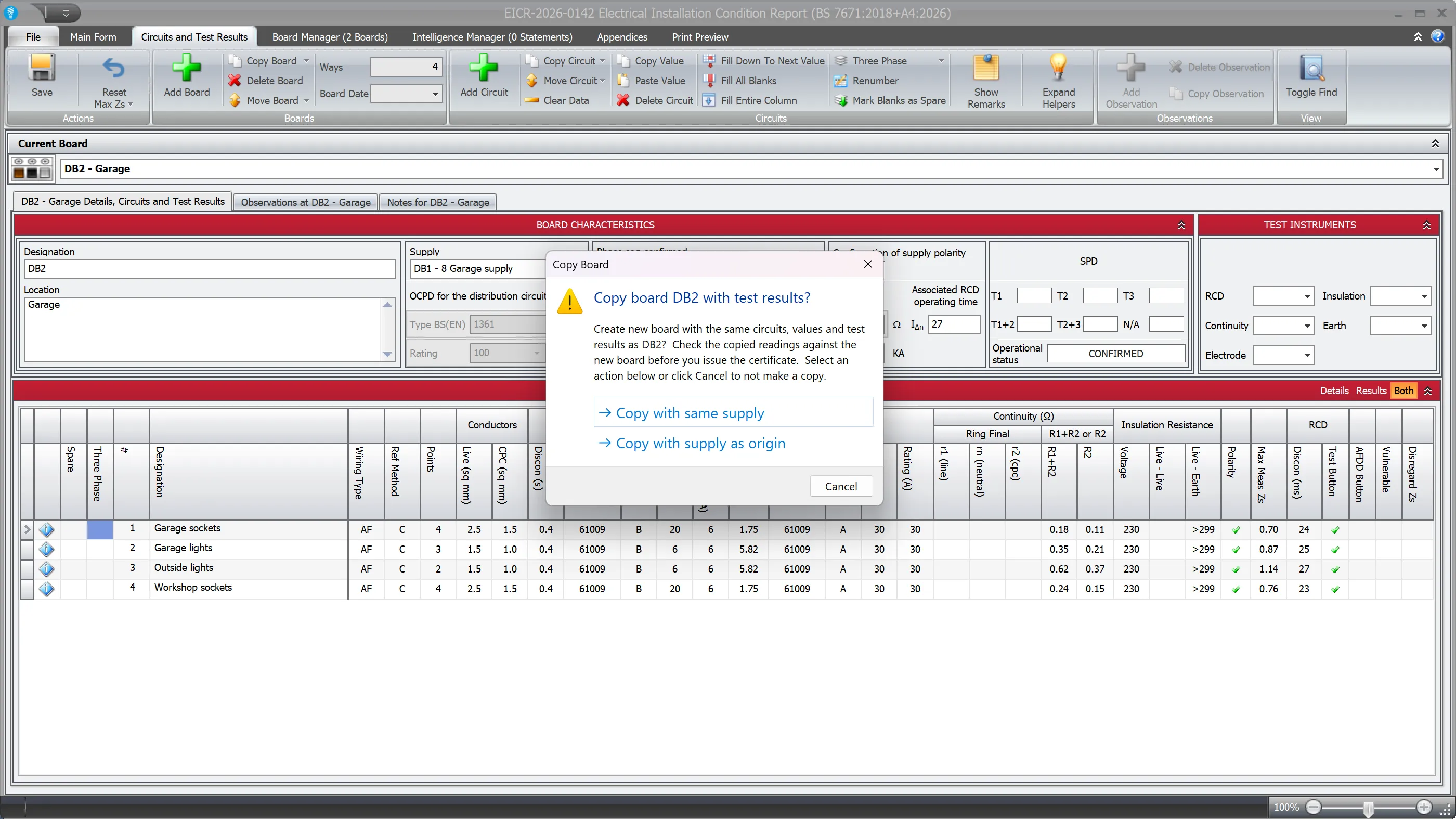
Go to the board you want to copy and click Copy Board in the ribbon. You will be presented with the option to copy with the same supply or with the supply as the origin.
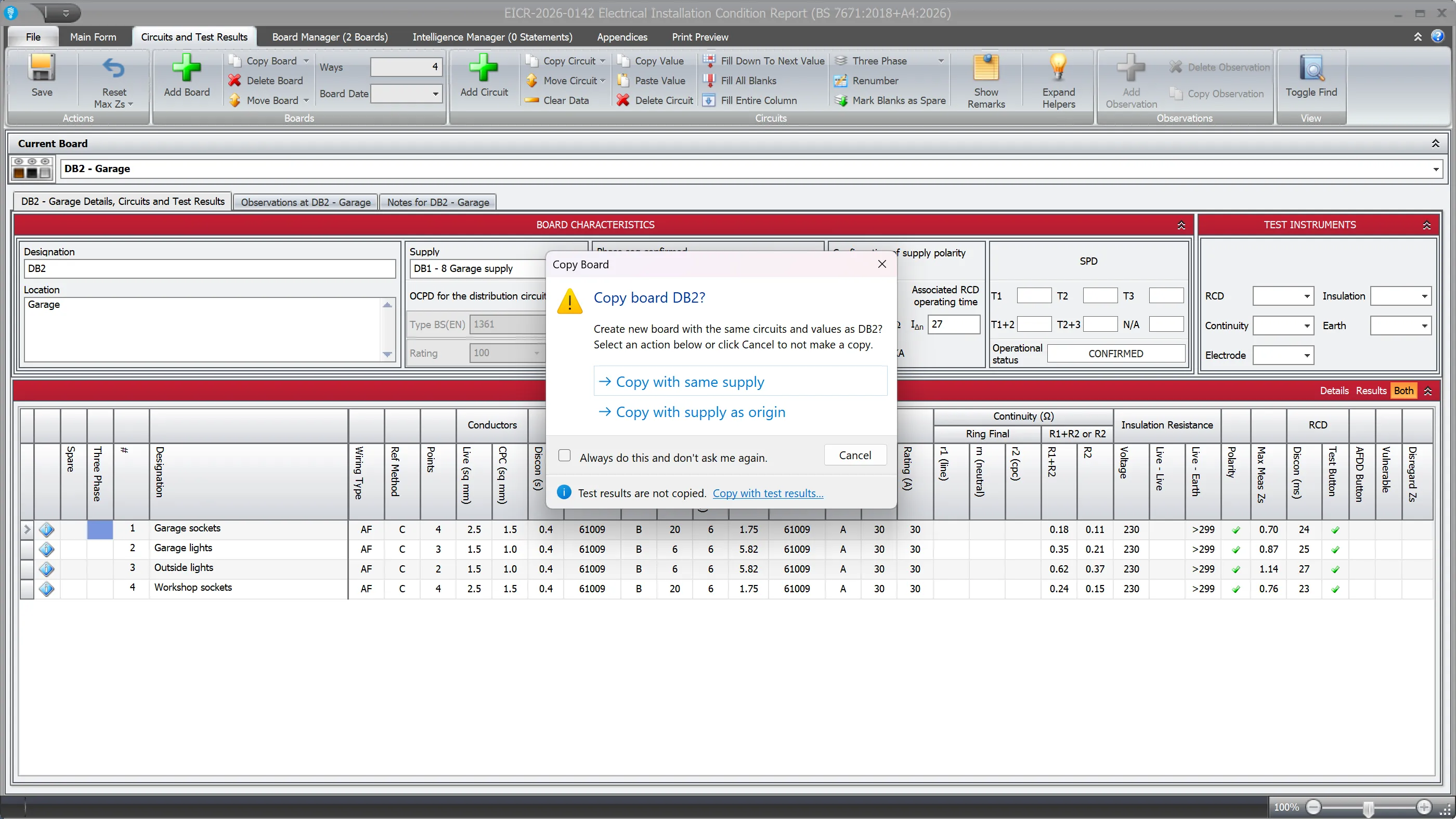
A new board will be created with “copy N” appended to the designation.
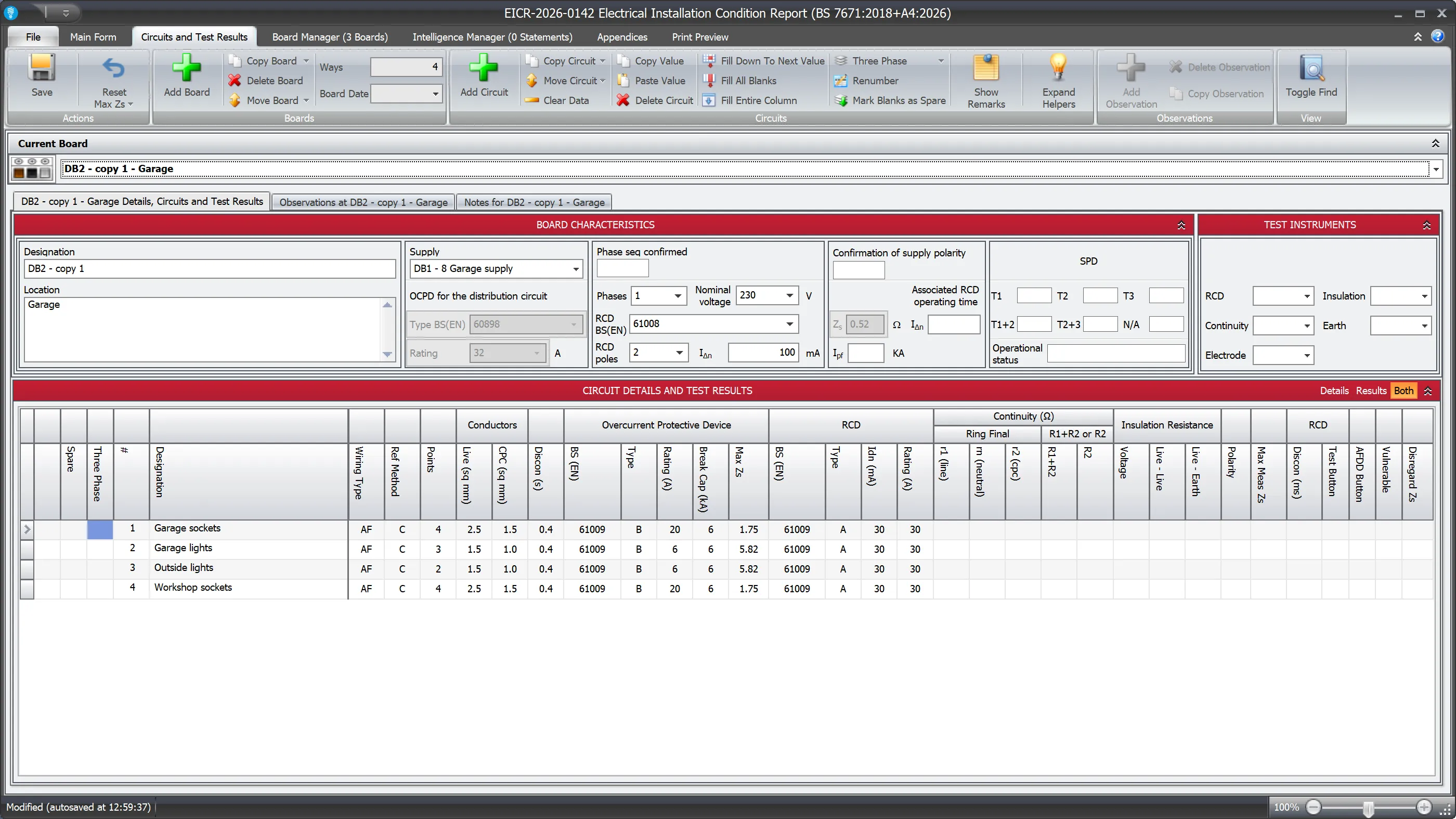
The new board has the same circuits and circuit details, but not the test results. The circuits’ readings and the board’s own Zdb, Ipf, polarity, phase sequence and RCD operating times are not copied. The inspection engineer, inspection date and test instruments are copied. If you copy with the same supply, the new board takes its Zdb from that supply, just as any board on that supply does.
Copying a board with its test results
To copy the test results as well, click Copy with test results… at the bottom of the Copy Board dialog. The dialog then offers the same two supply options again; choose one and the new board gets the same circuits, values and test results as the board you copied.
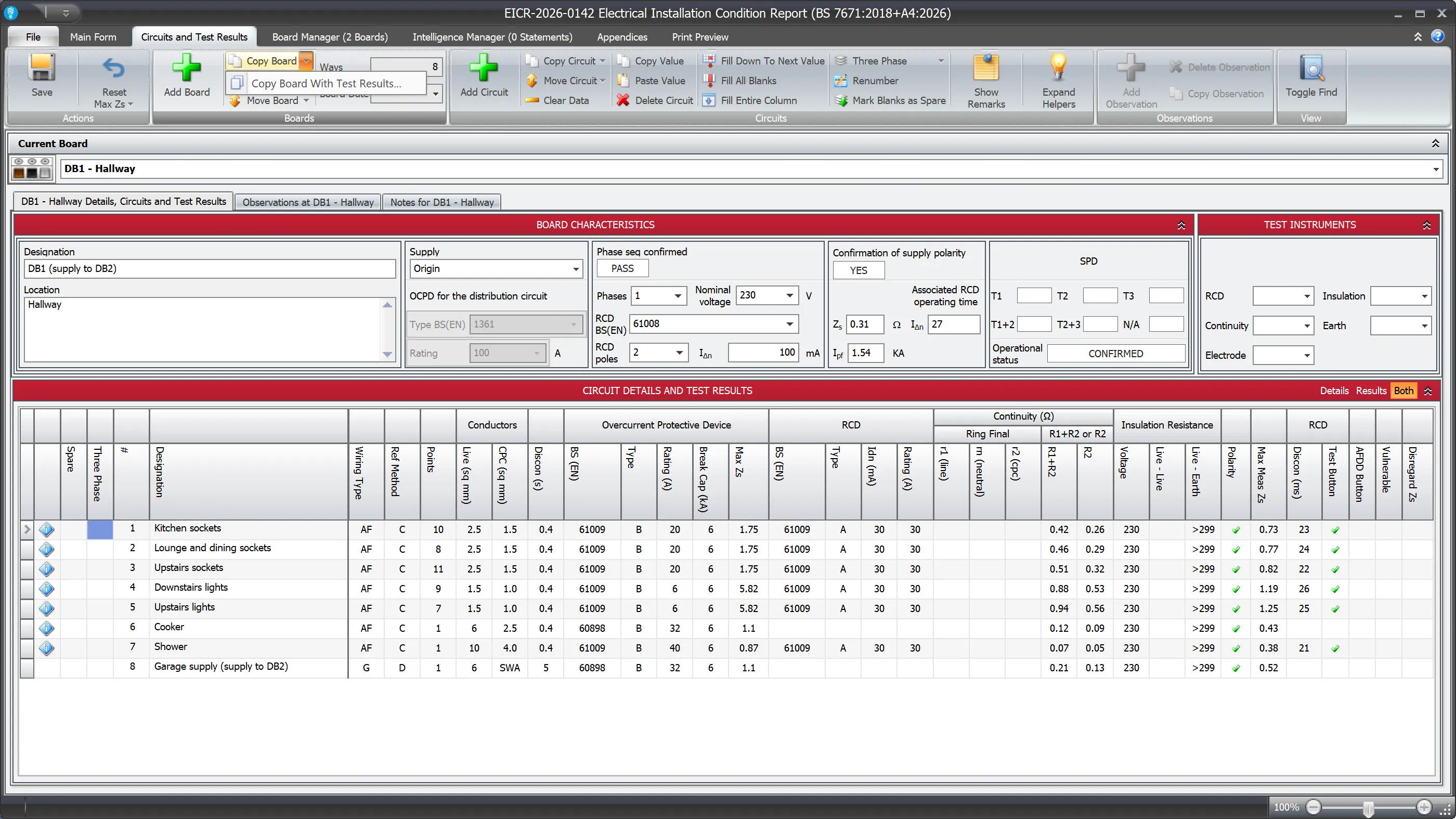
You can also click the arrow on the Copy Board button and choose Copy Board With Test Results…. This always asks you to confirm, even if you have ticked Always do this and don’t ask me again.
Copied test results are not measurements of the new board or its circuits. Check each reading against the installation before you issue the certificate.
Copying circuits
Select the circuit you want to copy (the marker in the leftmost column has an arrow to show the selected circuit) and then choose one of the options under the Copy Circuit menu in the ribbon:
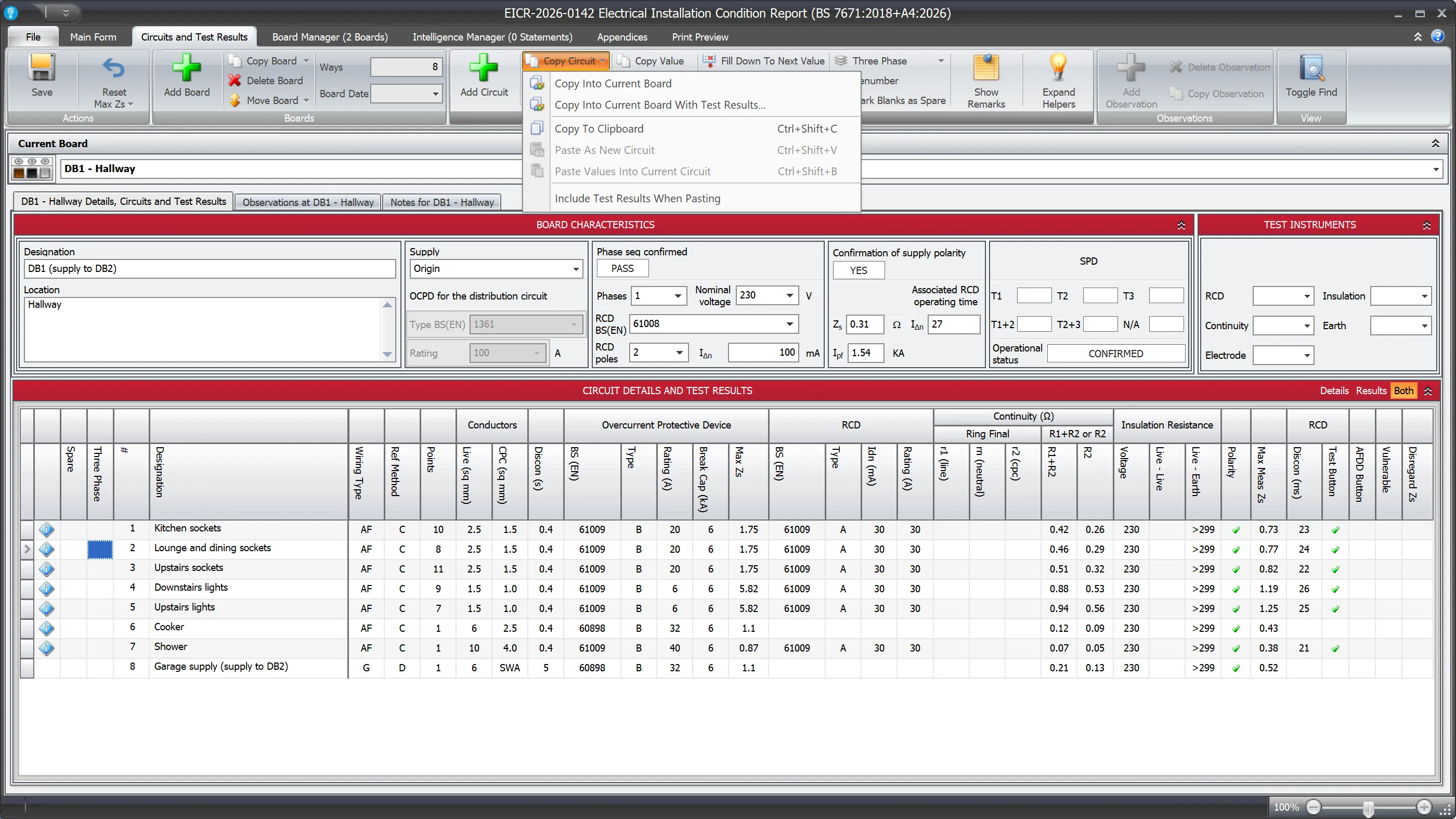
If you select Copy Into Current Board, a new circuit with the same circuit details as the selected circuit will be created in the current board. The test results are not copied.
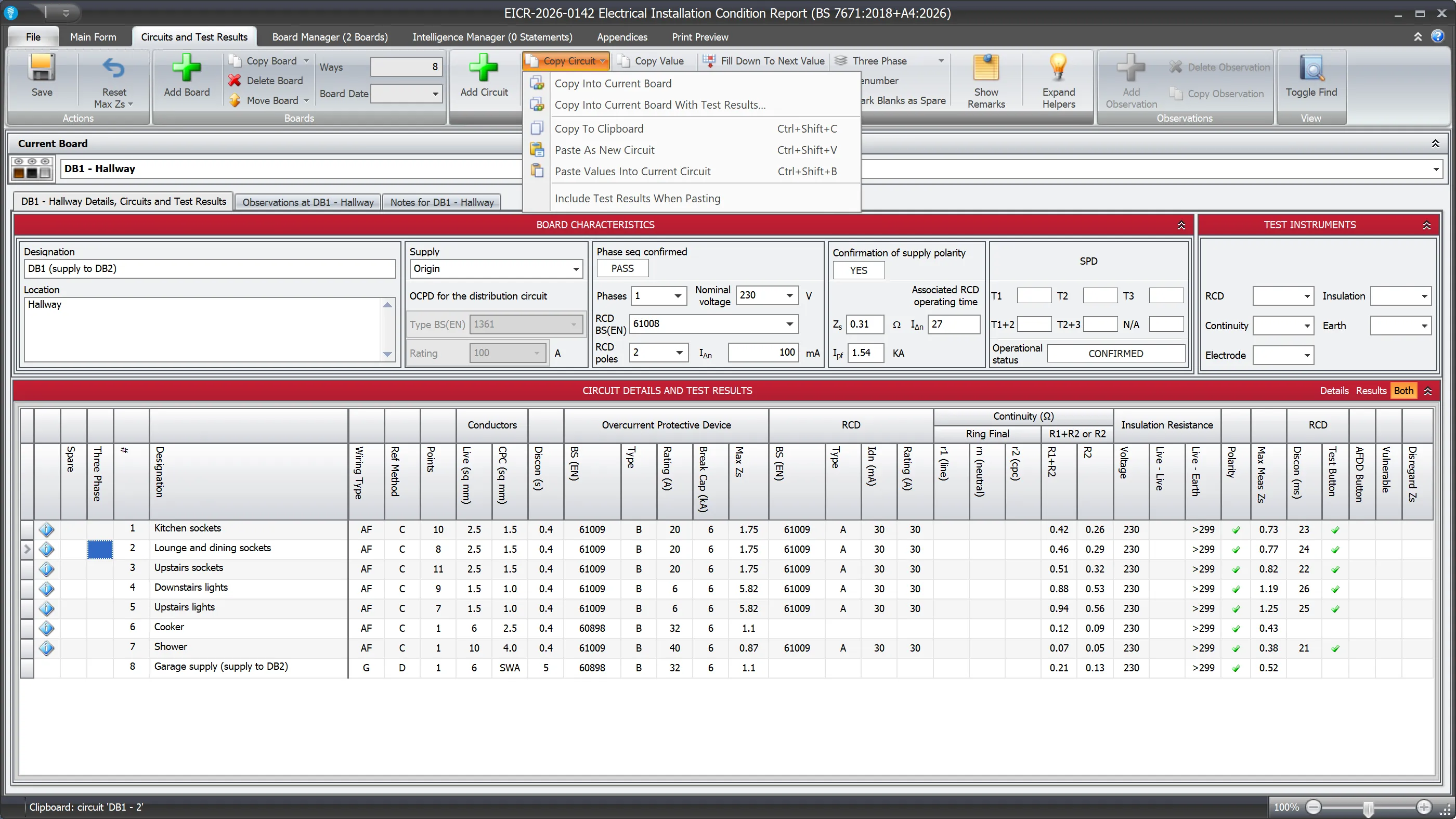
If you select Copy To Clipboard, the selected circuit will be available for pasting into any board you choose. You can paste the copied circuit as many times as you wish. You can see the circuit that is in the clipboard at the bottom of the screen.
Once a circuit has been copied, the menu allows pasting the circuit both as a new circuit or as values into the currently selected circuit.
Copying a circuit with its test results
To copy the test results as well, click Copy with test results… at the bottom of the Copy Circuit dialog and then click Copy with test results. You can also choose Copy Into Current Board With Test Results… from the Copy Circuit menu. Either way, Shine Forms always asks you to confirm before it copies test results.
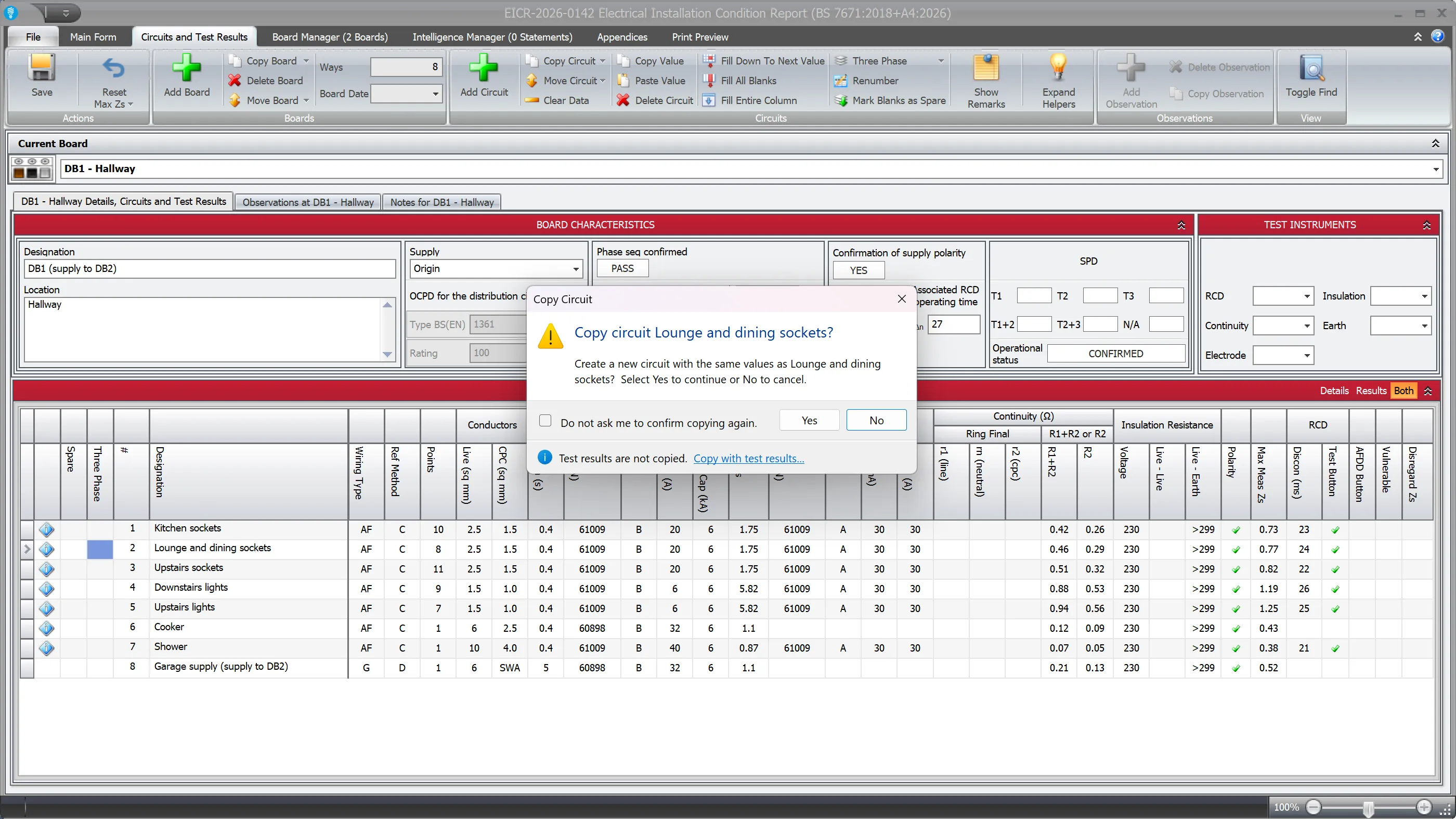
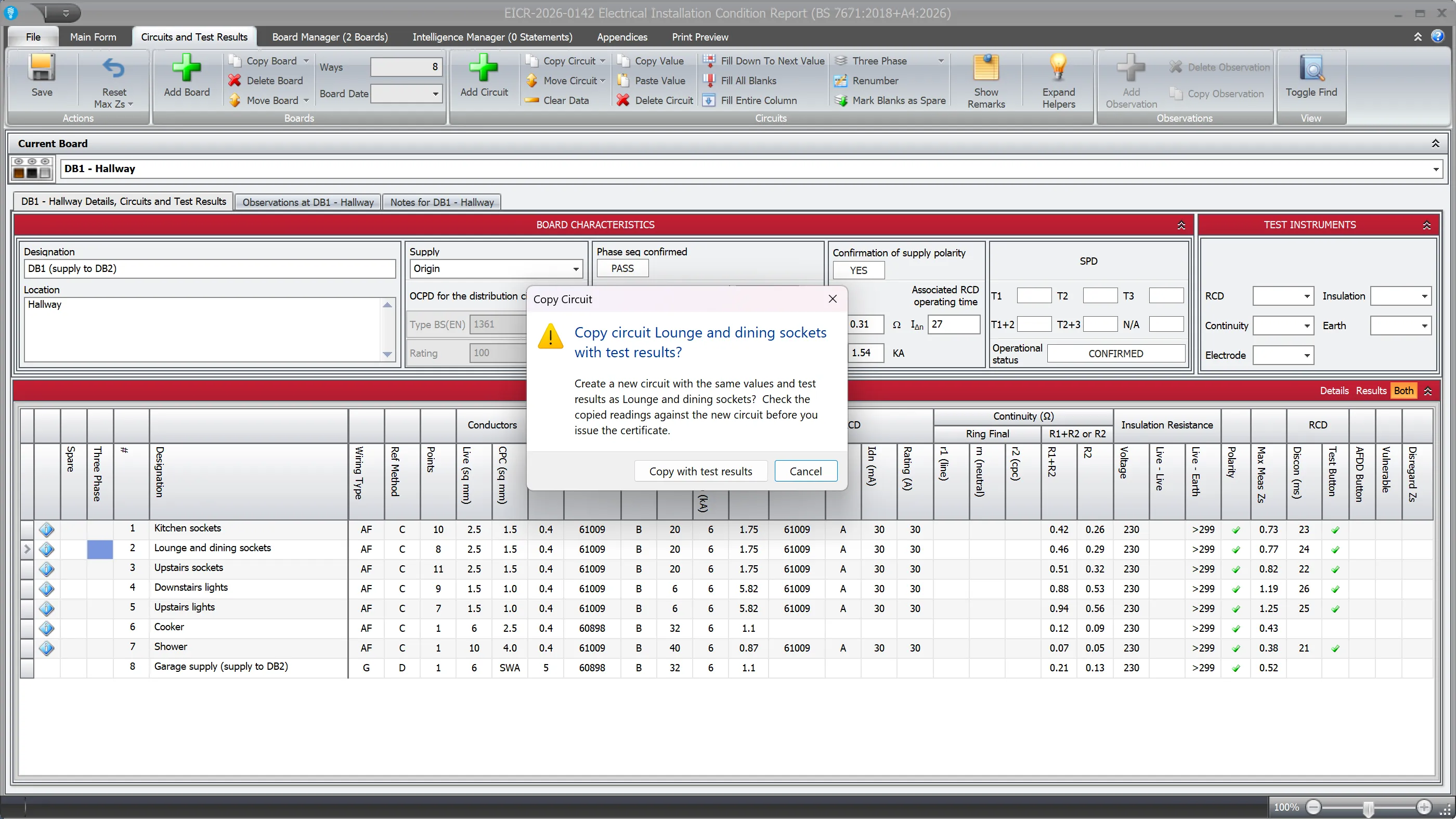
As with boards, copied test results are not measurements of the new circuit, so check each reading before you issue the certificate.
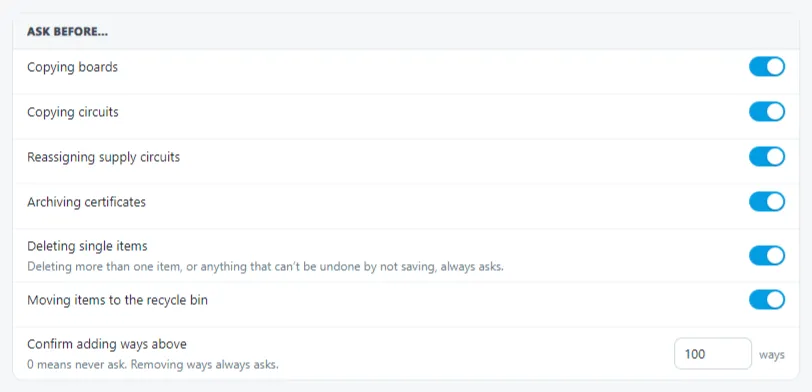
If you have ticked Do not ask me to confirm copying again, you can turn the dialog back on in Shine Forms Options. On the Confirmations tab, tick Confirm copying circuits.
Pasting test results
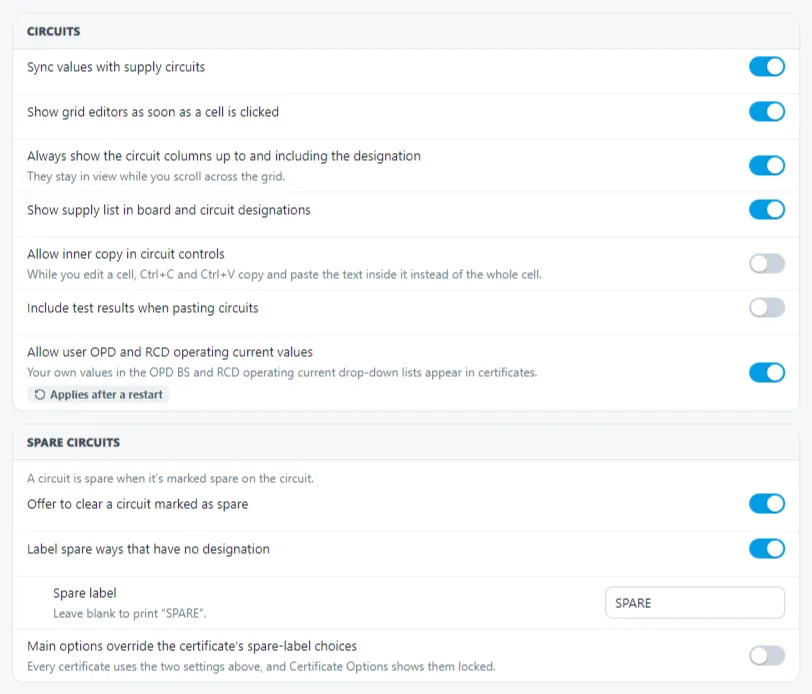
Pasting from the clipboard leaves the test results behind unless you tick Include Test Results When Pasting at the bottom of the Copy Circuit menu. While it is ticked, the clipboard message at the bottom of the screen says that pasting includes test results. The tick stays on until you untick it.
This is the same setting as Include test results when pasting circuits in Shine Forms Options:
You can also use keyboard shortcuts to copy and paste circuits, as well as move a circuit’s location in a board. See here for more.
Marking a circuit as a spare
Tick the Spare column to mark a way as an unused spare. The column sits at the left of the Circuits and Test Results grid, next to the circuit number.
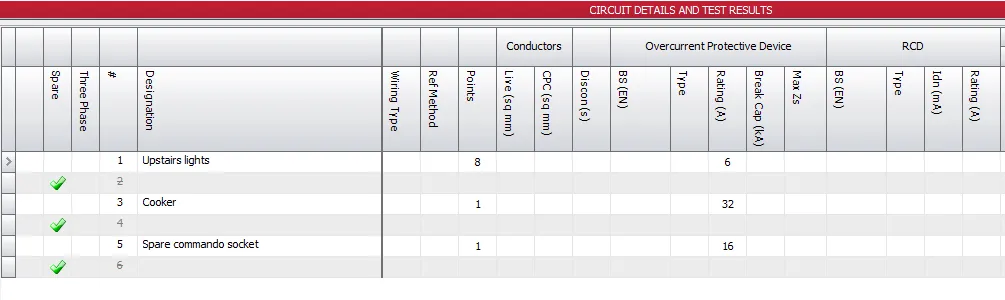
Marking a way spare has no effect on its designation. If you have written something against the circuit — “Spare commando socket”, “Old cooker circuit, disconnected” — it stays exactly as you typed it.
Spare circuits are marked in the Circuits and Test Results grid so they are easy to spot: the row is shaded and greyed, and the circuit number is shown struck through. This is also why the fill commands and the column-header Select All / Select Blanks commands step over spare circuits.
Shine Forms used to decide what was spare by reading the circuit designation, so a real circuit called Spare commando socket was treated as an unused way even though it had a cable, a protective device and test results recorded against it. The Spare column now decides, and nothing is read from the designation.
Certificates you made before this change keep the spare marks they already had, and print exactly as they did before. The Spare keywords list and the options that went with it are no longer needed and have been removed.
Clearing a circuit when you mark it
If you tick Spare on a circuit that has details recorded against it, Shine Forms asks whether you want to clear them. Choose No to keep the cable, protective device and test results as they are. The designation is kept either way.
If you would rather Shine Forms never offered to clear, untick Offer to clear a circuit marked as
spare in Shine Forms Options.
Marking all the unnamed ways at once
At the end of a job a board often has several ways you never got round to naming — some completely empty, some with a wiring type or a protective device entered before you moved on. Click Mark Blanks as Spare in the Circuits group of the ribbon to mark all of them on the current board in one go.
Shine Forms tells you which ways it is about to mark, and if any of them have details recorded it offers to clear those as well. Leave the tick box alone to keep what is there.
A way counts if it has no designation, whether or not anything else has been entered against it. Ways you have named are never touched, and nothing is written into any designation — you are the one saying these ways are spare.
Printing spare ways
By default a spare way prints with a blank designation, the same as it appears on screen.
If you would rather they were labelled, tick Label spare ways that have no designation in Shine Forms Options or the Certificate Options, and set the wording in Spare label. It defaults to SPARE.
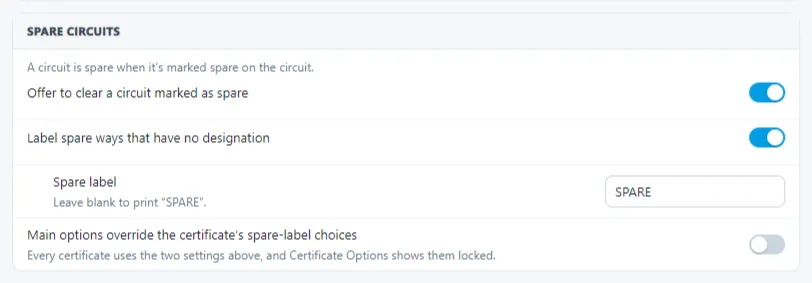
The label only fills a gap. A spare way you have written a designation against prints that designation — what you recorded about the installation is worth more on a certificate than the word SPARE.
A way with no designation that is not marked spare still prints blank, so an empty box on a certificate goes on being a question worth asking.
Each certificate carries its own spare label settings, copied from your main settings when it was created. To apply your main settings to every certificate as it prints — including ones made long ago — tick Override label spare ways choices in certificate options in Shine Forms Options.
This changes what is printed, not the certificates themselves. Untick it and each certificate goes back to using its own settings.
Changing the board phase
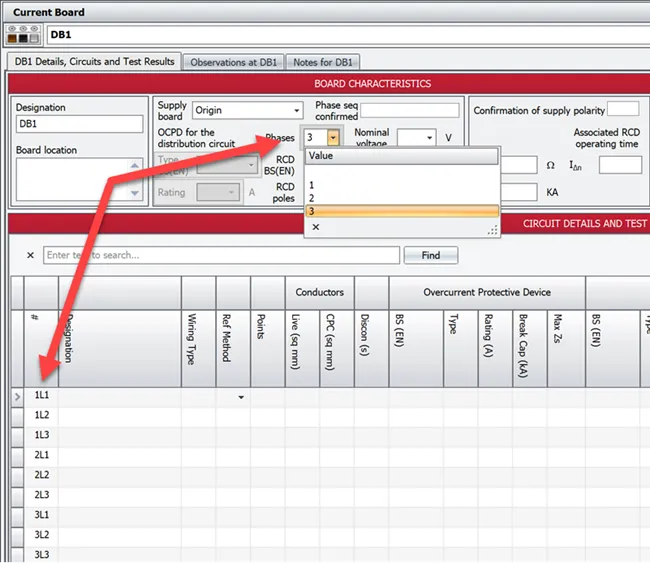
You can change the phase of the board by selecting the required phase in the board characteristics. Shine Forms will automatically adjust the numbering scheme when you change between single-phase and three-phase.
If you change the board to three-phase, Shine Forms will add circuits in groups of three.
Merging three-phase circuits
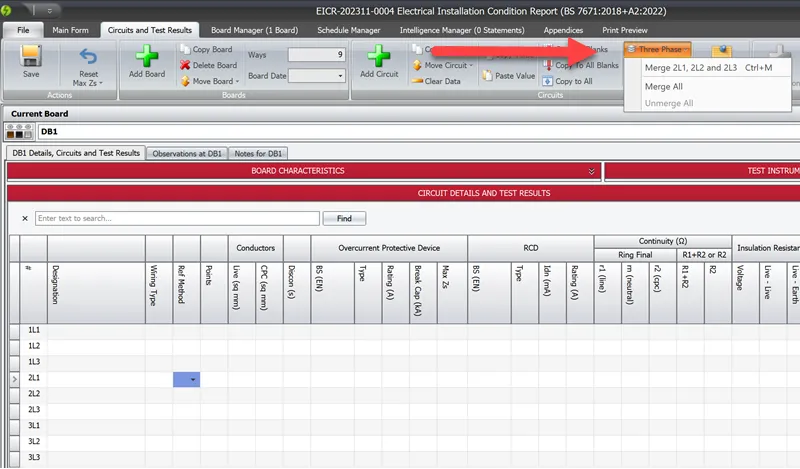
You can merge or unmerge a circuit in a three-phase board by using the Three Phase menu item in the ribbon.
You can do many things, including merge and unmerge circuits, using the keyboard shortcuts.
Copying circuit values
Select a cell in the circuit grid and right-click to show a menu that allows copying and pasting values. The same commands are also available from the Circuits group in the ribbon.
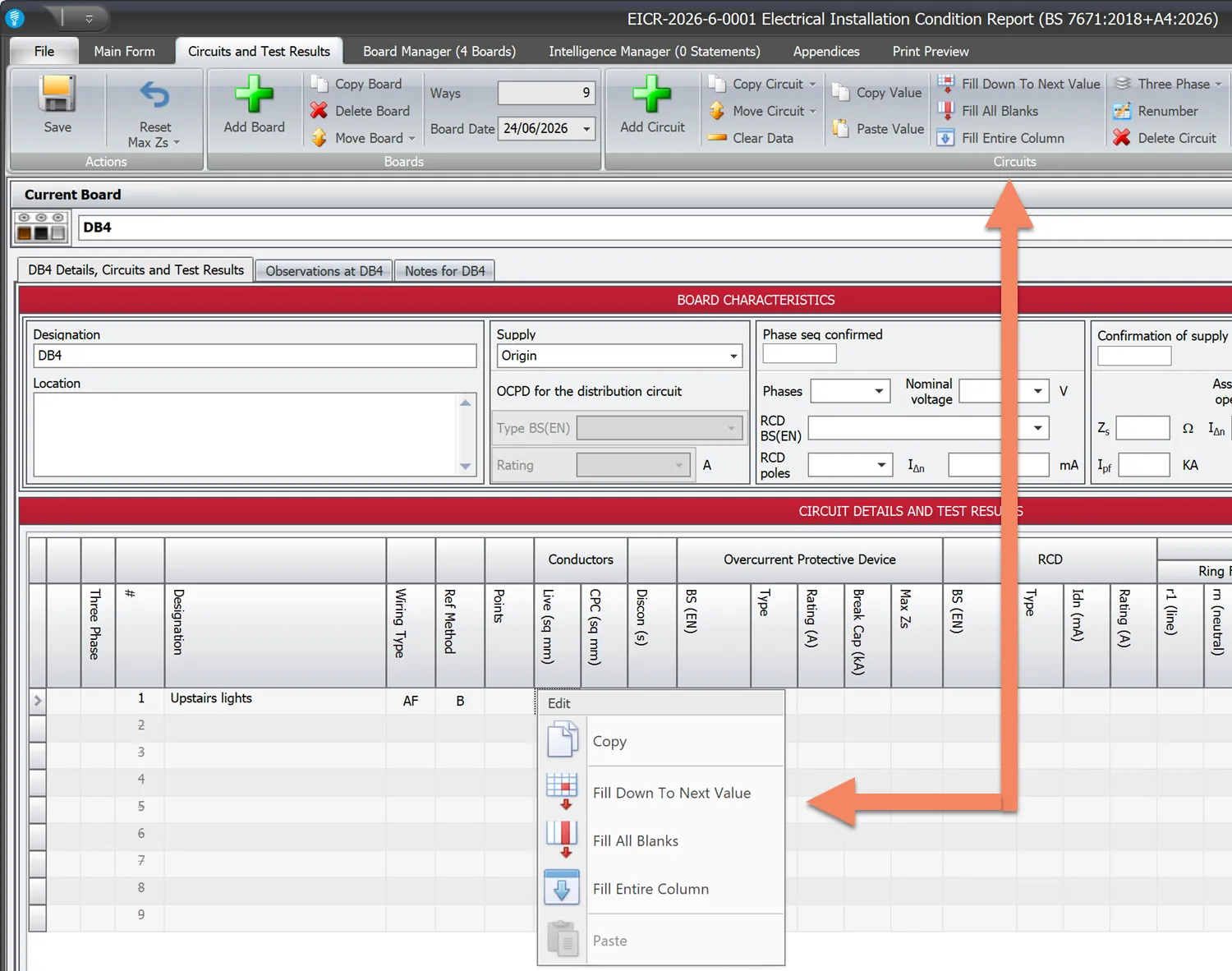
The following functionality is available:
- Copy will copy the value in the current cell so that you can later use Paste to paste it into another cell.
- Fill Down To Next Value (F5) copies the current cell value downward into empty cells, starting from the cell below the one you selected and stopping at the first cell that already has a value.
- Fill All Blanks (Shift+F5) copies the current cell value into every blank cell in the same column.
- Fill Entire Column (Ctrl+F5) overwrites every cell in the same column, including cells that already have a value.
Fill Down To Next Value, Fill All Blanks and Fill Entire Column all skip spare circuits, so a spare is never overwritten. The column-header Select All and Select Blanks commands skip spares as well, so selecting cells and pasting behaves the same way. Spare rows are marked in the grid — shaded and greyed, with the circuit number struck through — making it clear why a fill steps over them.
After each fill, a message in the status bar confirms what happened, such as “Filled 7 cells in ‘Rating’ — 2 spare circuits skipped.” or “No blank cells to fill in ‘Rating’.”
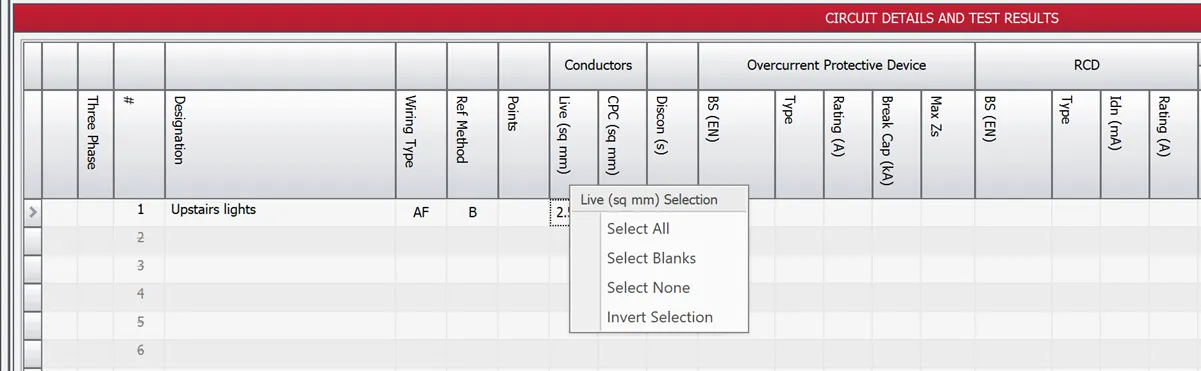
If you have copied a value, you can right-click the circuit column heading area to reveal a menu that help selecting cells for pasting into.
Moving circuits
The Move Circuit item in the ribbon allows you to move the selected circuit up or down.
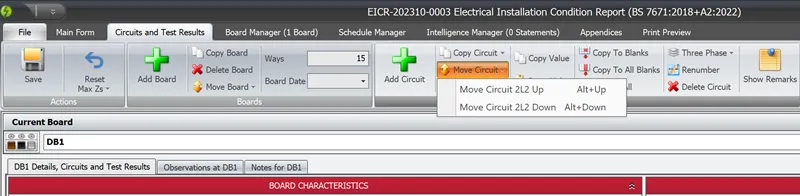
Moving circuits up or down in a single-phase board is straightforward and works as you would expect.
Moving circuits in a three-phase board works as follows:
- The circuit will move up or down until it becomes the first or last circuit in its group.
- If a circuit at the top or bottom of its group is moved, the whole circuit group is moved in the board.
The easiest way to move circuits between groups is to change the board to single-phase, move your circuits as required, then change the board back to three-phase.
To show how that works, let’s start off with a circuit in the middle of a three-phase group, 3L2:
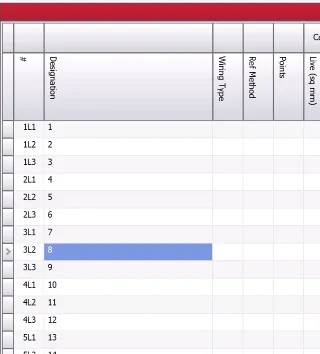
Moving it up takes it to the top of the group and Shine Forms renumbers the circuits to make the circuit we moved 3L1:
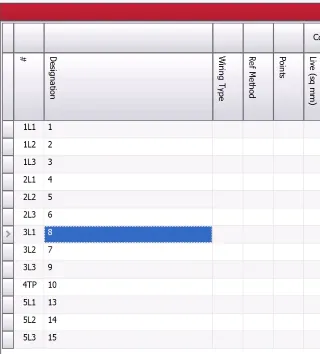
As it’s at the top of the group, moving it up moves the whole of the 3L* group up above the previous groups. Shine Forms renumbers to swap the 2L* and 3L* numberings:
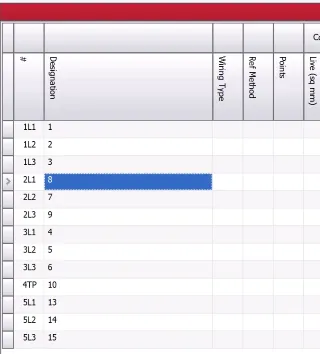
If we then move it back down twice, it will be at the bottom of its group:
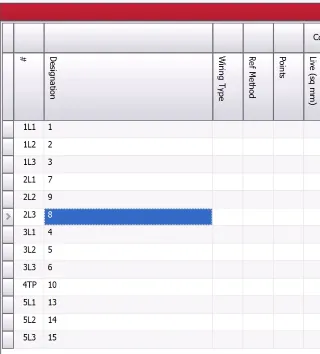
After that, moving it down will move the whole group to be below the following group, renumbering again:
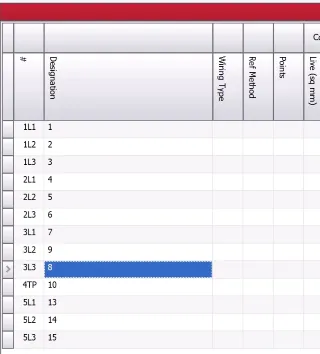
If we move it down again, it will move over the merged group 4TP below:
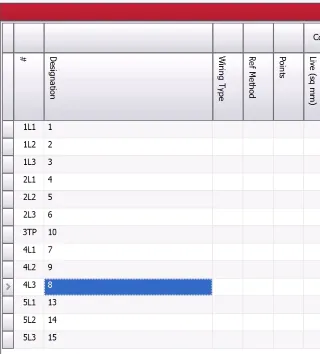
Resetting max Zs values
The Reset Max Zs button in the ribbon allows you to recalculate max Zs values. You can control whether manually entered max Zs values are reset during recalculation and you can choose whether to reset values for either the current board or all boards in the certificate.
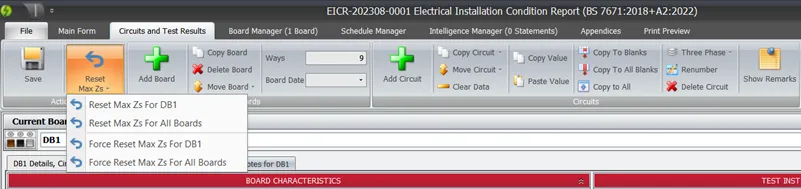
In this menu, there are options to reset the values for circuits in the current board or in all boards.
Max Zs values that have been entered by the engineer and not calculated by Shine Forms can be reset by selecting the menu items that start with the word “force”.
Entering max Zs values
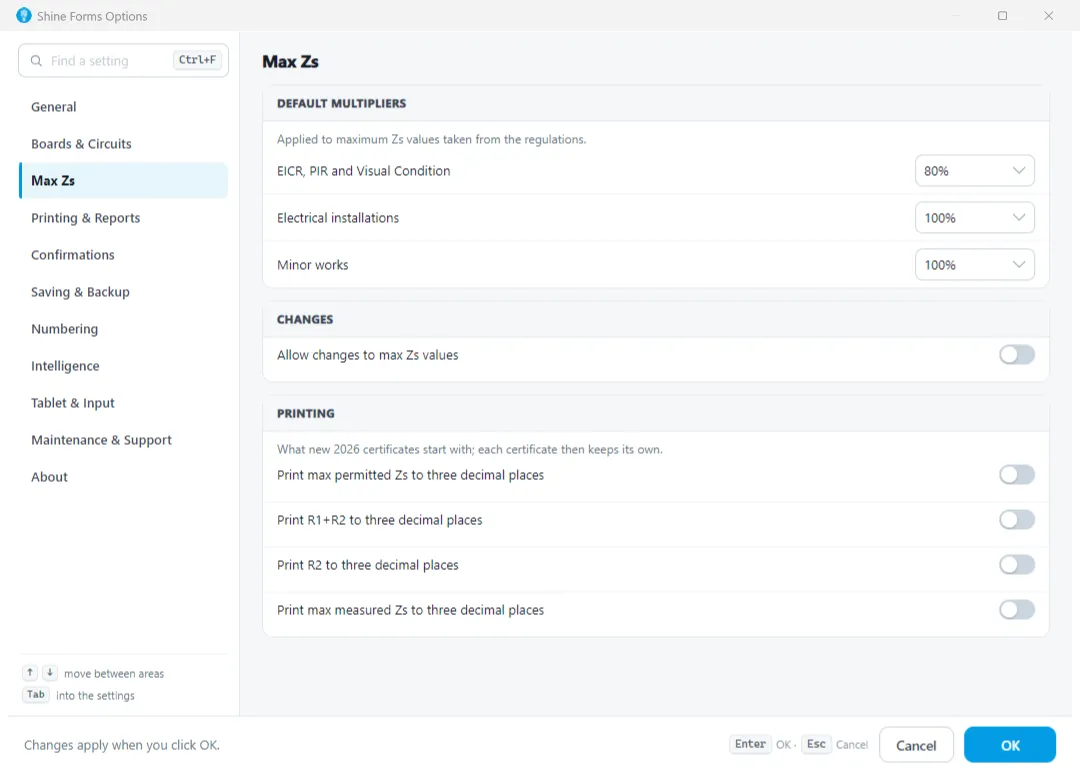
You can set Shine Forms to allow entry of max Zs values by ticking the box Allow changes to max Zs values under the Max Zs section in Shine Forms Options.
Printing max Zs to three decimal places
By default the max permitted Zs column prints to two decimal places, like every other number on the certificate. Two circuits whose max Zs differ only in the third decimal place, such as 1.095 and 1.104, then both print as 1.1.
To print the third decimal place, tick Print max permitted Zs to three decimal places in the Printing group under the Max Zs section in Shine Forms Options, or under Other in the Certificate Options. The circuit schedule on screen shows the same three places, so what you type is what prints.
Trailing zeros are still dropped, so 1.200 prints as 1.2, and a circuit with no max Zs still prints a dash.
The option is only shown on EICR, EIC and Minor Works 2026 certificates, as they are the only ones whose PDF can use it. The earlier forms always print max Zs to two decimal places.
The setting in Shine Forms Options is what new certificates start with. Each certificate’s own option is what prints, so for a certificate made before you changed the setting, tick it in that certificate’s options.
Using the board date
The board date is the date Shine Forms uses as the inspection date when you add new boards. Keeping the board date separate from the main date of inspection is useful in scenarios such as when you are working on a rolling program of inspections for an installation and reporting in a single certificate.
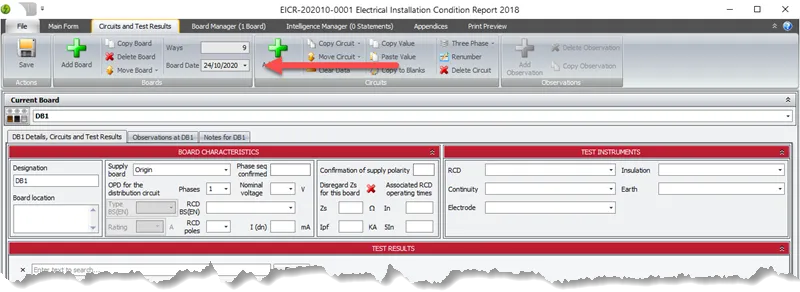
The board date will be first set to the date of inspection when that is first set, but you can select any other date directly from the ribbon (the same is available in the Board Manager):
Updating the inspection date
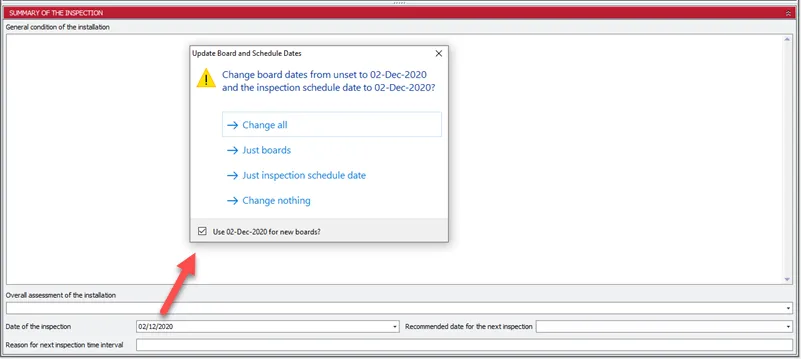
When you are working on a rolling program of inspections, you will often create new certificates by copying the previous certificate. When you set the new inspection date in that new copy, you don’t always want to change the board inspection date for all boards in your new certificate.
Shine Forms recognizes this and asks whether you want to update the inspection dates for boards that match the previous date before making any changes. You can also optionally update the inspection schedule date and the board date for the certificate:
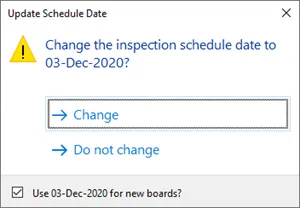
If there are boards matching the old inspection date, then Shine Forms only asks if you want to update the inspection schedule date and the board date for the certificate:
Other wiring types
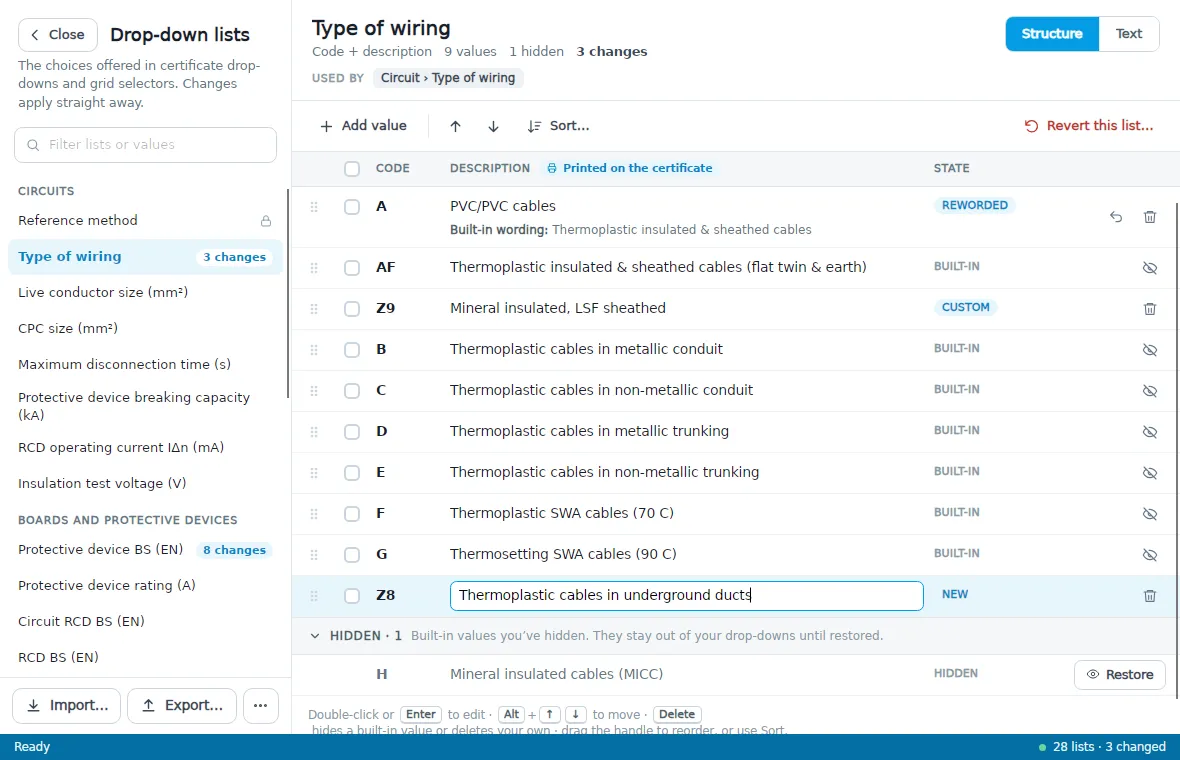
Read how to adjust the dropdown lists in Shine Forms here.
Shine Forms has the wiring types A-H pre-configured. If you need to use a different wiring type, add it to the Type of wiring list in the Drop-down lists manager.
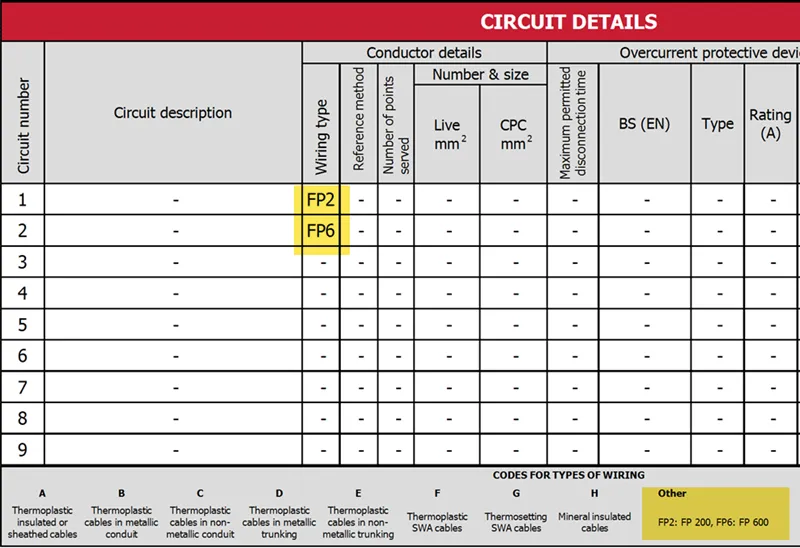
When you select these, they will be shown in the PDF in the “Other” section for the relevant board.
Ring circuits
By default, Shine Forms treats all circuits as radial unless specified otherwise. To mark a circuit as a ring final circuit, include the word ring in the circuit designation. (This applies to versions 2025.3 and later)
As you would expect, Shine Forms’ handling of ring final circuits follows the guidance from the IET’s On-Site Guide. More details can be found here.
Parallel cables
There is no provision in the program currently for handling parallel cabling.
However, what can be done is to select the appropriate cable size and to add a note in the description to say that there are two (or more) cables coming in.
If there is any intelligence that arises that is not relevant or appropriate then it can be suppressed from the Intelligence Manager, then enter any relevant observations manually.
Freezing columns
You can freeze the left columns so they stay visible when you scroll. This is useful when working on smaller screens.

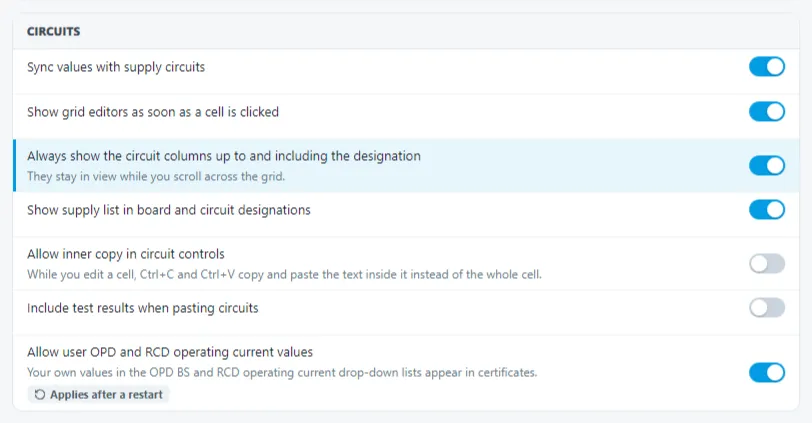
You can turn this on or off using the following setting in Boards and Circuits section of the main options.