
The Shine Forms tablet apps will be available soon. Follow us on LinkedIn, watch our blog, or sign up to our newsletter for updates.
Uploading and the PDF
The certificate PDF is produced by your Shine Forms account, not on the tablet. When a certificate is ready, upload it: the account produces the PDF and keeps a copy of the certificate for Shine Forms Desktop to download.
Open Print Preview from the ribbon: tap the section name or Ribbon, then the Print Preview tab.
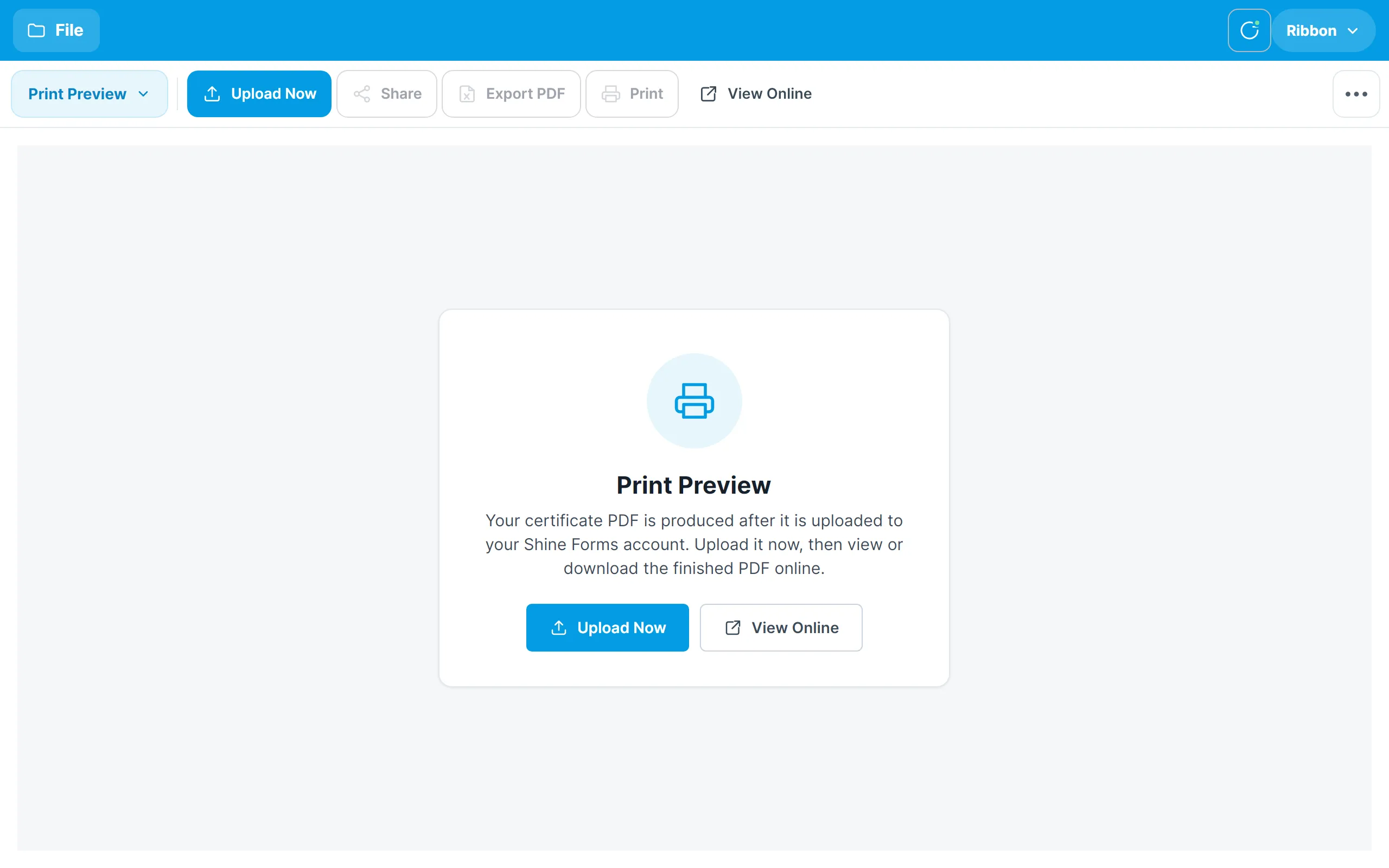
Uploading
Tap Upload Now, either in the ribbon or in the middle of the screen. You need to be signed in and have an internet connection. The status bar under the ribbon shows the upload’s progress, and Cancel stops it.
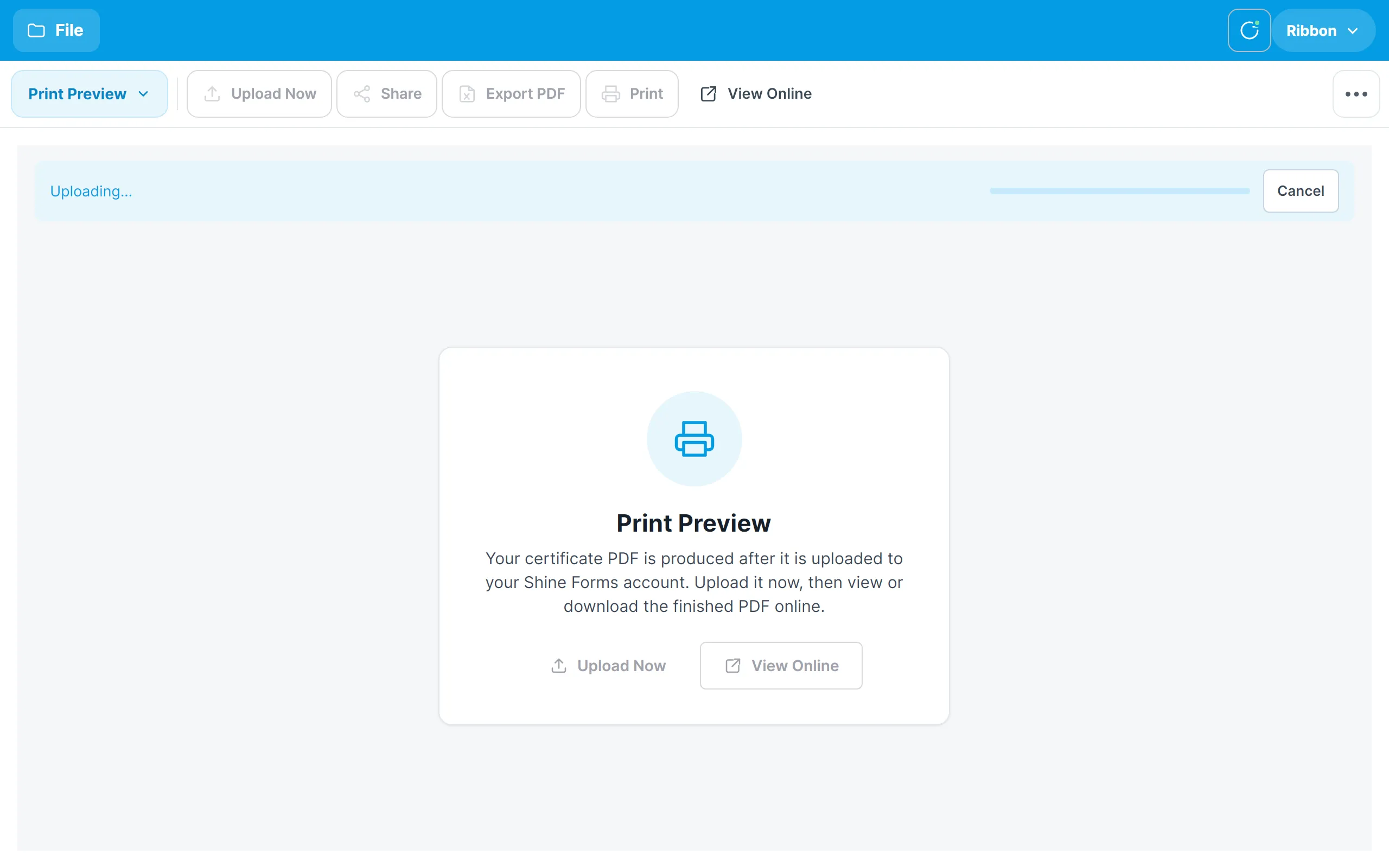
When the upload finishes the status bar reads Uploaded, and the certificate shows as Submitted on the Home screen.
If the upload fails, the status bar says why and offers Retry. Nothing you have entered is lost by a failed upload, and you can upload again as often as you like — for example after making a correction.
You can also upload from the Home screen: tap ⋮ on a certificate’s row and choose Upload. Uploads queued while the tablet is offline are sent automatically when it is next connected.
Viewing the PDF
Once the upload has finished, tap View Online to open the certificate in your Shine Forms account in the tablet’s browser, where you can view, download and share the PDF.
Share, Export PDF and Print appear in the ribbon but are not yet available on the tablet. Use View Online to get the PDF.
Upload history
Every upload the tablet makes, successful or not, is listed under File → Upload History, with the certificate number, the result and who uploaded it. See Settings and support.
Back in the office
Once uploaded, the certificate is in your Shine Forms account. Shine Forms Desktop can download it from there so that it can be reviewed, merged with other engineers’ work or issued to the customer.