
Change schedule
Change schedule changes the inspection schedule of the certificate you have open. You can:
- copy items, sections or a whole schedule in from your schedule library;
- code any item;
- remove items, notes or whole sections;
- replace the schedule with one from your library;
- clear all codes and start the codes again.
Codes you have already set stay unless you change them. Nothing on the certificate changes until you review the changes and press Apply.
Opening it
Open the certificate and go to the Inspection Schedule page. On the Main Form ribbon tab, in the Schedule group, click Change Schedule. It sits after Set Blanks. You don’t need to turn anything on first.
The button is there on EICR 2022, 2024 and 2026 certificates. It works on the Inspection Schedule page.
The Schedule Manager opens in its own window over the certificate. While it is open, the certificate window shows a small panel, Change schedule is open. Click Bring to front if the Schedule Manager window gets lost behind another one. Apply or cancel in the Schedule Manager to get back to the certificate.
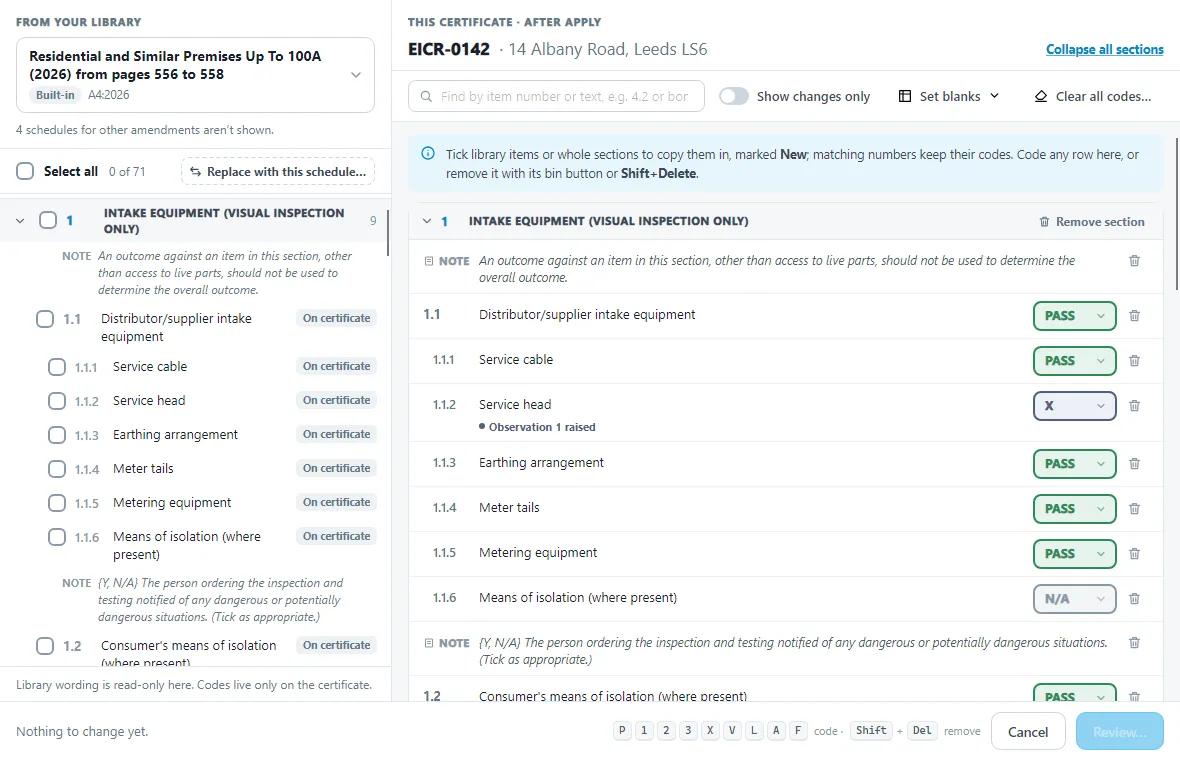
The window has two halves:
- From your library, on the left. The schedule at the top is the one you copy from. Click it to choose another. You are offered the schedules for this certificate’s amendment, and any of your own schedules with no amendment tag.
- This certificate · after Apply, on the right. This is the certificate’s schedule as it will be when you apply. Every change shows here as you make it.
Copying items in
Tick items in the library, or tick a section to take all of its items. Select all takes the whole schedule. Notes in the library are shown in italics, marked Note. They have no tick box.
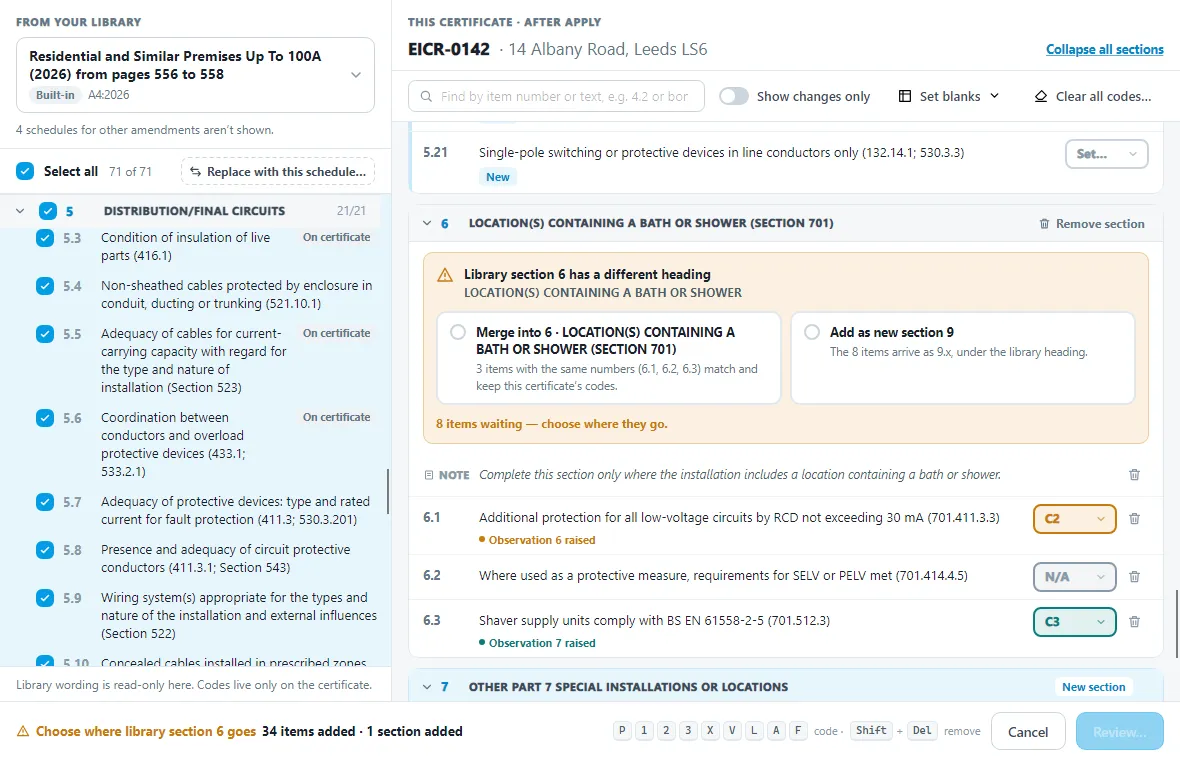
Item numbers decide where everything goes:
- An item whose number is already on the certificate is marked On certificate in the library. Copying it changes nothing. It keeps its code, its observation or limitation, its photos and comments, its wording and its own outcome list.
- An item whose number is not on the certificate is added to its section in number order, marked New. It arrives with no code.
- Copying never renumbers items. Observations quote item numbers, so item numbers stay as they are.
- Copying never removes anything. To take items away, remove them (see Removing items, notes and sections) or replace the schedule.
A section the certificate doesn’t have is added with its own number, with its notes. A section can be added even if it has no items, so you get the heading on its own.
Items with four-part numbers, such as 4.10.1.1, are greyed out. The certificate can’t hold them.
When a section’s heading is different
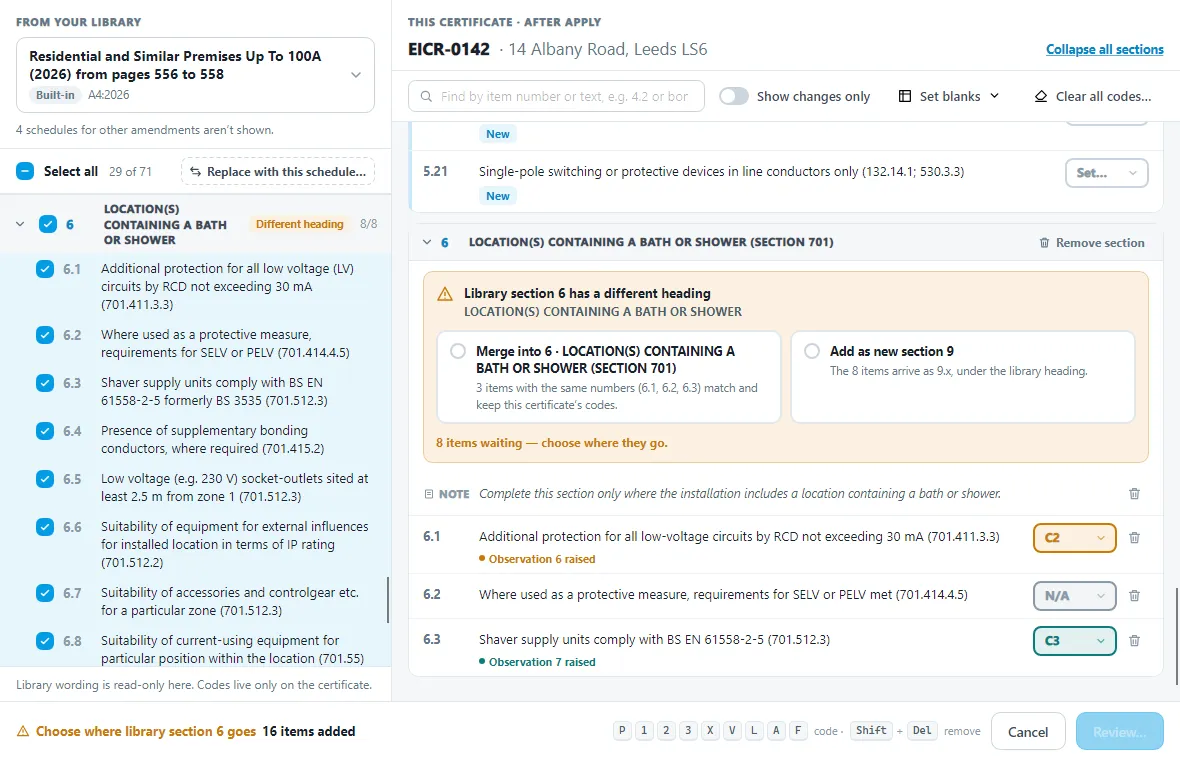
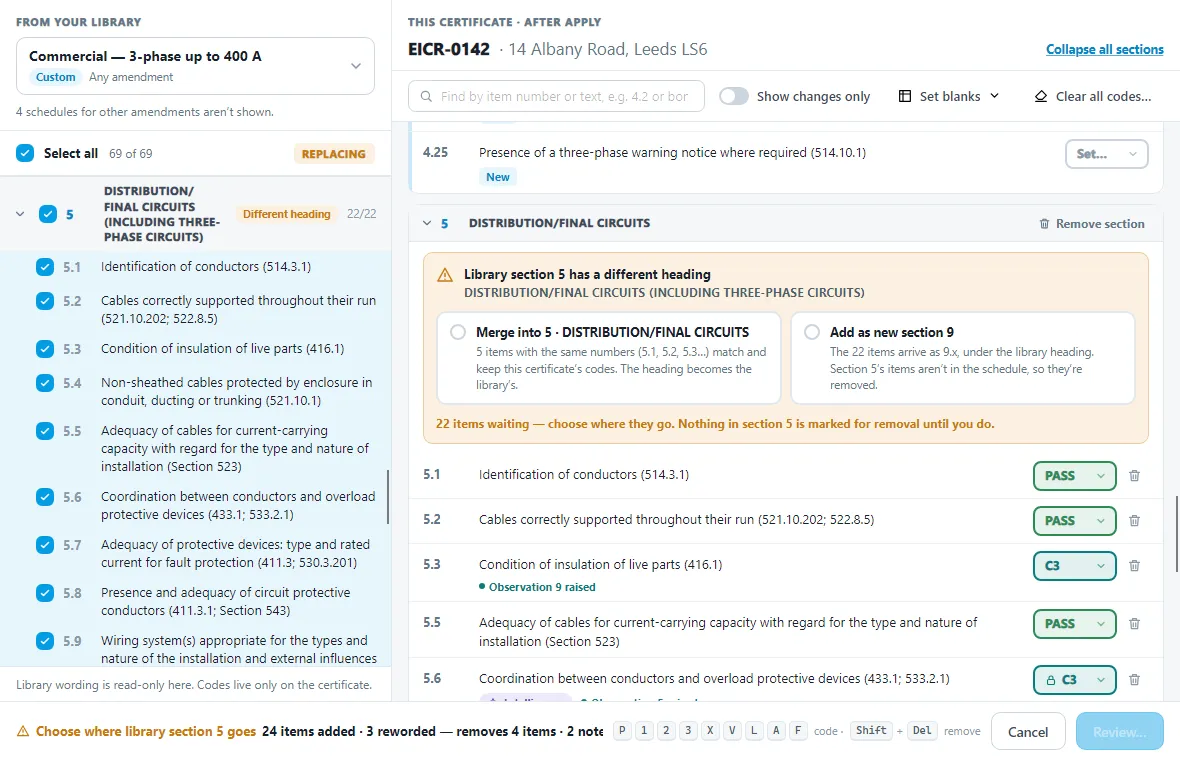
If the certificate already has a section with the same number but a different heading, you choose where the library section goes:
- Merge into the certificate’s section. Items with the same numbers are matched and keep the certificate’s codes. The rest are added. After you choose this, you can also choose Keep certificate heading or Use library heading.
- Add as new section, with the next free section number. The items are renumbered into that section and keep the library heading.
There is no default. Review… stays disabled until you choose.
If the library has the same section number twice, only the first is offered.
When the wording is different
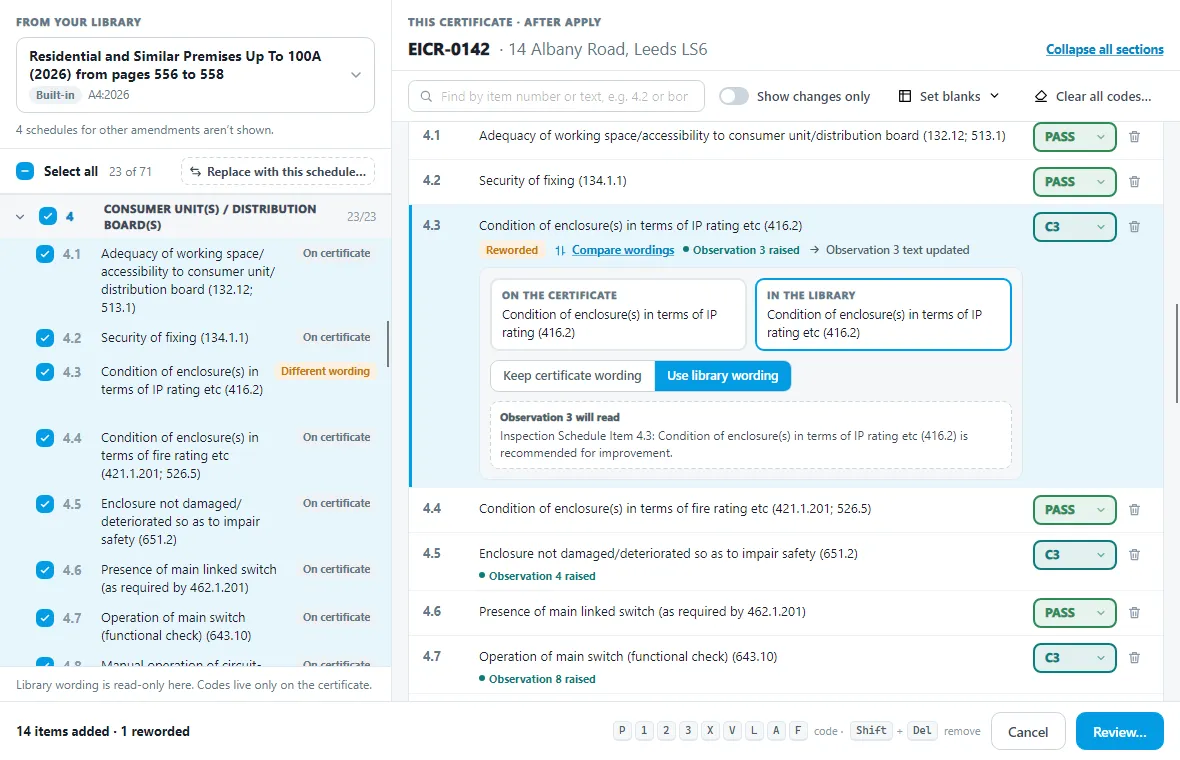
A matched item keeps the certificate’s wording. If the library’s wording is different, the row says Library wording differs. Click it to see the two side by side, then choose Keep certificate wording or Use library wording.
If the item has an observation, using the library wording rewrites the observation text to match. The row shows what the observation will read.
Coding items
You can code any item on the right, new or already on the certificate. Click the outcome button on the row and pick a code, or select the row and press a key: P, 1, 2, 3, X, V (N/V), L (LIM), A (N/A) or F (FI). Delete clears the code. Enter opens the picker, and the arrow keys move between rows.
Each row says what the change will do on the certificate:
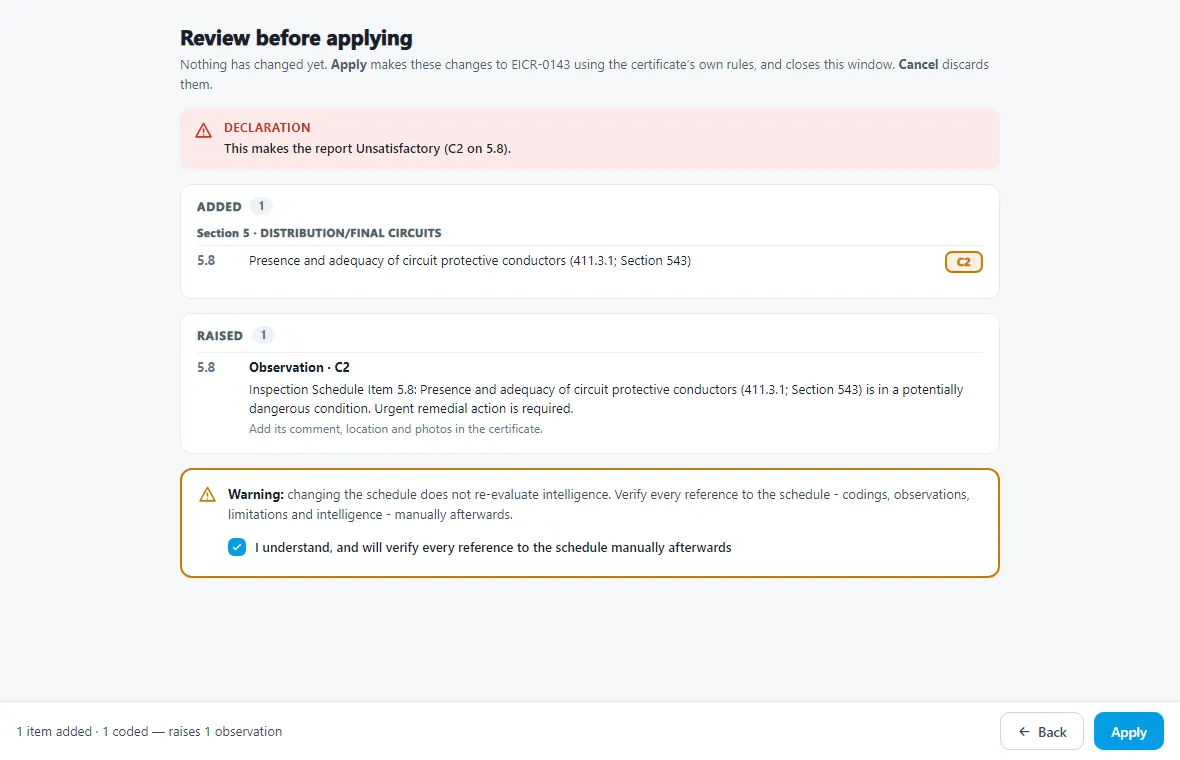
- A new code that raises an observation (C1, C2, C3, FI or X) raises one with the usual text. Add its comment, location and photos in the certificate afterwards.
- LIM raises an agreed limitation.
- Changing between C1, C2, C3, FI and X keeps the observation. Its code and text are updated.
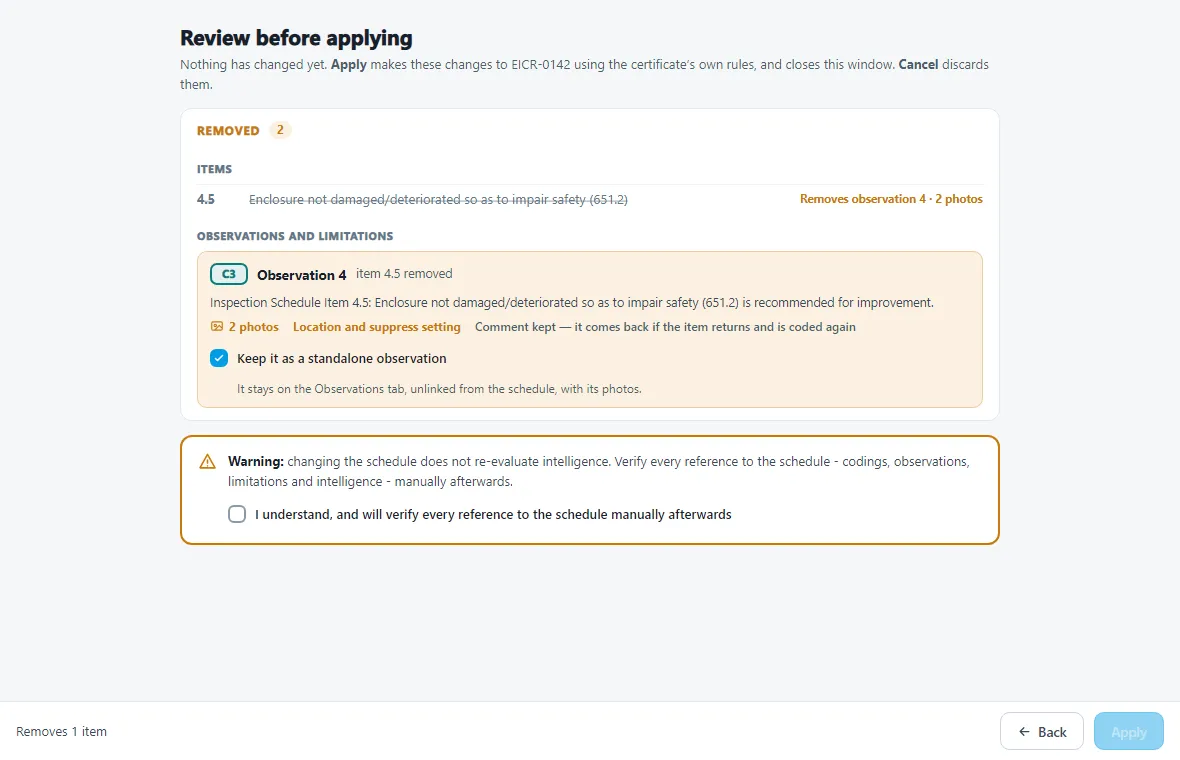
- Changing to PASS, N/V, N/A, LIM or Clear removes the observation, with its photos. The row warns you, for example Removes observation 4 · 2 photos. The comment is kept, and comes back if you code the item again.
- Changing away from LIM removes the limitation.
Click Undo beside a changed code to put the old one back.
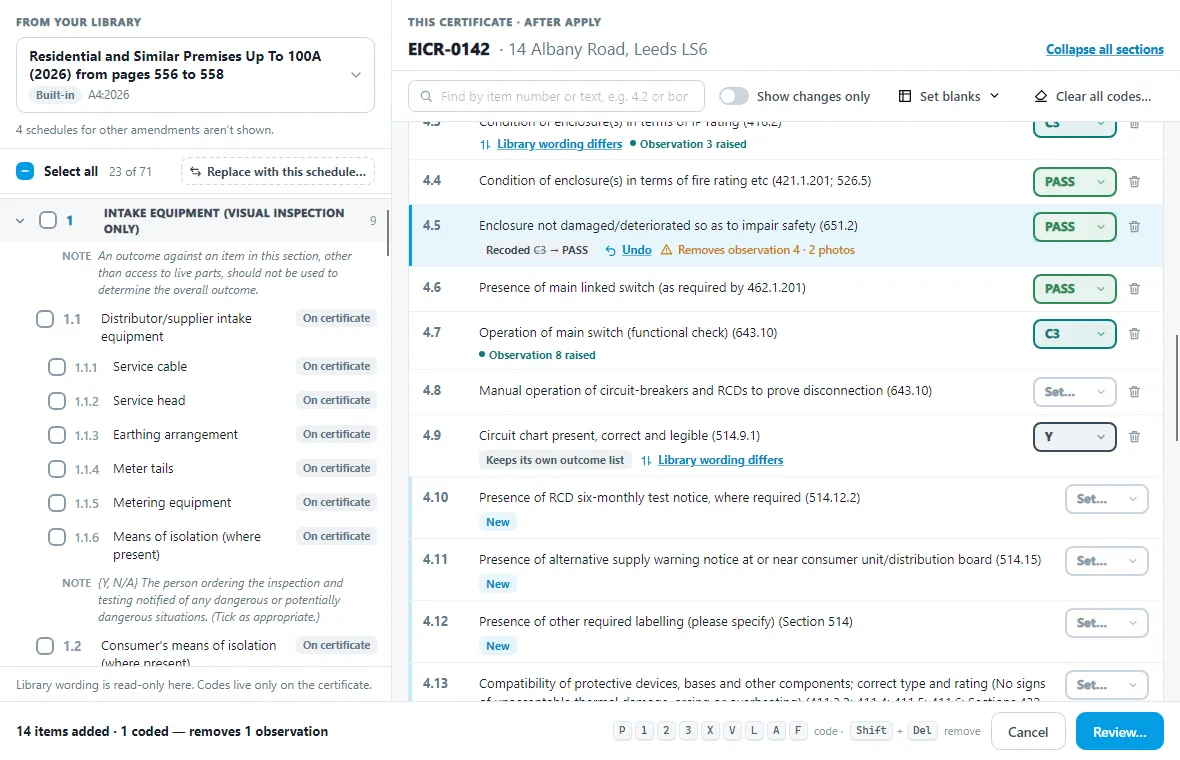
Two kinds of item are limited:
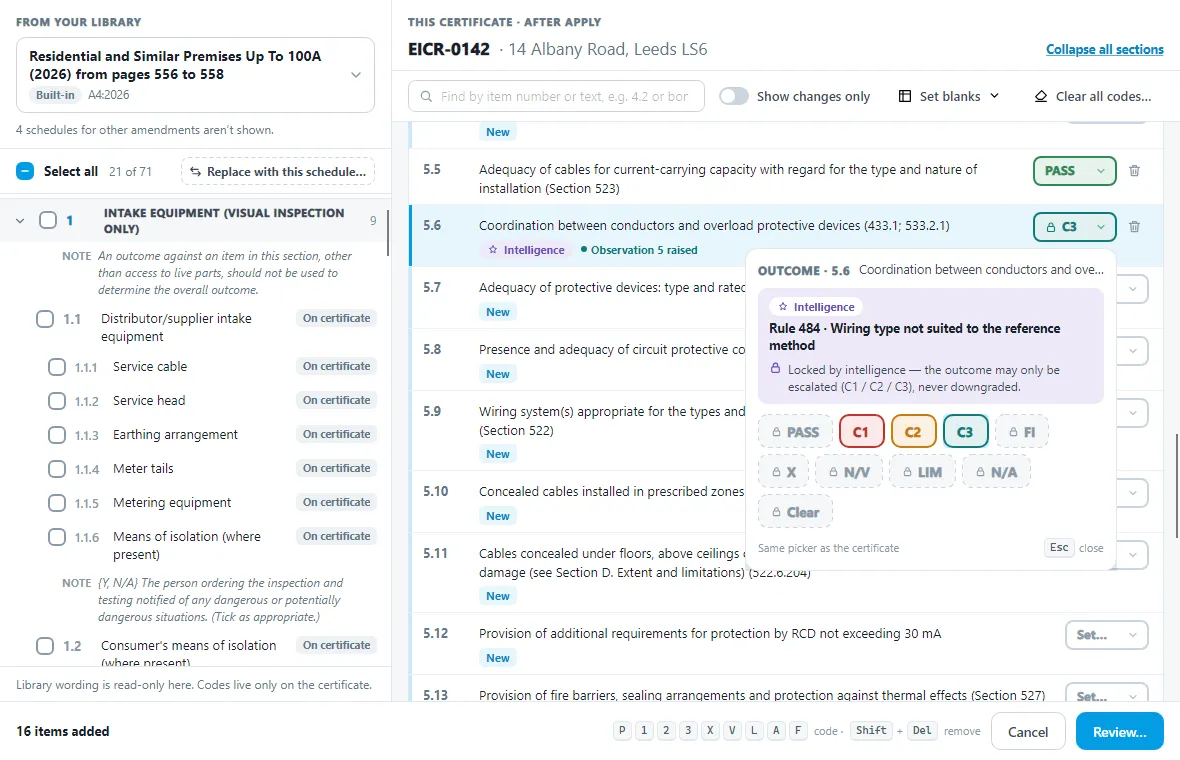
- Locked by intelligence. If intelligence coded an item C1, C2 or C3, you can only make the code worse: C3 to C2 or C1, and C2 to C1. Every other code is locked. The picker names the rule that set it. Clear all codes releases the lock (see below).
- Items with their own outcome list, such as
Y, N/A, offer that list and Clear.
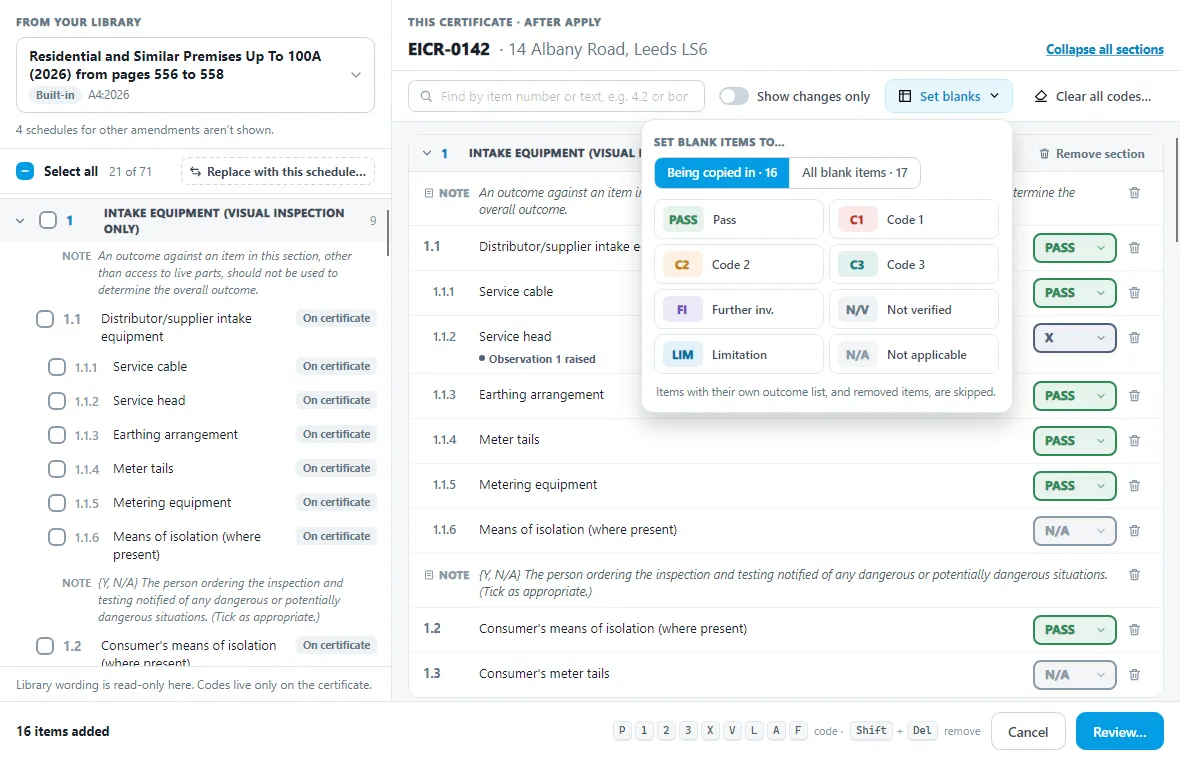
Set blanks codes blank items in one go. Choose Being copied in for the new items only, or All blank items for every blank item on the certificate. Items with their own outcome list, and removed items, are skipped.
Show changes only hides the rows that aren’t changing. The search box finds an item by its number or its wording.
Removing items, notes and sections
Every row on the certificate has a bin button. Click it, or select the row and press Shift+Delete, to mark the row Removed. Notes can be removed the same way. Items locked by intelligence can be removed too.
A removed row stays where it is, struck through, so you can see what is going. It loses its outcome button and shows what goes with it, such as its observation and photos, its limitation or its intelligence code. Click Undo remove, or press Shift+Delete again, to keep it.
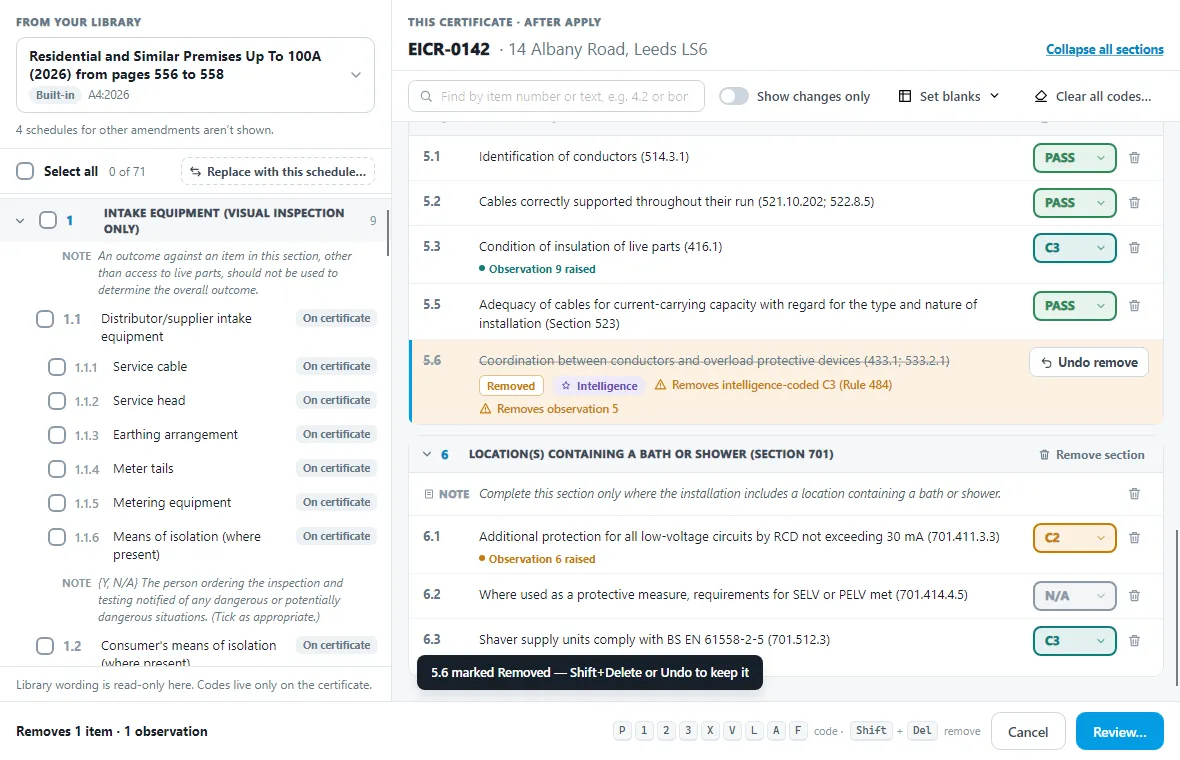
To remove a whole section, with its heading, items and notes, click Remove section in the section’s heading bar. It is greyed out while you are copying library items into that section: untick them first. If you undo one item in a removed section, the heading comes back and the other items stay removed.
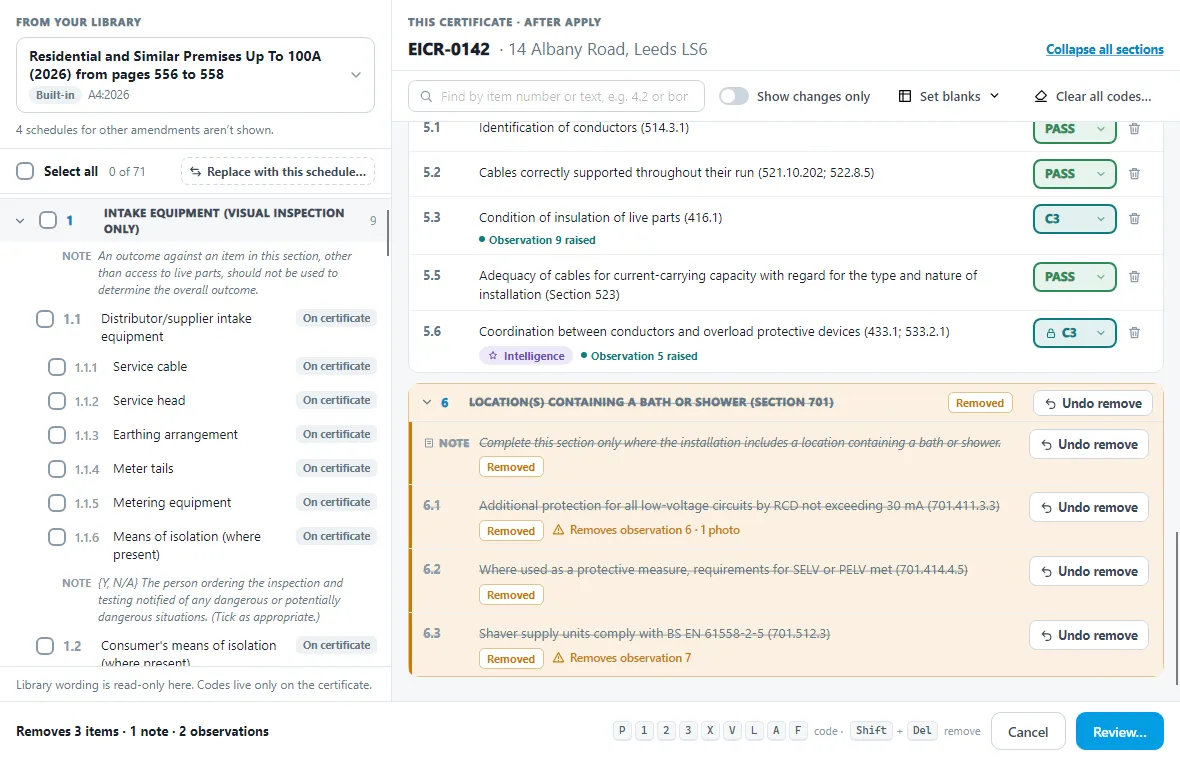
Items you are copying in have no bin button. Untick them in the library instead.
Replace with this schedule
Replace with this schedule… makes the certificate’s schedule exactly the one chosen in the library. It is the same as Pirform’s old Change Schedule with Reapply. The button is in the library’s Select all bar.
First it tells you what it will do, with counts:
- it ticks every item in the schedule;
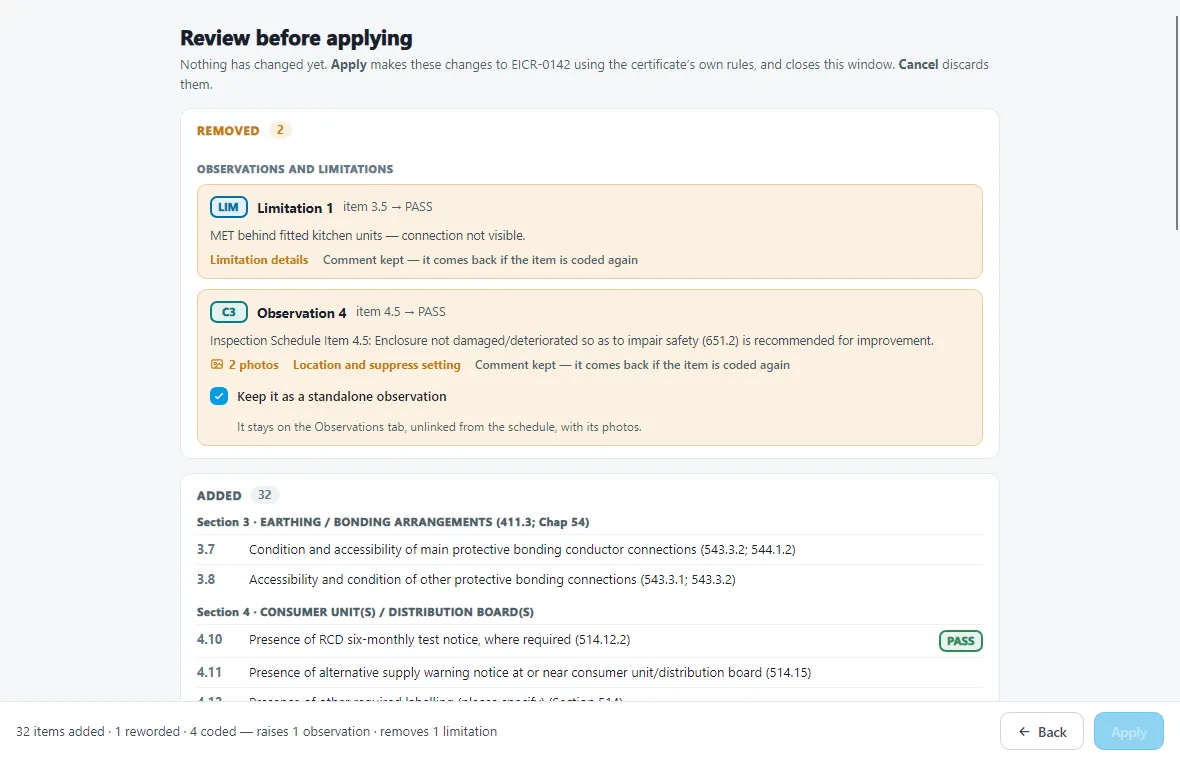
- it marks Removed every item, note and section that isn’t in the schedule, with their observations and limitations;
- matched items take the library’s wording and headings, and the library’s notes are used;
- matched items keep their codes, observations and limitations.
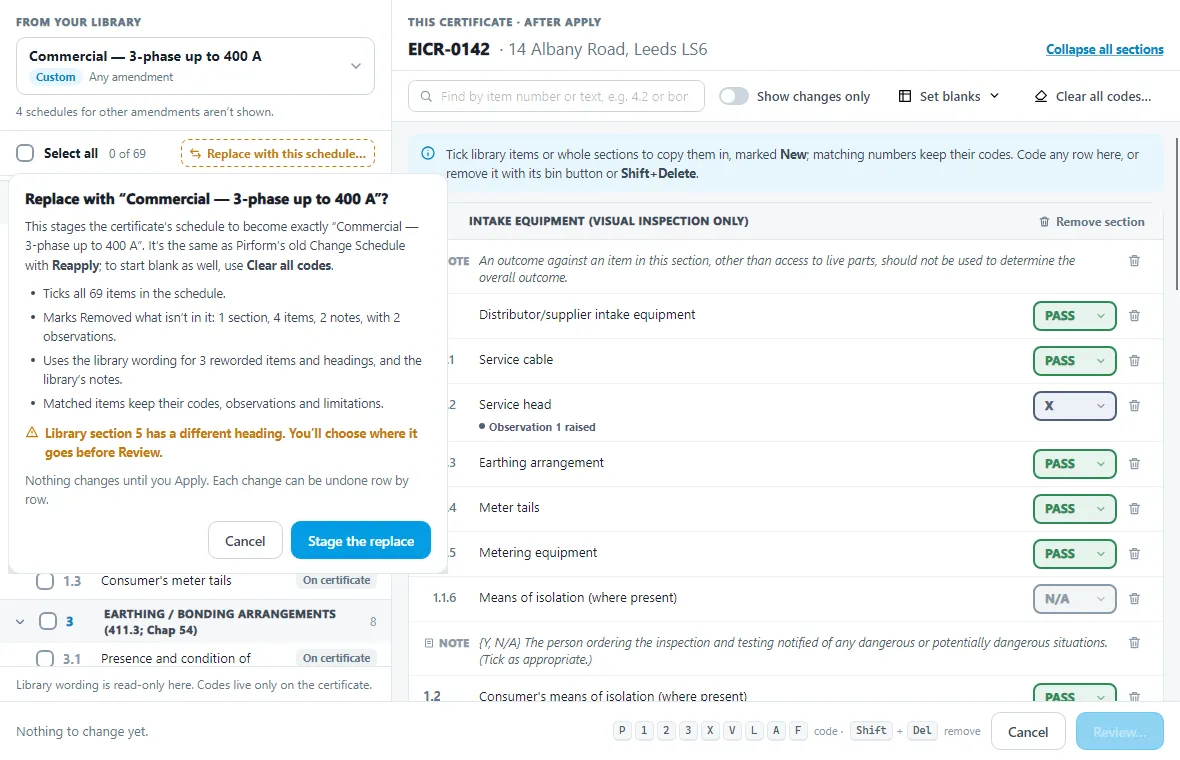
Click Stage the replace to go ahead, or Cancel. A banner at the top of the certificate says the replace is staged. Undo replace puts everything back as it was before.
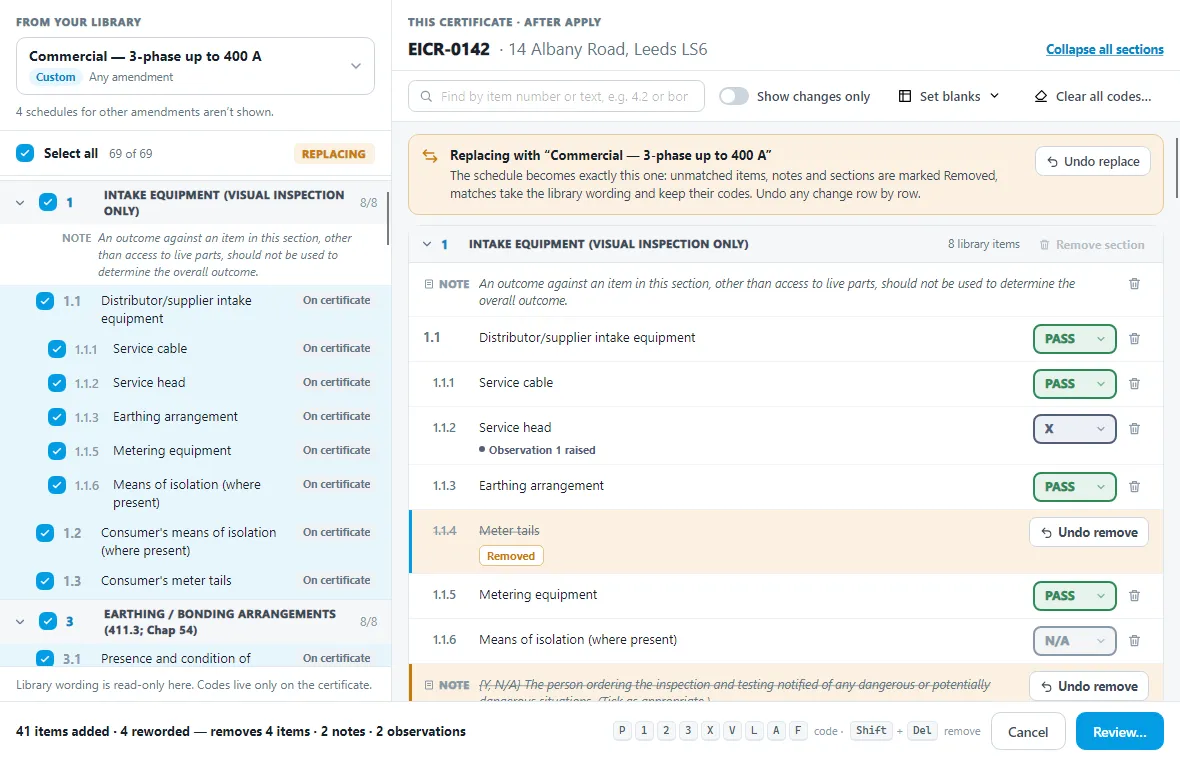
You can still change anything row by row. Click Undo remove to keep an item. Choose Keep certificate wording or Keep certificate heading to keep the certificate’s text. If you untick a library item, its match on the certificate is marked Removed.
If a library section has a different heading, nothing in that section is marked Removed until you choose Merge or Add as new section. If you merge, the heading becomes the library’s unless you choose Keep certificate heading.
Choosing another schedule ends the replace. The ticks are cleared, but your codes, removals and Clear all codes stay.
Clear all codes
Clear all codes…, beside Set blanks, clears every code on the certificate. It is the same as Pirform’s old Change Schedule with Start blank. It first tells you how many coded items it clears, which observations and limitations go with them, and how many items intelligence coded.
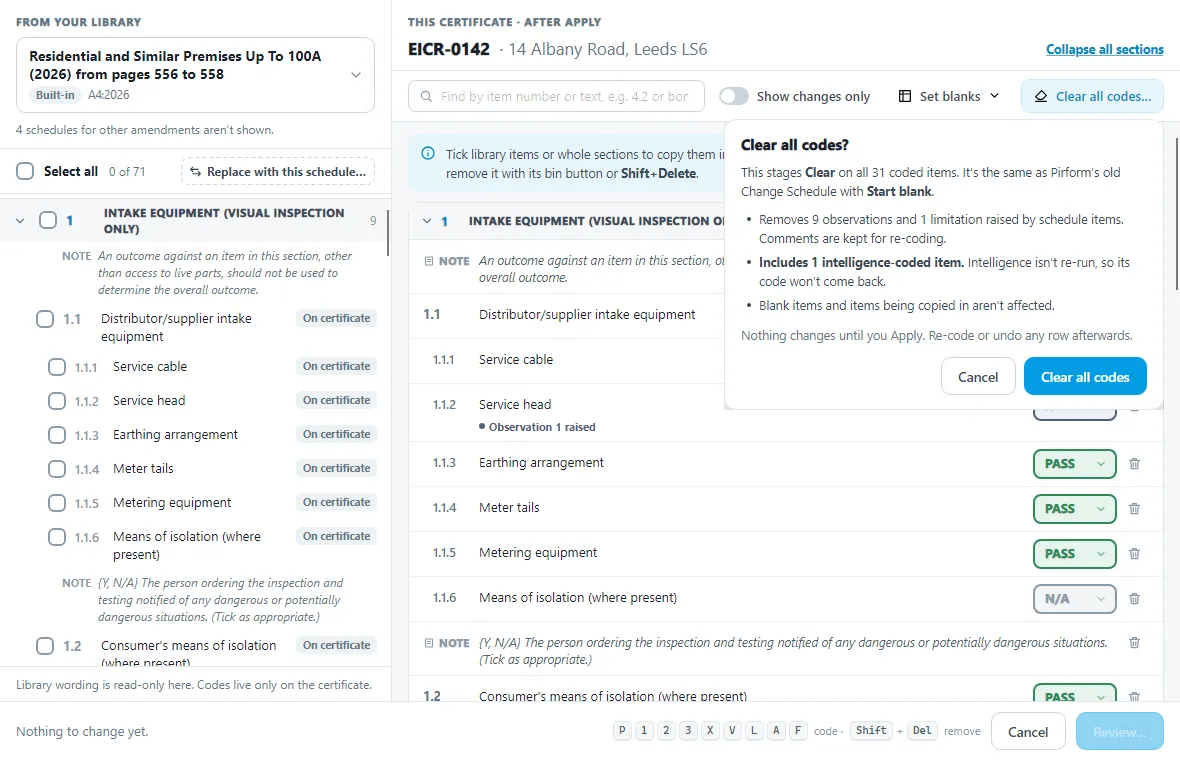
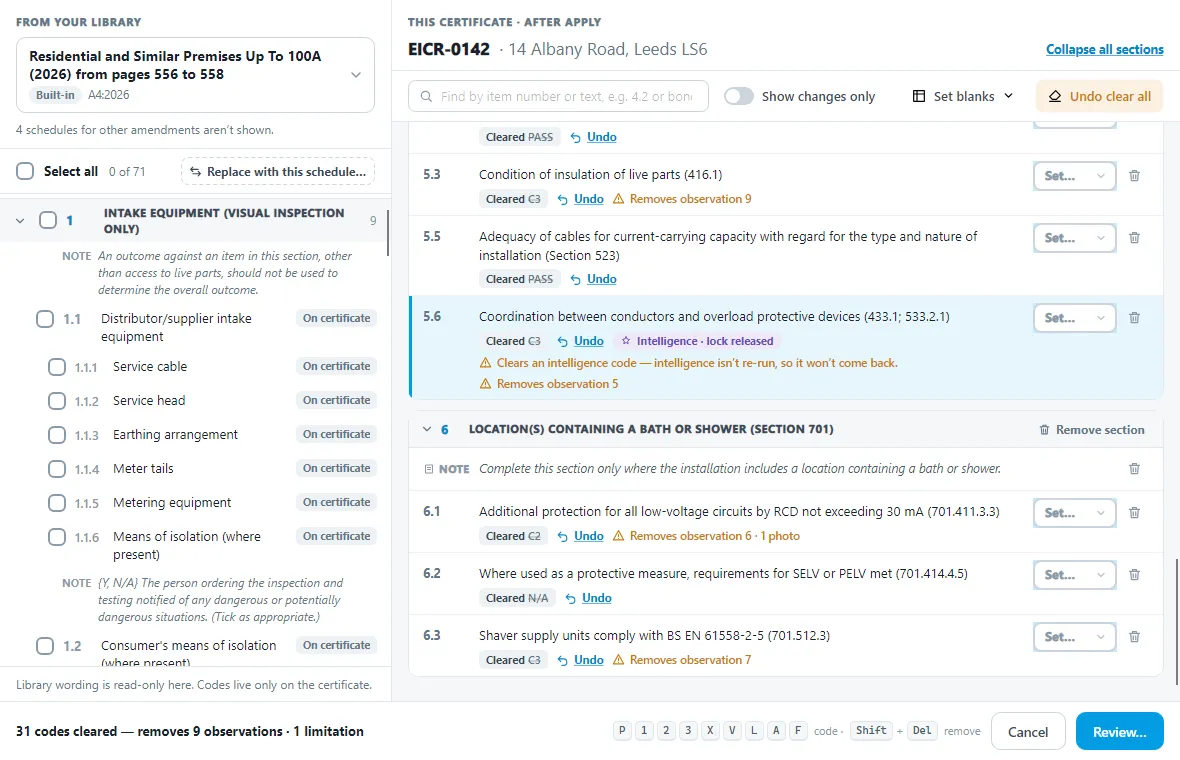
Click Clear all codes to go ahead. A banner says the codes are cleared, and each cleared row says Cleared with the old code struck through. Code any row again, or click Undo on it. Undo clear all, in the banner or on the button, puts every code back.
Clear all codes releases intelligence locks. A locked item says Intelligence · lock released, and its picker offers every code. Intelligence isn’t re-run, so a cleared intelligence code won’t come back after Apply. Items with their own outcome list are cleared too. Blank items and items you are copying in aren’t affected.
Collapsing sections
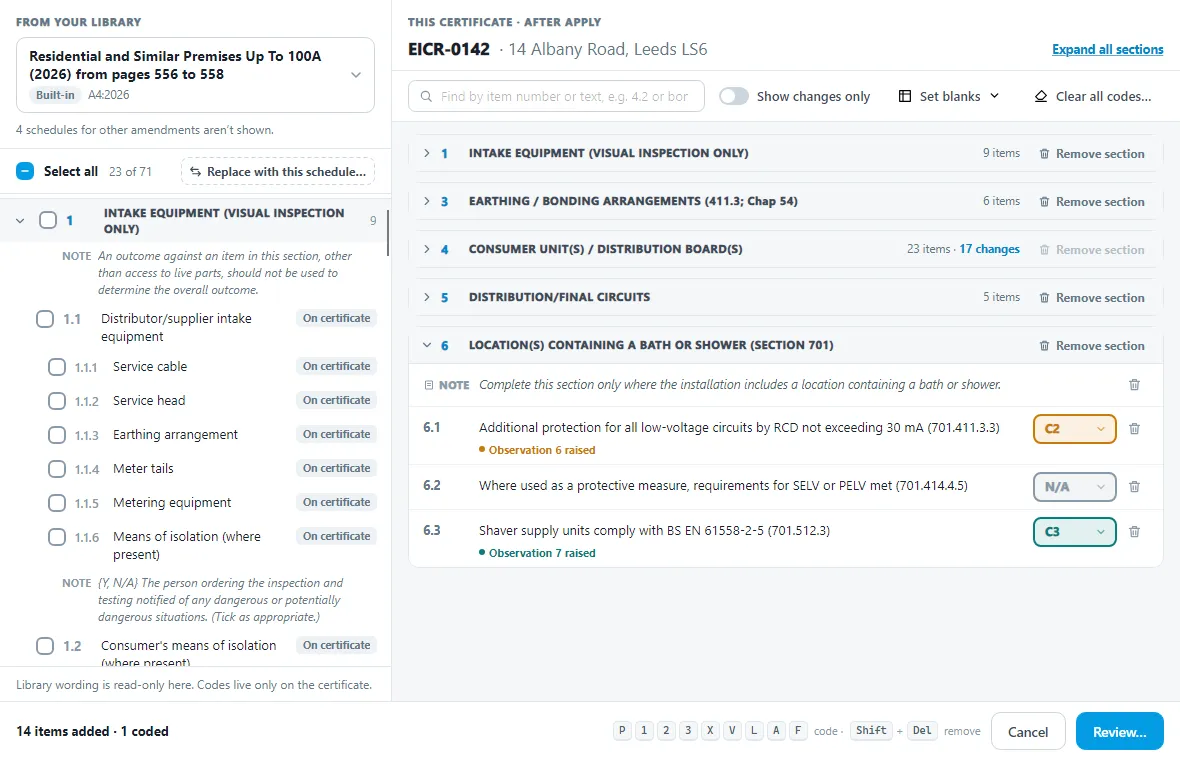
Click the arrow at the start of a section’s heading bar to collapse it. A collapsed section shows how many items it has and how many are changing, for example 23 items · 17 changes. Collapse all sections, at the top right, collapses every section; Expand all sections opens them again.
A heading question you still need to answer stays in view in a collapsed section. The search box still finds items in collapsed sections.
Review and Apply
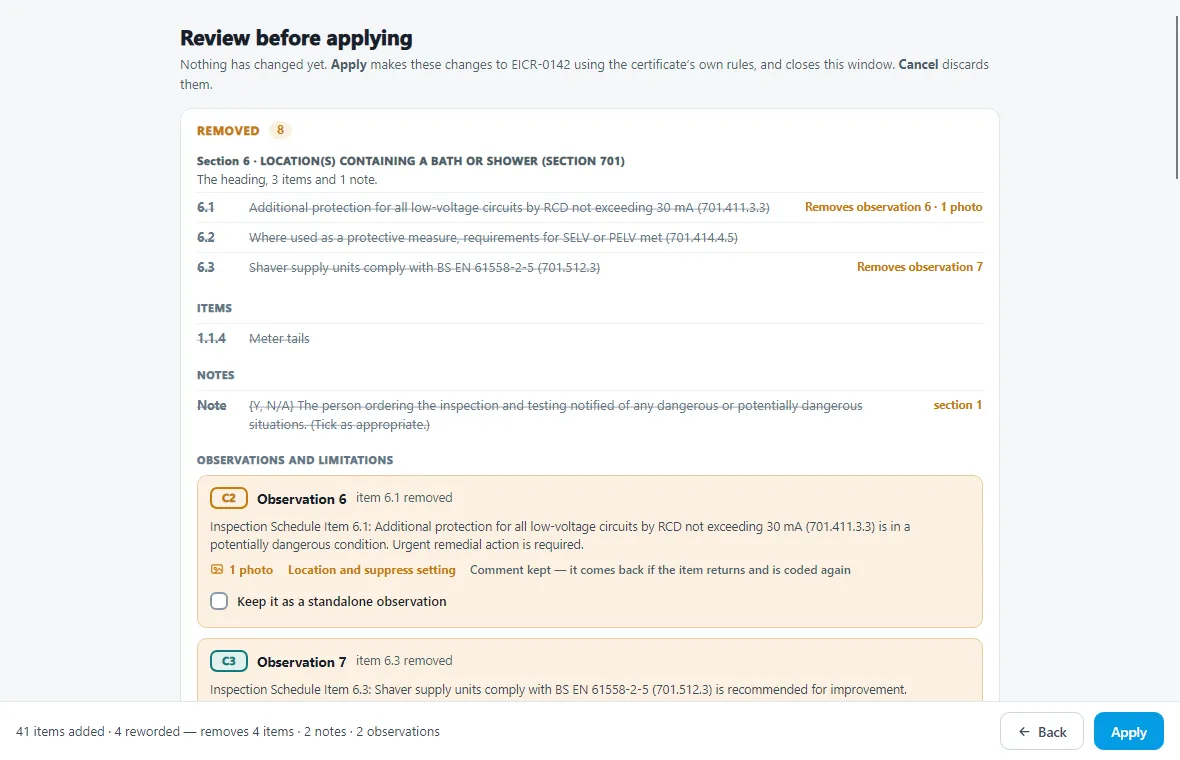
Click Review… to check everything before it happens. The review lists, in this order:
- Declaration: what the change does to the report’s overall condition (see below).
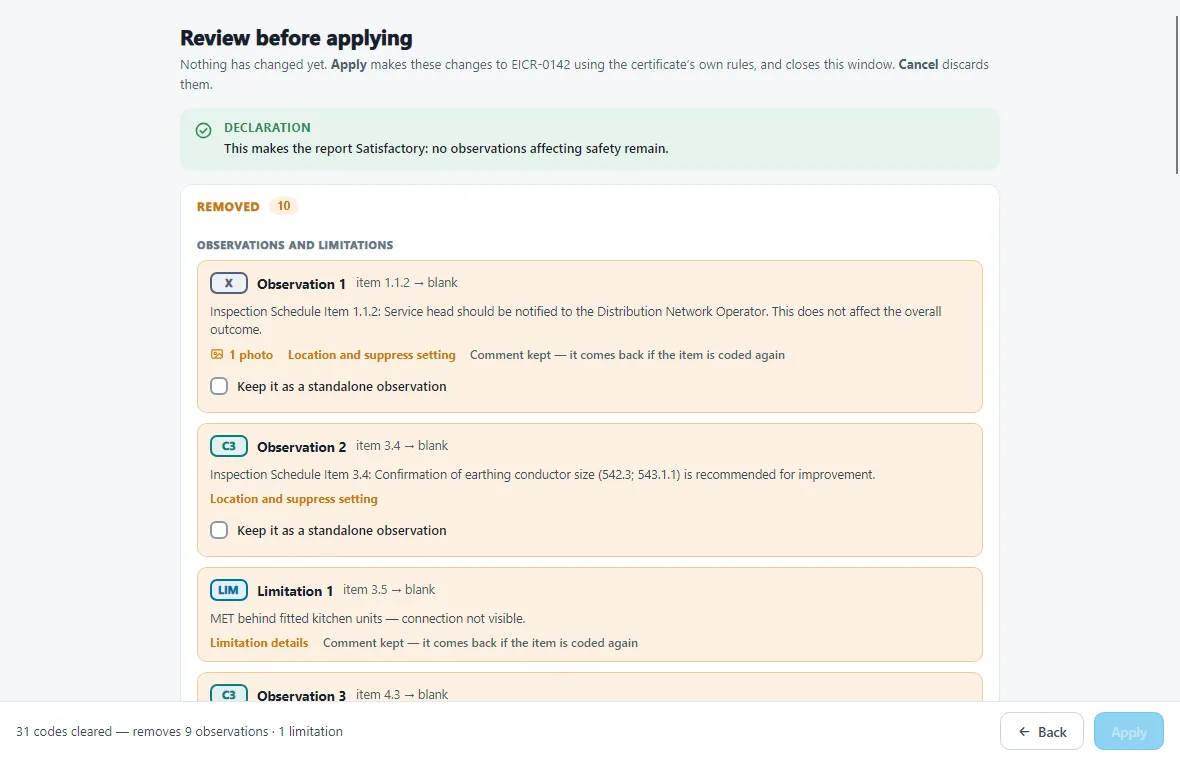
- Removed: each removed section, item and note, and each observation or limitation that will go, with its text. For an observation, tick Keep it as a standalone observation to keep it on the Observations tab, with its photos, no longer linked to the schedule.
- Observations renumbered: observation numbers close up after removals, for example 8 → 6. Check any comment or report text that quotes an observation number. A kept standalone observation keeps its place.
- Added: the new items and notes, by section, with any code you set.
- Reworded: headings, then items.
- Recoded, or Codes cleared when you only used Clear all codes.
- Raised: each new observation or limitation, with the text it will have.
The overall condition
If the change affects the report’s overall condition, the review shows a Declaration card that says what will happen. This follows your option Automatically change overall condition with items affecting safety. Every observation counts except an X on an intake item (1.1.1, 1.1.2 and so on). Observations you added by hand count too.
Applying
Change schedule does not re-run intelligence. Read the warning, tick I understand, and will verify every reference to the schedule manually afterwards, then click Apply. Check the codes, observations, limitations and intelligence on the certificate afterwards.
The Schedule Manager window closes and the certificate is updated. The status bar says what changed, for example Change schedule with ‘Commercial’: 3 items added, 1 section removed, 2 recoded.
To change nothing, click Cancel, press Esc or close the window.
Before it changes anything, the certificate checks the library again. If the schedule has been changed or removed since you opened Change schedule, nothing is changed and you see The schedule changed while you were choosing — please try again.
There is no undo. If you don’t want the changes, close the certificate without saving it.