
Once you have set up your company details in Shine Forms, you can export them to a file. This includes your company name, company logo, association logo, engineers, and instruments.
You can use these files to help colleagues set up their company details easily.
If you issue certificates for more than one company, you can save each set of company details to separate files and switch between them as needed.
Learn how to update company and association details on existing certificates here.
Export your company details
To export your company details:
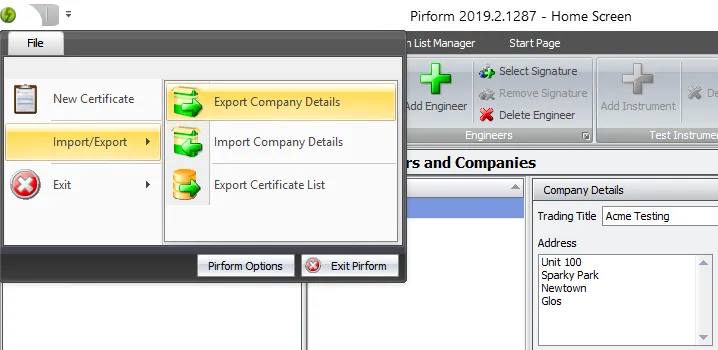
- Click File > Import/Export on the Home Screen.
- Select Export Company Details.
Import your company details
Company files exported from older versions of Shine Forms can contain stretched logos. If your logos look stretched after importing a file, choose them again from the original image files, as described in fitting your logo. Then export your company details again, so that the file you share has the corrected logos.
Double-click on the company logo, association logo, or engineer signature to quickly select a new image.
To import your company details from a file:
- Click File > Import/Export on the Home Screen.
- Select Import Company Details.

You can also import company details by dragging the company files onto the Company and Instruments area of the Home Screen, as shown below.
For individual certificates, you can edit company telephone, branch number, and enrolment number from the Certificate Options dialog.
Download your company details from Shine Forms Online
If your company keeps its details on Shine Forms Online, you don’t need a file at all. Your company details, logos and test instruments can be downloaded straight into Shine Forms:
- Open the Drop-down List Manager — File > Drop-down lists on the Home Screen.
- Click Shine Forms Online… and sign in with your Shine Forms account.
- On the Download tab, tick Company details and logos and Test instruments, then click Download.
Shine Forms brings them in when you go back to it, once any open certificates are closed. Read more in Shine Forms Online.
Engineers, their signatures and their default instruments stay as they are in Shine Forms. To copy those to another computer, use Export Company Details and Import Company Details above.