
Drop-down lists
The drop-down lists are the choices your certificates offer in their drop-downs and grid selectors: wiring types, protective devices and their ratings, RCD types, conductor sizes, the purpose of a report, and so on. Shine Forms ships with the standard values for each. The Drop-down lists manager is where you add your own values, hide the ones you never use, change the wording, put a list in the order you want, and share your lists with colleagues.
To open it, click Drop-down List Manager below the certificates tree on the Home Screen, or go to File → Drop-down lists. It opens in its own window over Shine Forms. If it is already open, clicking either of them again brings it to the front. Close, at the top left, closes it.
Every change is saved as you make it. There is no Save button, and you don’t need to restart Shine Forms. Certificates you open afterwards use your new lists. If a certificate is open while you make a change, close it and open it again to see the change.
The manager at a glance
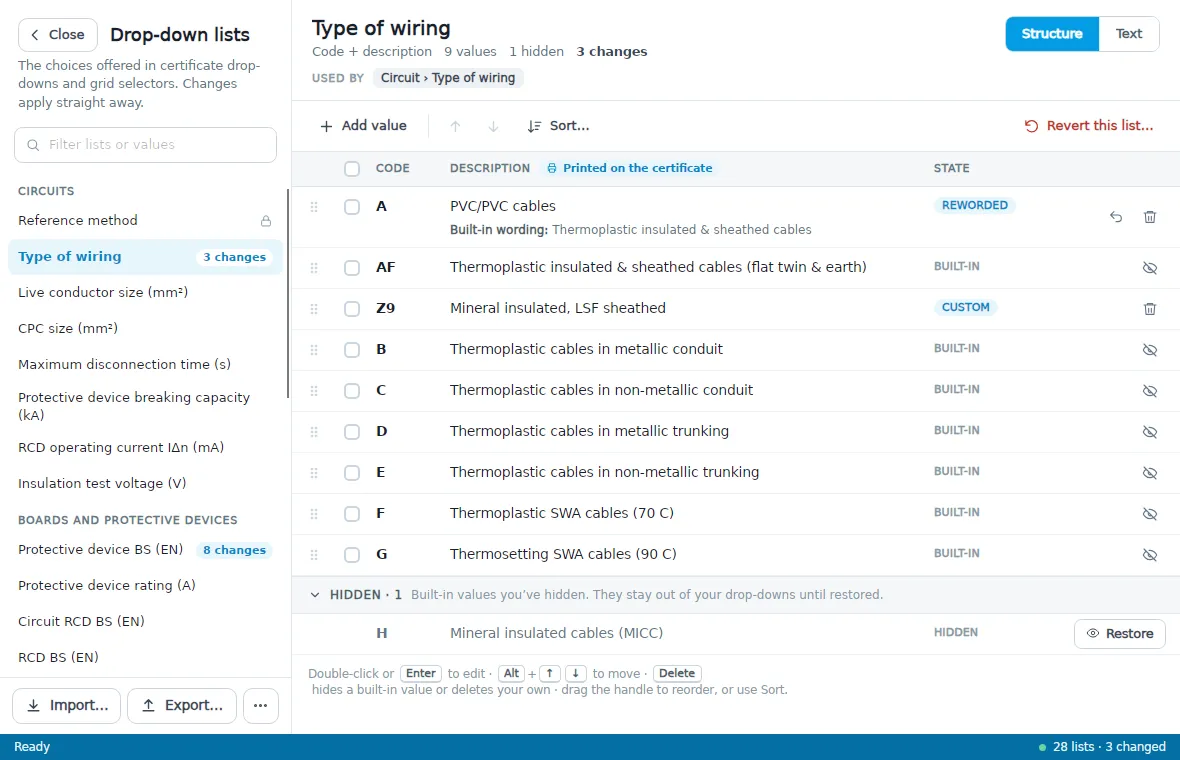
The lists are down the left, grouped into Circuits, Boards and protective devices, and Supply and installation. A list you have changed shows how many changes it has. Click a list to open it on the right.
The top of a list shows:
- Its name, its columns, and how many values and changes it has.
- Used by, which says where the list appears in your certificates, such as Circuit › Type of wiring.
- Structure and Text, two views of the same list. Structure is the row-by-row view described first on this page; the Text view is described under The Text view.
Each value has a state:
- Built-in: a standard value, as shipped.
- Custom: a value you added.
- Reworded: a built-in value with your own description. The built-in wording is shown underneath it.
- Edited: a built-in protective device with your own label (see Protective devices and RCDs).
- Hidden: a built-in value you have hidden. Hidden values are grouped at the bottom of the list.
A column tagged Printed on the certificate holds text that appears on your PDFs, so choose its wording with that in mind.
Finding a list
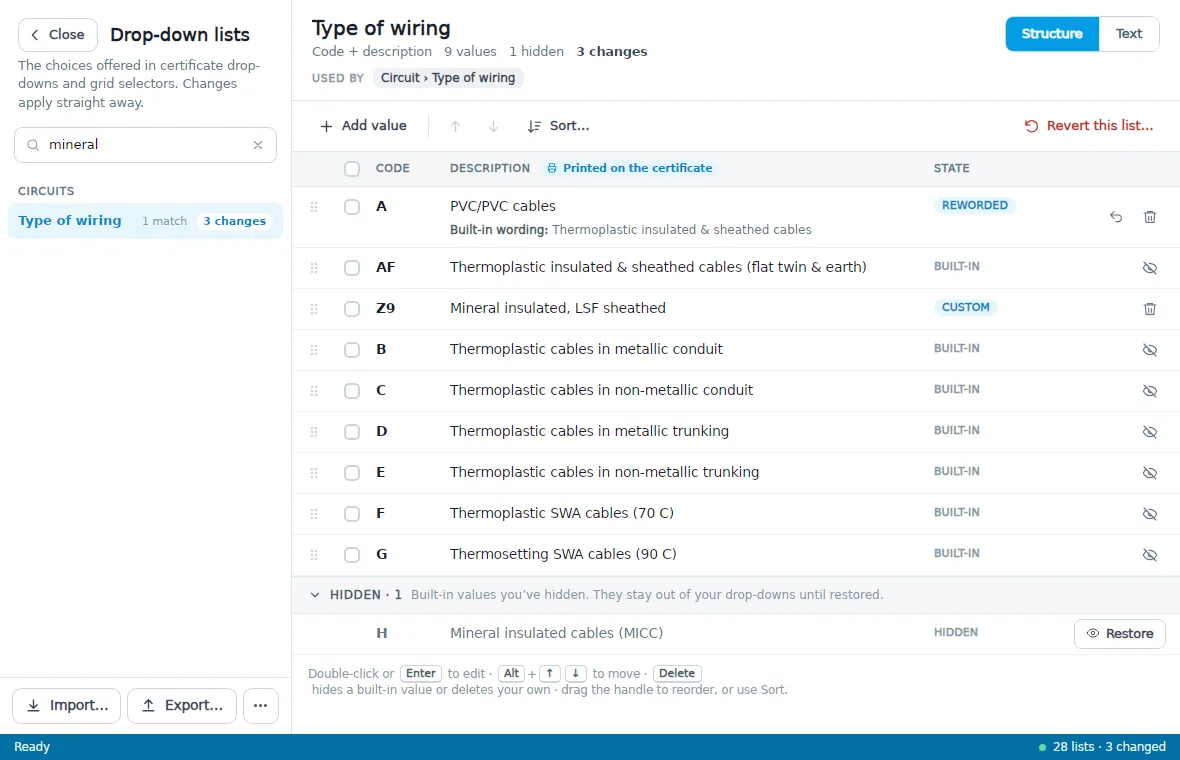
Type in Filter lists or values at the top of the navigator. Lists match on their name or on any value in them, so typing mineral finds every list holding a mineral-insulated cable.
Adding your own values
Click Add value. A new row appears at the end of the list, ready to type in. Press Tab or Enter to move to the next cell, and again on the last cell to finish. Escape leaves the cell without keeping what you typed, and drops a new row you haven’t filled in.
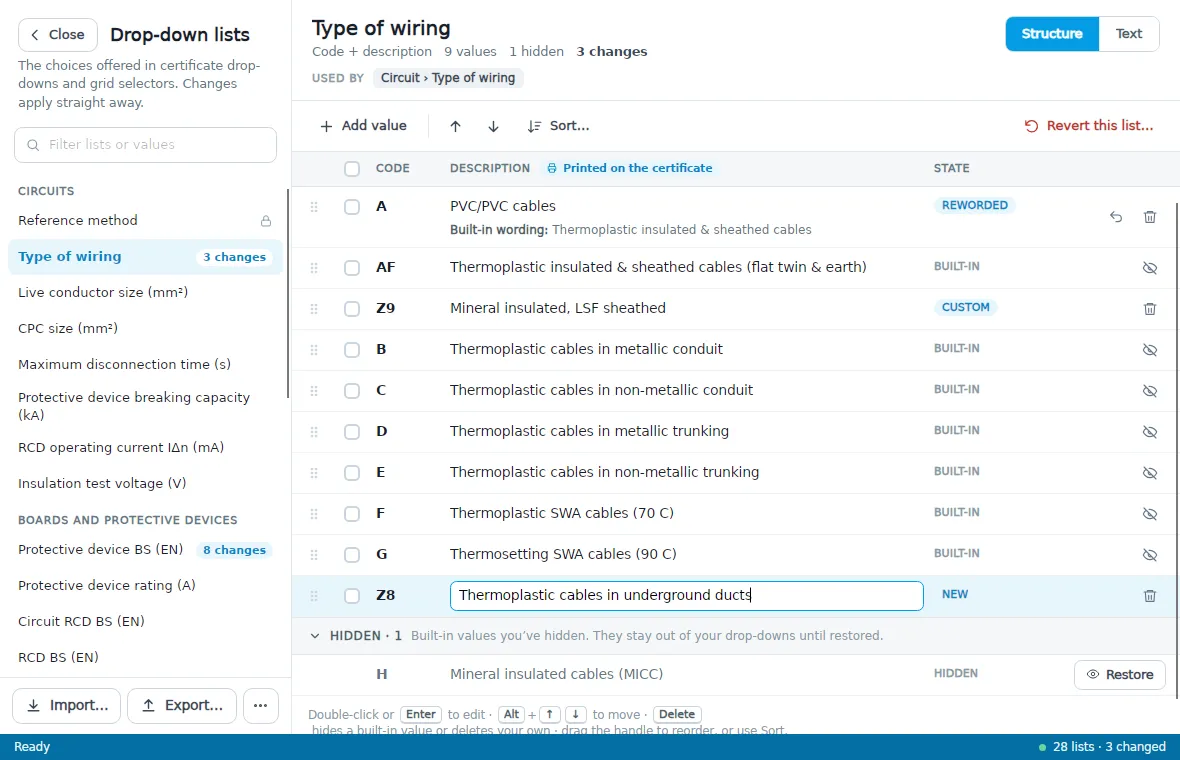
A value that can’t be saved stays marked with the reason until you fix it: for example, when it is already in the list, when a number uses a comma instead of a decimal point, or when it is empty.
To remove one of your own values, click the bin button on its row, or select the row and press Delete.
Changing the wording
Double-click a cell, or select the row and press Enter or F2, to edit it in place.
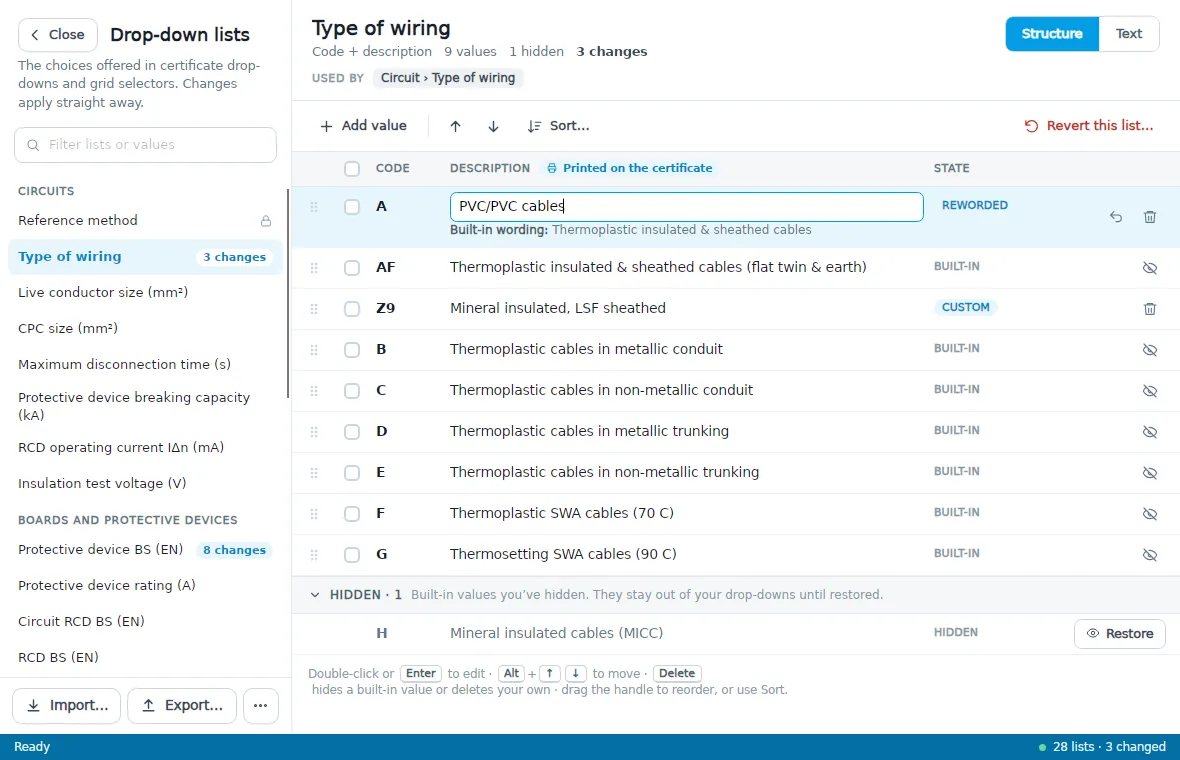
You can change the description of a built-in value, but not its code. The value becomes Reworded, and the built-in wording is shown underneath it. To go back to the standard wording, click the Use built-in wording button (the curved arrow) on the row.
Hiding values you don’t use
Built-in values can’t be deleted, but you can hide them. Click the hide button (the crossed-out eye) on the row, or select the row and press Delete. A hidden value stays out of your drop-downs. It is listed at the bottom of the list under Hidden, where Restore brings it back.
Hiding a value doesn’t change certificates that already use it.
Changing the order
Your drop-downs show the values in the order of the list. To move a value, drag it by the handle at the left of its row, select it and press Alt+↑ or Alt+↓, or use the arrow buttons in the toolbar.
To put the whole list in order, click Sort…:
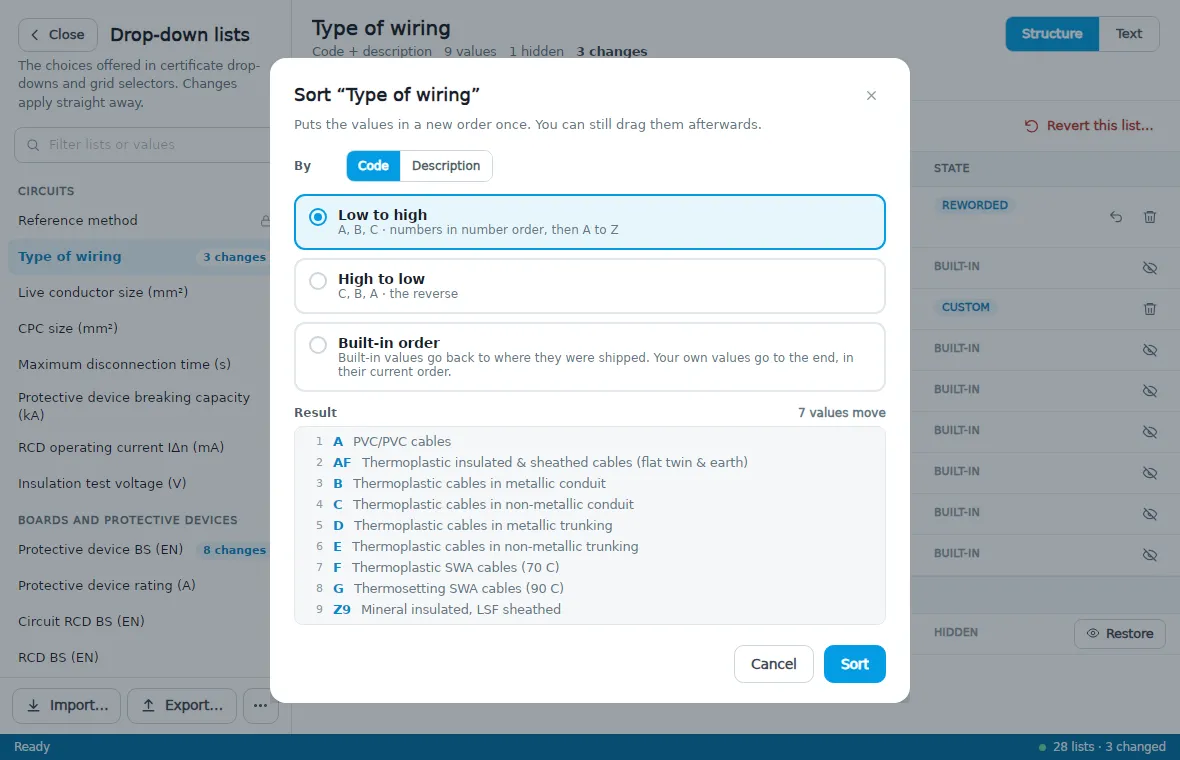
- By: sort on the code or on the description. On a list that mixes numbers with words (such as LIM or N/A), Words also appears, to put the words before or after the numbers. The words are kept together either way.
- Low to high or High to low: numbers go in number order, and text in alphabetical order.
- Built-in order: the built-in values go back to where they were shipped, and your own values go to the end, in their current order.
Result shows the list as it will be, and how many values move. If you tick some rows before opening Sort, you can sort just those: they swap places among themselves, and every other value stays where it is.
Sorting puts the values in order once. A value you add later goes at the end of the list, and you can still drag values afterwards.
Undo
Hiding or deleting a value, and sorting a list, show a message in the status bar along the bottom of the window with an Undo link. It is there for a few seconds:
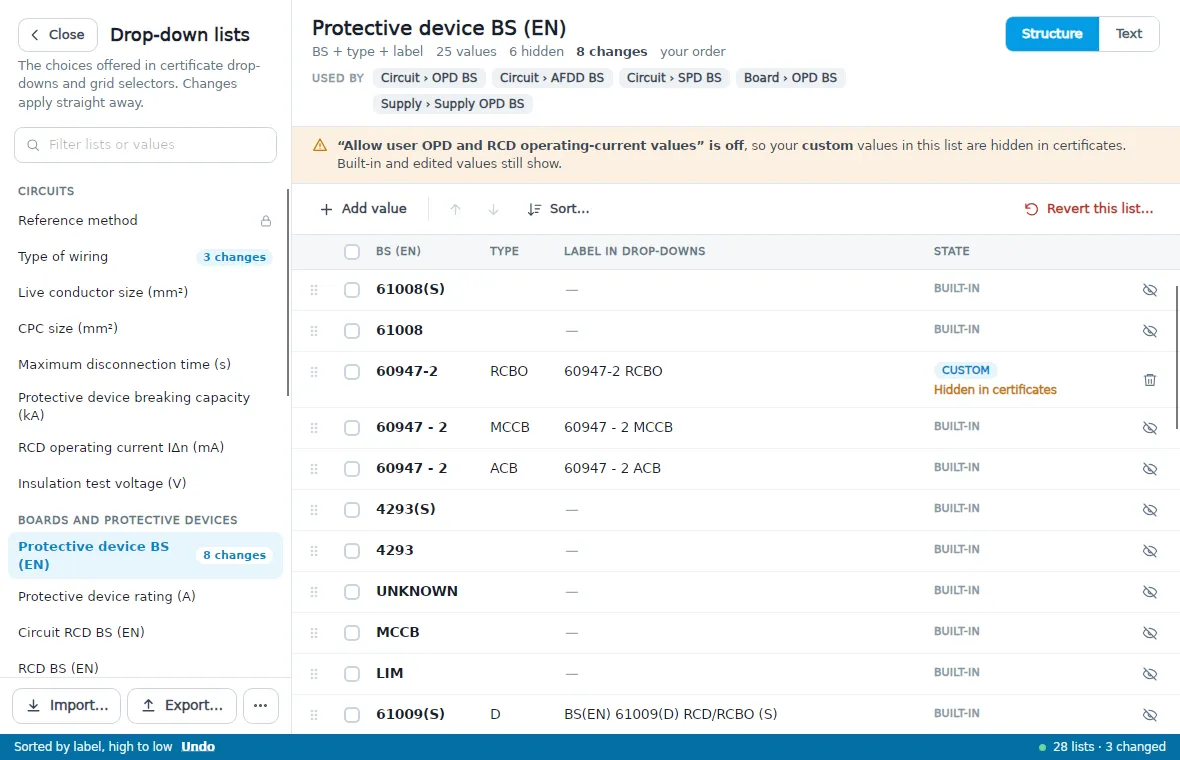
Protective devices and RCDs
The Protective device BS (EN) list has three columns: the BS (EN) number, the type, and the label shown in your drop-downs. You can change the label of a built-in device, which marks it Edited, and add your own devices.
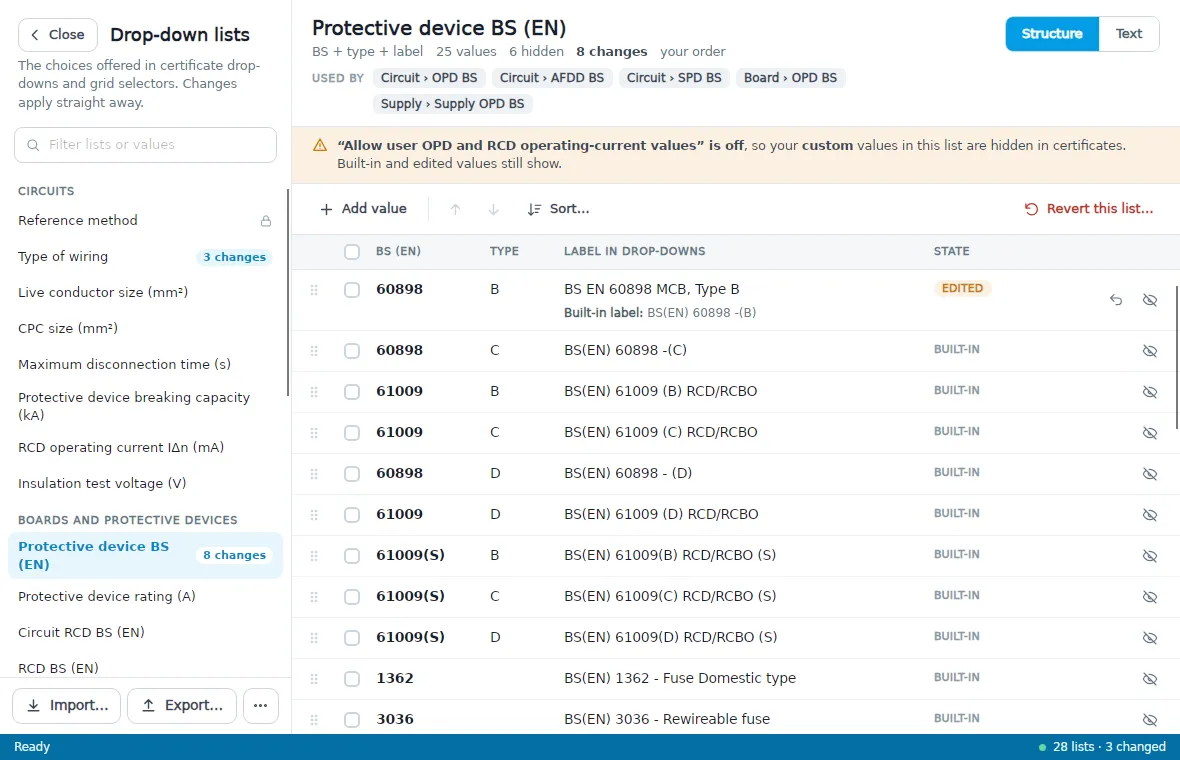
Your own devices, and your own values in the RCD operating current IΔn (mA) list, are only offered on certificates when Allow user OPD and RCD operating currents is ticked in Shine Forms Options, on the Distribution Board page. The banner at the top of these two lists says whether it is on. Built-in and edited values are always offered.
Fixed lists
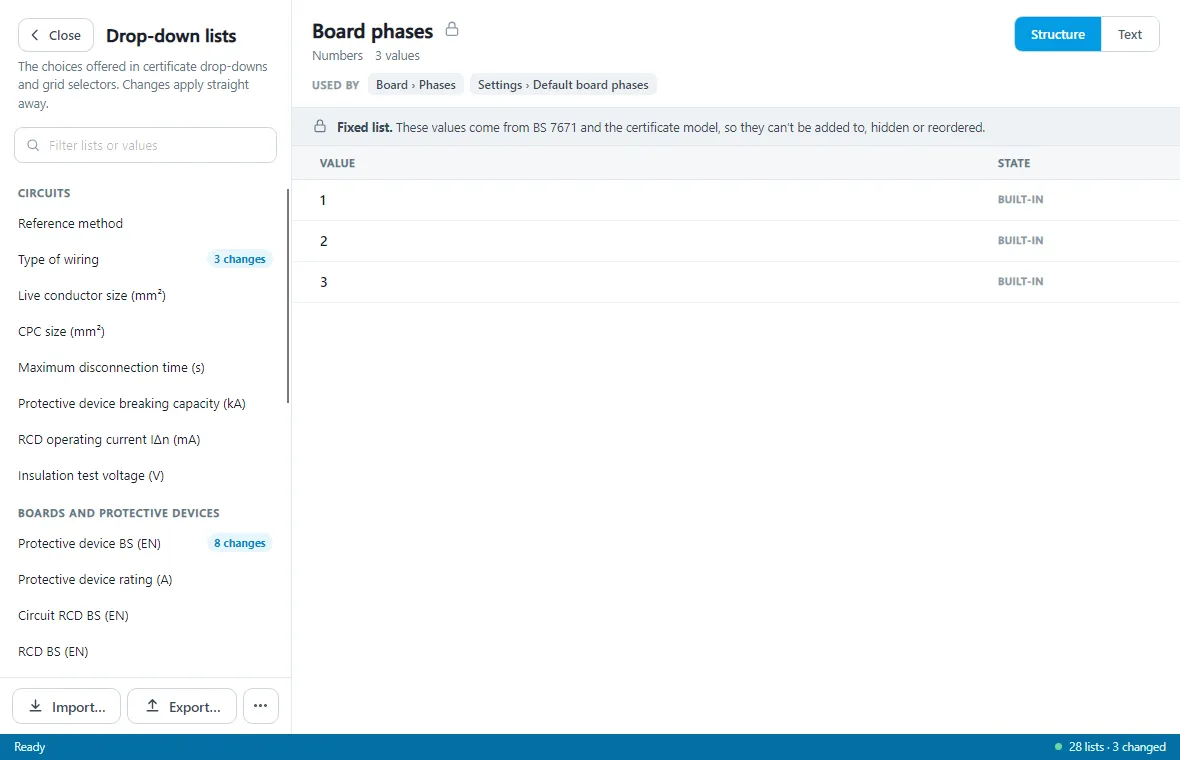
Two lists come from the certificate itself: Board phases and General condition of the installation. They are marked with a padlock in the navigator. You can read them, and see them in the Text view, but you can’t add to them, hide their values or change their order.
The Text view
Every list you change is kept as a small text file, and Text at the top right shows you that file. It holds only your changes, such as your own values, your wording and the values you’ve hidden. Everything else comes from the built-in list.
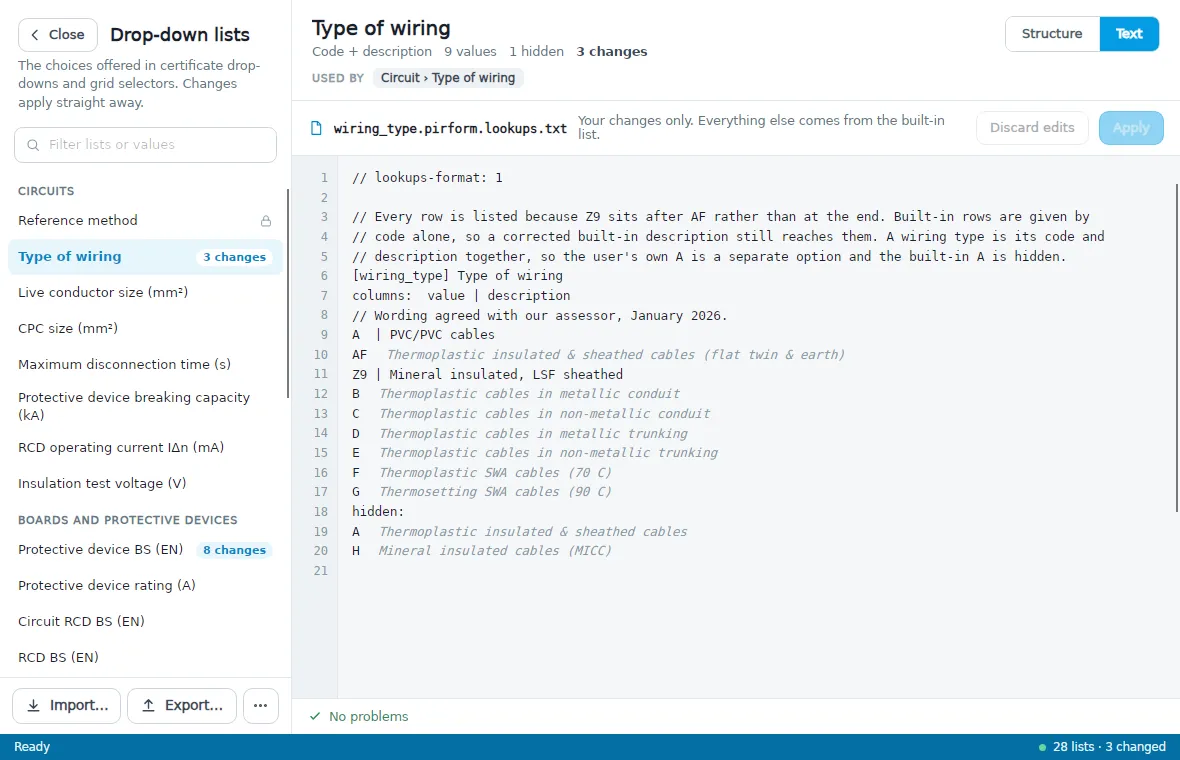
When you have changed the order of a list, the file lists every value in order. Built-in values are then given by their code alone, so they keep the built-in wording. The Text view shows that wording in grey beside each of those lines, as a reminder. The grey text isn’t part of the file.
You can type in the Text view too, which is a quick way to add several values at once. Your typing isn’t used until you click Apply; Discard edits throws it away. A line with a problem is marked, and the Problems panel underneath says what is wrong with it. You can’t apply the text until every problem is fixed.
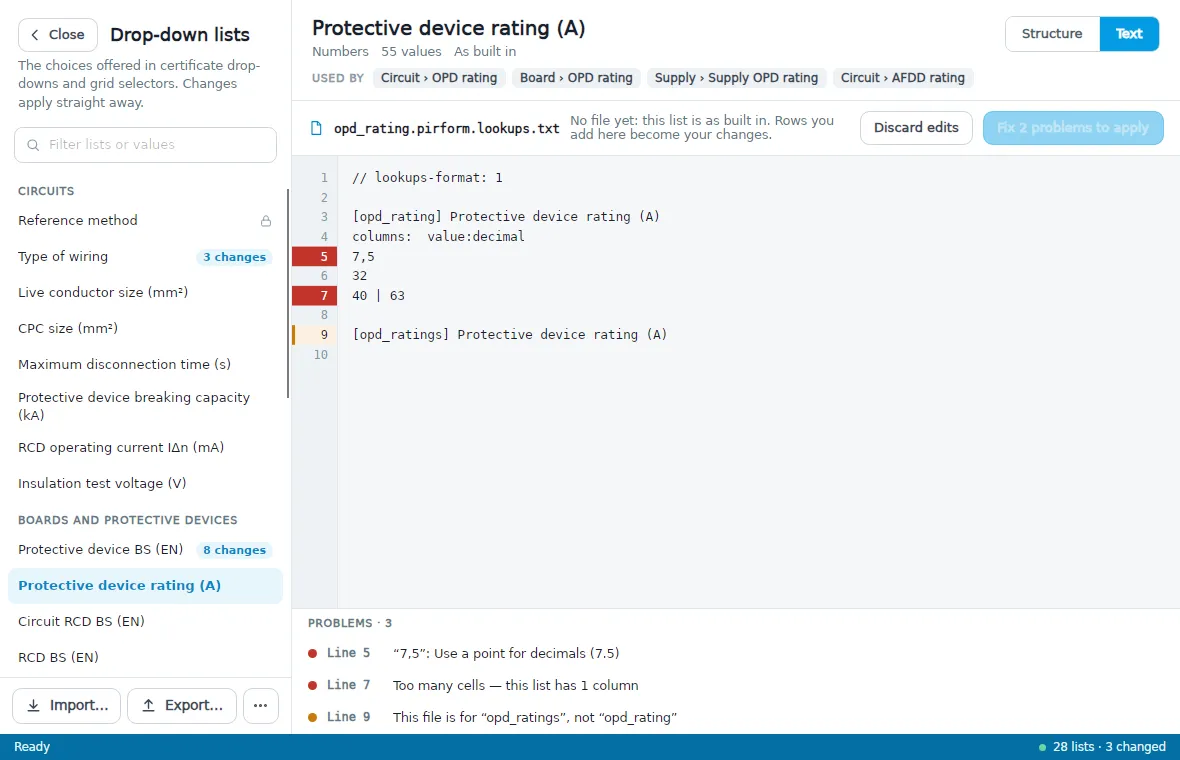
Your typing is kept while you look at other lists, until you apply or discard it. If you close the manager with typing that isn’t applied, it takes you to that list first and says so; closing again closes without it.
Sharing lists with colleagues
To send your lists to a colleague, click Export… at the bottom of the navigator. You can export:
- This list: your changes to the list you’re viewing.
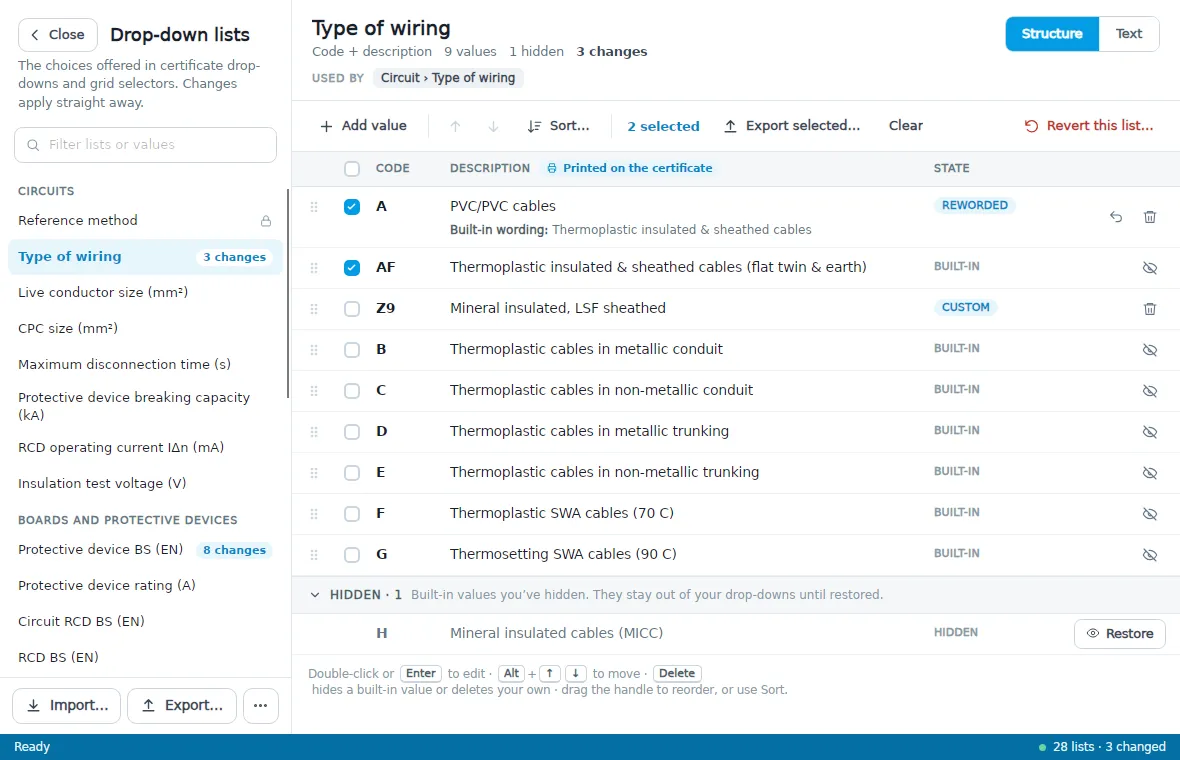
- Selected rows: only the rows you’ve ticked. Tick rows with the boxes at the left of the list, or select a row and press Space.
- Several lists: one file holding each list you tick. Select all ticks every list, and Clear unticks them.
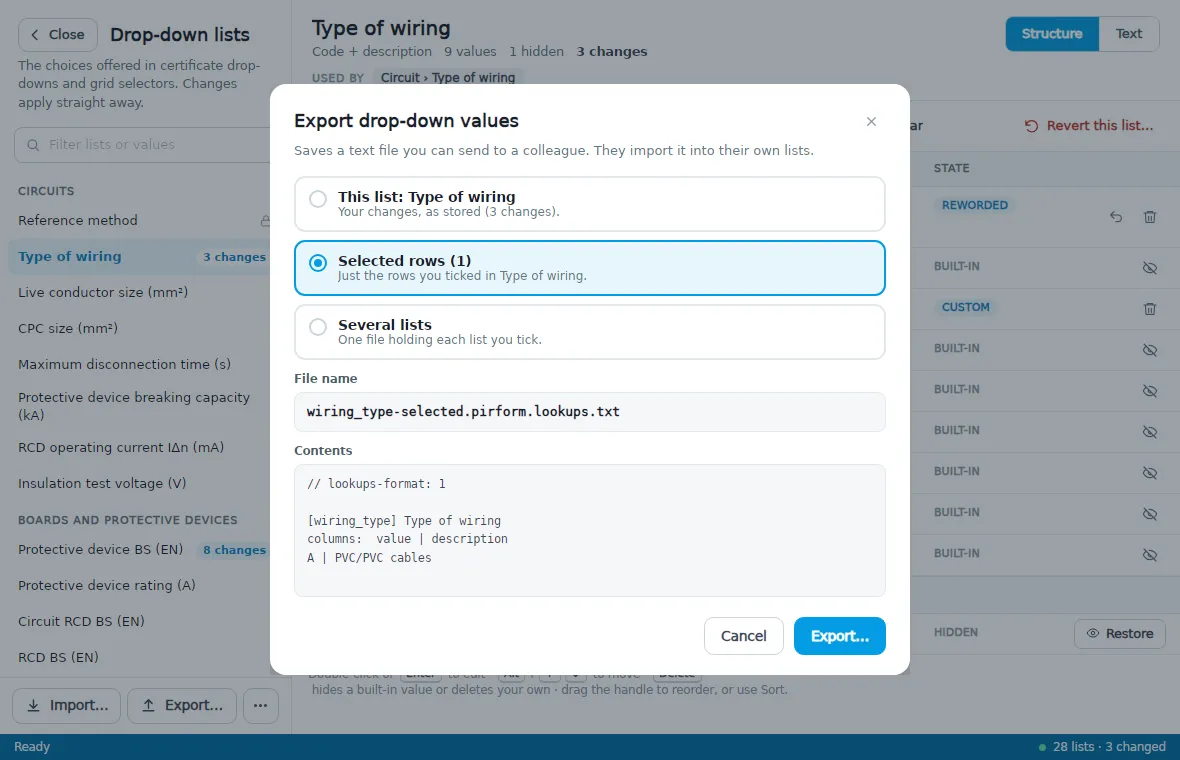
The file is plain text ending in .pirform.lookups.txt. It can be emailed or saved to a shared
folder.
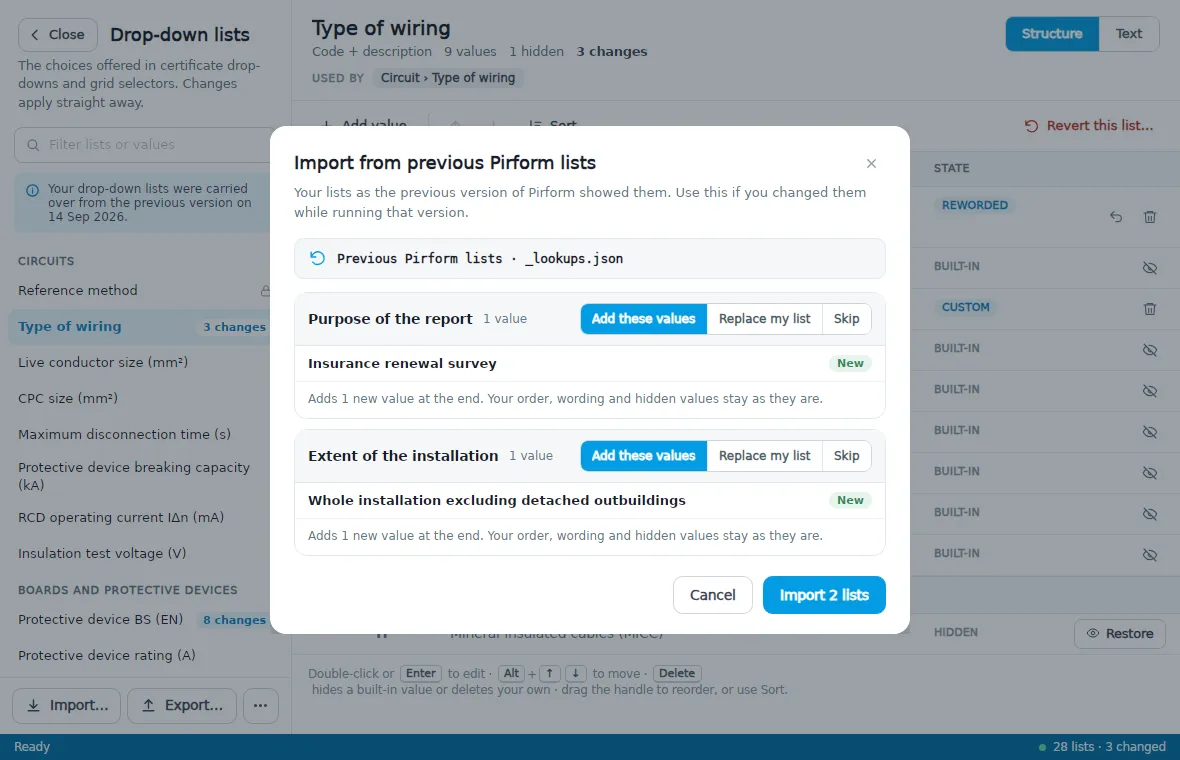
To bring a colleague’s file into your lists, click Import… and choose the file. The manager shows what is in it, list by list, before anything changes:
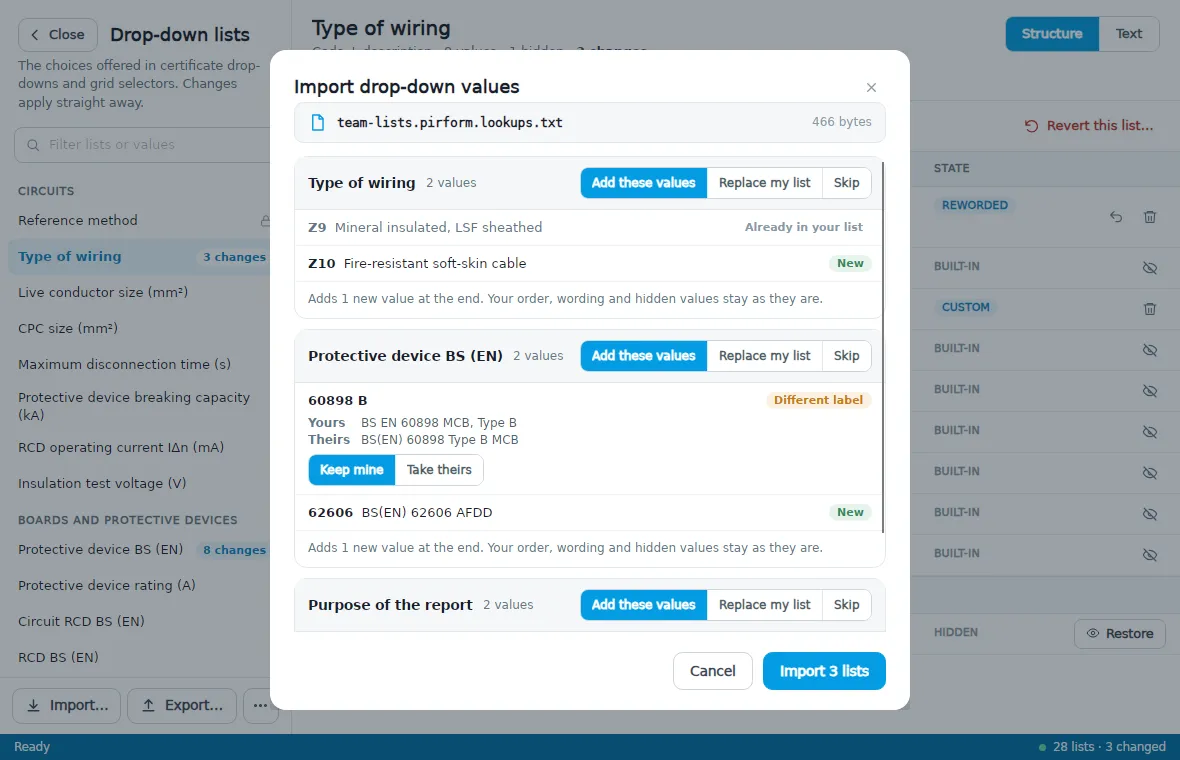
For each list you choose:
- Add these values: add the new values to the end of your list. Your own order, wording and hidden values stay as they are.
- Replace my list: make your list the same as theirs.
- Skip: leave your list alone.
Where a colleague has given a value a different label or description from yours, you choose Keep mine or Take theirs.
Shine Forms Online
Instead of passing files around, you can keep your lists on Shine Forms Online and download them on any computer. When you open the manager from Pirform, your test instruments and company details travel the same way.
Click Shine Forms Online… at the bottom of the navigator. The first time, sign in with your Shine Forms account — the one you use on account.shineforms.co.uk. The manager, the Style Editor and Shine Forms Desktop share the one sign-in, so once you’re signed in to one of them you’re signed in to them all.
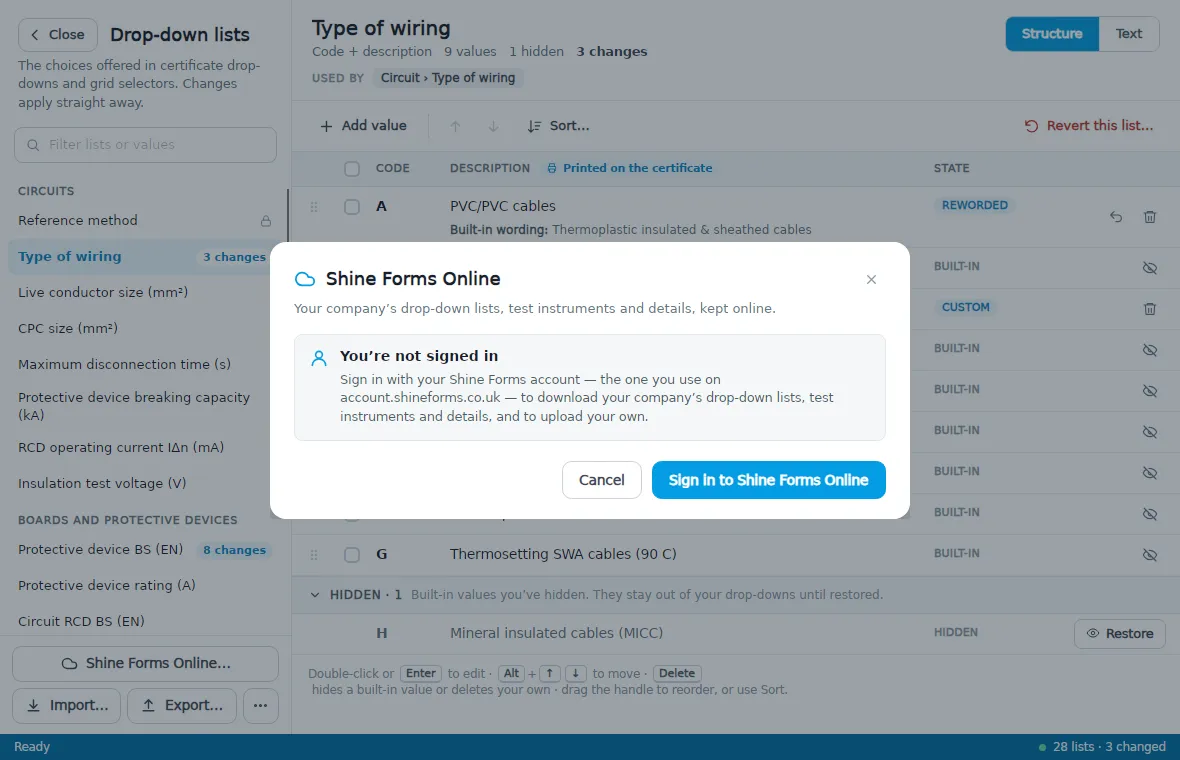
Once you’re signed in, the dialog shows who you are, your company (choose it if you work for more than one) and your role there.
Everything kept online is on one of two shelves:
- The company’s — shared with everyone in the company. Only your company’s administrators and Qualified Supervisors can change what is on it.
- Yours — values only you see, such as the lists you’ve set up the way you like them, or your own test instruments.
Downloading
On the Download tab, tick what you want:
- Drop-down lists — from the Company lists or My lists.
- Test instruments — the company’s and your own. (From Pirform only.)
- Company details and logos — the name, address, telephone, branch and enrolment numbers and logos on your account. (From Pirform only.)
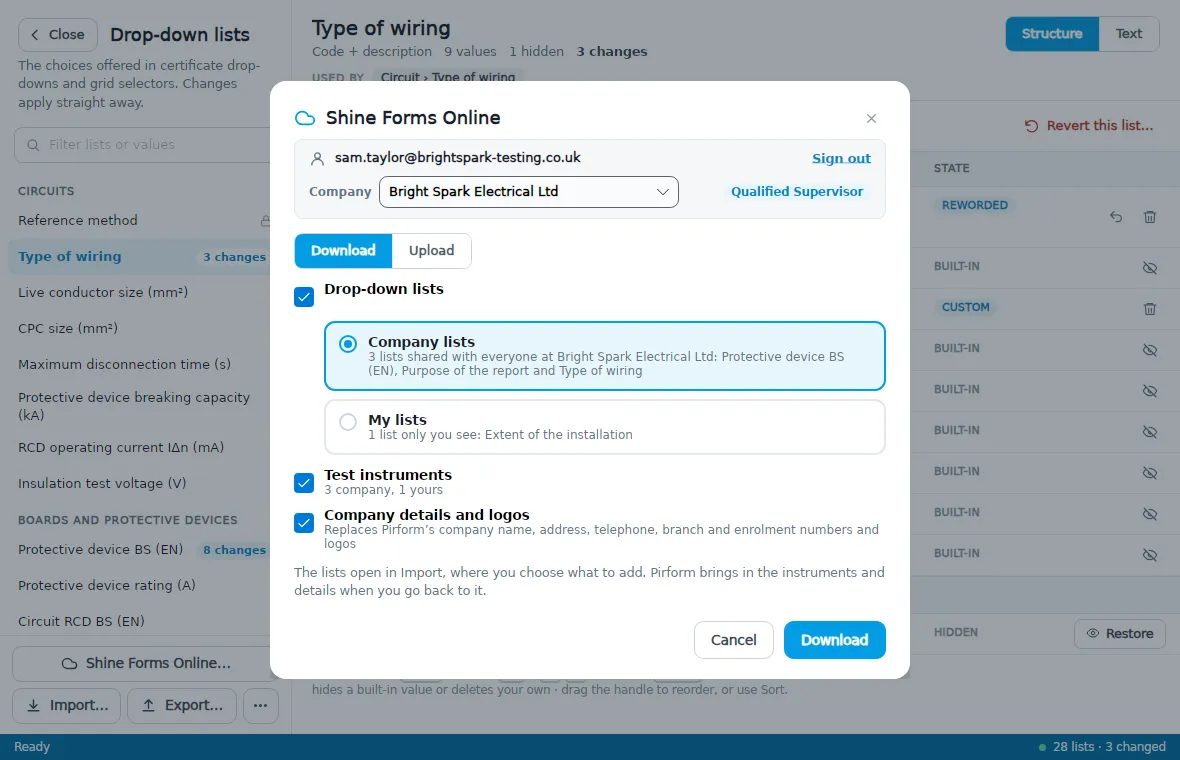
Click Download. The lists open in the same Import review as a colleague’s file, so you choose for each list whether to add the new values, replace your list or skip it — nothing changes until you click Import.
Test instruments and company details are brought into Pirform when you go back to it. If you have certificates open, Pirform waits until you’ve closed them, and says so. Instruments are matched by serial number: new ones are added and the ones you have are updated, and none are removed. Company details replace the ones on the Company and Instruments tab; a logo the account doesn’t have leaves yours as it is.
Uploading
On the Upload tab, choose where your values go under Upload to — The company or Just me — and tick what to send:
- Drop-down lists — every list you’ve changed, exactly as you have it.
- Test instruments — the instruments in Pirform. (From Pirform only.)
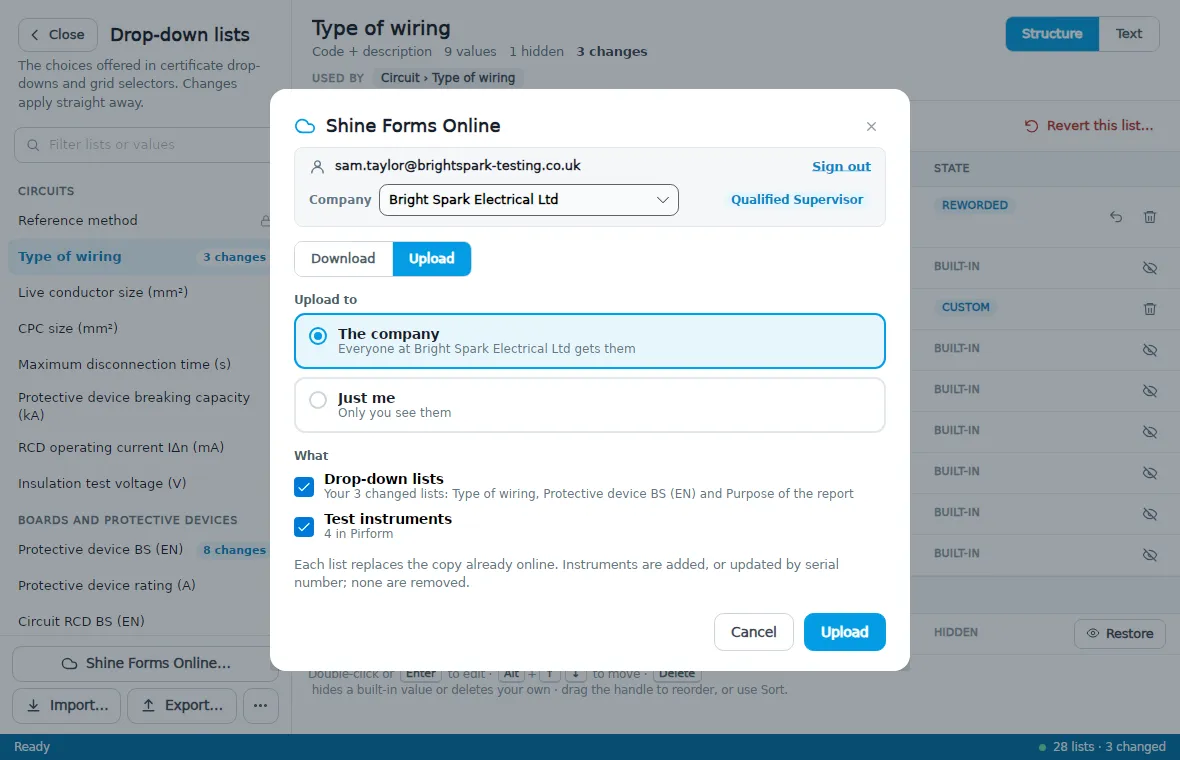
Click Upload. Each list replaces the copy already on that shelf. Instruments are added, or updated by serial number; none are removed — remove one on account.shineforms.co.uk/company if you need to.
If you’re not one of your company’s administrators or Qualified Supervisors, The company is greyed out with the reason, and your values go up just for you.
Going back to the built-in lists
Revert this list…, at the top right of a list, puts that list back to exactly as built in. The manager shows you what will be removed first:
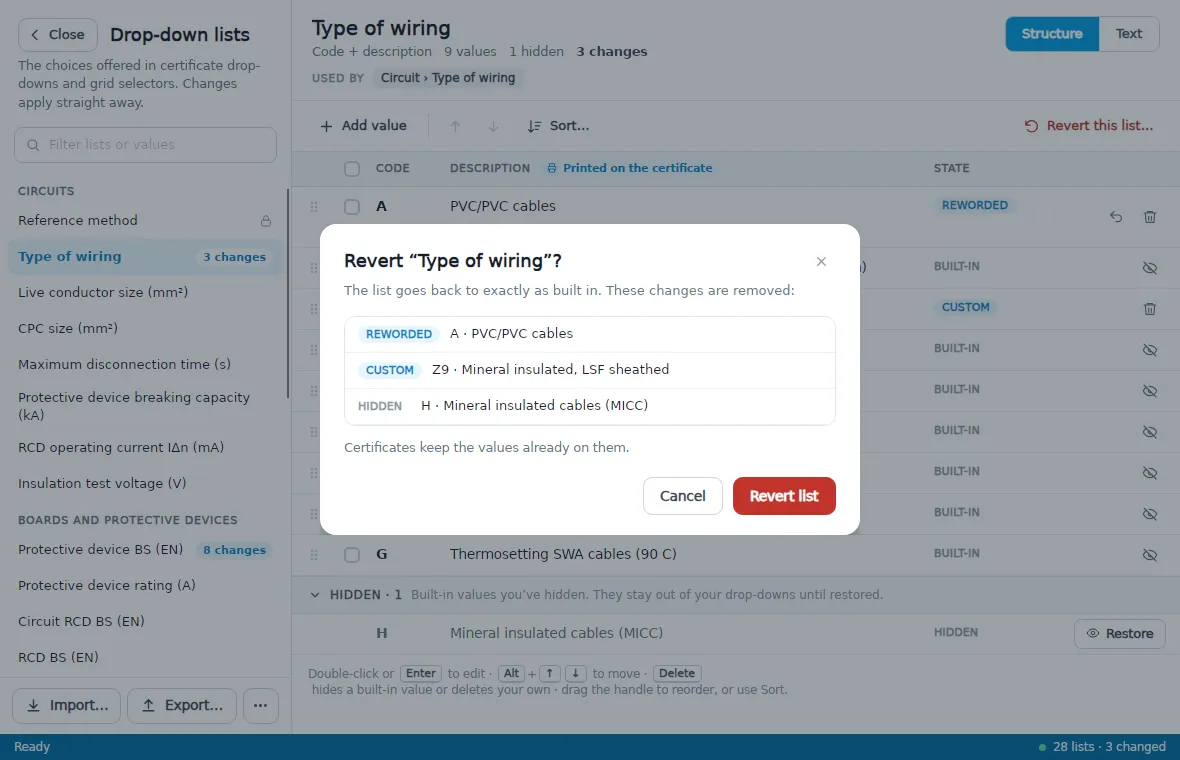
To put every list back to the built-in values, click the ⋯ button at the bottom of the navigator and choose Revert all lists to built-in…. Reset Lookups, in the General section of Shine Forms Options, does the same.
Reverting doesn’t change certificates you’ve already completed. They keep the values already on them.
Upgrading from an earlier version
The first time this version of Shine Forms starts, it carries over the drop-down lists you had before. The navigator says when that happened:
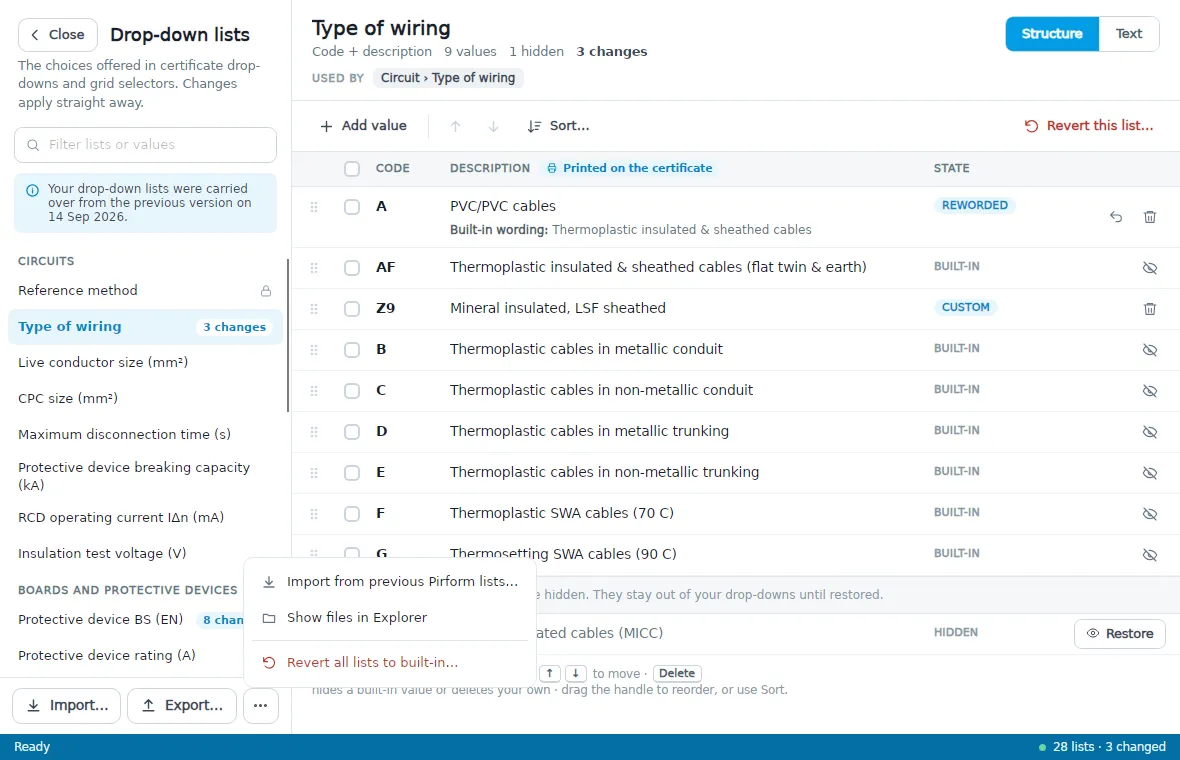
The ⋯ menu at the bottom of the navigator has:
- Import from previous Pirform lists…: if you went back to an earlier version of Shine Forms for a while and changed your lists there, this brings those changes across. It works like importing a colleague’s file.
- Show files in Explorer: opens the folder holding your list files, one file per list you’ve changed, which is handy for backing them up.
- Revert all lists to built-in…, described above.
Entering values directly
Some fields let you type a value as well as choose one from the list, such as the installation extent, the general condition of the installation, and the purpose of the report on an EICR. Those fields have an icon to the left, and say so when they are empty:
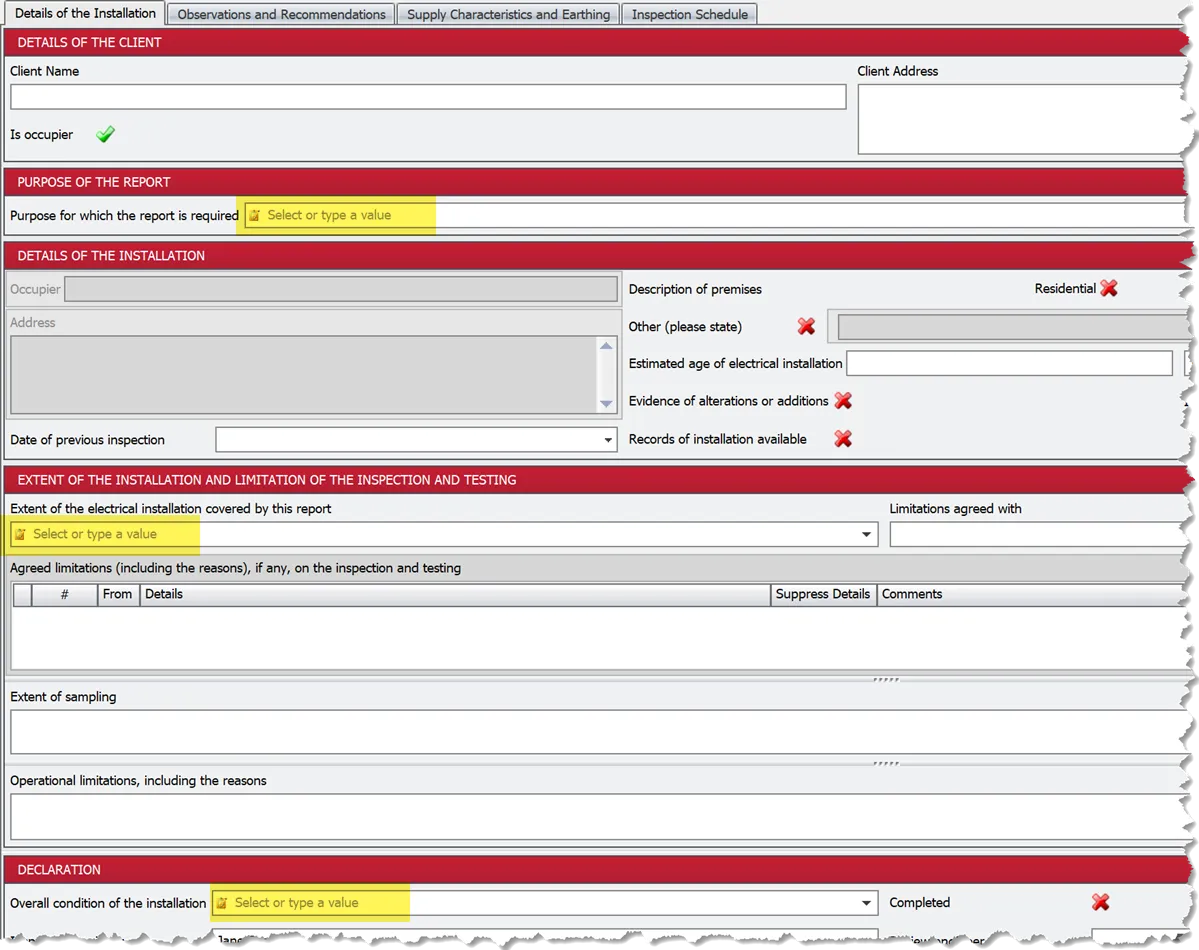
To use a value that isn’t in the list, type it and press Enter or Tab.
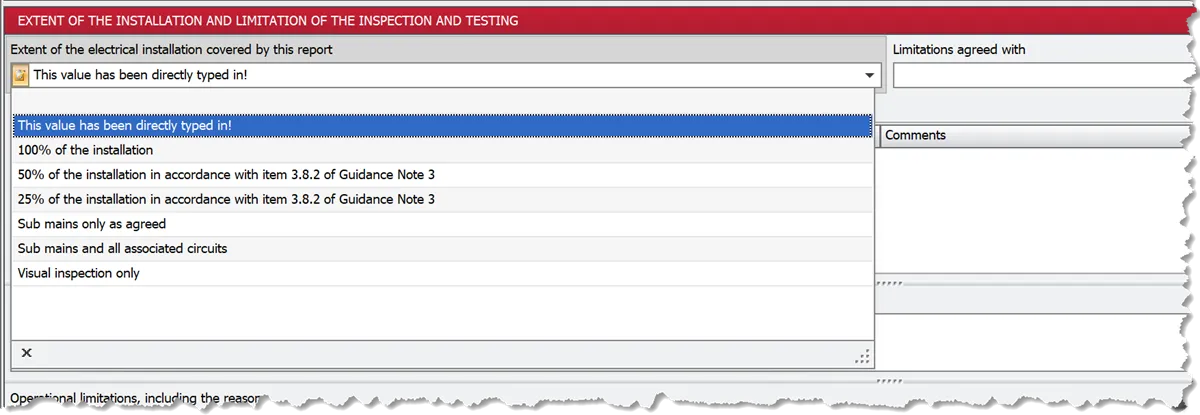
A value you type directly is offered in that field on the certificate you’re working on until you close it. To have it offered on every certificate, add it to the list in the Drop-down lists manager.
Keyboard shortcuts
| Keys | What they do |
|---|---|
| ↑ / ↓ | Select the row above or below. |
| Enter or F2 | Edit the selected row. |
| Enter or Tab (while editing) | Keep the cell and move to the next one. Shift+Tab keeps the cell and stops editing. |
| Escape (while editing) | Leave the cell without keeping what you typed. |
| Alt+↑ / Alt+↓ | Move the selected row up or down. |
| Delete | Hide the selected built-in value, or delete your own. |
| Space | Tick or untick the selected row. |
| Alt+Space or Ctrl+Space | Open the window’s menu: Restore, Move, Size, Minimize, Maximize and Close. |