
The Shine Forms tablet apps will be available soon. Follow us on LinkedIn, watch our blog, or sign up to our newsletter for updates.
Board Manager
The Board Manager is where you add distribution boards to the certificate, copy, reorder and delete them, and record what supplies each one. Open it from the ribbon: tap the section name or Ribbon, then the Board Manager tab.
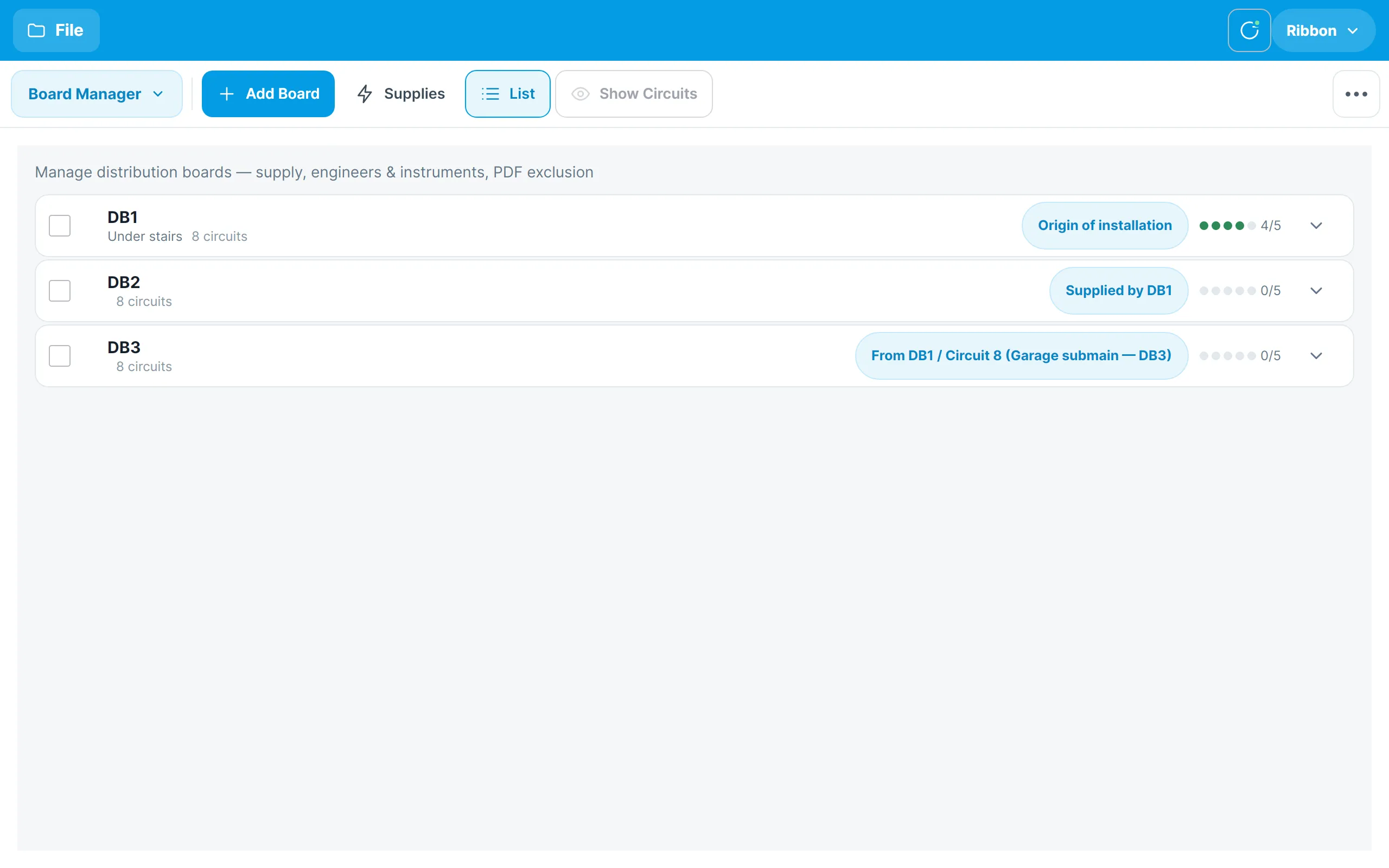
Each row shows the board’s designation and location, how many circuits it has, a supply chip describing where it is fed from, and a five-dot indicator showing how many of the board’s test-instrument serial numbers have been recorded.
Tap the chevron at the right of a row to expand the board. There you can enter the serial numbers of the test instruments used on that board — continuity, RCD, insulation, earth and electrode — and tap Open circuits to go straight to that board in Circuits & Tests.
Adding boards
Tap Add Board in the ribbon. The new board is added to the end of the list and numbered automatically — DB1, DB2 and so on.
Selecting boards
Tick the box at the left of one or more rows to select them. A bar appears above the list with Copy, which adds copies of the selected boards and their circuits, Delete, which removes them and all their circuits, and Clear, which clears the selection. With a single board selected, the full ribbon’s Move Board action moves it up or down the list.
If you delete a board that supplied other boards, those boards are reconnected to the origin and the app tells you which ones.
Supplies
Every board needs a supply: the origin of the installation, another board, a circuit on another board, or something else described in words. The supply chip on each row shows what has been recorded, and it prints on the certificate.
Tap a board’s supply chip to change it. The supply picker opens:
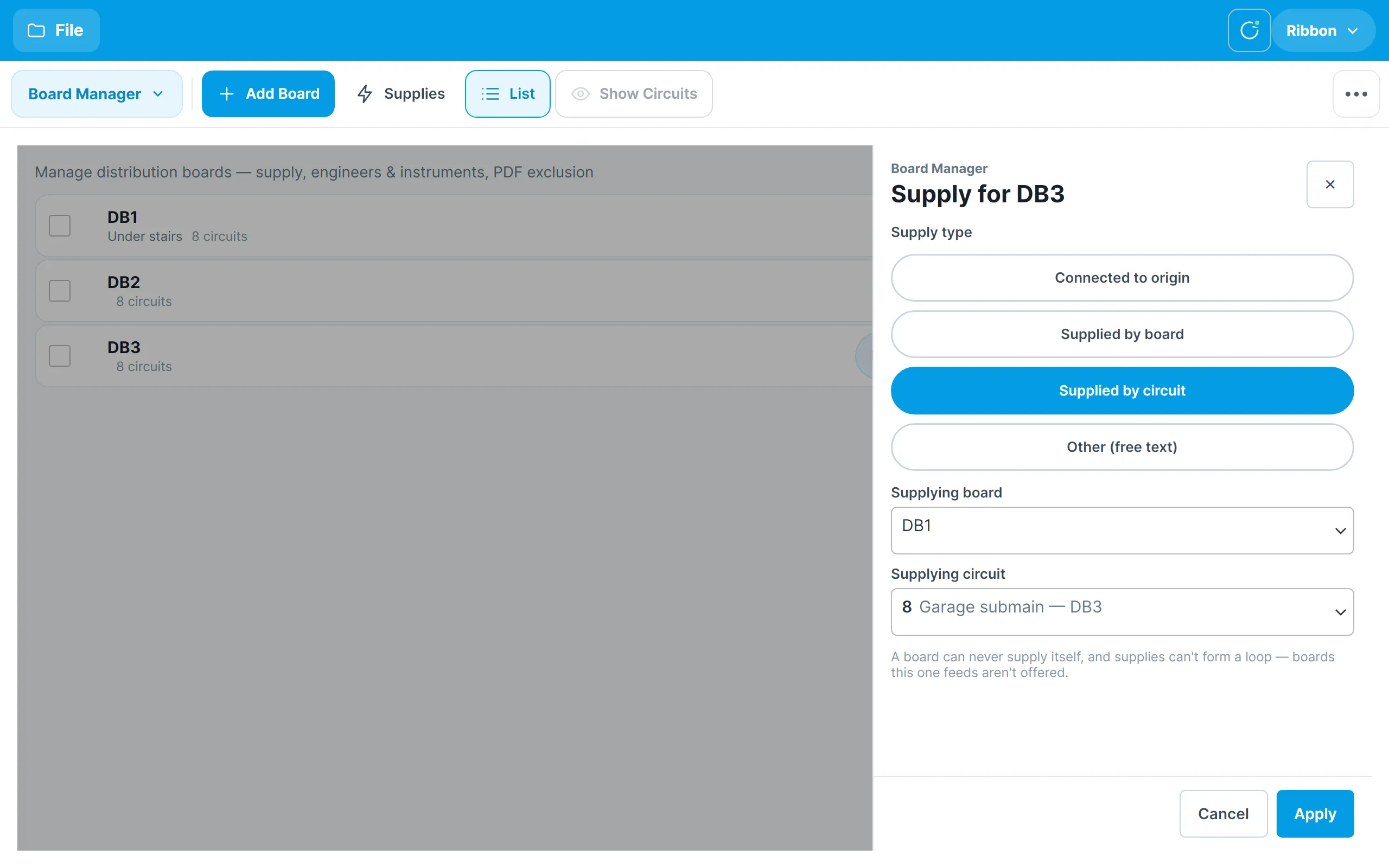
Choose Connected to origin, Supplied by board, Supplied by circuit or Other (free text), pick the board or circuit where needed, and tap Apply. A board can never supply itself and supplies can’t form a loop, so boards that this one feeds are not offered.
The supplies tree
Tap Supplies in the ribbon to see the boards as a tree, nested under whatever supplies them.
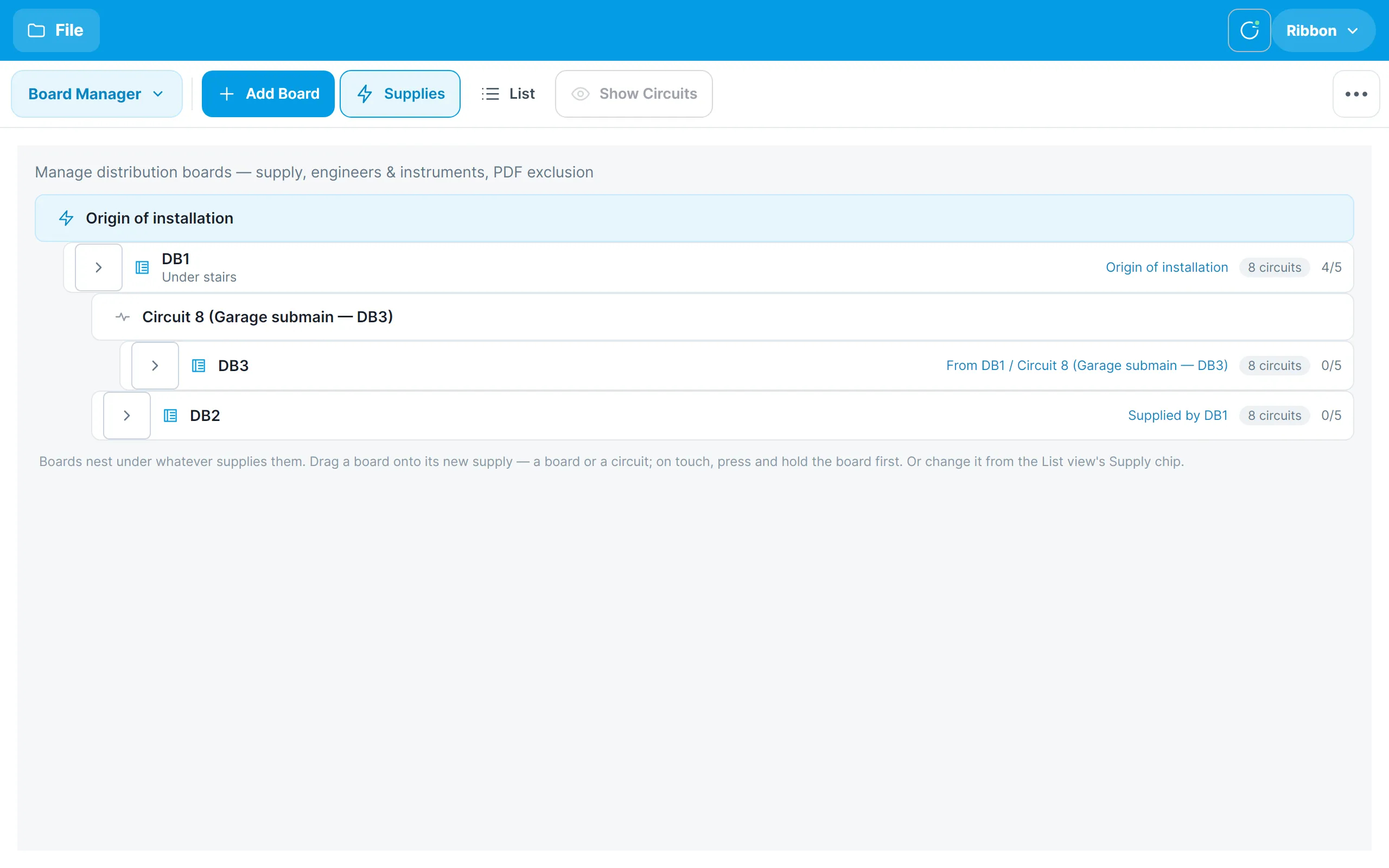
- The Origin of installation is at the top, with the boards fed directly from it underneath.
- A board supplied from another board sits under that board. A board fed from a particular circuit, such as DB3 fed from circuit 1L2 on DB1, sits under that circuit.
Tap the arrow at the left of a board to show its circuits, or use Expand All and Contract All in the full ribbon to open or close every board at once.
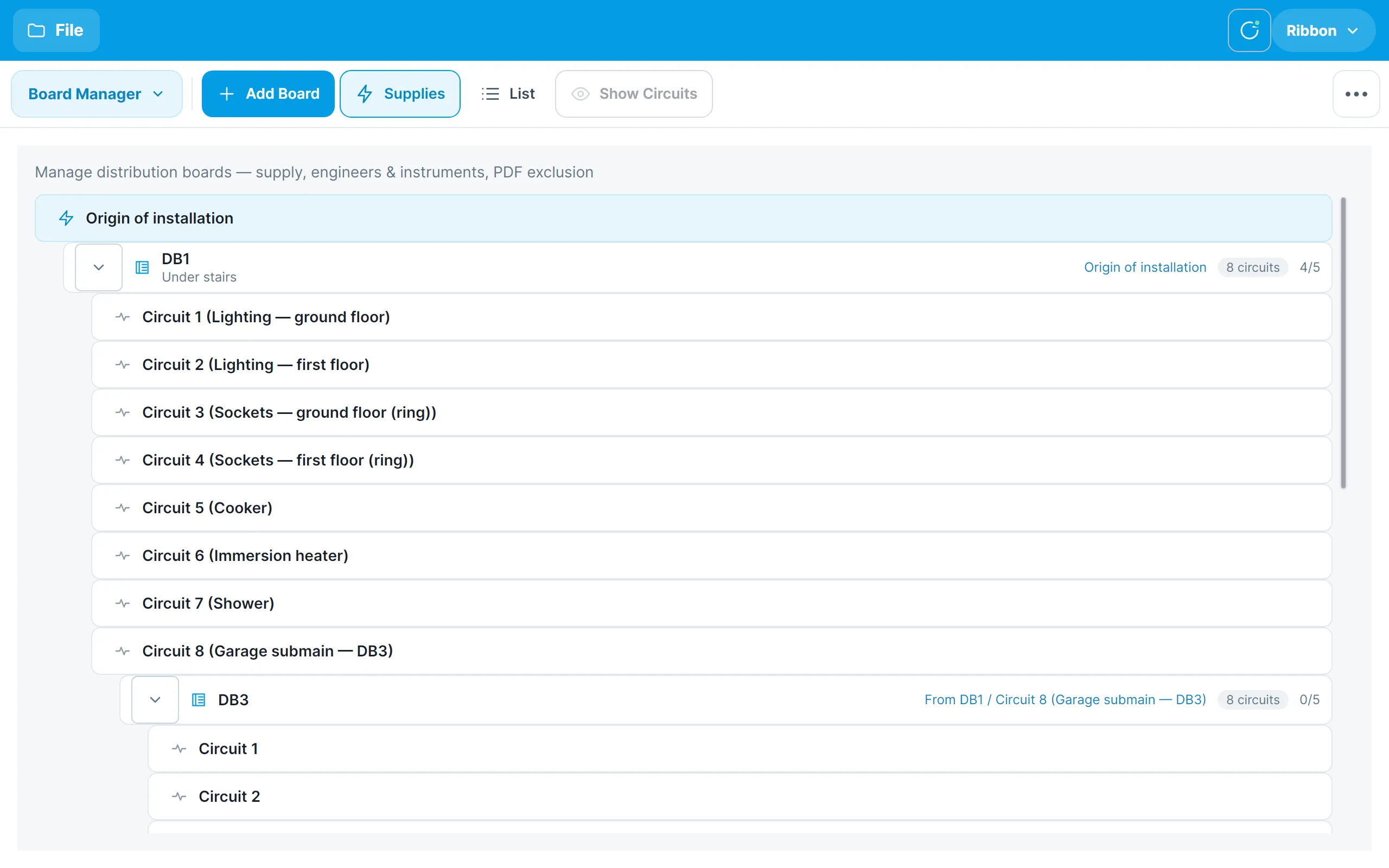
You can also change a supply here by dragging: drag a board onto the board or circuit that supplies it. On a touch screen, press and hold the board first, then drag.
Tap List in the ribbon to return to the list view.
Working with a board’s circuits
Circuits are edited in the Circuits & Tests section, which has a tab for each board.