
The Shine Forms tablet apps will be available soon. Follow us on LinkedIn, watch our blog, or sign up to our newsletter for updates.
Observations
The Observations tab of the Main Form lists every observation in the certificate, whether you added it yourself, it was raised from the inspection schedule, or Intelligence raised it from your test results.
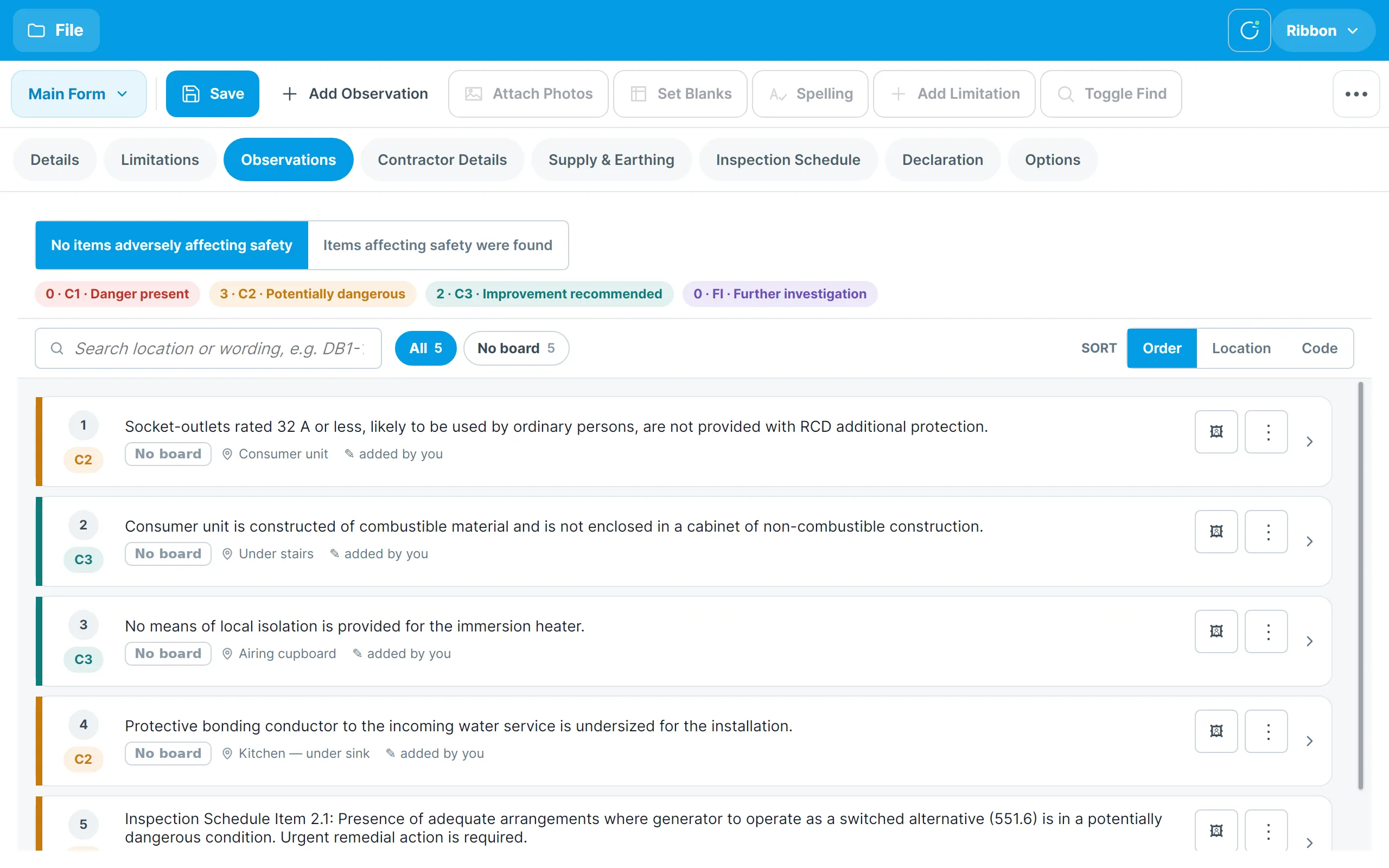
At the top:
- The overall condition toggle records whether items adversely affecting safety were found. The Declaration warns you if this disagrees with the codes you have recorded.
- The code chips count the observations of each classification: C1 danger present, C2 potentially dangerous, C3 improvement recommended and FI further investigation required.
Each card shows the observation’s number and code, its board and circuit or No board, its location, where it came from (added by you or from Intelligence) and the text. The buttons at the right of a card open its photos and a menu to Copy or Delete it.
Adding an observation
Tap Add Observation in the ribbon. The editor opens at the right of the screen.
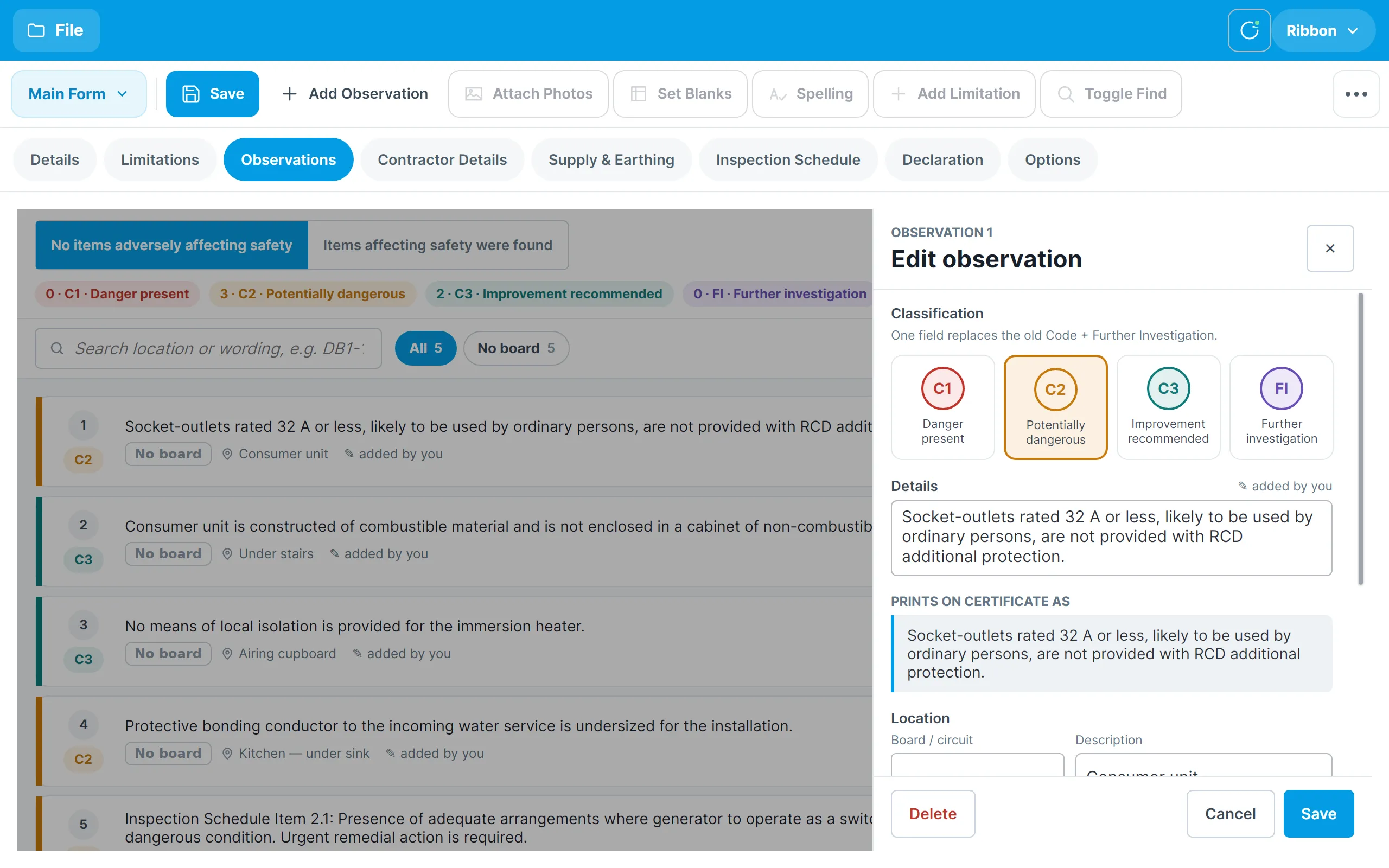
- Classification — tap C1, C2, C3 or FI.
- Details — the wording of the observation.
- Location — the Board / circuit the observation relates to, such as DB1-4, and a free-text Description such as Kitchen. Linking a board or circuit lets you filter and sort by location later. The app suggests matching boards and circuits as you type.
- Corrective action — what should be done, and whether corrective action is recommended or urgent remedial work is required.
Tap Save to keep the observation, or Delete to remove it. Cancelling a brand-new observation discards it.
Editing observations raised for you
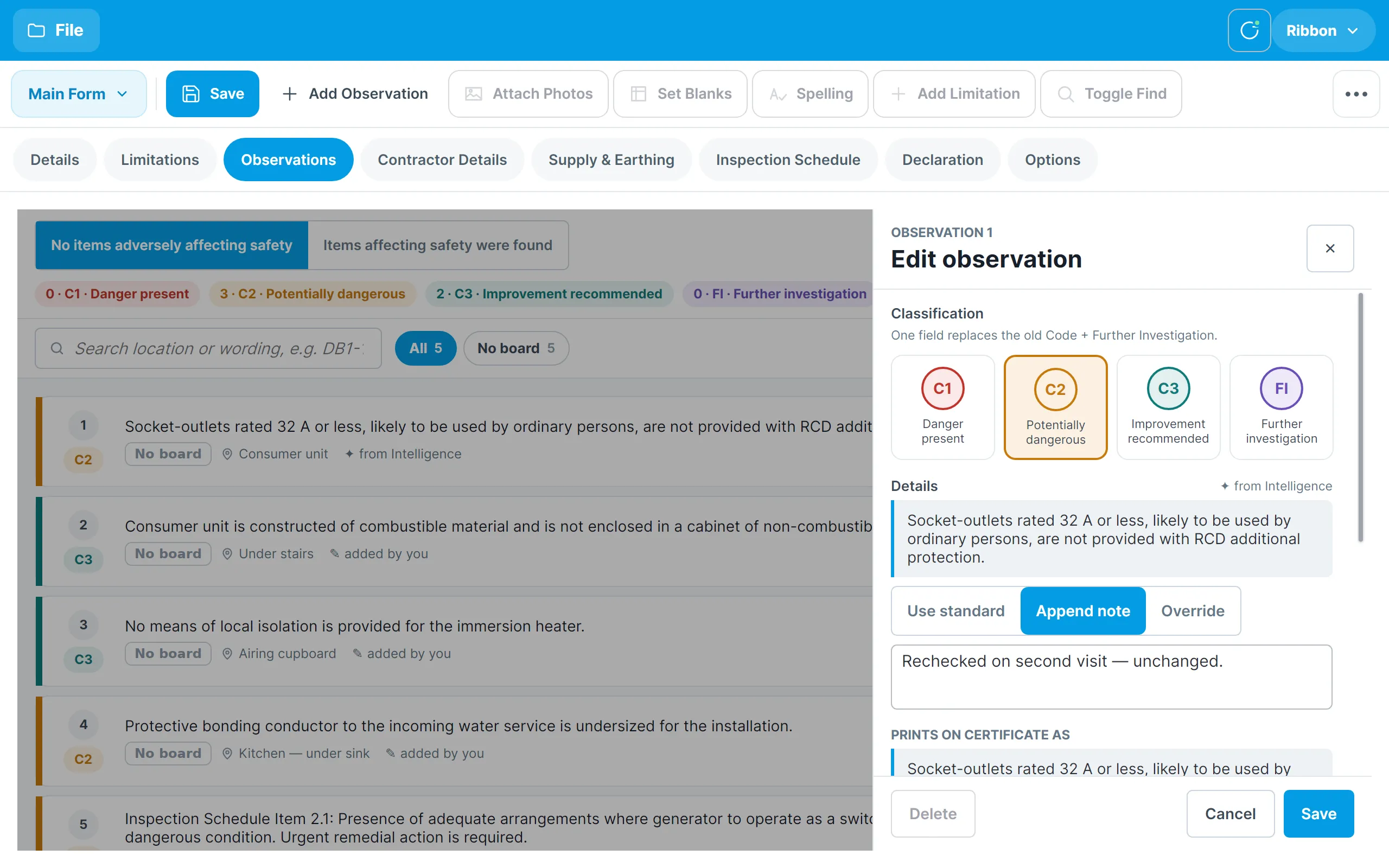
Observations raised by the schedule or by Intelligence carry standard wording that is kept in step with the code. When you edit one of these the editor gives you three choices:
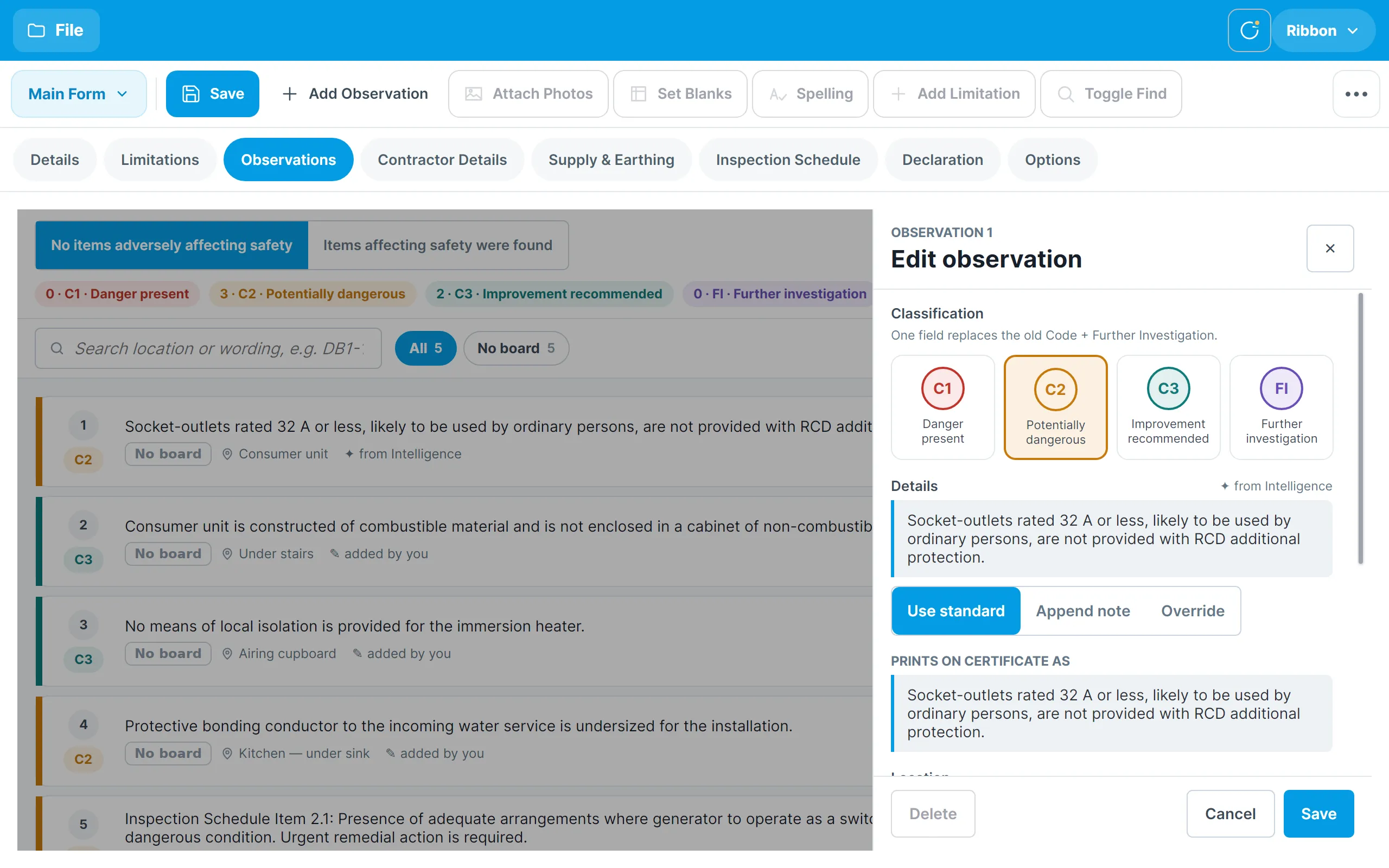
- Use standard prints the standard wording as it is.
- Append note keeps the standard wording and adds your own note after it.
- Override replaces the standard wording with your own text.
The Prints on certificate as box shows exactly what will appear on the report as you make your choice.
Copying and deleting observations
The ⋮ menu on a card copies or deletes that observation. The same actions are in the full ribbon for the observation open in the editor. Observations managed by Intelligence cannot be deleted by hand; suppress the statement in the Intelligence Manager instead.
Finding and sorting observations
Use the tools row above the list:
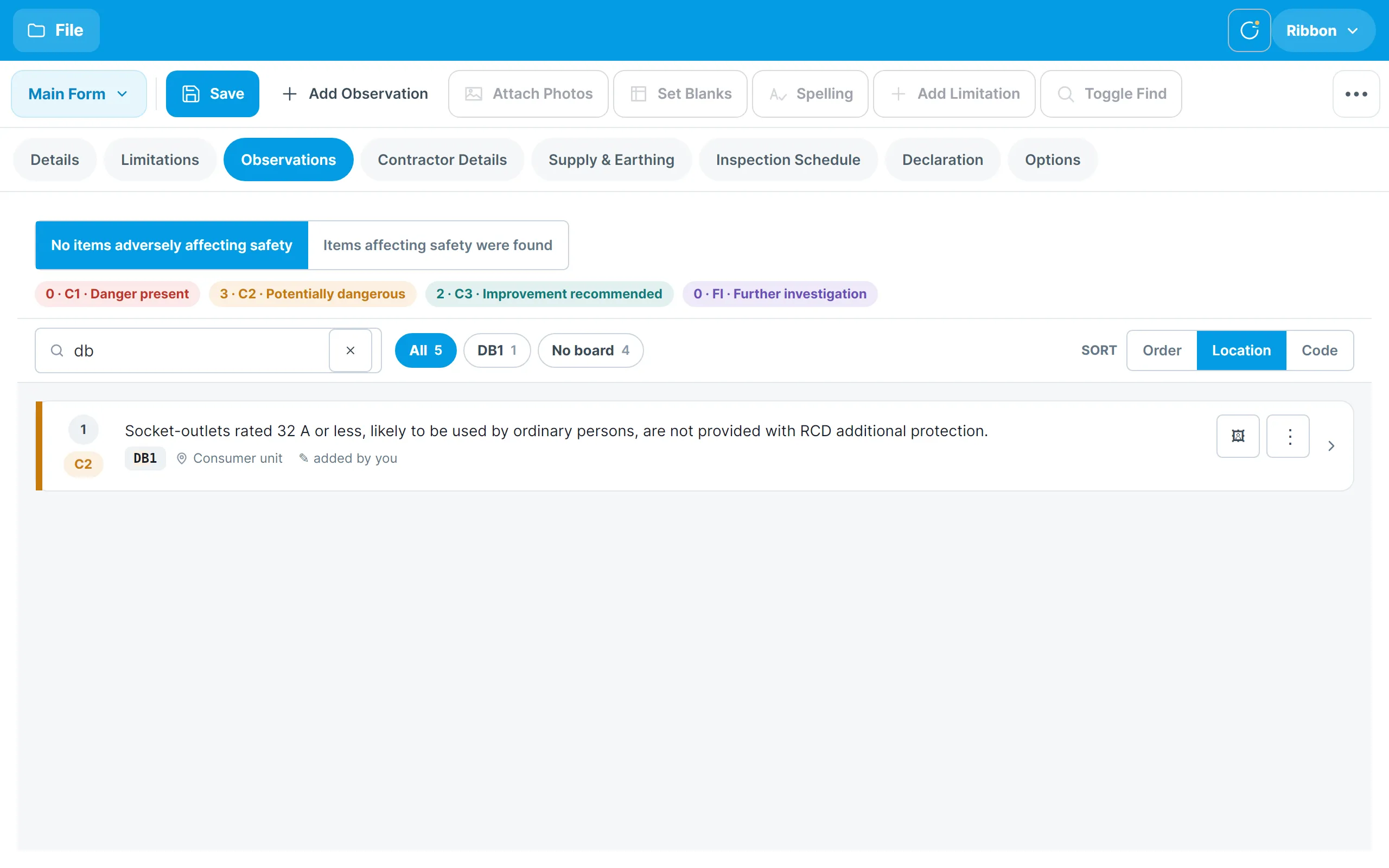
- Search by location or wording. Typing DB1 finds everything on that board, and DB1-1 narrows to one circuit.
- The board chips show one observation count per board. Tap a chip to see only that board’s observations, or No board for the ones not linked to a board.
- Sort by the order you added them, by Location (board then circuit) or by Code (most serious first).
Photos
Tap the photo button on a card, or Photos in the editor, to open the photo manager for that observation.
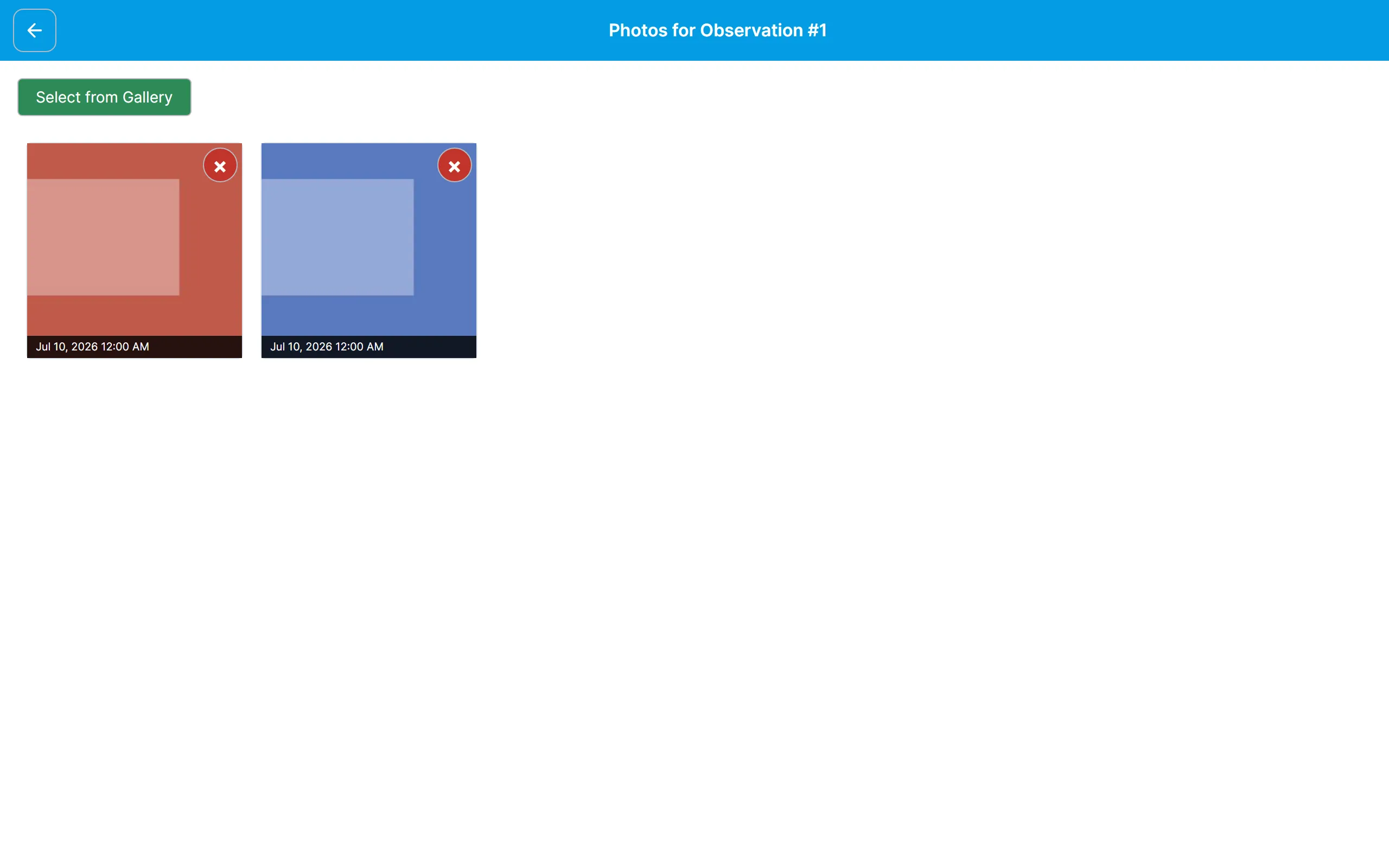
Tap Take Photo to use the tablet’s camera, or Select from Gallery to pick a photo already on the tablet. Each photo shows when it was taken and has a × button to remove it. Photos print with the certificate alongside the observation.
Tap a photo to open it in the photo editor, where you can draw arrows and rings on it, crop, rotate and straighten it, enhance it, and give it a title, location, details and the date it was taken. Tick Exclude from report to keep a photo for reference without printing it.