Keep copies of your certificate data outside your computer to access them if your computer breaks down, becomes damaged, or is stolen. Read more here.
Shine Forms backup files contain all your certificates, photos, documents, company details, logos, engineers, and instruments.
Shine Forms automatically takes backups before closing after changes. You can also create a backup anytime.
Creating a Backup
To create a new backup:
1: Go to the Home Screen and click Backup Data:

2: Confirm the action. Shine Forms will notify you when the backup is complete and offer to show the backup file:
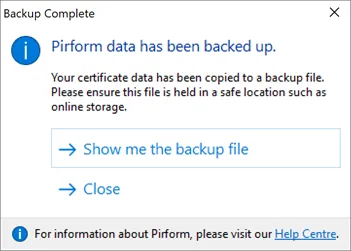
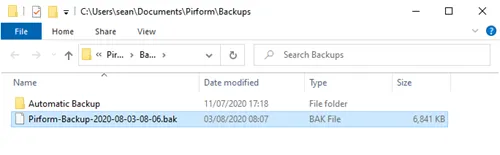
3: Click Show me the backup file to open Windows File Explorer with the backup file:
Backup files include the date and time they were created in their filenames. For example, a backup created on August 3, 2020, at 8:06 am will be named accordingly: