
The Shine Forms tablet apps will be available soon. Follow us on LinkedIn, watch our blog, or sign up to our newsletter for updates.
Navigating a certificate
Every certificate screen has the same layout, so once you know one section you know them all.
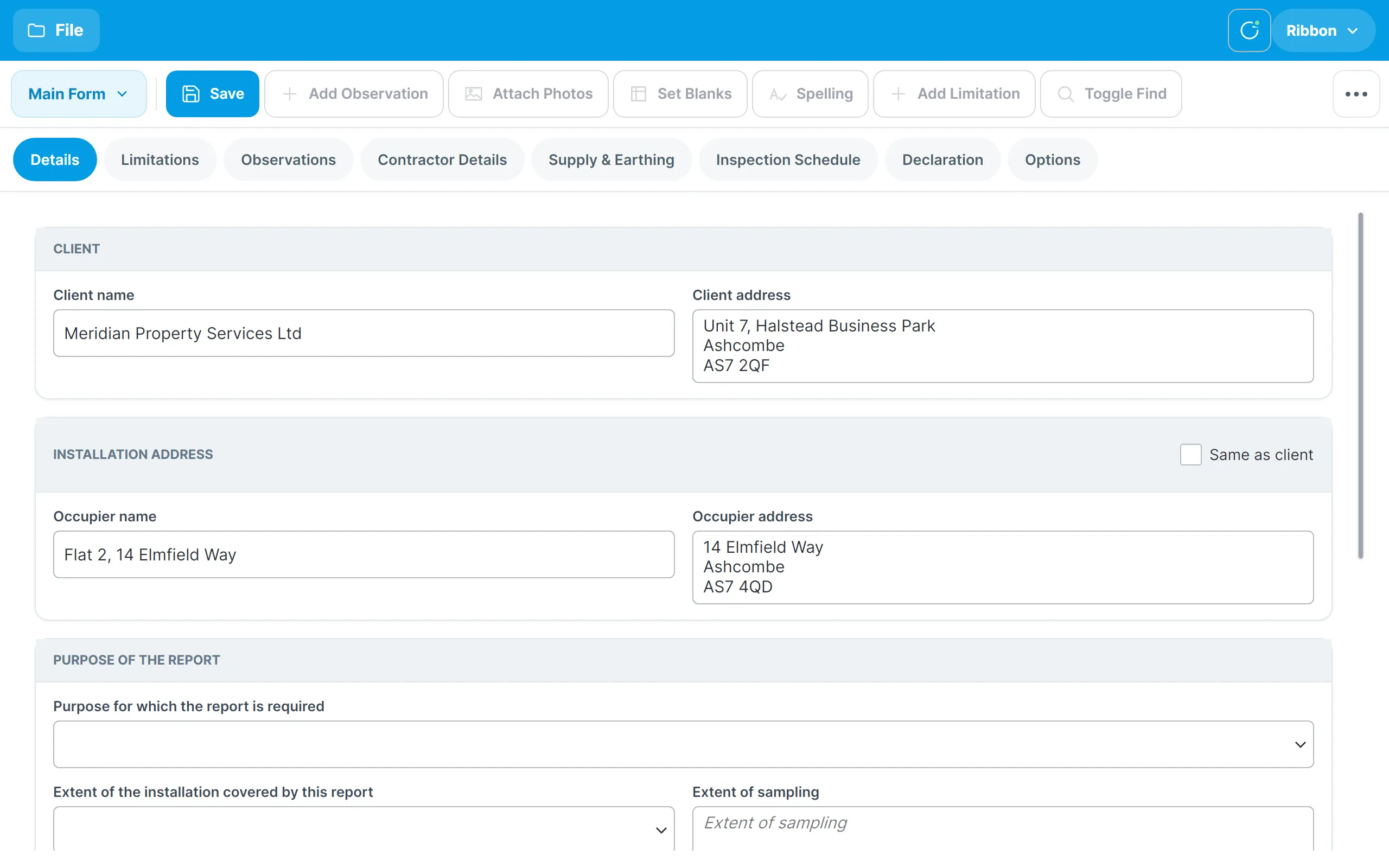
The header

- File opens the File menu (see below).
- The middle shows the certificate number with the client and address, so you always know which certificate you are in.
- The round status button shows whether your latest changes have been saved. Its dot changes colour while a save is in progress or if a save has failed.
- Ribbon opens the full ribbon (see below).
The app saves every change as you make it, so there is nothing to remember. The Save button in the ribbon row is there for reassurance, and the File menu shows all changes saved against the certificate.
The ribbon row

The row under the header is the ribbon. Its first button names the section you are in — Main Form, Circuits & Tests, Board Manager, Intelligence Manager, Appendices or Print Preview. Tap it to open the full ribbon and switch section.
Next to it are the actions you use most on the current screen: Save and, for example, Add Observation or Add Circuit. Actions that don’t apply to the current screen are greyed out. Some screens also put a search box here. The … button at the right-hand end opens the full ribbon, where the remaining actions live.
The full ribbon
Tap Ribbon in the header, the section name, or … to expand the full ribbon. It has a tab for each section of the certificate, and shows every action for the current section grouped by what it works on.
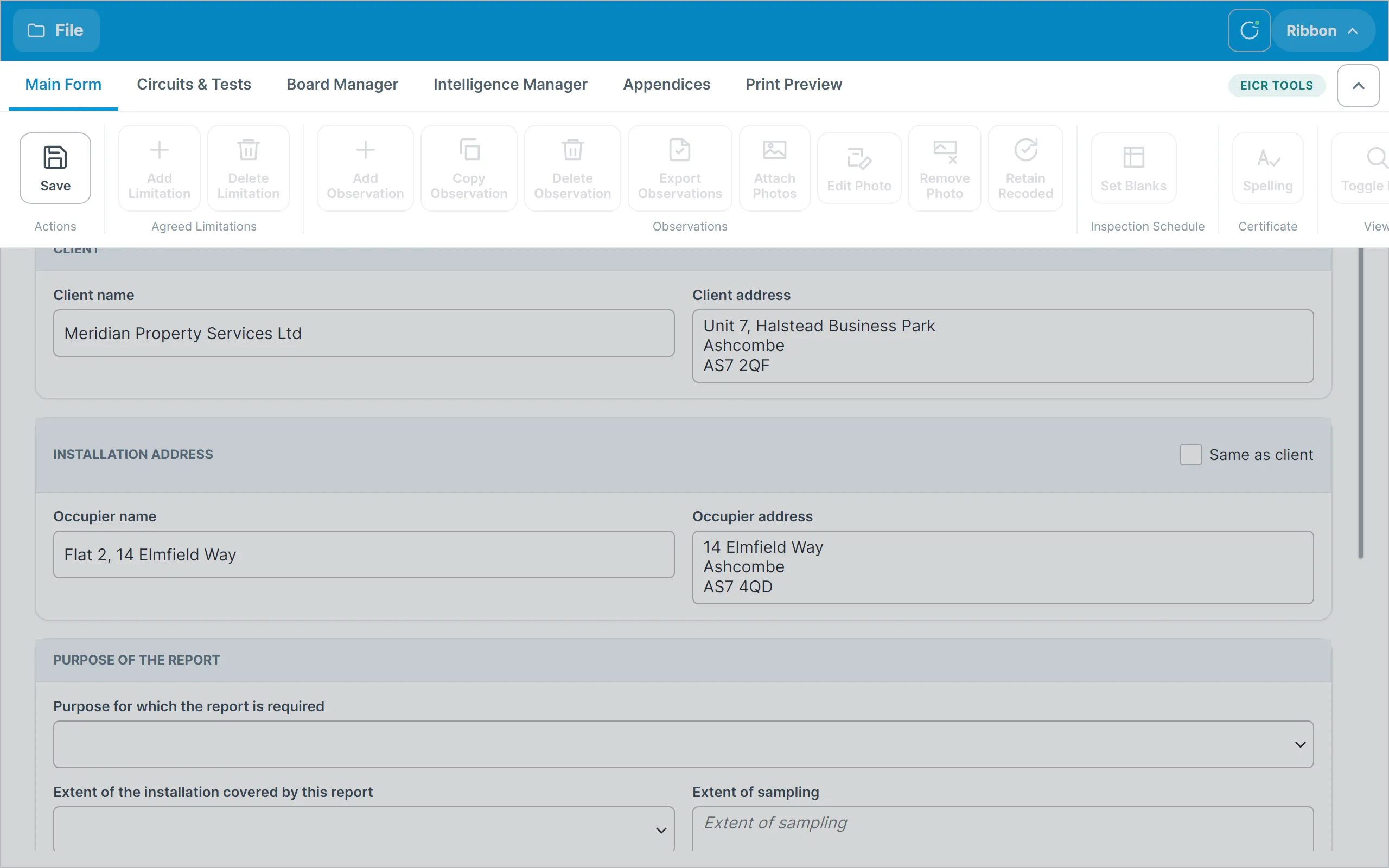
Tap a tab to move to that section. The ribbon collapses again when you navigate, when you tap the chevron at its right-hand end, or when you tap outside it.
Tabs within the Main Form
The Main Form section has tabs along the top of the body for Details, Limitations, Observations, Contractor Details, Supply & Earthing, Inspection Schedule, Declaration and Options. Tap a tab to open that screen. The other sections each have a single screen.
The File menu
Tap File in the header to open the File menu.
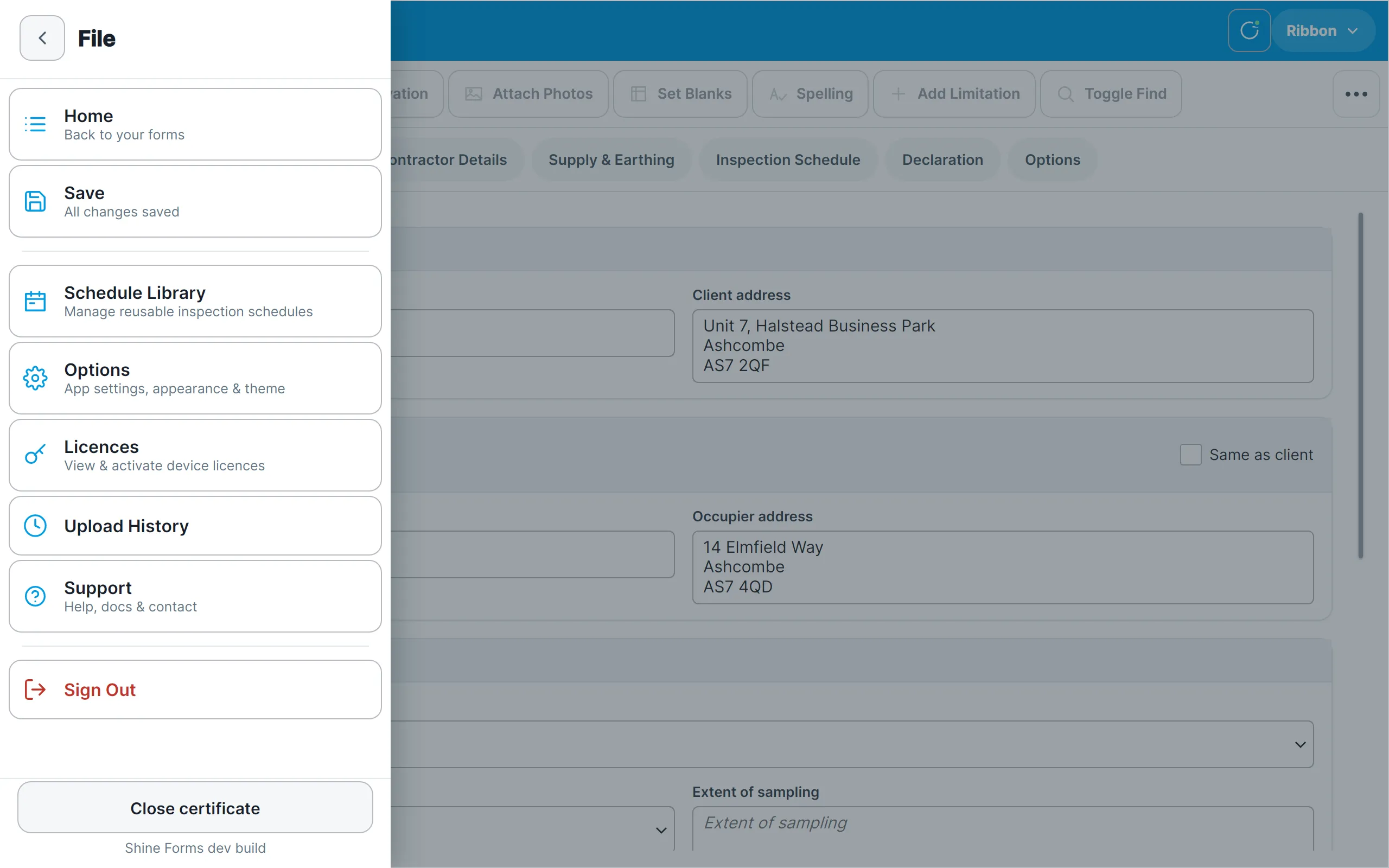
- Home takes you back to your list of forms.
- Save shows the certificate you are working on and whether all changes have been saved.
- Schedule Library manages your reusable inspection schedules.
- Options holds the app’s settings, including the theme.
- Licences shows and activates your Shine Forms licence on this device.
- Upload History lists every upload the tablet has made.
- Support has help, documentation and contact details.
- Sign Out signs you out of your Shine Forms account.
- Close certificate, at the bottom, closes the certificate and returns you to your forms.
The version of the app is shown under Close certificate. Tap it to copy the version to the clipboard, which is handy when contacting support.
Going back
Screens that open on top of the certificate, such as Options, Support or the photo manager, have a back arrow at the top left. Tap it to return to where you were.