
Certificate Sharing and Merging: Collaborating on Multi-Engineer Installations

summarises Pirform’s certificate sharing and merging features make it seamless to divide work, share updates, and combine results into professional, unified certificates for clients.
Why Certificate Sharing Matters
When multiple engineers work on the same installation, you need to:
- Divide work efficiently - Assign specific boards or areas to different engineers
- Work simultaneously - Don’t wait for one engineer to finish before another starts
- Combine results - Bring work from multiple engineers into a single certificate
- Track updates - Incorporate changes as engineers revise their work
- Maintain quality - Review work before issuing to clients
- Ensure consistency - Keep engineer details and test instruments accurate
Without effective sharing and merging, teams waste time waiting, manually re-entering data, or risking errors when consolidating work.
Certificate Sharing Overview
Pirform’s certificate sharing system uses small, self-contained export files that are easy to share through any method:
- Email - Send export files as attachments
- Cloud storage - Dropbox, OneDrive, Google Drive
- Network drives - Company file servers
- USB drives - Physical transfer when needed
Export File Benefits
- Small file size - Compact files easy to email or share
- Self-contained - Include all certificate data, photos, and engineer details
- Engineer information preserved - Even engineers outside your company are recorded correctly
- Multiple certificates - Export multiple certificates in one file if needed
- Automatic generation - Export files created automatically on save
Automatic Exports: Always Up to Date
One of Pirform’s most powerful features is automatic export generation.
How It Works
Every time you close a certificate after saving changes, Pirform automatically:
- Generates an export file (.pex) in your configured sharing location
- Creates a PDF of the certificate
- Names files using certificate type, number, and date
- Overwrites previous versions to ensure the latest is always available
Configuring Auto-Export Location
Set your auto-export location in Pirform Options:
- Open Pirform Options
- Navigate to the sharing/export section
- Select a folder—ideally in Dropbox, OneDrive, or a network drive
- Click Save
Best practice: Use an online storage folder so engineers can access exports from any location without manual file transfers.
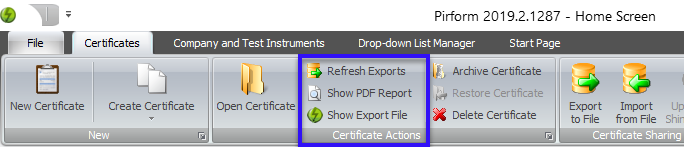
Accessing Auto-Exports
From the Home Screen, select a certificate and:
- Show Export File - Opens the folder containing the latest export file
- Show PDF Report - Opens the folder containing the latest PDF
If these buttons are disabled (no auto-export exists yet), click Refresh Exports to generate them.
Exporting Certificates Manually
While automatic exports cover most scenarios, you may need manual exports for:
- Sending certificates to specific recipients
- Creating exports before auto-export is configured
- Splitting large exports into smaller email-sized chunks
Export Process
- Select certificates in the Home Screen (Ctrl+Click for multiple)
- Click Export to File in the ribbon
- Review selected certificates, click Next
- Configure filename and destination
- Optionally split into chunks for email
- Click Export Certificates
Pirform opens the folder containing the export file and selects it for you.
Importing Certificates
Engineers receiving export files can import them into their copy of Pirform using several methods.
Method 1: Import from File
- Click Import from File in the Home Screen
- Browse to the export file
- Select certificates to import
- Review and confirm
If a certificate already exists in Pirform, the import overwrites it. Pirform warns you before proceeding.
Method 2: Drag and Drop
The fastest import method:
- Open Pirform’s Home Screen
- Drag export files from Windows Explorer
- Drop them onto the certificate list
- Confirm import
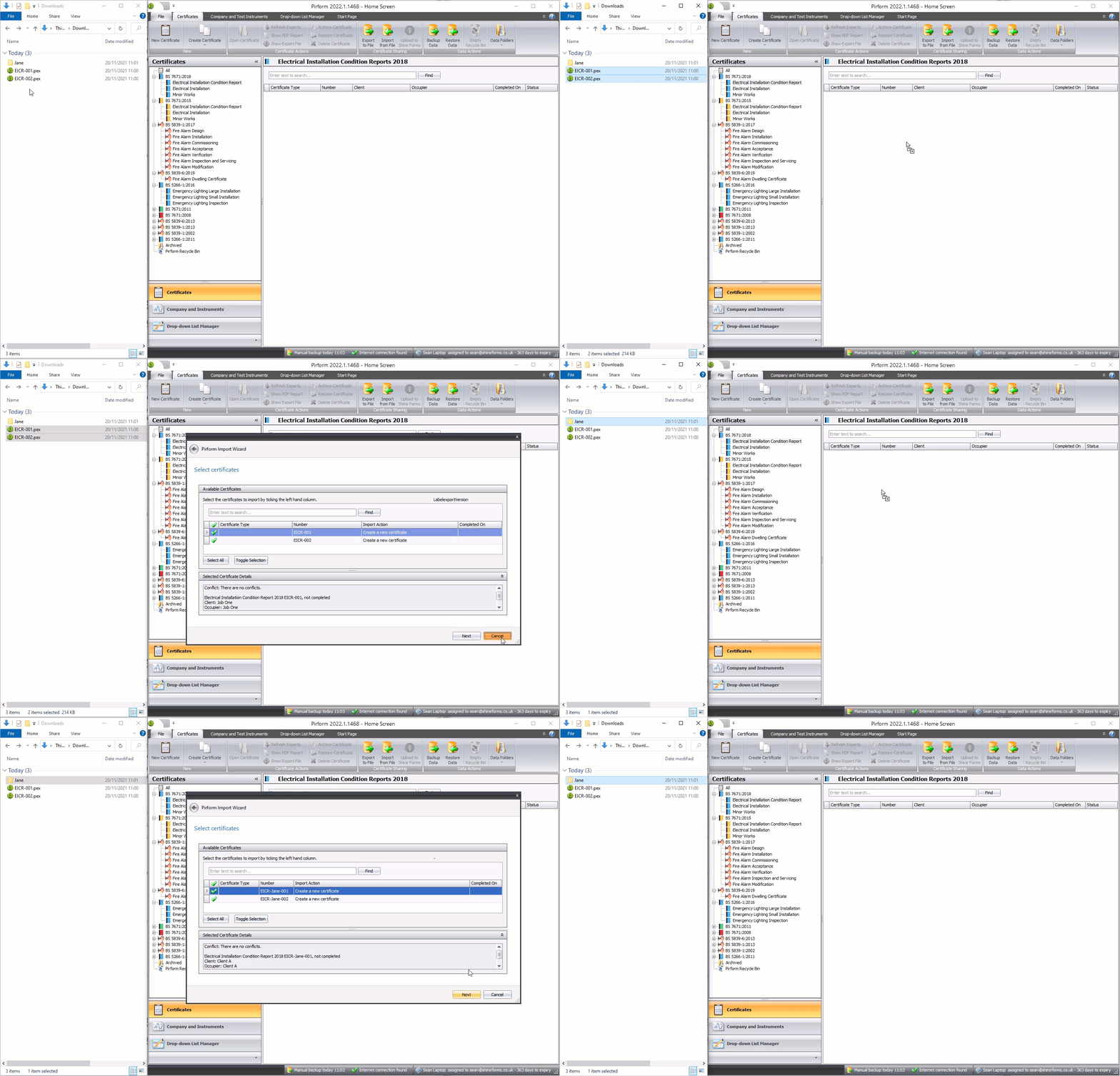
This works with both individual export files and folders containing multiple export files.
Method 3: Import from Folder
Ideal when importing work from multiple engineers:
- Click Import from File, check Import from folder
- Browse to the folder containing export files
- Pirform finds all export files (including subfolders)
- Select certificates to import
- Confirm
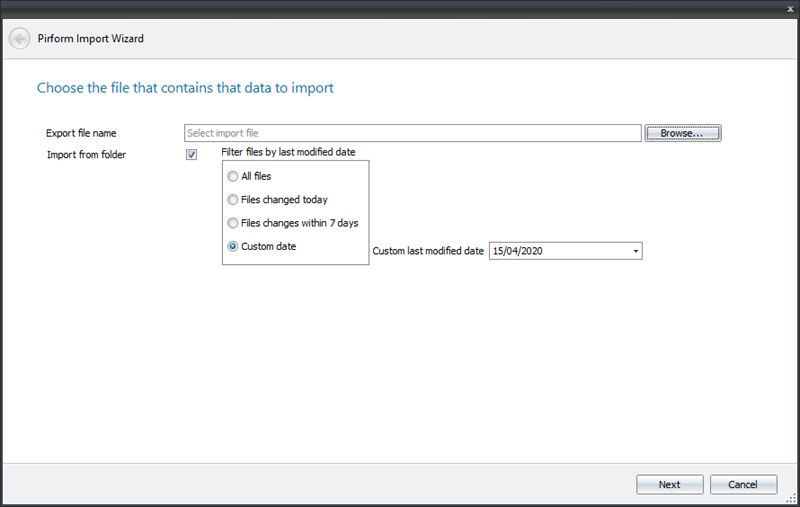
Filtering by Modified Date
When importing from folders, filter by modification date to find recent work:
- All files - Import everything found
- Today - Only files modified today
- Last 7 days - Files modified in the past week
- Since specific date - Files modified after a date you choose
This is particularly useful when engineers continuously update work in a shared folder. Import only files modified since your last merge.
Merging Certificates: Bringing Work Together
Certificate merging is where Pirform’s collaboration features truly shine. Merge combines boards and observations from multiple certificates into a single unified certificate.
Common Merge Scenarios
Scenario 1: Multi-Engineer Job Three engineers inspect a commercial building—one handles each floor. Each engineer works on their own certificate. The supervisor merges all three certificates into one for the client.
Scenario 2: Work Review An engineer completes inspection work and exports their certificate. A senior engineer imports it, reviews the work, makes corrections, and issues the final certificate.
Scenario 3: Ongoing Installation Engineers continuously update their work as an installation progresses. The project manager regularly merges updates into the main certificate, tracking progress and incorporating changes automatically.
Scenario 4: Dividing Complex Sites A large industrial site has main building, workshops, and multiple outbuildings. Engineers are assigned specific areas. Work is merged as each area completes.
How to Merge Certificates
Step 1: Select Target Certificate
The target certificate receives the merged boards and observations.
- Open the Home Screen
- Select the target certificate (or create a new one)
- Click Create Certificate → Merge Boards and Observations
The Merge Certificate Wizard starts.
Step 2: Select Source Certificates
Choose certificates containing boards you want to merge. You can select multiple source certificates to merge simultaneously. This is useful when combining work from several engineers in one operation.
Step 3: Select Boards to Merge
Pirform shows all boards from the selected source certificates. Select boards to merge. You can:
- Select all boards from one certificate
- Pick specific boards from each certificate
- Mix and match as needed
Step 4: Handle Renames and Replacements
Pirform intelligently prevents conflicts and tracks merged boards:
Conflict Prevention If a source board has the same designation as a board already in the target certificate, Pirform automatically renames it using the source certificate number. You can change this to any designation you prefer.
Update Tracking Pirform remembers which boards were merged from which certificates. If you merge the same board again later (because the engineer sent an update), Pirform replaces the previous version automatically—no duplicates.
This intelligent tracking is what makes ongoing collaboration work. Engineers can refine their work and send updates, knowing you can easily incorporate changes without manual board deletion and re-merging.
Step 5: Review and Complete
Pirform summarises the merge operation. Review carefully:
- Boards being added
- Boards being replaced (updates)
- Board designations after rename
Click Back to make adjustments or Merge Certificates to complete.
The target certificate opens, showing the merged boards. Review the results:
- Check board supplies are correct
- Verify engineer assignments
- Review merged observations
- Save when satisfied
If there’s a problem, simply close without saving. No changes are made to the target certificate.
Intelligent Merge Features
Pirform’s merge system includes several sophisticated features that make collaboration reliable and efficient.
Merge Memory
Pirform records:
- Which boards came from which source certificates
- When boards were last merged
- Original engineer details for each board
This memory allows:
- Automatic updates - Re-merging the same board replaces the old version
- Version tracking - Know which certificate provided each board
- Conflict avoidance - Prevent duplicate board designations
Engineer Information Preservation
When merging, Pirform maintains:
- Engineer names for each board (who inspected/tested)
- Instrument details (what equipment was used)
- Original certificate numbers and dates
This ensures proper attribution and audit trails, critical for quality management and regulatory compliance.
Observation Merging
Observations (C1, C2, C3, FI codings) merge along with boards:
- Observations tied to schedule items follow their boards
- Standalone observations can be merged separately
- Observation numbering adjusts automatically in the target certificate
Supply Chain Preservation
When boards with sub-mains are merged, the complete supply chain transfers:
- Main board and all boards it feeds merge together
- Supply relationships remain intact
- Board hierarchy is maintained in Board Manager
Practical Collaboration Workflows
Workflow 1: Dividing Work on a Large Property
Setup:
- Create main certificate with installation details
- Export to file
- Distribute to team engineers
Each engineer:
- Import the main certificate
- Add their assigned boards and circuits
- Complete testing
- Auto-export saves their work continuously
Supervisor:
- Import from folder containing all engineers’ auto-exports
- Filter by “today” or “last 7 days”
- Create new certificate or select existing target
- Merge boards from all engineers
- Review combined certificate
- Make final adjustments
- Generate PDF for client
Workflow 2: Work Review and Correction
Engineer:
- Complete certificate
- Export and send to supervisor
Supervisor:
- Import engineer’s export
- Review work
- Make corrections or add notes
- Export updated certificate
Engineer:
- Import supervisor’s updated export (overwrites original)
- See corrections and notes
- Make additional changes if needed
- Re-export
Supervisor:
- Import engineer’s revised export
- Final review
- Issue certificate
Workflow 3: Continuous Updates During Installation
Day 1: Engineer tests first floor, exports work
Supervisor: Imports and merges into main certificate
Day 2: Engineer completes more work on first floor (additional circuits), exports again
Supervisor: Imports latest export, merges—Pirform automatically replaces first floor boards with updated versions
Day 3: Second engineer completes second floor, exports
Supervisor: Imports both engineers’ latest exports, merges simultaneously
Result: Main certificate continuously updated with latest work from all engineers, no duplicate boards, all changes tracked.
Workflow 4: Shared Folder Collaboration
Setup: All engineers configure auto-export to shared Dropbox/OneDrive folder
Engineers work independently: Auto-exports update shared folder automatically on save
Supervisor periodically:
- Import from shared folder
- Filter by “since last import date”
- Merge new/updated boards
- Review and save
Benefits:
- No manual file sending
- Always access to latest work
- One import operation gets all updates
- Engineers don’t interrupt their workflow
Best Practices
Use Cloud Storage
Configure auto-exports to save in Dropbox, OneDrive, or similar. Benefits:
- Engineers access exports from anywhere
- No manual file transfers
- Automatic synchronization
- Accessible on tablets and phones (for viewing PDFs)
See our online storage documentation for detailed setup guidance.
Establish Clear Board Designations
Before dividing work, agree on board designation conventions:
- By location: “Ground Floor DB”, “First Floor DB”, “Garage CU”
- By area: “Reception Boards”, “Workshop Distribution”, “Office DB”
- By function: “Lighting Panel”, “Socket Panel”, “Motor Control Panel”
Clear designations prevent confusion when merging.
Regular Merge Intervals
Don’t wait until the end of a job to merge:
- Merge daily or at end of each shift
- Catch issues early when they’re easy to fix
- Maintain comprehensive current documentation
- Allow project managers to monitor progress
Test the Workflow
Before starting a major job:
- Create a test certificate
- Practice exporting
- Practice importing
- Practice merging
- Ensure all engineers understand the process
Discovering workflow issues on a test certificate is much better than during live work.
Maintain One Master Certificate
Designate one person to maintain the master certificate:
- Avoids confusion about which certificate is “official”
- Ensures consistent review standards
- Simplifies client communication
- Provides single source of truth
Review Before Issuing
After merging:
- Check all board supplies are correct
- Verify engineer assignments are accurate
- Review observations for consistency
- Test the PDF generates correctly
- Ensure certificate completeness
Don’t assume merged content is perfect—always review.
Troubleshooting Common Issues
Export File Not Found
Problem: Show Export File button is disabled
Solution:
- Click Refresh Exports to generate new export file and PDF
- Verify auto-export location is configured in Options
- Check you have write permissions to the export folder
Can’t Find Engineer’s Latest Work
Problem: Imported certificate seems outdated
Solution:
- Verify engineer actually saved their certificate (check modified date)
- Ensure you’re importing from the correct folder
- Use folder import with date filter to see recent files
- Check engineer’s auto-export is configured and working
Merged Boards Have Wrong Supply
Problem: After merging, boards show incorrect supply relationships
Solution:
- Open Board Manager in target certificate
- Use Supplies view to visualise board connections
- Drag boards to correct supplies
- Save the corrected certificate
Observations Missing After Merge
Problem: Expected observations didn’t merge with boards
Solution:
- Verify source certificate actually has the observations
- Check observations are coded properly (C1, C2, C3, FI, LIM)
- Standalone observations (not tied to schedule items) may need separate action
- Re-merge if necessary after confirming source has observations
Duplicate Boards Appearing
Problem: Same board appears twice with different designations
Solution:
- This happens if board designations changed between merges
- Pirform tracks boards by internal ID, not designation
- Delete duplicate manually
- Maintain consistent designations to avoid this
Integration with Other Features
With Board Manager
After merging, use Board Manager to:
- Visualise the complete installation
- Reorganise board order
- Verify supply chains
- Update engineer assignments
With Intelligence
Pirform’s intelligence system recalculates after merges:
- Validates merged boards
- Checks supply compatibility
- Updates observations if issues found
- Ensures merged certificate complies with regulations
With PDF Generation
Auto-exports create both .pex and PDF files:
- PDFs available immediately without opening Pirform
- View on tablets, phones, or computers
- Share with clients for progress updates
- No Pirform license needed to view PDFs
Frequently Asked Questions
Can I merge part of a certificate?
Yes. Select specific boards during merge—you don’t need to merge everything from a source certificate.
What if two engineers worked on the same board?
Choose which engineer’s version to keep. Pirform can’t automatically merge changes within the same board—one version replaces the other.
Can I merge across different certificate types?
No. Only merge boards between certificates of the same type (EIC to EIC, EICR to EICR, etc.).
What happens to test instruments when merging?
Instrument details for each board are preserved. The merged certificate shows which instrument was used for each board’s tests.
Can I undo a merge?
If you haven’t saved the target certificate, close it without saving. If you saved, restore from a backup or re-import the target certificate’s export from before the merge.
Do export files expire?
No. Export files remain valid indefinitely. You can import old export files years later if needed.
Can engineers work offline?
Yes. Engineers work in Pirform normally, even without internet. Once online, auto-export to cloud storage synchronises automatically.
Learn More
Explore related features and documentation:
- Complete Certificate Sharing Documentation - Full technical reference
- Merging Certificates Guide - Detailed merge procedures
- Board Manager - Managing multi-board installations
- Online Storage Setup - Configuring Dropbox/OneDrive integration
- Backup Strategies - Protecting your work
Questions About Collaboration?
Need help setting up certificate sharing workflows for your team or troubleshooting merge issues? Our support team can provide guidance on collaboration best practices for your specific scenarios.
Contact us at support@shineforms.co.uk or explore comprehensive documentation at docs.shineforms.co.uk.