
PRE-RELEASE Shine Forms 2026.7
Shine Forms version 2026.7 is now available as a pre-release version. This article outlines the current changes. We will keep adding to this until it is released.
This is a pre-release version. You may encounter defects or features that are not yet complete, so please use it with caution. See Using Pre-Release versions for how to get pre-release versions and how to revert to the current release if needed.
This release is shaped by your feedback on the Amendment 4 forms. Spare circuits are now something you mark rather than something the software guesses, the test results on the 2026 forms record every outcome the model forms allow, and you can manage your own drop-down lists and logos without any fuss.
Marking Spare Circuits
Shine Forms used to decide which circuits were spare by reading the designation, so a real circuit called “Spare commando socket” — with a cable, a protective device and test results against it — was treated as an unused way.
Spare circuits are now marked explicitly with a new Spare tick column in the circuit schedule. The designation is left alone, so whatever you have written against a circuit stays exactly as it is.
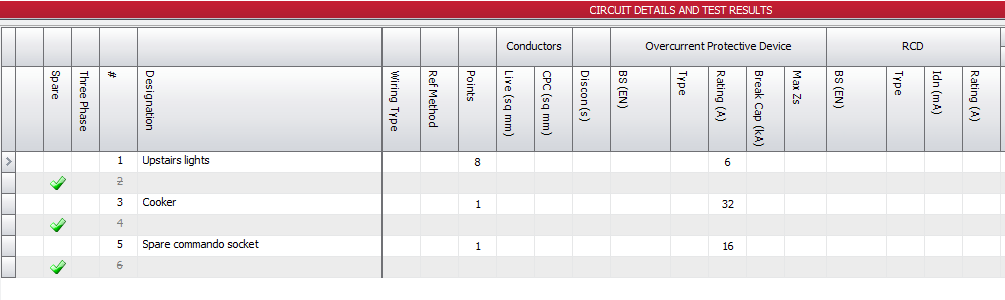
- Mark Blanks as Spare (Circuits and Test Results, Circuits) marks every way on the current board that has no designation as spare in one go, and offers to clear anything recorded against them.
- Ticking Spare on a circuit with details recorded asks before clearing its cable, protective device and test results, and keeps the designation.
- If you’d like spare ways labelled on the PDF, tick Label spare ways that have no designation in the options. A spare way with an empty designation then prints the Spare label text (SPARE unless you change it). The schedule on screen is unchanged.
Existing certificates and imported .pex files keep the circuits they treated as spare before, and print exactly as they did. Because typing “spare” or leaving a designation blank no longer makes a circuit spare, the “Blank circuits are spare” option, the word “spare” option and the spare keywords list have been removed.
Read more in our Boards and Circuits documentation.
More Room For The Circuit Schedule
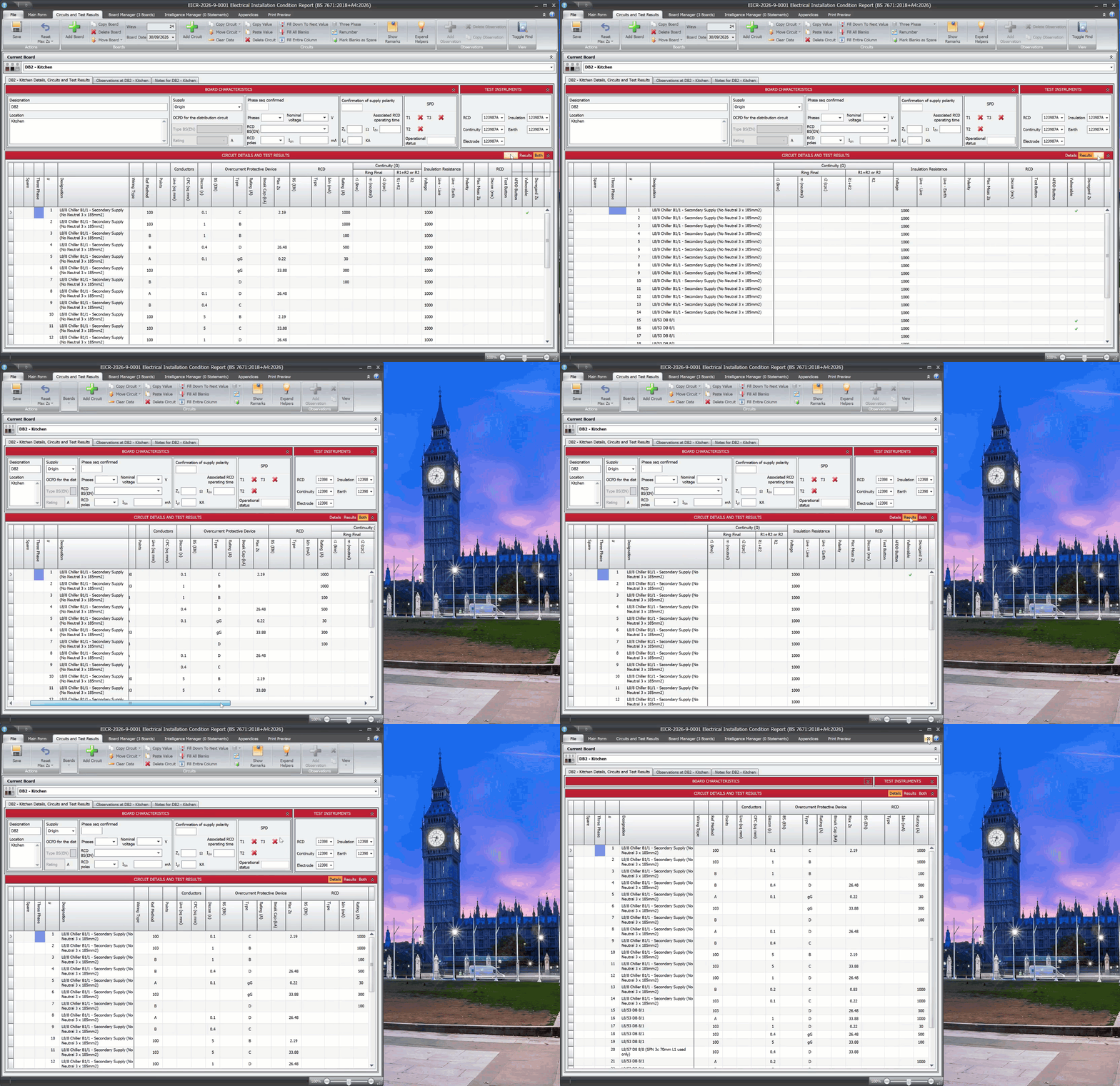
Certificates now open wide enough to show the whole circuit schedule — every column of circuit details and test results, with nothing to scroll sideways to. The main window opens at the same width, so “show over main form” gives a certificate the same room.
When you want to focus, the new Details, Results and Both buttons on the circuit details and test results header show just the circuit details, just the test results, or both. Ctrl+G steps through them.
On a window too narrow for the whole board page, the board characteristics and test instruments now scroll sideways on their own, and the schedule stays put below them, so the circuit number and designation stay on screen.
Test Results On The Amendment 4 Forms
On the EICR, EIC and Minor Works 2026 forms, polarity, the RCD test button and the AFDD test button (and SPD functionality on the Minor Works) now record every outcome each form allows:
- EICR — tick, cross, LIM or N/A
- EIC — tick or N/A
- Minor Works — tick, LIM or N/A
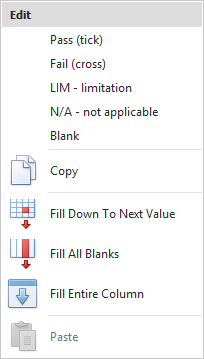
In the circuit schedule, click a cell to step through the form’s choices and back to blank, type P, F, L or N, or right-click to choose.
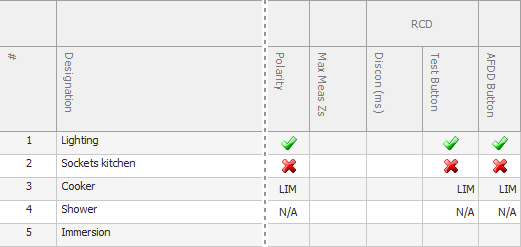
On the PDF a failed test prints as a red cross, and N/A and LIM print as text:
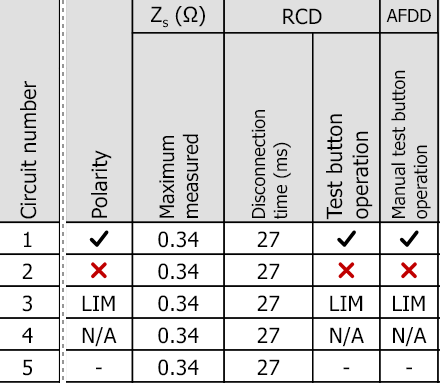
The earlier forms are unchanged.
SPD Types For Each Board
On the EICR and EIC 2026, each board now records Type 1, Type 2, Type 3, Type 1+2 and Type 2+3 SPDs as YES, NO or N/A. These replace the three tick boxes that showed red crosses when an SPD was not fitted.
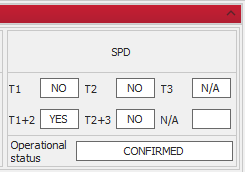
For a board with no SPD installed, tick N/A beside them. The five boxes are greyed out — keeping what was recorded, in case you clear N/A again — and the operational status shows N/A to match. On the PDF they print as a tick, a cross or N/A, and a board with no SPD prints N/A in all five:

N/A In The Unselected Boxes
On the EICR, EIC and Minor Works 2026 PDFs, the earthing arrangements you didn’t select now print N/A, just as the form shows on screen. On the EICR and EIC the number and type of live conductors you didn’t select print N/A too.
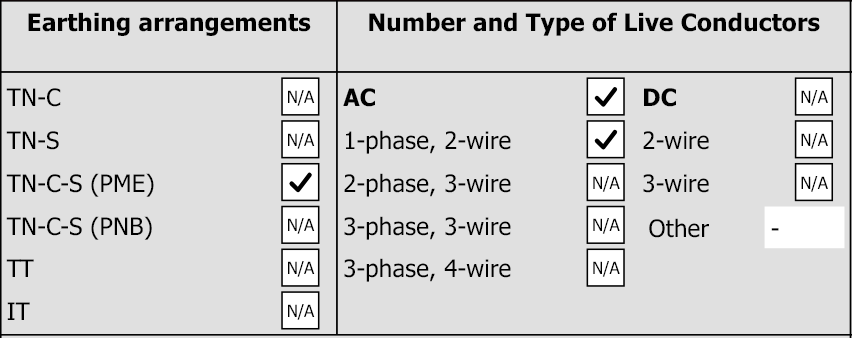
These boxes, the SPD type boxes and the Minor Works test result boxes are now all the same size, whether they hold a tick, a cross, N/A or LIM.
The Drop-down List Manager
The new Drop-down List Manager puts you in charge of the choices offered in your certificates. Open it with Drop-down List Manager below the certificates tree, or from File → Drop-down lists.
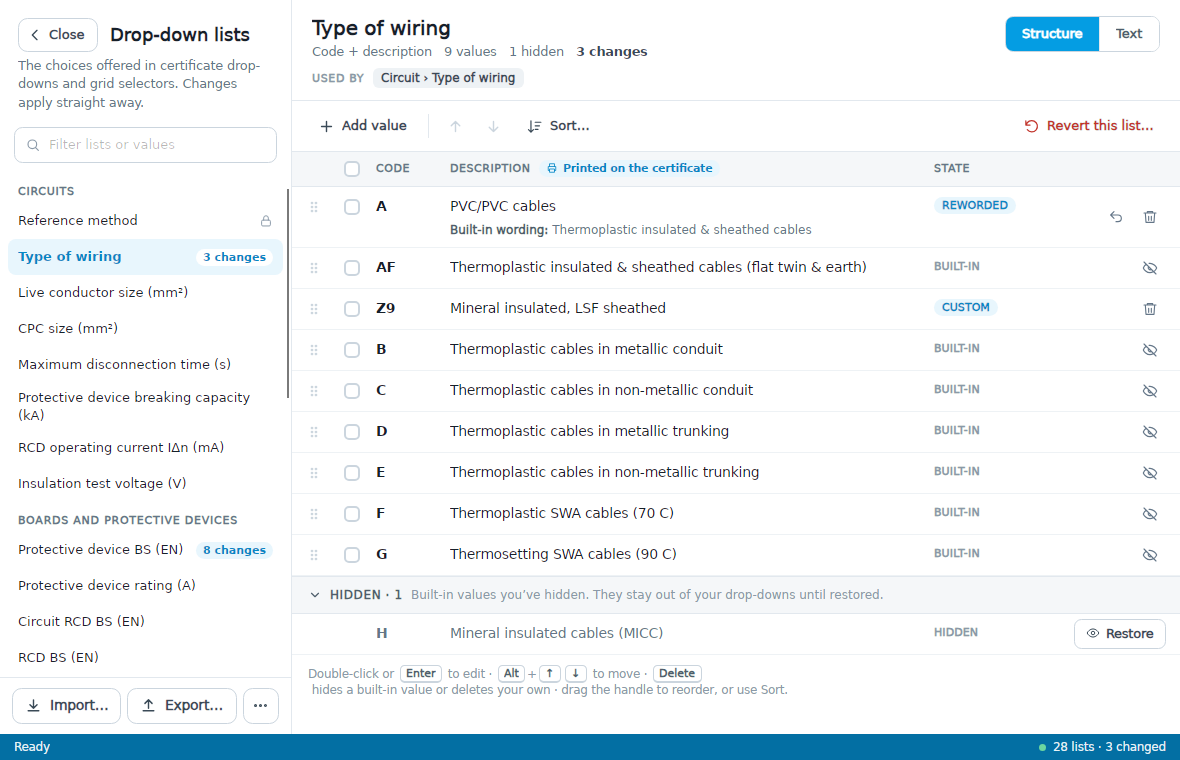
You can add your own values, hide the ones you never use, reword a label or description, reorder or sort a list, and share lists with colleagues. Changes need no restart — any certificate you open afterwards uses them. Your existing lists are carried over the first time this version starts.
Custom drop-down values such as wiring types and reference methods now travel with a .pex file too, so someone who opens it without those values in their own lists no longer sees just the code, or a blank description on the PDF.
Options → General → Reset Lookups now puts every drop-down list back to the built-in values straight away, without a restart. It removes your own values, wording, hidden values and order, and asks first.
Read more in our Drop-down List Manager documentation.
Fitting Your Logo
A new logo editor helps you fit your company and association logos precisely. Move or resize the frame to choose what goes in the box, trim the margins, remove a white background, and see the logo as it will print before you save it.
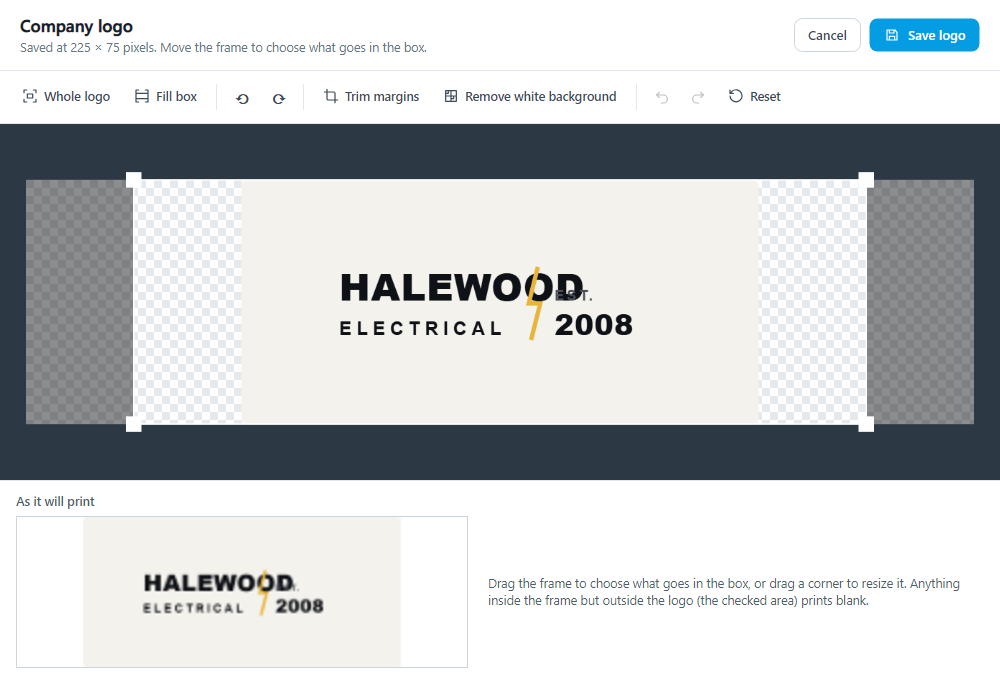
Logos are also sharper on the PDF — they were pixelating — and now keep their shape when selected, rather than being stretched, including after importing a company details pack. Select a logo you saved before this version again to get the sharper, unstretched print (and export your company details pack again if you share one).
Read more in our Company and Engineers documentation.
Other Changes and Fixes
- New: Shine Forms now asks before adding more than 100 circuits to a board in one go, so a mistyped number of ways (5666 for 56) can no longer leave it unresponsive. Set the number, or 0 to never ask, under Options → Confirmation.
- New: “Override do not print N/A schedule items in certificate options” (Print, Print Options) uses your main “Do not print schedule items marked as N/A” setting for every certificate you print.
- New: “Allow inner copy in circuit controls” (Distribution Board, General). Off by default, so copy and paste always use the whole circuit cell. Tick it to copy and paste just the text you have highlighted inside a circuit designation.
- Change: Delete Circuit has moved under Paste Value on the Circuits and Test Results ribbon.
- Change: Extent of sampling and operational limitations are now in tabs, to give a bit more space.
- Fix: EICR and EIC 2022/2024/2026 PDF — the max permitted Zs note under a board no longer names circuits that have no max Zs at all as having been manually entered. Only a circuit carrying a value the software did not work out from the Chapter 41 tables is named.
- Fix: merging boards now adds them at the end of the report, in the order they were in the report they came from, rather than interleaving them with the report’s own boards.
- Fix: EICR and EIC 2026 — minimising “Particulars of the installation at the origin” no longer collapses the two sections beneath it.
- Fix: the mouse wheel no longer changes the value of a drop-down, number or date box it passes over, including in the circuit schedule; it scrolls the form instead.
- Fix: after searching the circuit schedule, the up and down arrow keys now move through the matching circuits instead of sticking or jumping to a different circuit.
- Fix: the splitter under the limitations grid could not be used.
- Fix: clicking Schedule Manager, Style Editor or Drop-down lists while it is already open now brings its window to the front.
- Fix: clicking Open repeatedly while a certificate was still opening showed “Unable to Open Certificate” before opening it anyway.
- Fix: the software crashed when an inspection schedule item had a blank description.
- Fix: Export observations to Excel — the column headings were garbled, and symbols such as Ω and ° now show correctly in Excel.
- Fix: EL 2025 inspection (ELI) PDF — comments written only in the Location column were not printed.
- Fix: ELS 2025 and ELL 2025 PDF — a variation from standards recorded only as a corrective action or an area was left off the variations table.