
Shine Forms 2026.6 for BS 7671+A4:2026
Shine Forms version 2026.6 for BS 7671:2018+A4:2026 is now available.
As well as new Amendment 4 forms, we launch our new Style Editor to bring your brand onto the certificates and reports you issue to your customers.
BS 7671 Amendment 4: 2026 Forms
Amendment 4 was published on 15 April 2026, and from 15 October 2026 new work needs to be certified against it. Shine Forms 2026.6 adds our new Amendment 4 electrical forms — including the EIC 2026 and the EICR 2026 — so you can certify to the new edition as soon as you need to.
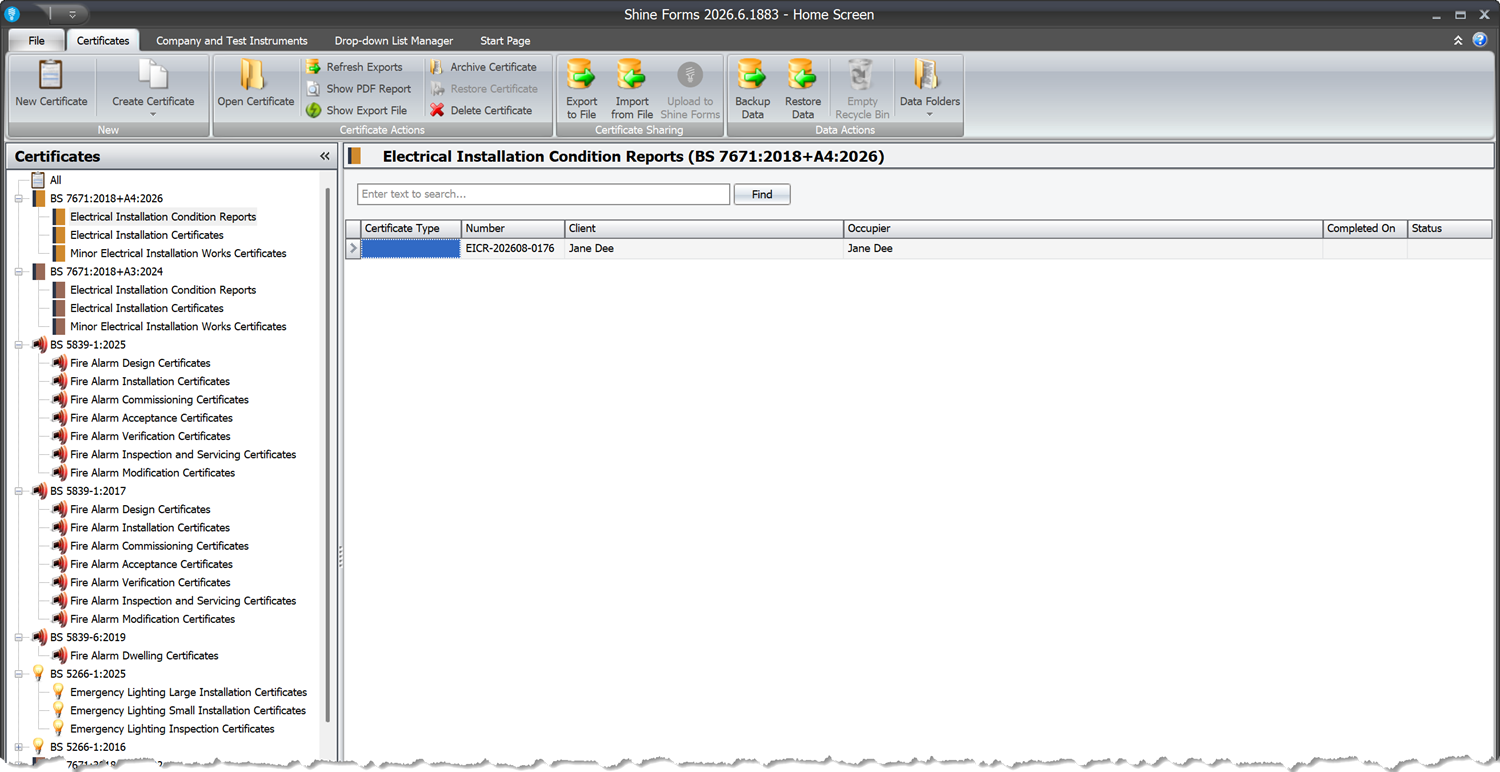
The 2024 forms haven’t gone anywhere. Certificates you have already issued are untouched, work in progress carries on exactly as it is, and when you create a new certificate you choose which edition you are working to. That means you can move over job by job, at your own pace, right up to the October deadline.
If you’d like a refresher on what actually changed in the regulations, our guide Amendment 4 — What’s Changed & What to Do walks through the new chapters and sections and what they mean for your paperwork.
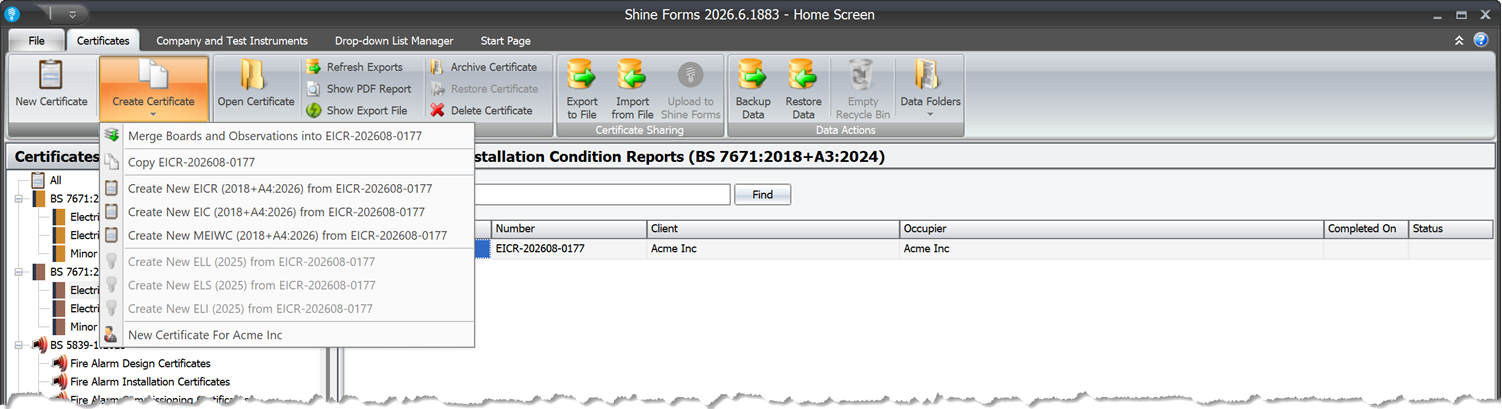
You can also upgrade any of your 2024 certificates to 2026 by selecting the certificate in the Home Screen, then click .
Branded PDFs With The Style Editor
Your certificates can now carry your own branding. The new Style Editor lets you build a design — a cover page, a matching end page, header, footer and edge bands that repeat on every page, and a set of report colours — and then make it the default for the certificate types you choose. After that there is nothing to remember at print time: those reports simply come out branded.
Open it from File → Style Editor on the Home Screen. It starts you off with a library of built-in designs, from three plain starters that pick up your company details automatically, through to six fully branded showcase looks:
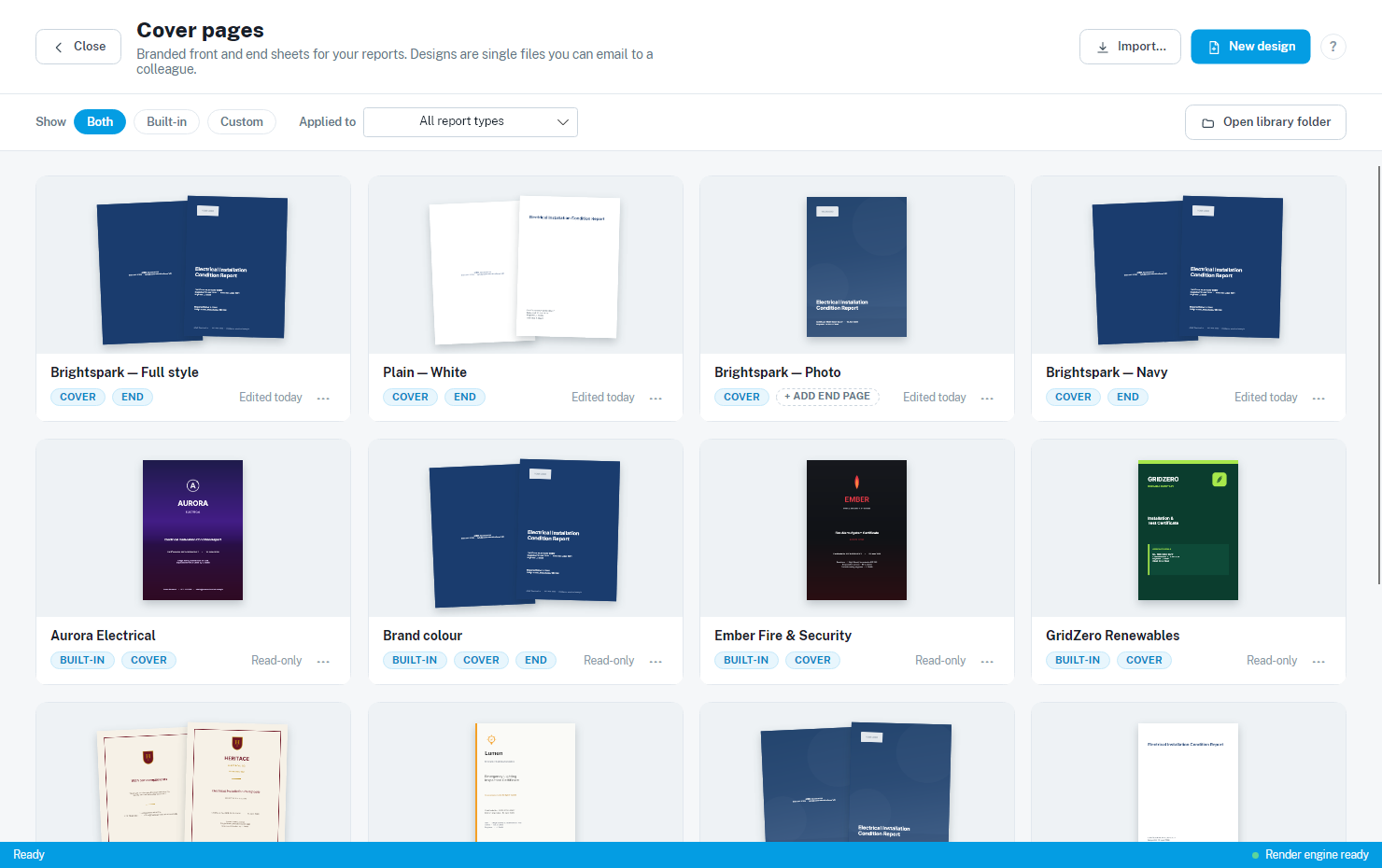
Pick one, duplicate it, and make it yours. Drag blocks around the canvas, drop in your logo, and add text that fills itself in from each certificate — the certificate number, the inspection dates, the client and installation address, your company contact details:
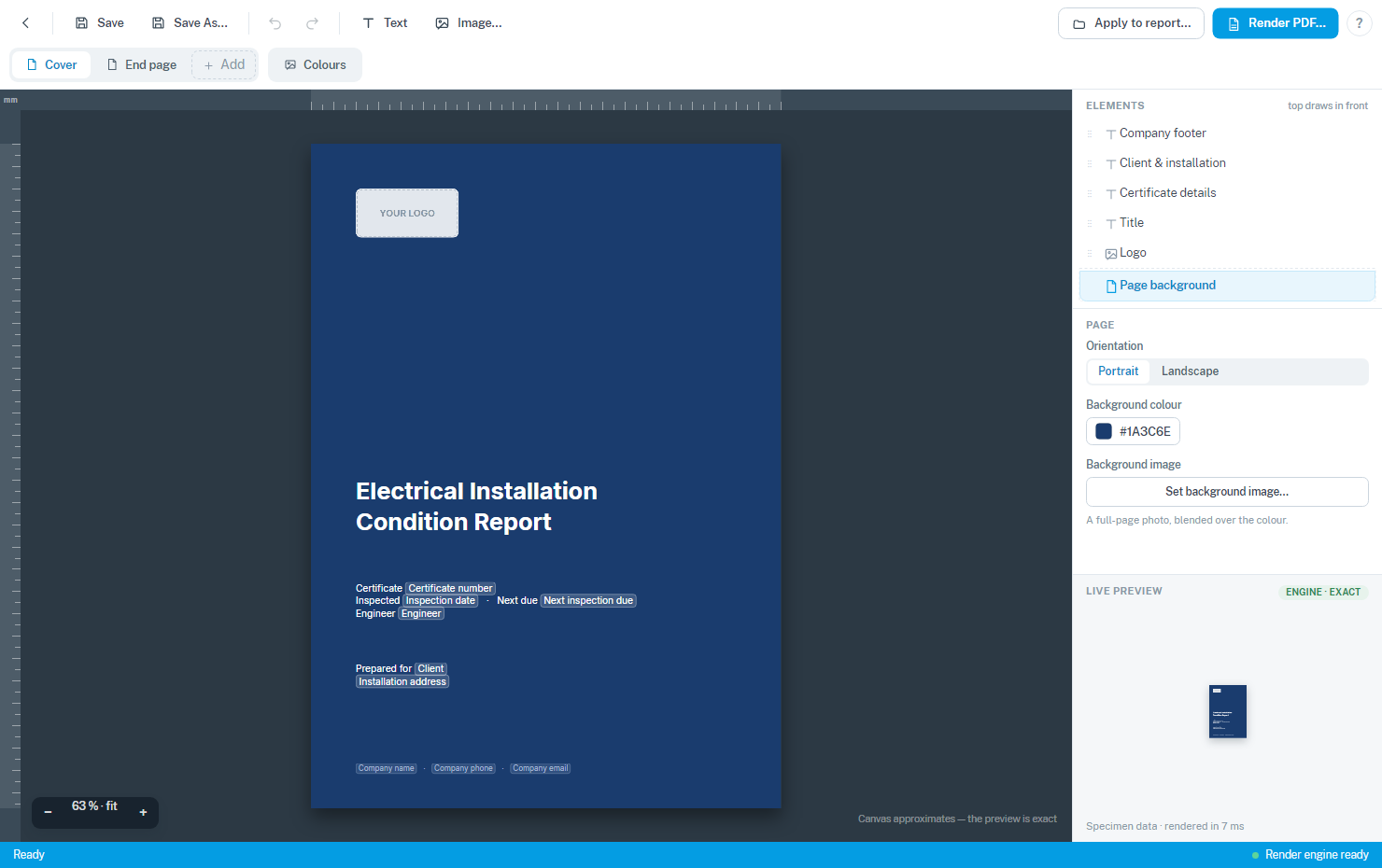
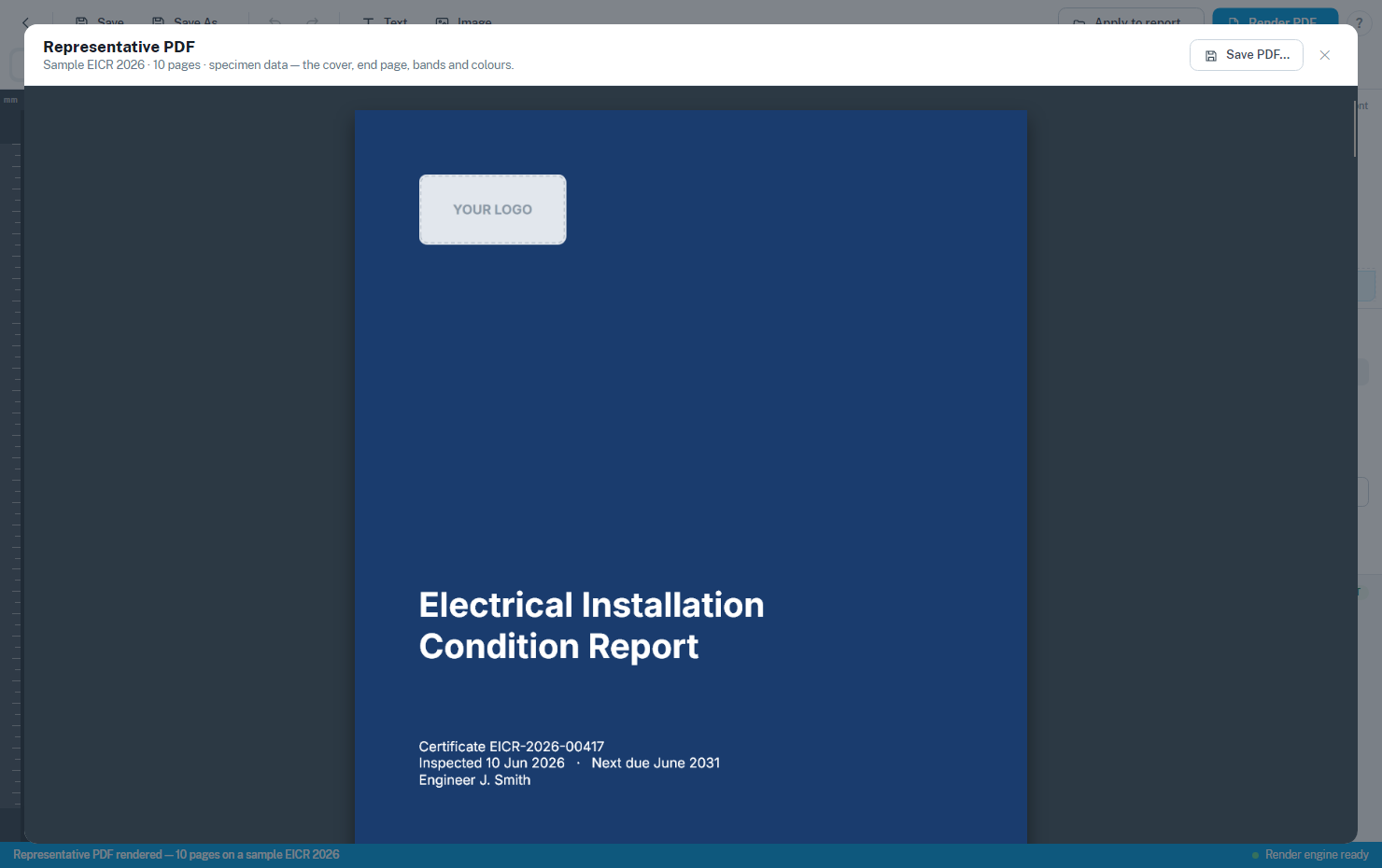
Render PDF… shows you the finished article on a sample certificate with specimen data, so you can see exactly what your customers will get before you commit to anything:
When you’re happy, Default for report type… puts the design to work. Tick the certificate types it should cover — or tick a whole family in one go, which picks up certificate types we add in future versions too:
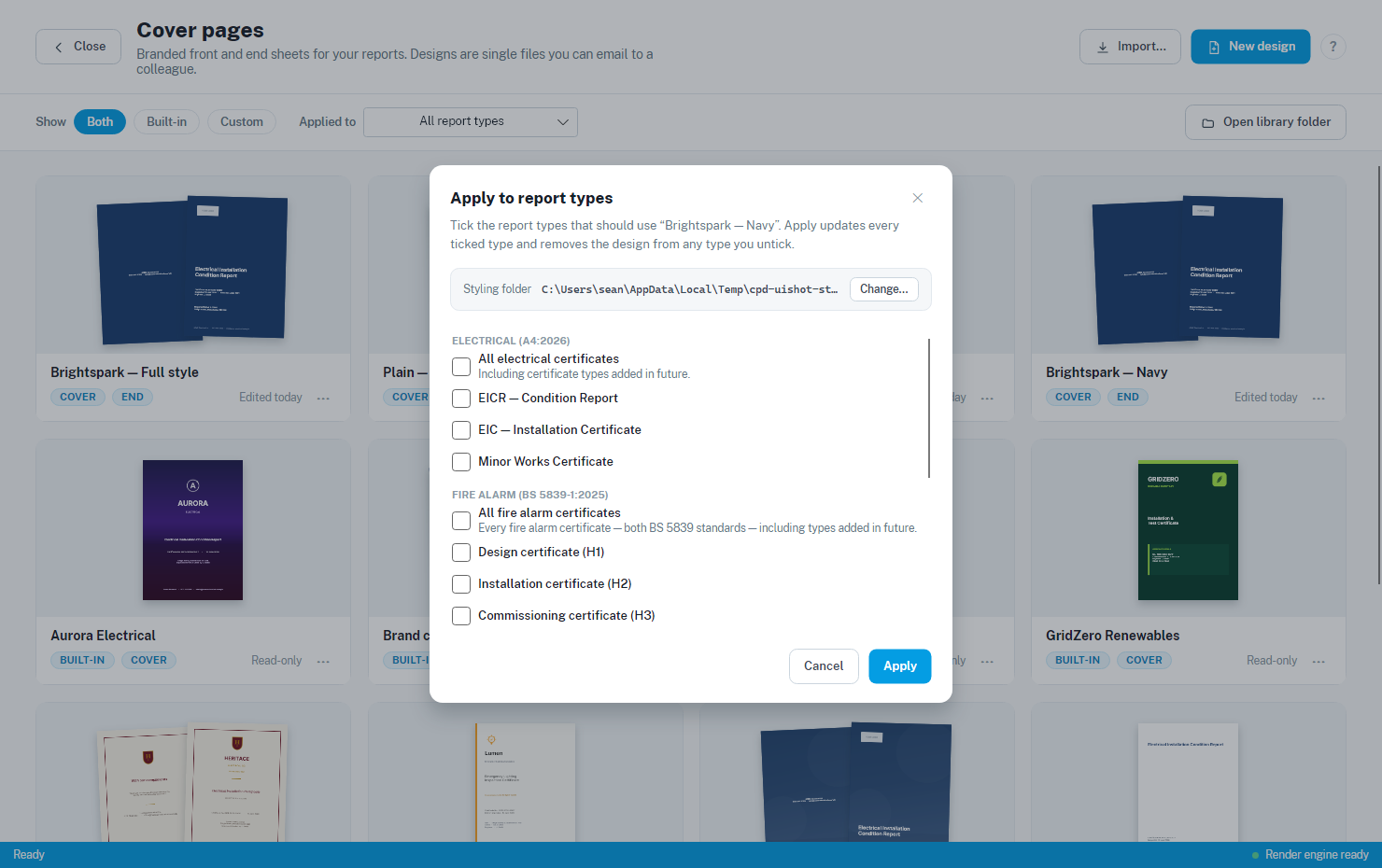
Designs are a single file, so you can email one to a colleague and they can import it straight into their own library. Reports with no default design print exactly as they always have.
This release brings the new PDF styling to the latest electrical (Amendment 4: 2026), fire alarm and emergency lighting forms.
Read more in our Style Editor documentation.
Faster PDFs And Faster EICRs
Generating a PDF is now much faster across the Amendment 4: 2026 electrical, fire alarm and emergency lighting forms.
We’ve also supercharged how EICR certificates load. Reports imported from a PEX file used to drag when they carried photo-heavy appendices — now they snap open. Appendix photos are resized behind the scenes rather than stored at full resolution, so you get the same crisp results with none of the wait, and lighter PDFs into the bargain.
The Schedule Manager, Outside The Certificate
The Schedule Manager has been rebuilt, and it no longer lives inside a certificate. It now has its own home under File → Schedule Manager on the Home Screen, so you can look after your inspection schedules whenever you like rather than only when you happen to have a report open.
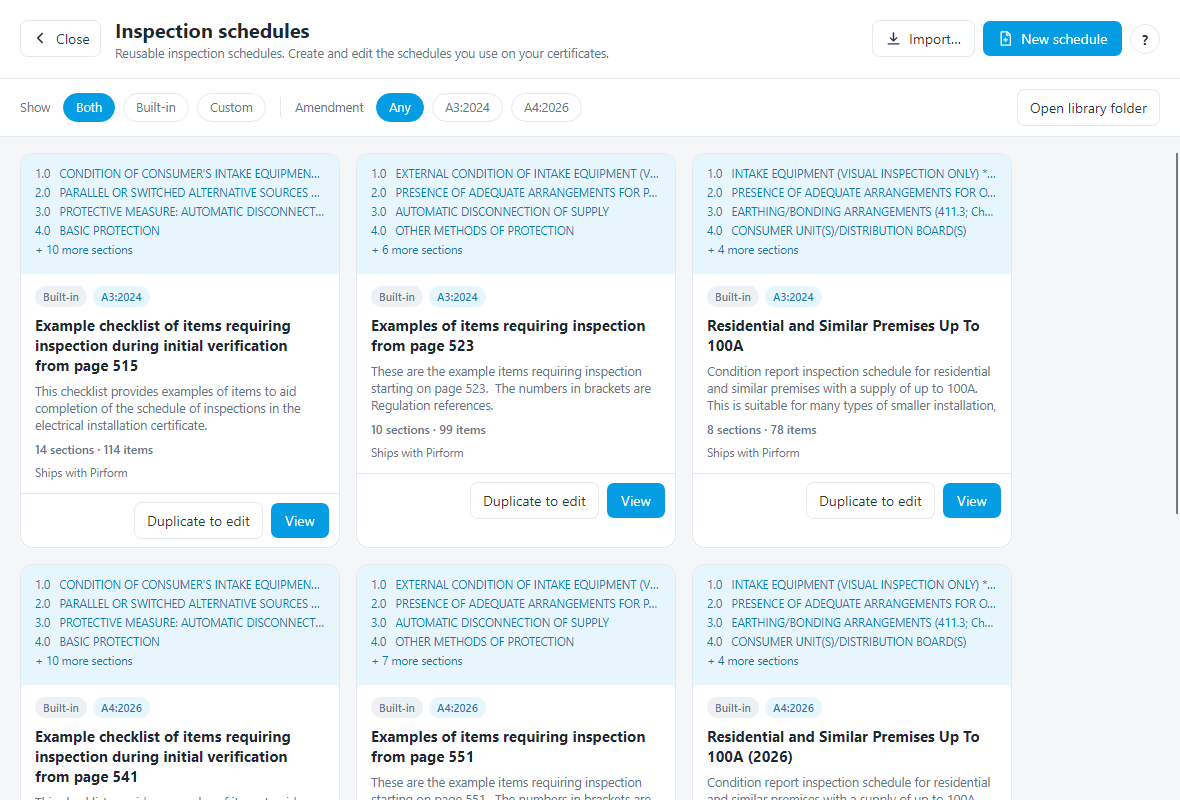
Every schedule is a card showing a preview, whether it is built-in or one of your own, and how many sections and items it holds. Each one also carries an amendment badge — A3:2024 for the 2024 forms, A4:2026 for the new Amendment 4 forms, or both — and you can filter the library by it. When you create a new certificate, the Schedule drop-down offers the schedules that match that certificate’s amendment, so an EICR 2026 shows you A4:2026 schedules and an EICR 2024 shows you A3:2024 ones. Custom schedules you built before amendment tags existed are offered for both, so nothing you made goes missing.
The standard BS 7671 schedules stay read-only, so the standard wording is always there to come back to. Duplicate to edit makes an editable copy in your library — carrying its amendment tag with it — and opens it straight in the editor:
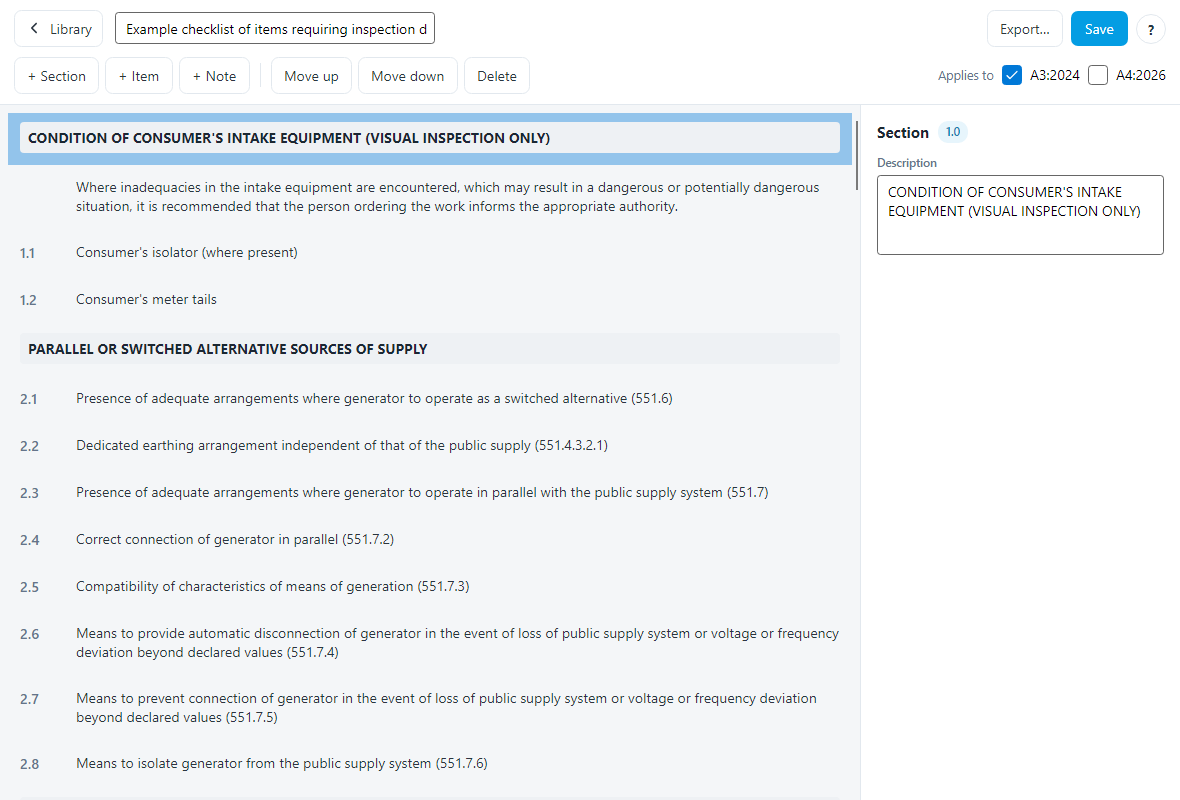
Numbering looks after itself as you add sections, items and notes or move rows around, and you can give an individual item its own outcome list where the standard codes don’t fit.
Read more in our Schedule Manager documentation.
Editing Inspection Schedule Text In Place
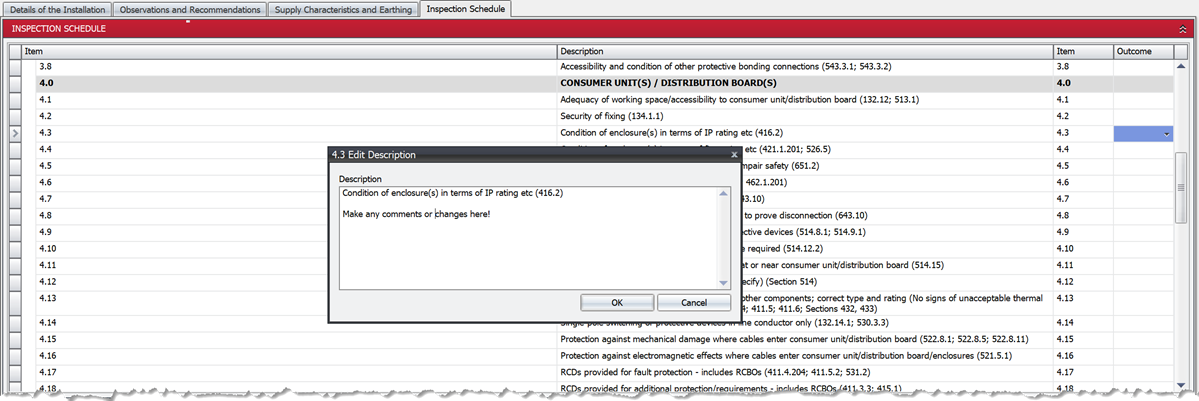
On the EICR and EIC 2024 and 2026 forms, you can now edit the text of an inspection schedule line directly from the schedule — just double-click it and type. Handy when a single item needs its wording adjusting for one particular job and you don’t want to build a whole custom schedule for it.
Circuit Columns Stay In View
Scrolling Circuits and Test Results sideways used to take the circuit number and designation off the left of the screen, which made it easy to lose your place and type a reading against the wrong circuit. The columns up to and including the designation now stay in view as the rest of the grid scrolls.
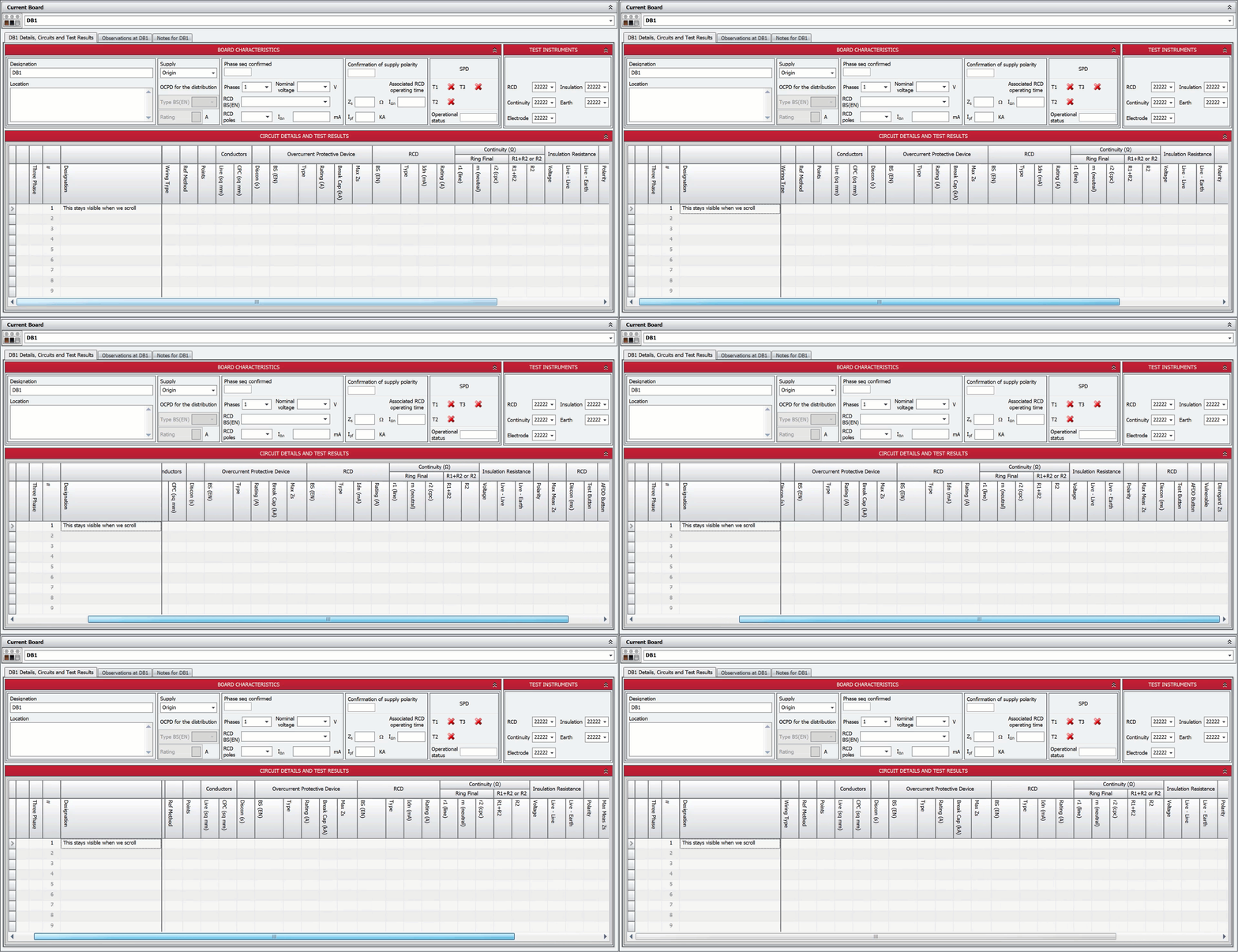
If you preferred it the old way, you can switch it off under Shine Options → Boards and Circuits → General.
Read more in our Boards and Circuits documentation.
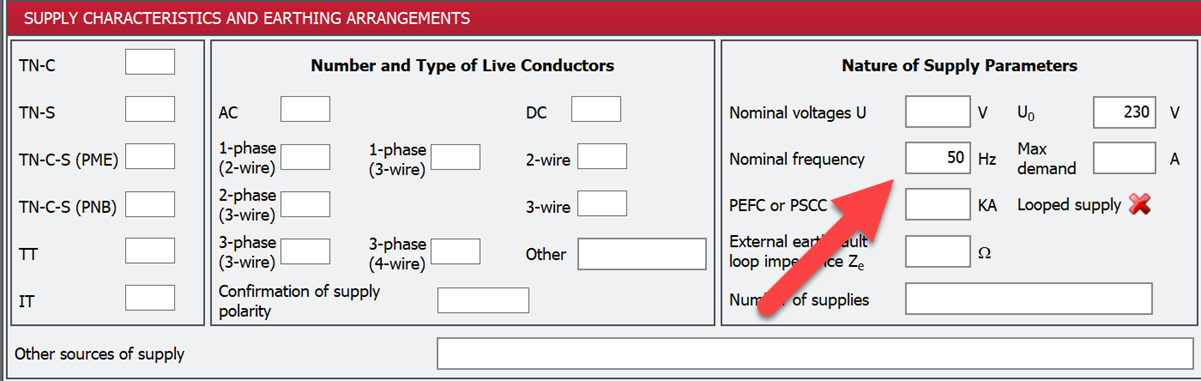
Supply Parameters Nominal Frequency Default Value
The nominal frequency now defaults to 50Hz!
Licence Activation Behind Corporate Proxies
Shine Forms could fail to activate or update licences on networks that route internet traffic through a proxy. The cause was an internal connectivity check that relied on a “ping” (ICMP), which proxies and firewalls commonly block — so the app gave up before it ever contacted our servers.
Connectivity is now checked by actually reaching the Shine Forms service over HTTPS, through whatever proxy your device uses. Licence activation, licence updates and version checks all go through your corporate proxy and authenticate automatically using your signed-in Windows account, and network requests time out gracefully instead of hanging if a connection stalls. The same fix has been applied to the Shine Forms Support Tool.
Other Changes and Fixes
- Change: added an option to enter a different EICR reviewer address to more closely matching the model form.
- Change: the FA Inspection H6 2025 form now has an appendices control.
- Change: added a single pole option to the RCD poles list, and that list is now user-definable.
Updates Since Release
Since 2026.6 was released we have issued the following updates, most of them to the Minor Works (MW) certificates.
-
New: added the ability to replace an inspection schedule (read more here).
-
New: MW 2026 (additional details) — the distribution board OCPD now has BS EN, Type, Rating and breaking capacity (kA) fields, and Type is filled in from the BS EN choice just as it is for circuits.
-
New: MW 2026 (additional details) — the distribution board RCD now has a Rating (A) field alongside BS EN, Poles and IΔn.
-
New: MW 2022 and 2026 — the circuit OCPD “Max permissible Zs” field is now on the standard form as well as the additional-details form.
-
New: MW 2026 — you can record a multifunction test instrument for the board, and an instrument set up for two or more test functions is offered automatically. Its serial number prints on the PDF.
-
New: MW 2026 PDF — the circuit OCPD’s maximum permitted Zs prints on its own line under the overcurrent protective device.
-
New: MW 2026 PDF — the board OCPD breaking capacity and the board RCD rating print from the new fields.
-
Change: MW 2026 PDF — the “applies where not connected to installation origin” board supply block is only printed for an additional-details certificate.
-
Change: MW 2026 PDF — the Section D “Earth continuity” tick now prints, on the R1+R2 / R2 row.
-
Change: MW 2026 — captions now match the model form: Section B reads Ze and “supplying the final circuit”, the board panel reads Zdb, RCD operating time is “At IΔn” in ms, and breaking capacity is in kA.
-
Fixed: BS 5839-1:2025 fire alarm inspection (G/H6) certificates created before version 2026.6.1881 failed to open with an error, both when opened directly and when imported from a .pex file. They now open normally.
-
Fixed: Style Editor was only showing when experimental features were enabled.
-
Fix: crash when redrawing in the inspection schedule.
-
Fix: changing a dropdown with the arrow keys did not change the associated value, such as the Type value when the BS EN changed.
-
Fix: PASS/FAIL and YES/NO tick boxes on every certificate page were shorter than the other fields on displays scaled above 100%; they now match the row height.
-
Fix: MW 2026 — the “Lightning protection system” value no longer clips to “AS:”.
-
Fix: MW 2022 and 2026 — choosing a circuit RCD BS EN did not fill in the RCD Type box on either form; it now does, as the OCPD BS EN choice does.
-
Fix: MW 2026 — the earthing conductor and main protective bonding tick boxes were misaligned and a different size on scaled displays; the Continuity check, Lightning protection and Specify other boxes now line up in their columns at any Windows scale.